

Practice Choir Music in Your Car with CarPlay & Android Auto
Driving to rehearsal, to work, or just running errands? With Apple CarPlay and Android Auto, you can use ChoirMate right from your car's display and practice your parts while you drive.

Getting Started
ChoirMate appears automatically on your car's display when you connect your phone. You don't need to do anything special.
Apple CarPlay
Connect to your car via USB or wirelessly. The ChoirMate icon shows up alongside your other apps.
Android Auto
Connect to your car via USB or wirelessly. ChoirMate appears in the media app list on the Android Auto screen.
When you open ChoirMate in the car, you'll see two tabs:
Practice
Your personal and group practice lists. Start a practice list and everything plays automatically.
Set Lists
Browse your choir's set lists, pick a song, and play audio files for your voice part.
Browse and Play
From the set lists tab, you can browse your choir's repertoire. Tap a set list to see the songs, and tap further to see available audio files. You can select your voice part using the button in the top right, just like in the app.
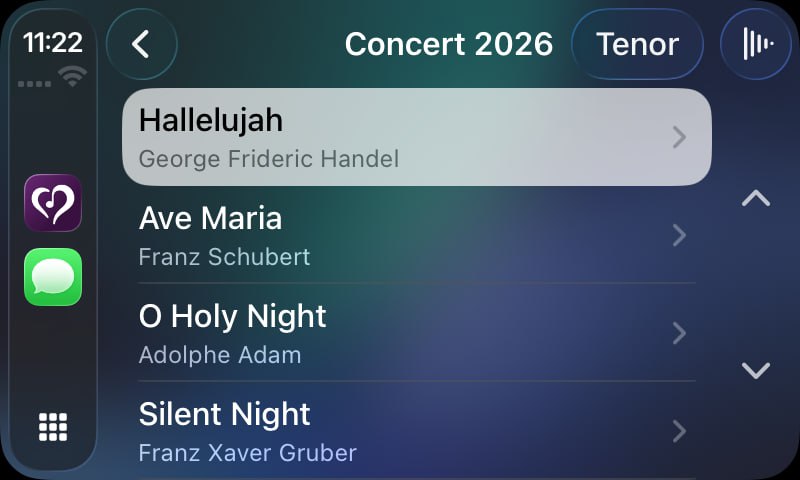
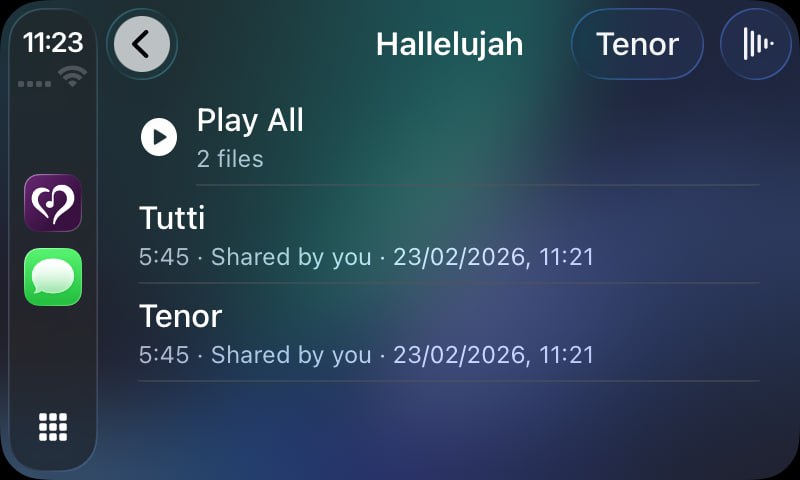
You can also use the "Play All" button to start playback from the top of a set list or practice list. Playback continues automatically from song to song.
The Now Playing Screen
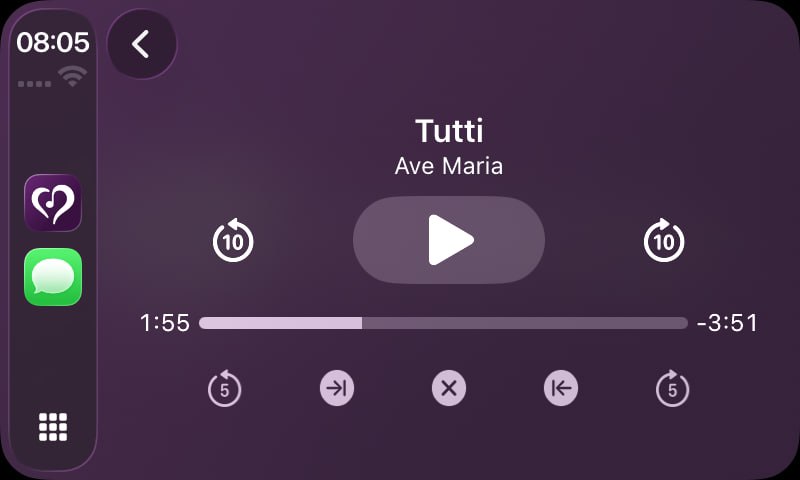
When music is playing, you get a full now-playing screen with song title, voice part name, progress bar, and controls for play/pause, skip forward and back, and 10-second seek.
Repeat Part Mode
Need to drill a specific section of a song? Repeat Part mode lets you loop a selected section over and over, perfect for nailing a tricky passage while you drive.
How It Works
Activate Repeat Part mode
On the now playing screen, tap the repeat part icon (the inward-pointing arrows). The controls switch to repeat part controls.
Set the start point
Play the song and tap the start button (the arrow-to-line icon on the left) when you want the loop to begin. The button lights up to show the start point is set.
Set the end point
Tap the end button (the arrow-to-line icon on the right) when you want the loop to stop. Playback now loops between the two points.
Fine-tune with ±5 seconds
Once a start or end point is set, a ±5-second button appears next to it. Use it to nudge the point forward or back to get it just right.
Reset or exit
Tap the X button in the center to clear the start and end points. Tap it again (when no points are set) to exit Repeat Part mode and return to the standard playback controls.
💡 Tip You can set just a start point or just an end point. For example, set a start point to skip a long intro, or an end point to loop everything up to a specific spot.
Repeat Mode
In addition to Repeat Part mode, you also have standard repeat mode on the now playing screen. Tap the repeat button to cycle through:
- Off — playback stops after the last song
- Repeat all — the entire list starts over
- Repeat one — the current song loops
Voice Part Selection
When browsing set lists or practice lists, you can select your voice part using the button in the top right corner. ChoirMate remembers your default voice part and shows it first. Tap to switch to a different part, and the list automatically filters to show only audio files for that voice.
Practice Lists in the Car
With a ChoirMate Premium subscription, you can build personalized practice lists with exactly the tracks you need. These are available directly in the car, start a practice list and everything plays in order without touching your phone.
Learn more about practice lists in the practice lists guide.
Quick Summary
- Works with both Apple CarPlay and Android Auto
- ChoirMate appears automatically when you connect
- Browse set lists and practice lists right from your car's display
- Select your voice part to filter audio files
- Use Repeat Part mode to loop tricky sections
- Fine-tune the loop with ±5-second buttons
- Playback continues automatically from song to song