Choir leaders and administrators can create events so members know when and where to meet, what to prepare, and whether they need to respond.
Create an Event
- 1
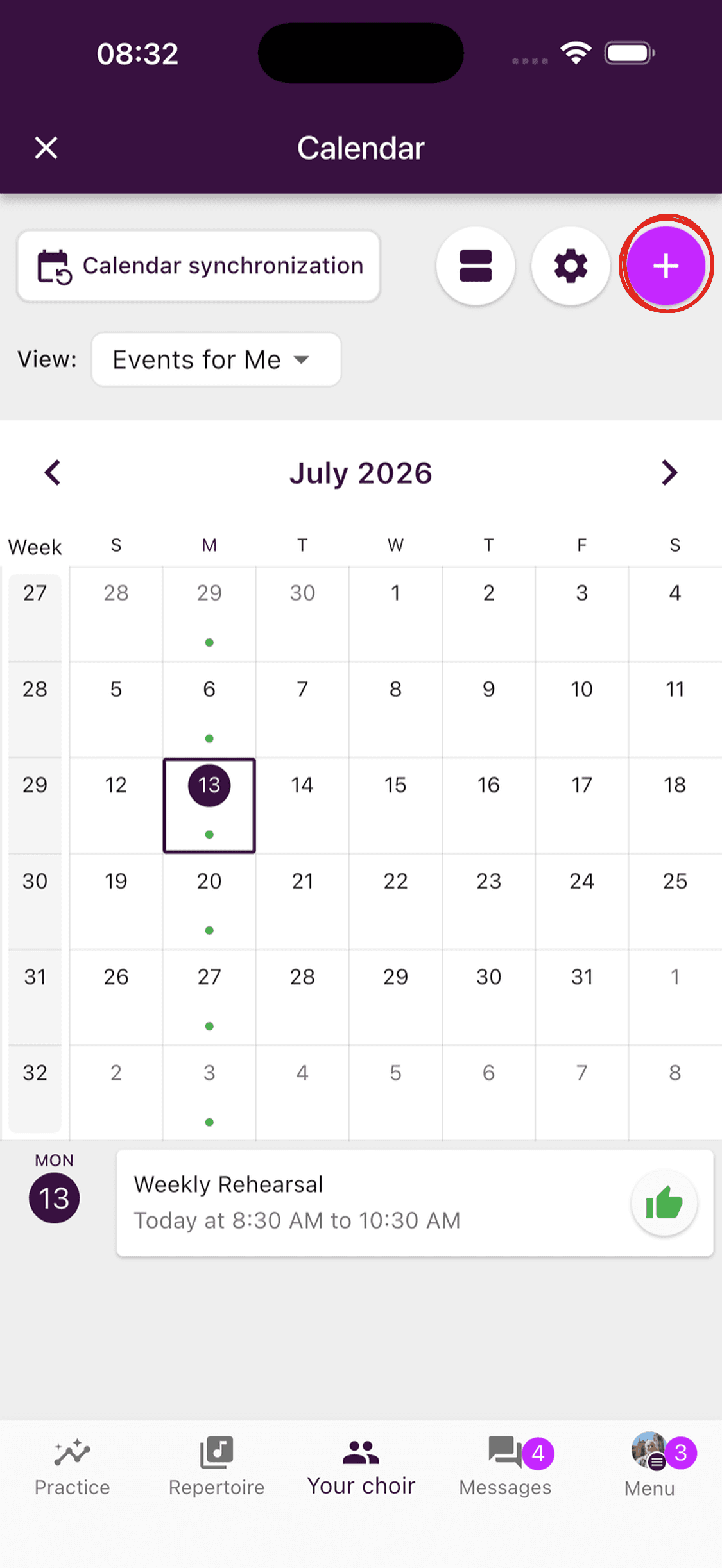
Open the calendar
Go to Your choir and open Calendar.
- 2
Start a new event
Tap the + button in the upper-right corner.
- 3
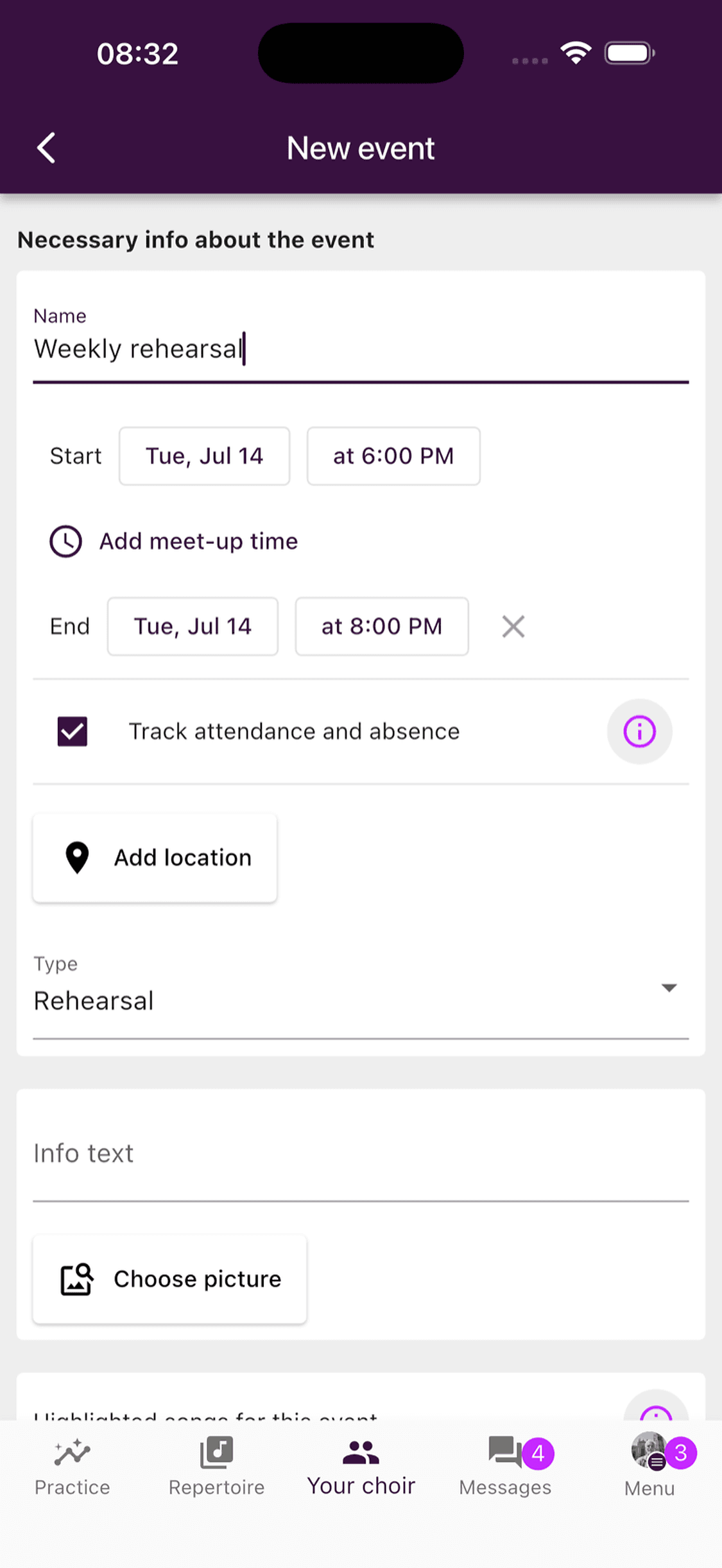
Add the essential details
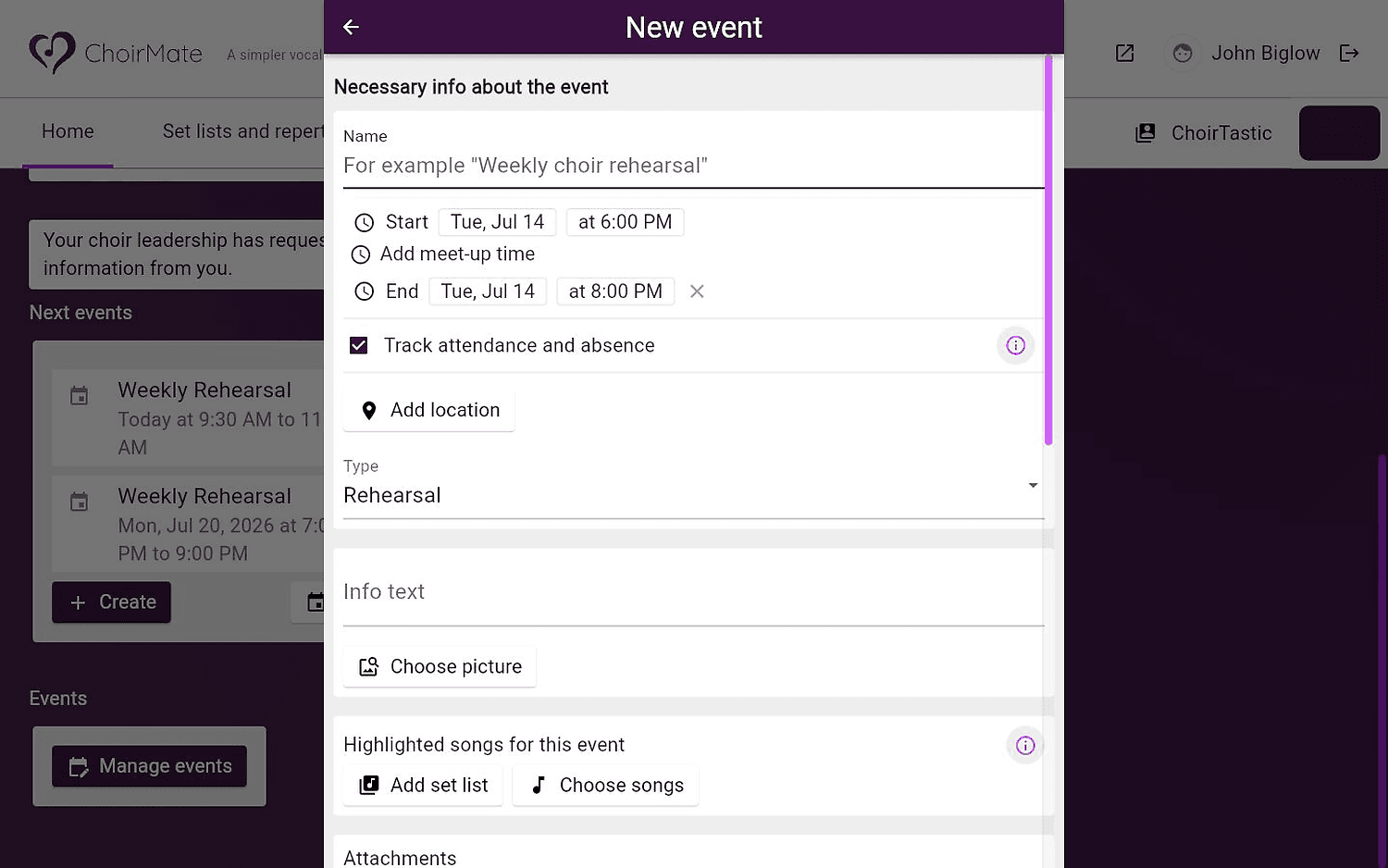
Enter a clear name, then confirm the start and end date and time. You can also add a meet-up time, location, and event type.
Turn on Track attendance and absence if members should respond or if your choir needs attendance records.
- 4
Add useful context
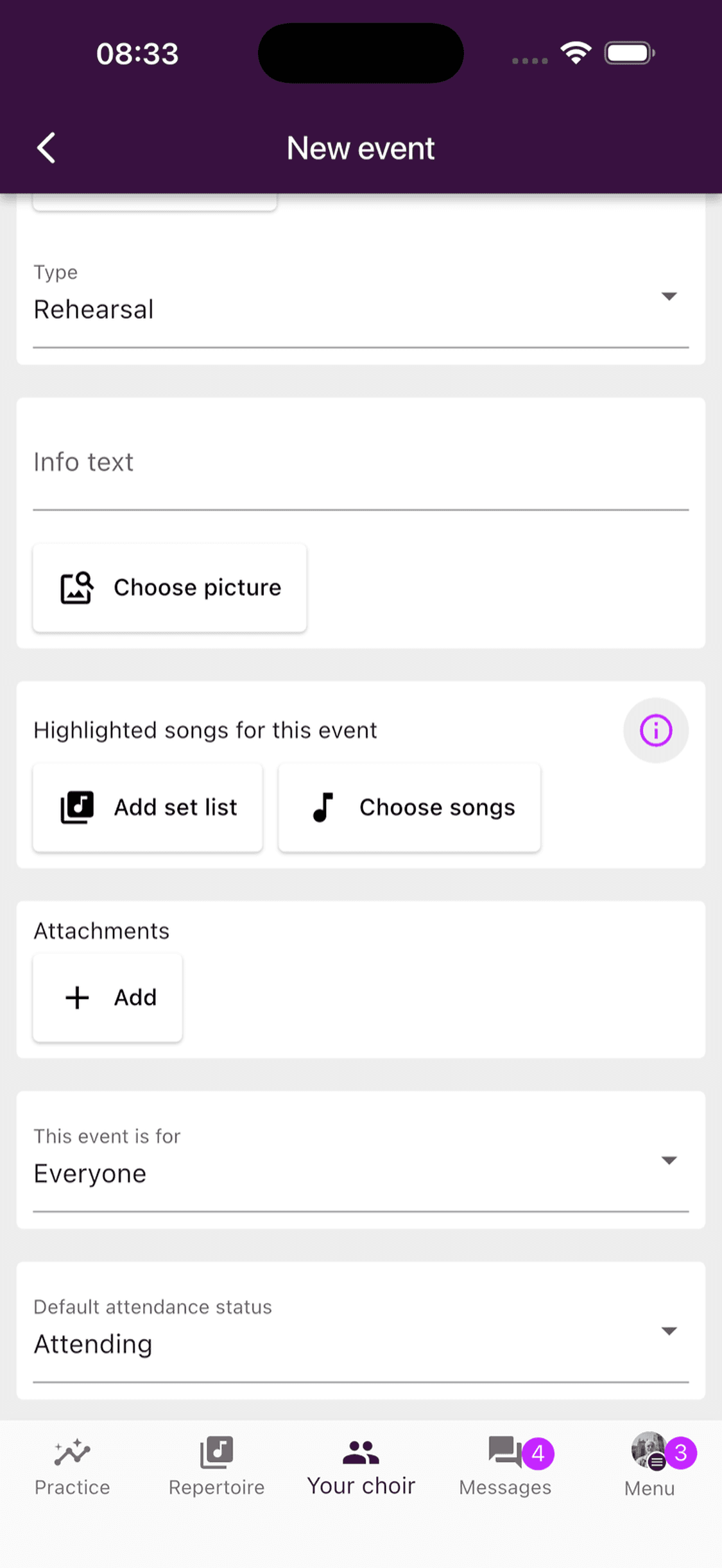
Optionally add an info text, picture, highlighted songs, set list, or attachments. Include only what members need for this event.
- 5
Choose the audience and attendance behavior
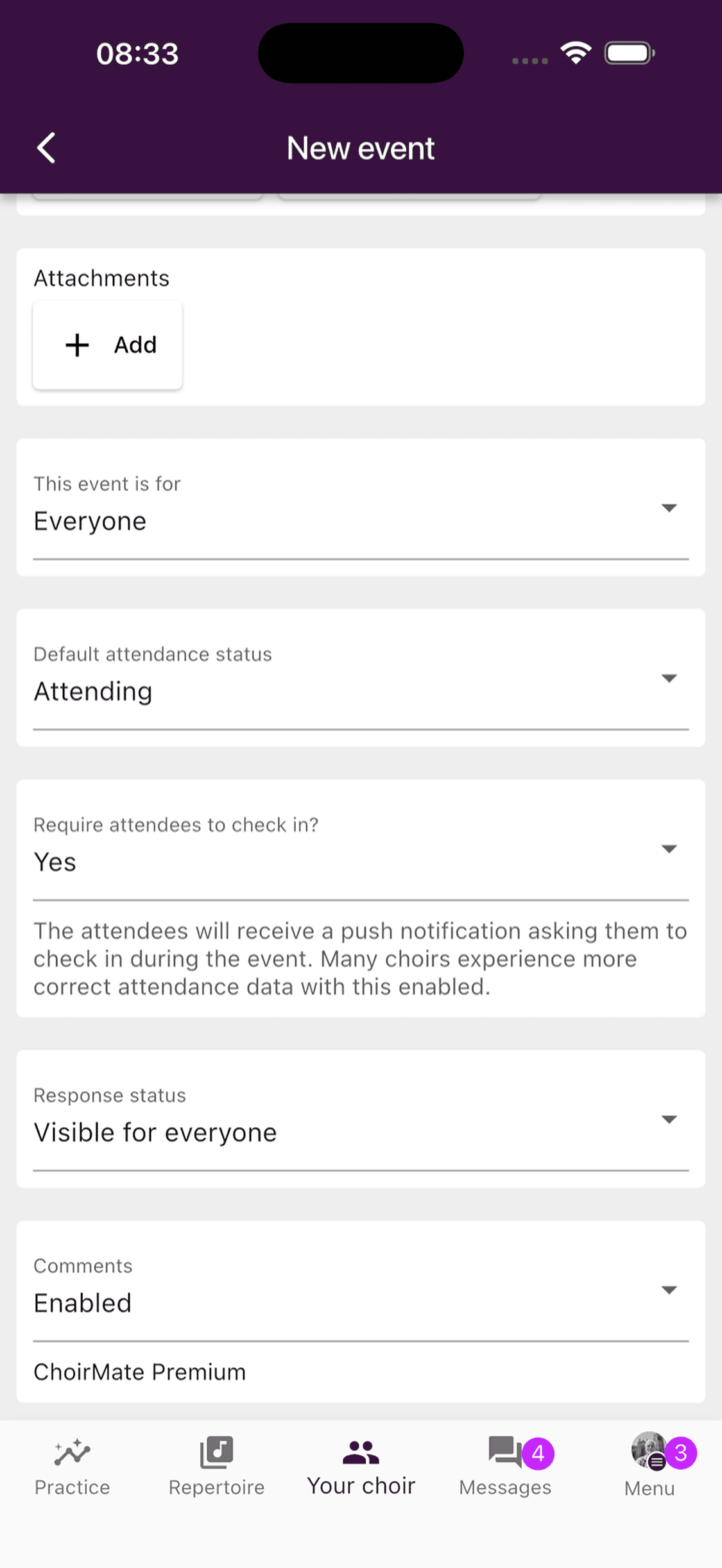
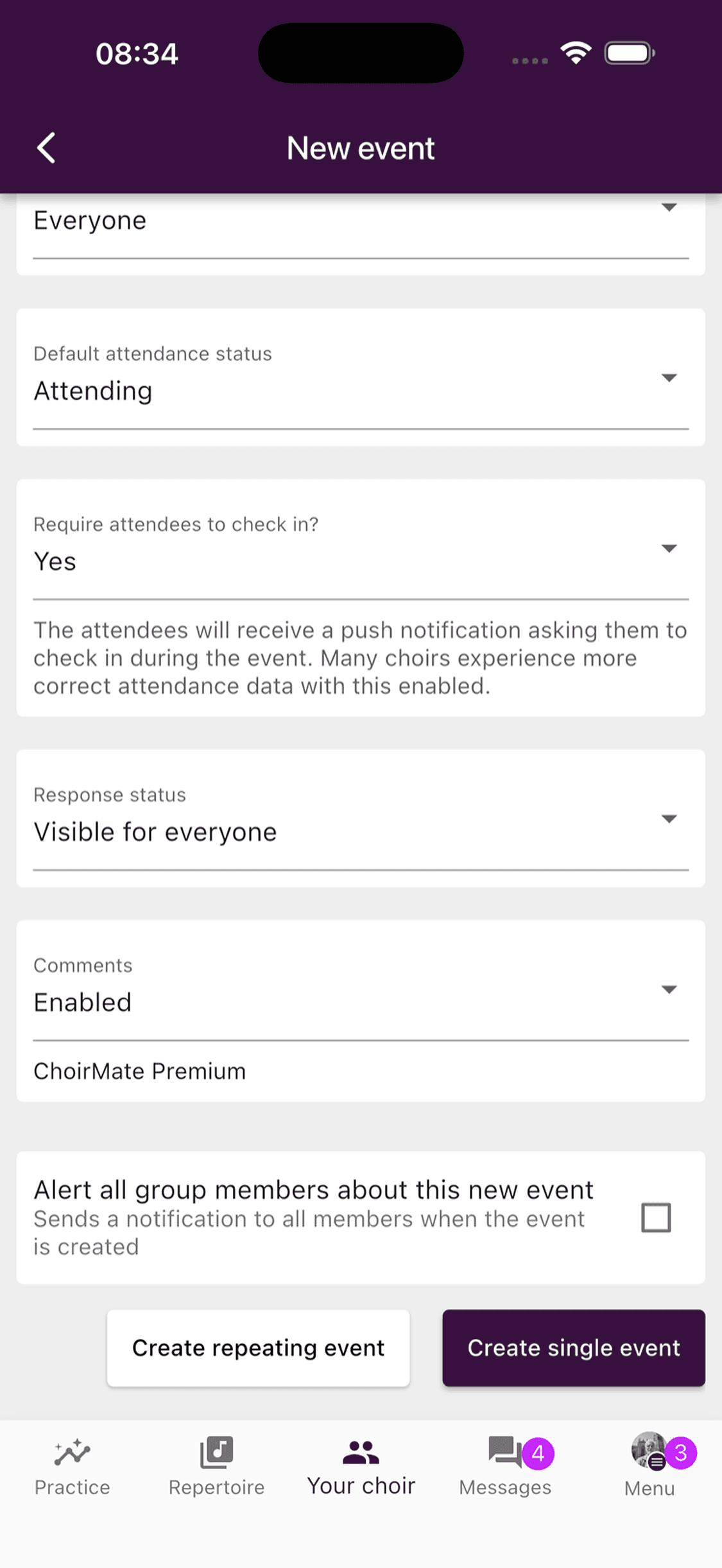
Under This event is for, choose who should receive and see the event. If attendance tracking is on, review the default attendance status, check-in requirement, response visibility, and comments.
- 6
Create one event or a series
Select Alert all group members about this new event if you want to notify members immediately.
Tap Create single event for one event, or Create repeating event for a weekly or every-two-weeks series.
- 1
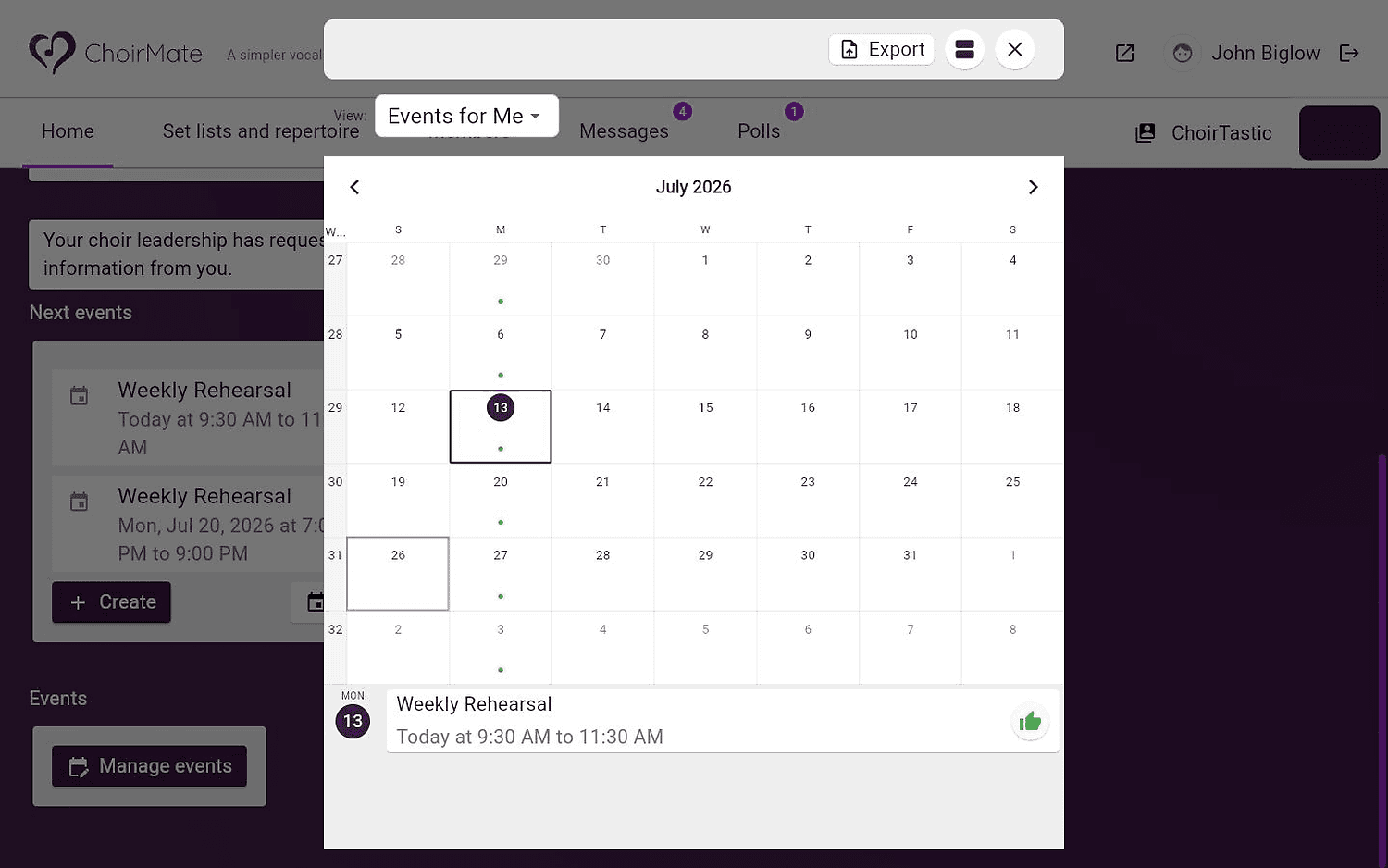
Open the calendar
Open your choir's calendar in the administration area.
- 2
Create an event
Choose the option to add an event, then enter its name, schedule, type, and any optional details.
- 3
Save the event
Review who the event is for and its attendance settings, then create the event.
Essential Event Details
Use a name that members can recognize quickly, such as Weekly rehearsal, Spring concert, or Section rehearsal for altos. Set the complete time range before adding the remaining details.
- Meet-up time adds an earlier arrival time without changing when the event itself begins. This is useful for call times, setup, or sound checks.
- Location gives members the place or address they need.
- Type identifies the event as a rehearsal, concert, hired performance, religious service, social event, or another type.
Information, Songs, and Attachments
The optional content fields help members prepare:
- Info text can include clothing, parking, preparation, or practical instructions.
- Picture gives a special event a recognizable cover image.
- Highlighted songs lets you add a set list or select individual songs. See Planned Songs for Events for more detail.
- Attachments can provide schedules, programs, or other supporting files.
Info
Highlighted songs are intended for a single event. If you choose to create a repeating series, ChoirMate asks you to continue without those songs.
Audience and Attendance
Choose Who the Event Is For
This event is for controls who can see and respond to the event. Use Everyone for choir-wide activities, or narrow the audience when only selected voice parts or members should participate.
Track Attendance and Absence
When Track attendance and absence is enabled, review these settings:
- Default attendance status: choose Attending when most members are expected, or Unanswered when each member should actively respond.
- Require attendees to check in?: members receive a prompt during the event to confirm that they are present.
- Lock attendance: available with an unanswered default; prevents members from changing their response while administrators retain control.
- Response status: make responses visible to everyone or only to administrators.
- Comments: choose whether members can comment on the event. Availability can depend on your choir's plan.
If you do not need responses or attendance records, turn attendance tracking off to keep the event simpler.
Create a Repeating Series
Tap Create repeating event, then choose Weekly or Every 2 weeks and continue.
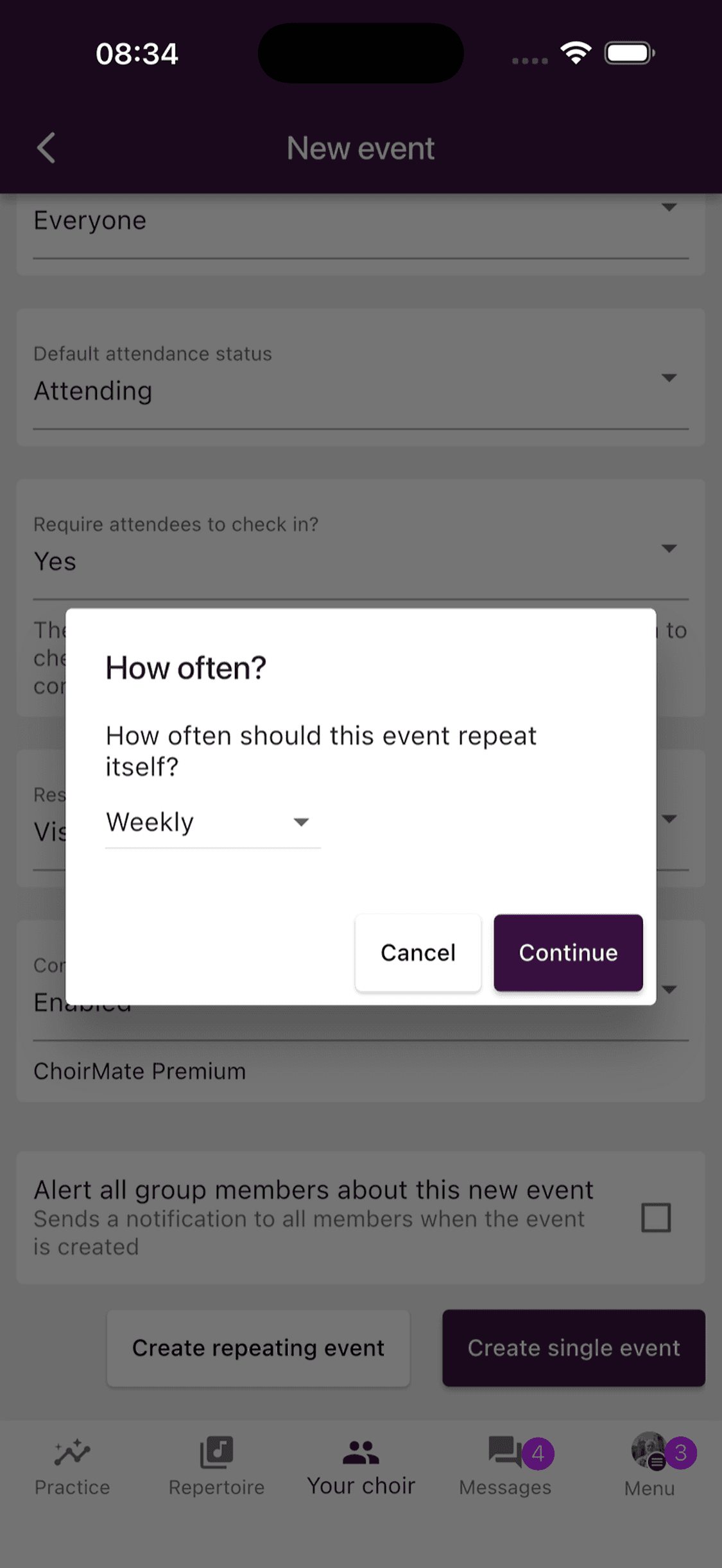
ChoirMate next asks for the series end date and creates the events through that date.
Info
The immediate member alert is only sent when creating a single event. ChoirMate warns you before creating a repeating series without alerts.
Before You Create the Event
- Check the date, time, and time zone.
- Confirm that the audience is correct.
- Decide whether members should be Attending by default or must respond.
- Add the location and preparation details members will need.
- Use the alert option for an important single event that members should see immediately.