Planned songs connect an event to the repertoire members should prepare. An administrator or editor can highlight one set list, choose individual songs, or use both. Members then find the selection directly on the event page instead of searching through the full repertoire.
Info
Adding planned songs requires an active group subscription or trial. Playing the whole selection from the event page requires Premium access.
Add planned songs in the app
- 1
Open the event
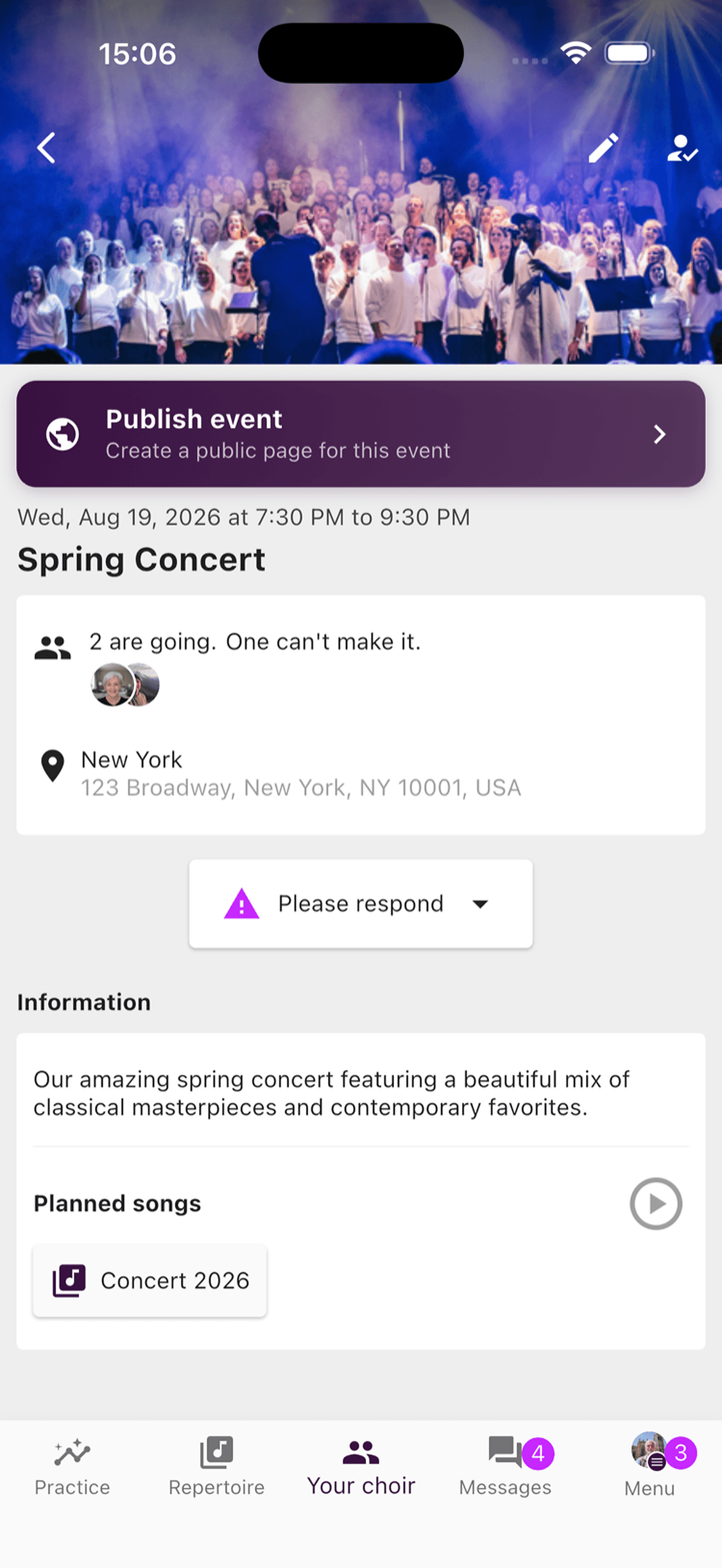
Open the event from Your choir or the calendar. Members can already see the current selection under Planned songs.
- 2
Edit the highlighted songs
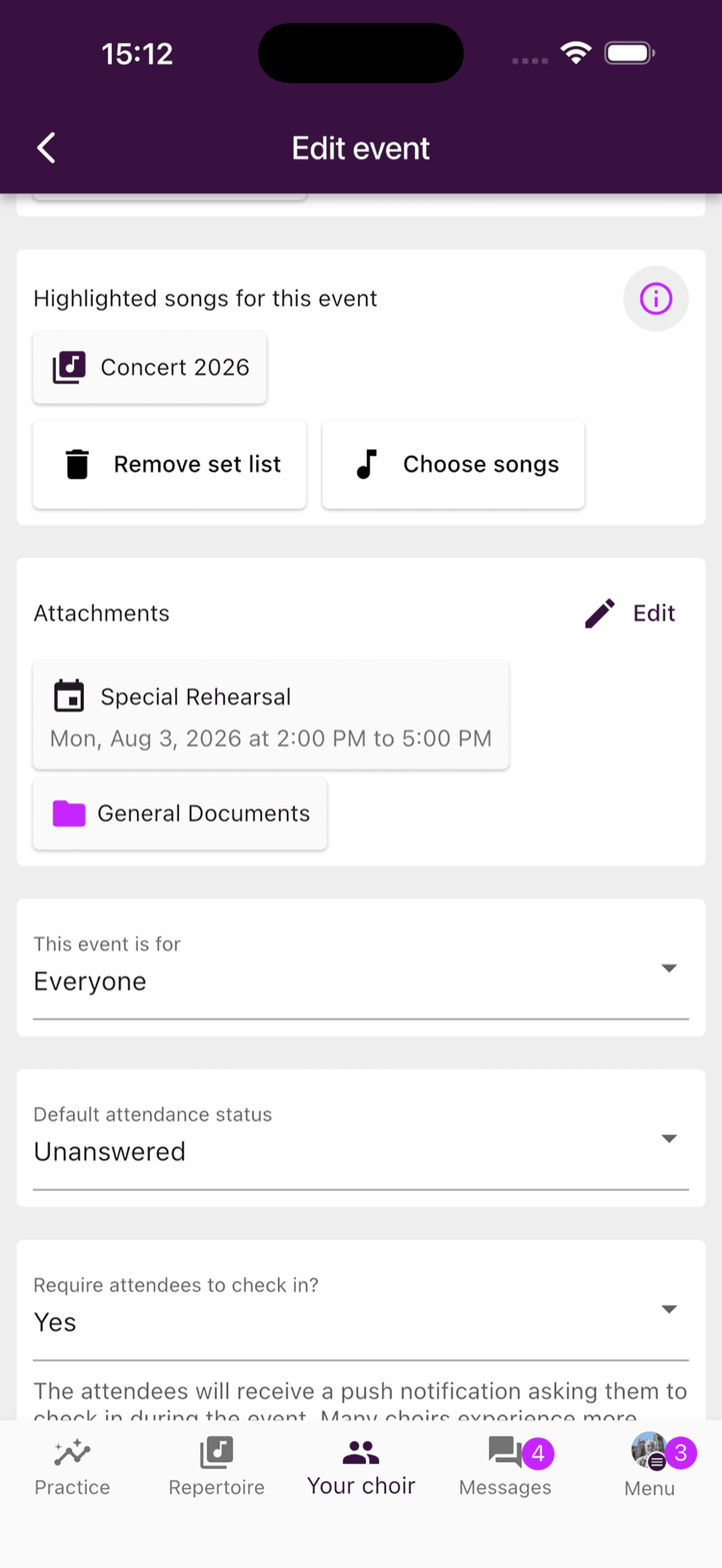
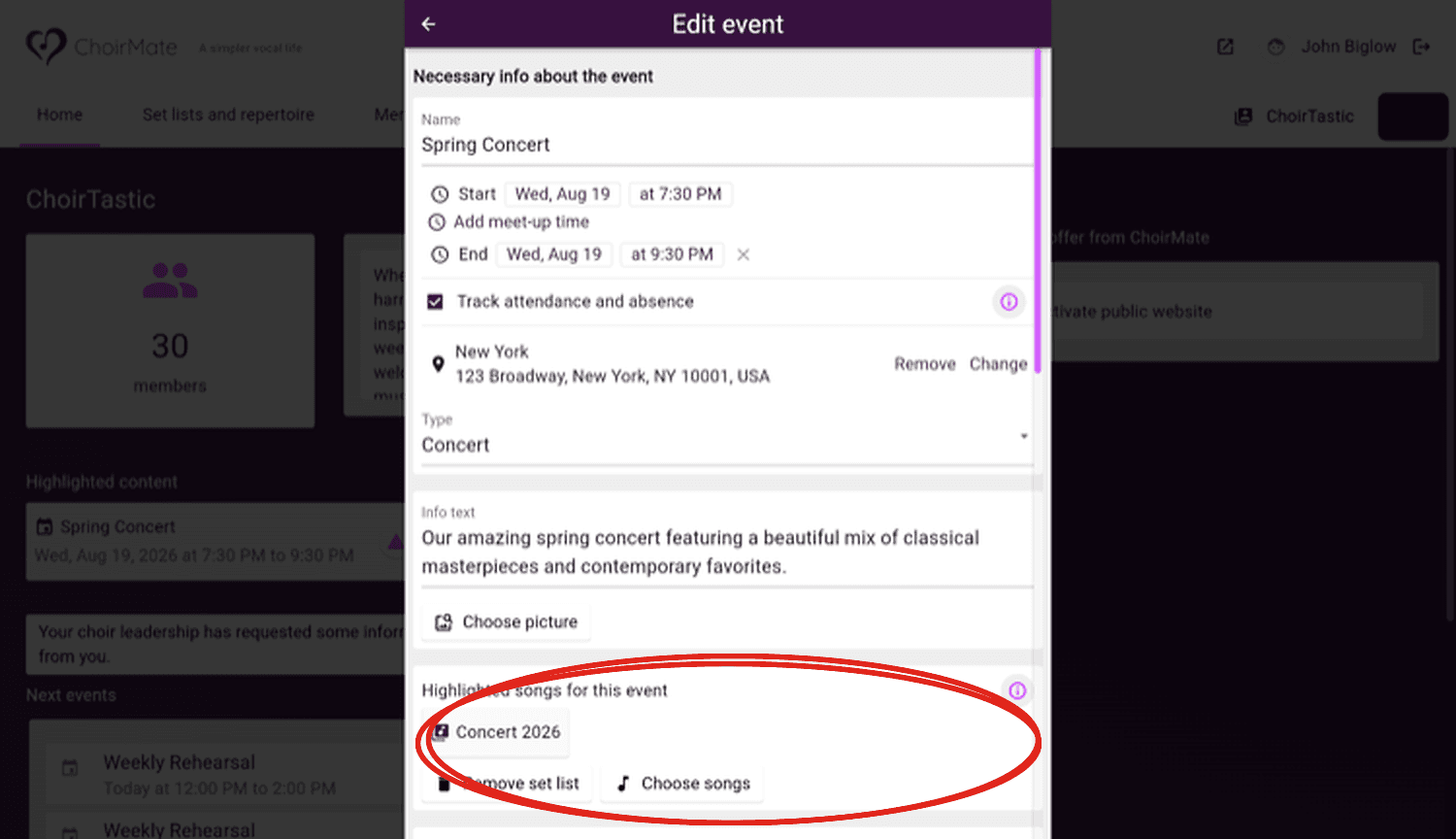
Tap Edit, then find Highlighted songs for this event. Use Add set list for one existing set list, or Choose songs to select individual songs. You can reorder individually chosen songs before saving.
- 3
Choose a set list and save
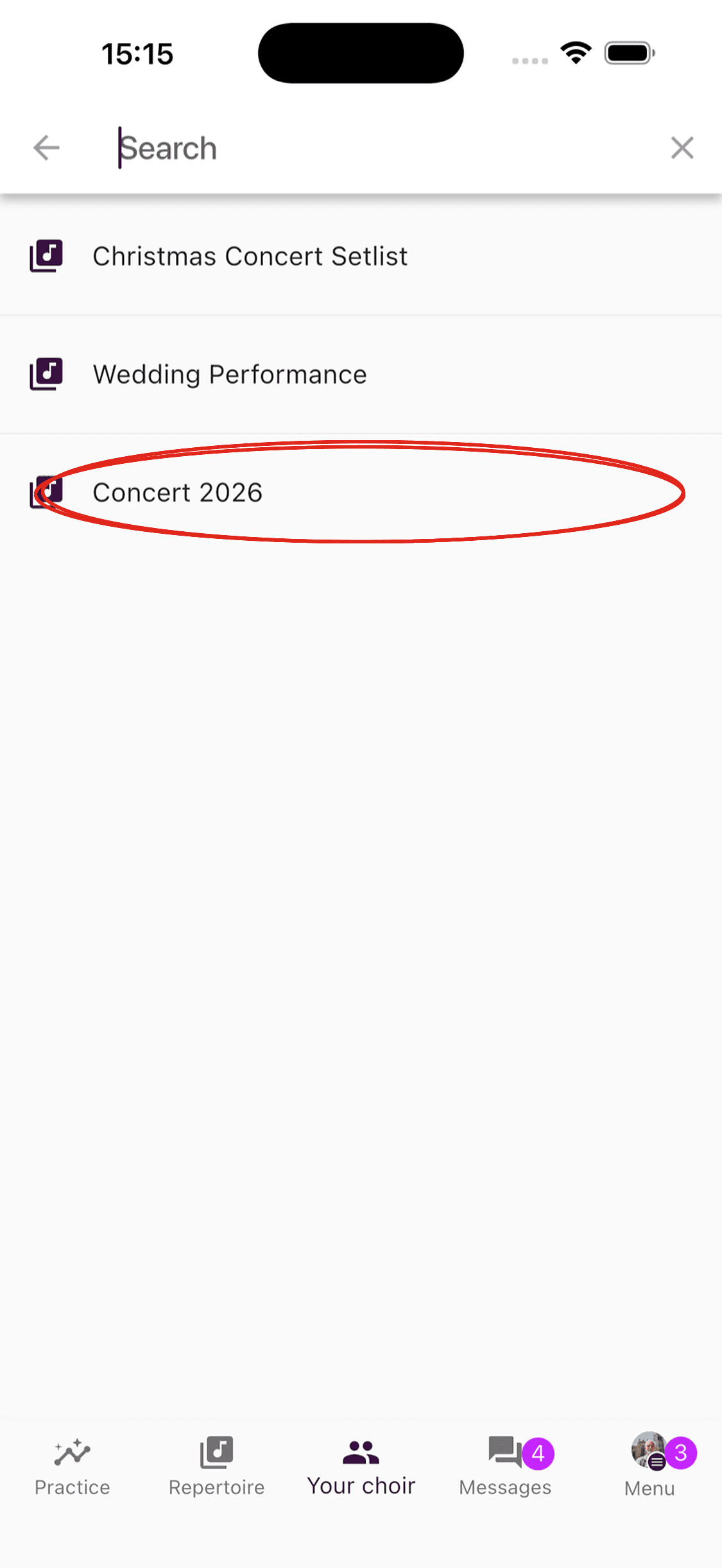
Search for a set list, tap the one you want, then save the event. Only one set list can be linked, but you can also add individual songs alongside it.
- 1
Open the event
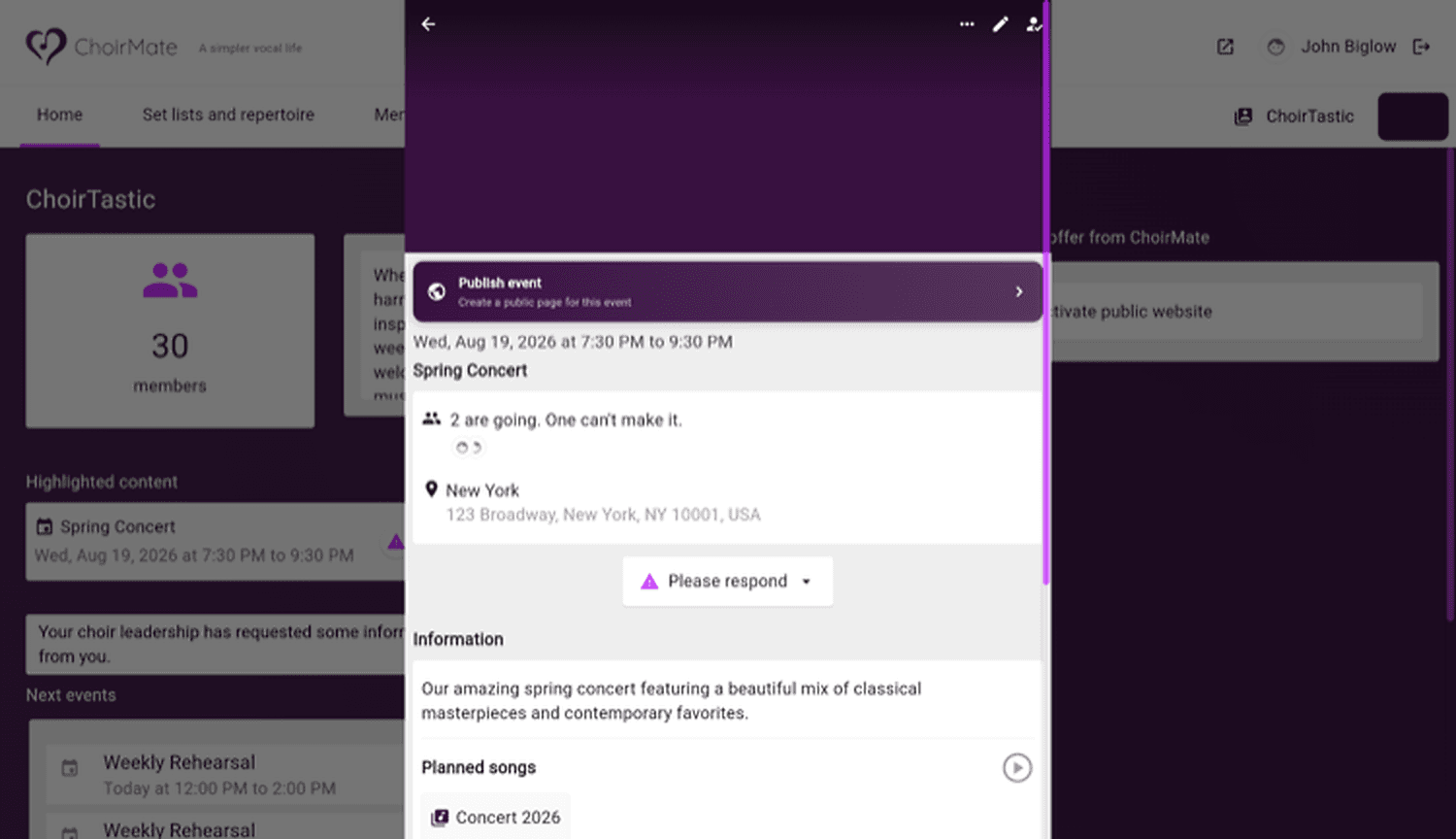
Open the event from the choir home page or calendar. The Planned songs section shows members what to prepare.
- 2
Edit the selection
Click Edit, find Highlighted songs for this event, and add a set list or individual songs. Save when the selection is ready.
What members can do
Members can open the set list or songs from the event and continue into the repertoire, where available audio, sheet music, and lyrics are shown. With Premium access, the play button starts the planned selection as a playlist.
If you change the linked set list later, the event reflects its current contents. Removing a set list or an individual song from the event only removes that connection. It does not delete the set list or song from the repertoire.
Tip
Use a set list when order matters. Use individual songs for a focused rehearsal or when the programme comes from several set lists.