

Promote Your Concerts with Public Event Pages
Your choir rehearses for months — the audience decides in seconds. With public event pages, you turn any ChoirMate event into a polished web page with photos, venue details, and ticket links, and share it anywhere your audience is. No choir website required.
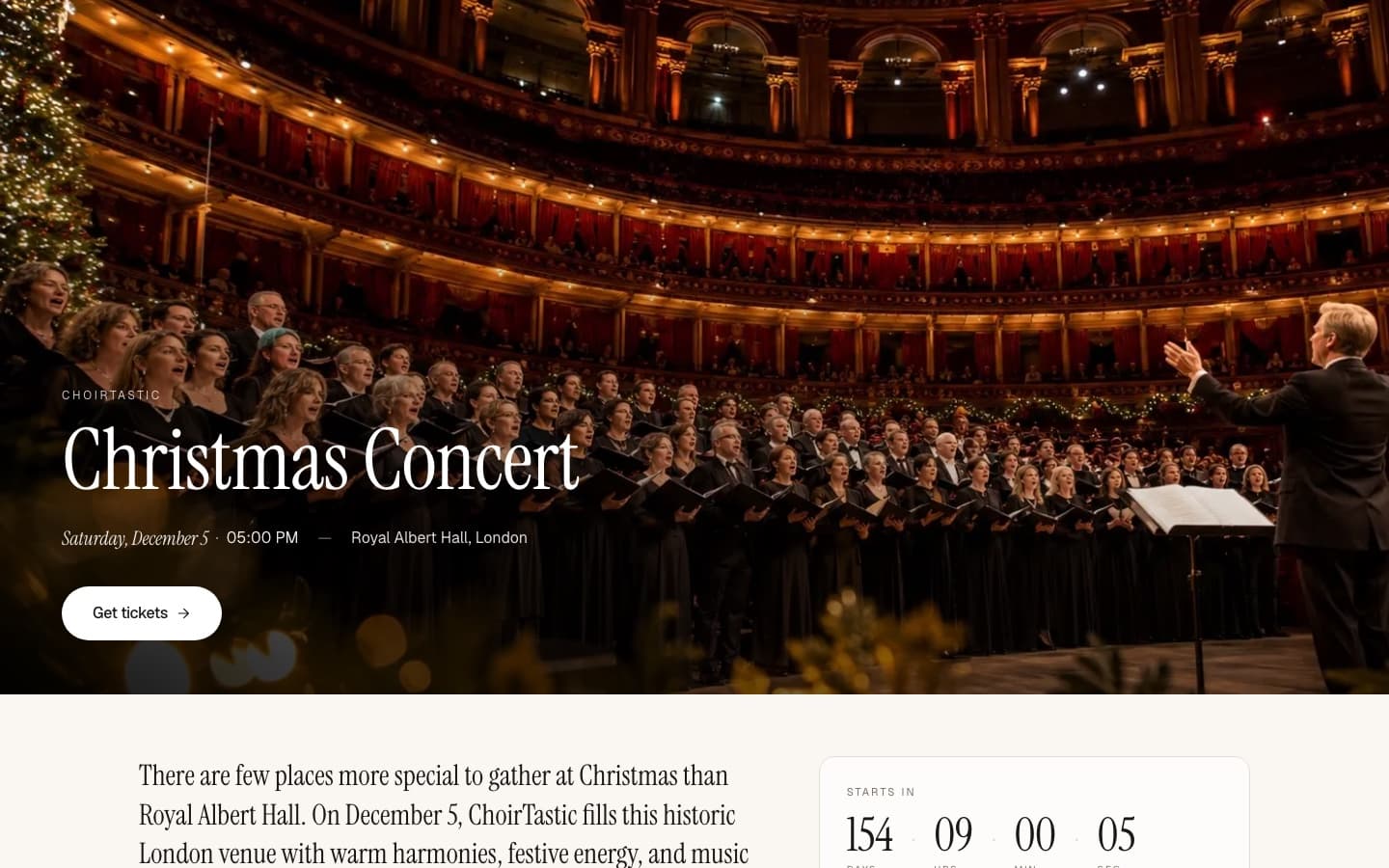
Public event pages can be created by Choir Admins in groups with a Standard or Premium subscription, or during an active trial. They are available for events of type Concert or Hired performance — other event types do not show the publish option. The published page itself is visible to everyone — no ChoirMate account needed.
See a live example
ChoirTastic's Christmas Concert at Royal Albert Hall — a published public event page.
Create the Page in a Minute
- Open the event in ChoirMate and tap the Publish event banner — it appears on events of type Concert or Hired performance.
- Review the page — the title, times, venue, and contact details are prefilled from the event and your choir.
- Add a hero image, ticket links, and photos — then publish.
If anything required is missing, the editor tells you exactly which fields need attention before the page can go live.
What You Can Put on the Page
Basics & web address
Event title and choir name, plus a friendly web address on choirmate.com. The address is generated from the title automatically, and you can customize it.
Hero image & gallery
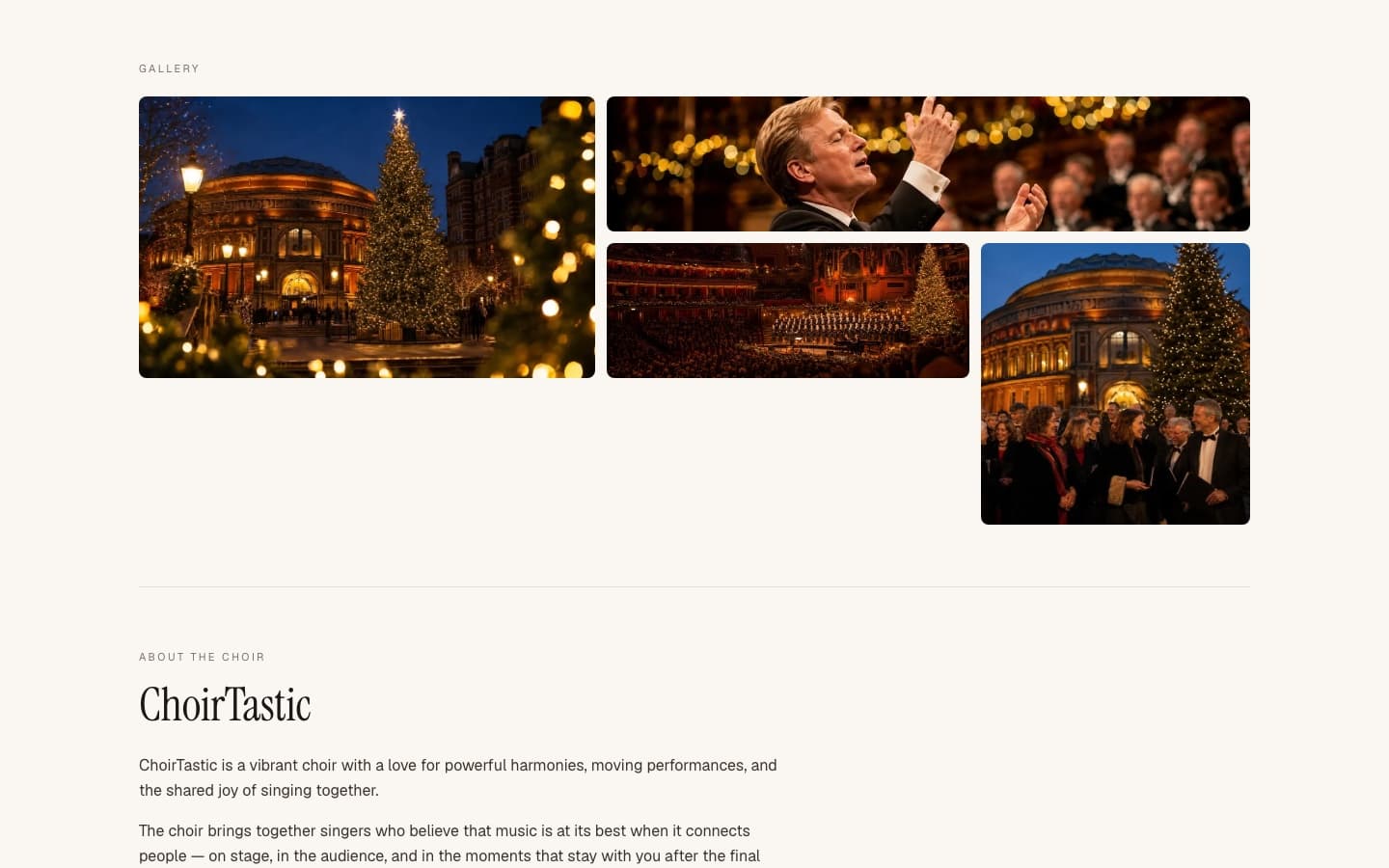
The hero image is the page banner and the preview people see when the link is shared on social media. Use at least 1200×800 (3:2). Add more photos to the gallery below it.
Performances
One concert or a whole run — add several performances, each with its own date and time. If one performance is cancelled, mute just that one while the rest of the run stays live.
Venue
Search for the venue by name or address. The page shows where the concert happens, with a map link so nobody gets lost on the way.
Tickets
Add one or more ticket links with their own labels — "Get tickets", "Student", and so on. Use a single link for the whole run or separate links per performance. No online tickets? The page shows a "Tickets at the door" badge instead.
About & contact
An optional choir bio introduces you to a new audience. Contact details are prefilled from the choir and can be overridden per event, and you can add extra links — a Facebook event, a donation page, and more.
Publish and Spread the Word
Once published, the share screen gives you the page link with one-tap sharing to WhatsApp, SMS, and email — ready with a short message about the concert. Every choir member can share it, so the whole choir becomes your marketing team.
Keep It Up to Date
The public page reflects your latest edits — change the program, add a ticket link, or swap photos, and the shared link always shows current information. Need to take it offline? Unpublish hides the page until you publish it again; nothing is deleted.
Tips for a Full House
- Invest in the hero image — it is the first thing people see, both on the page and in every shared preview.
- Add a ticket link as soon as you have one. A clear ticket button is what turns visitors into an audience.
- Share early, and share again the week before the concert. It is the same link — the page always shows the latest details.