Your personal language controls ChoirMate's menus, buttons, and other interface text. It does not translate names, messages, event details, or other content written by your choir.
Change Your Language
- 1
Open your profile settings
Open Menu, tap your profile, then tap the settings button in the upper-right corner.
- 2
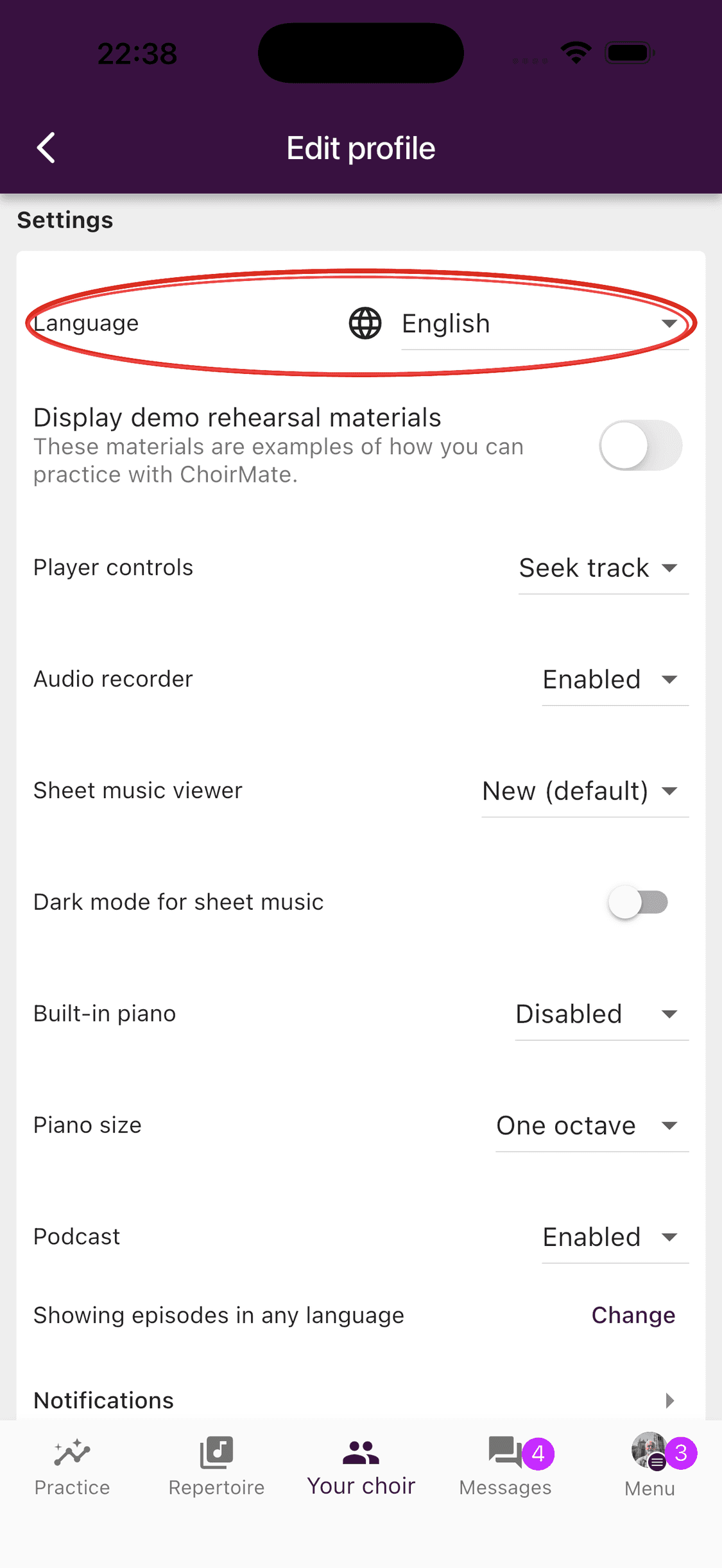
Find Language
Scroll to the Settings section in Edit profile.
- 3
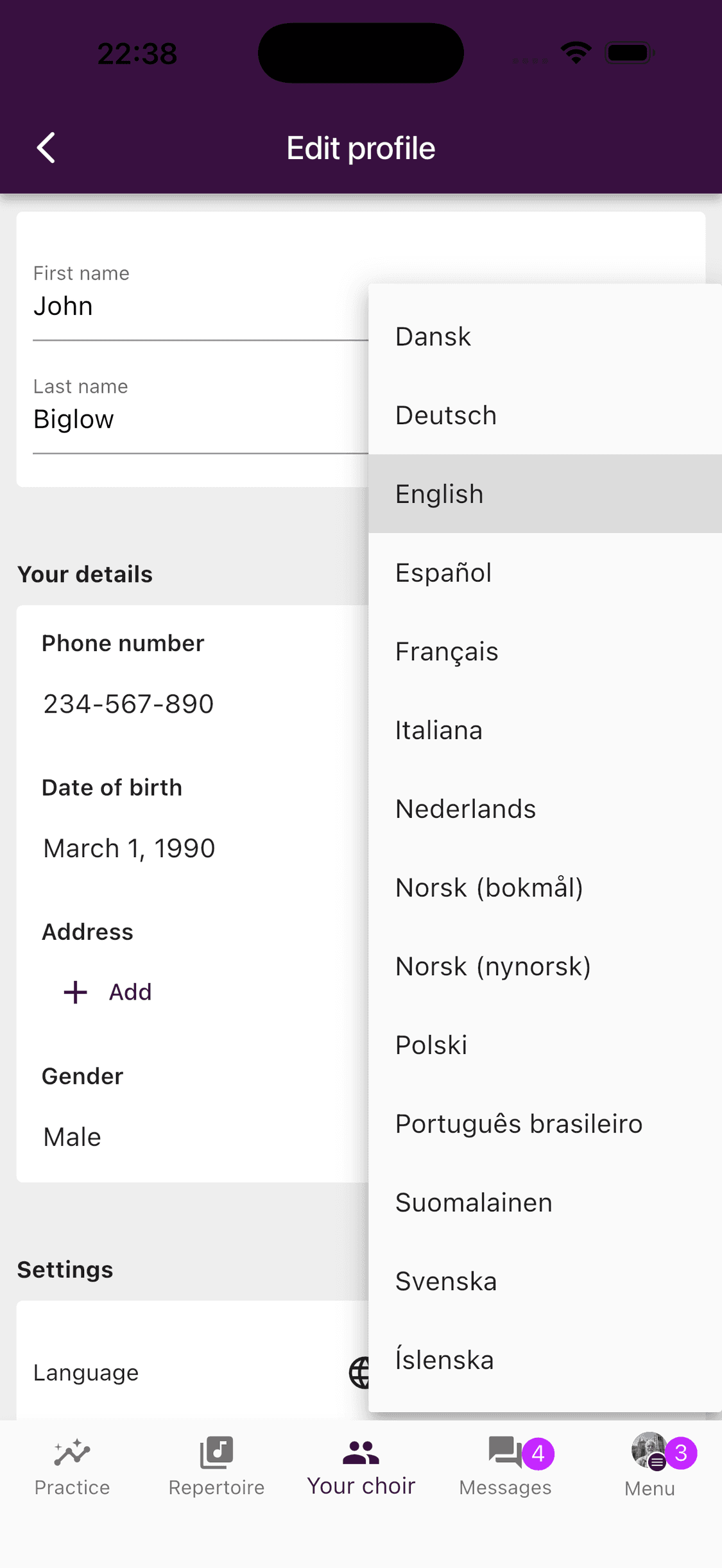
Choose a language
Open the Language list and select the language you want.
- 4
Save the profile
Tap Save. ChoirMate switches to the selected language and stores the choice on your account.
- 1
Open Edit profile
Select your profile picture in the upper-right corner, then choose Edit profile.
- 2
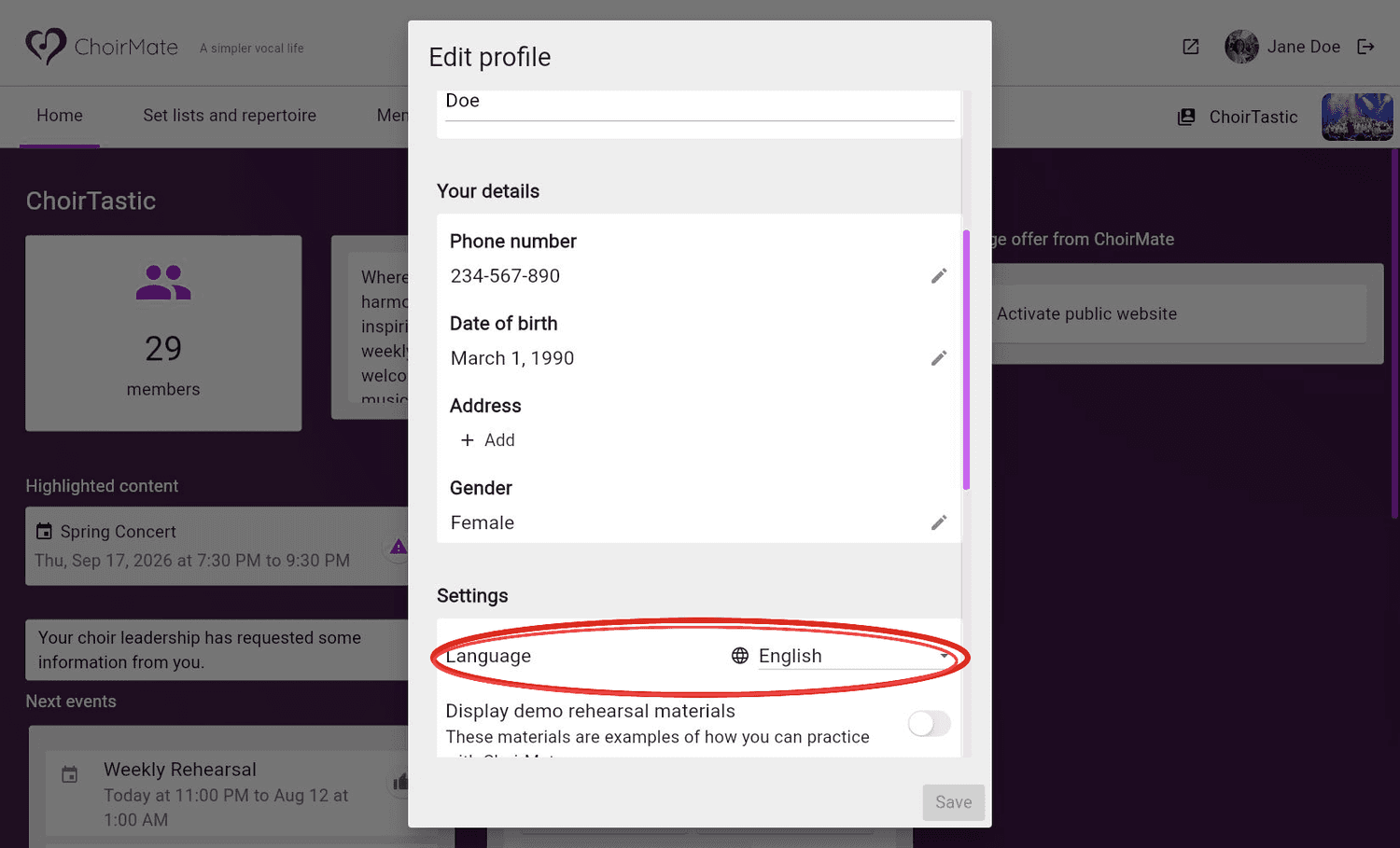
Find Language
Scroll to the Settings section in the profile dialog.
- 3
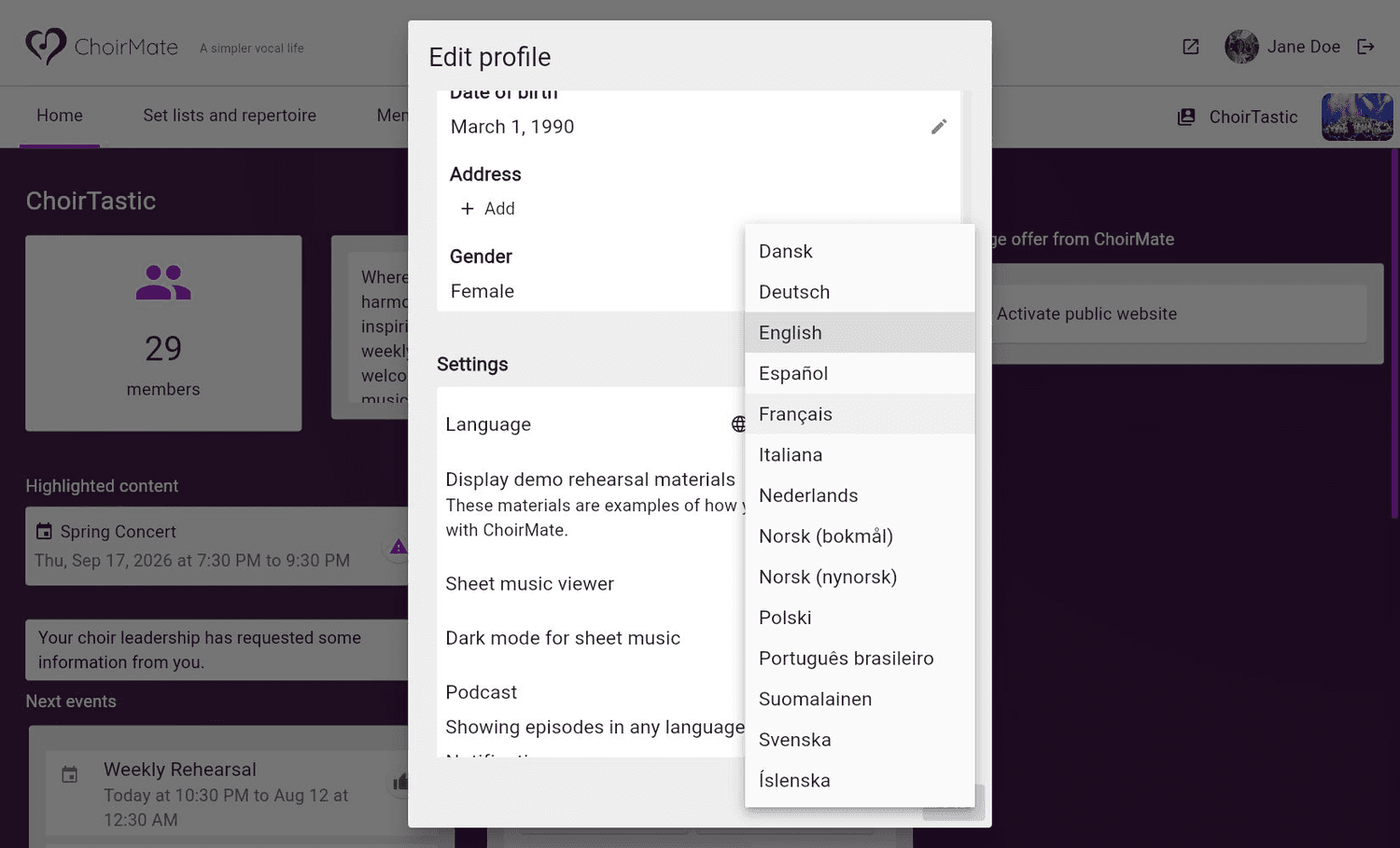
Choose a language
Open the Language list and select the language you want.
- 4
Save the profile
Select Save. The setting is stored on your account, so the app and web version use the same language.
Available Languages
The language list currently includes English, Norwegian Bokmål, Norwegian Nynorsk, Danish, German, Polish, Swedish, Finnish, Brazilian Portuguese, Spanish, Italian, French, Icelandic, and Dutch.
Tip
ChoirMate may initially follow your device or browser language. Saving a personal language in your profile overrides that choice for your account.
Change the Choir Language
Choir admins can also set a language for the choir. This is separate from each member's personal language and is used for the member invitation screen and other choir content.
Open the choir administration area, choose Settings, find Group language, and select the correct language. The change is saved when you make the selection.
Info
Changing the choir language does not change a member's personal interface language or translate content that members have written.