Your ChoirMate profile belongs to you and is used across the choirs you join. It contains your name and photo, the details your choir has asked for, your sharing choices, and settings for the app and web version.
Open your profile
In the app
- 1
Open Menu
Tap Menu in the bottom navigation.
- 2
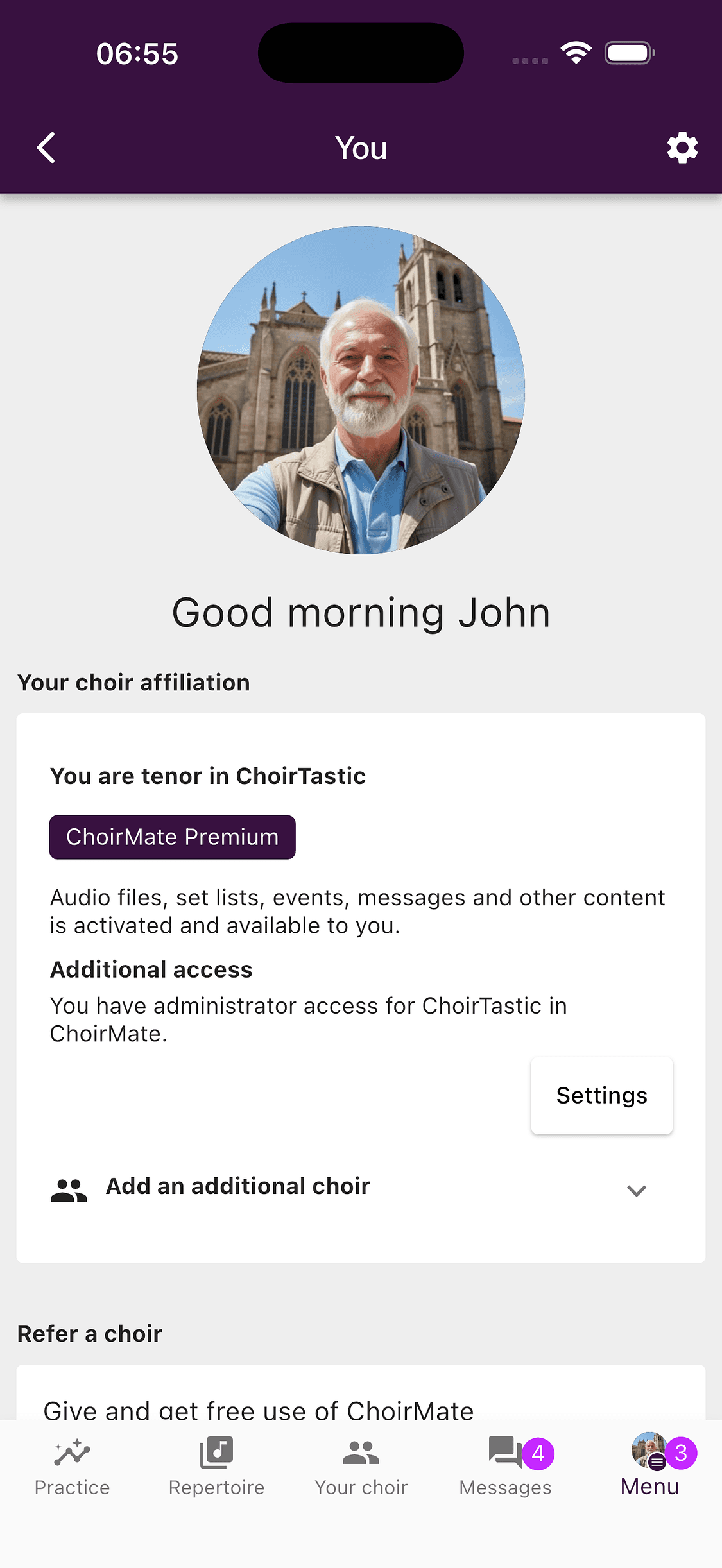
Open your profile
Tap your name and photo at the top of the menu.
- 3
Open profile settings
Tap the settings icon in the top right.
On the web
- 1
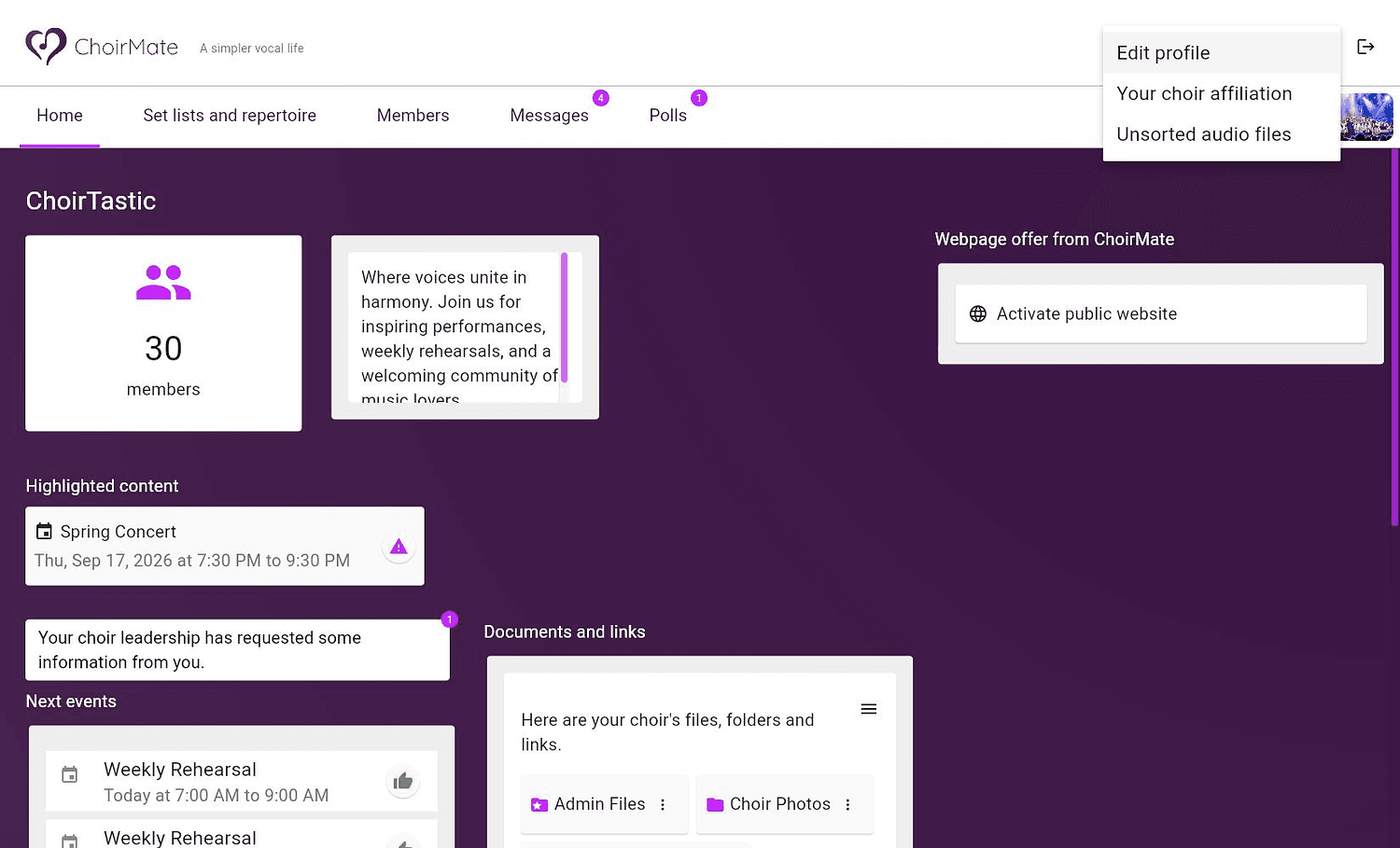
Open the account menu
Click your name in the top right.
- 2
Choose Edit profile
Select Edit profile to open the profile editor.
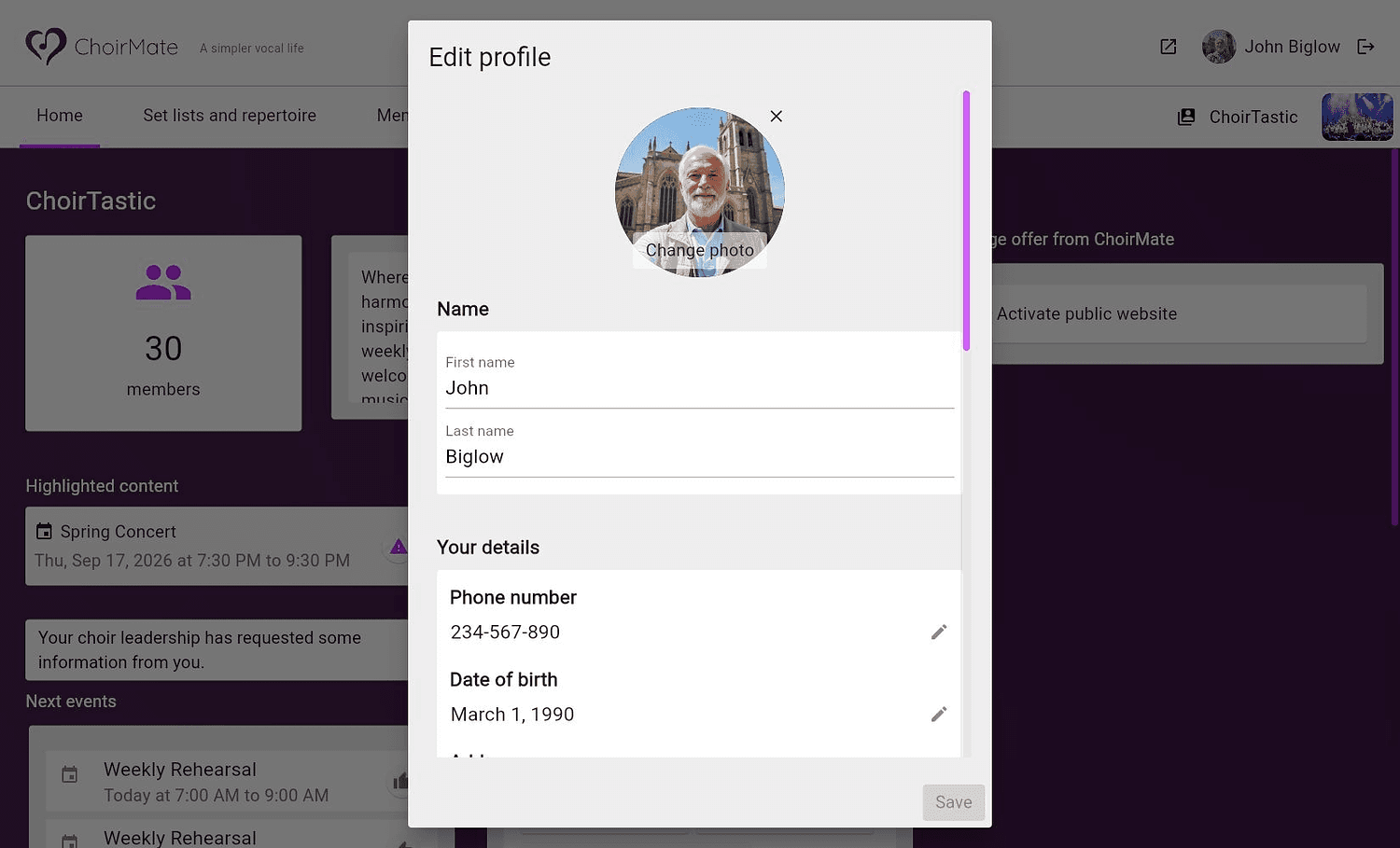
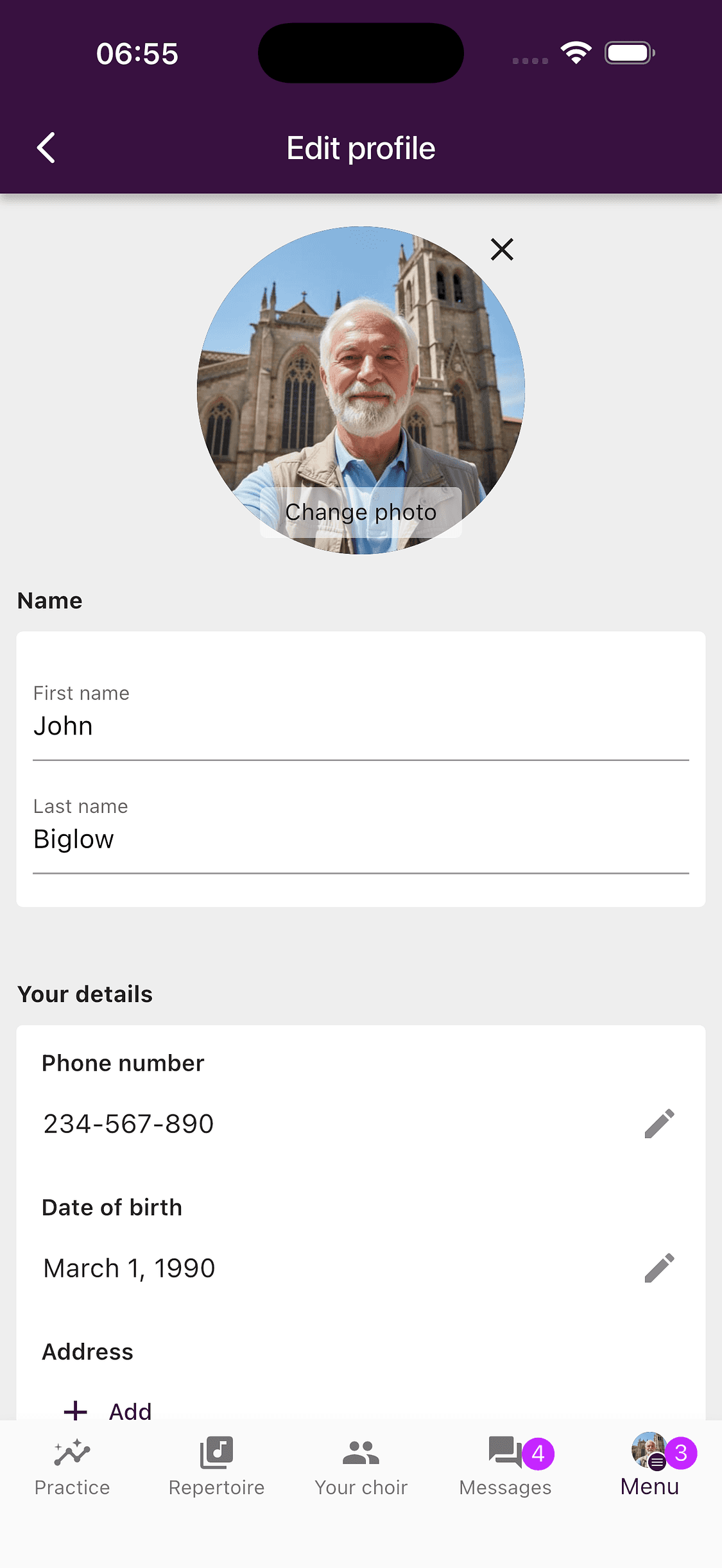
Change your name and photo
Enter the first and last name you want other members to see. Select your current photo or the placeholder to add a new one.
Tip
A clear, recent photo makes it easier for members to recognise one another, especially in a new choir.
Voice group and choir membership
If you use ChoirMate without belonging to a choir, you can choose the voice group that best fits you. This helps ChoirMate highlight relevant practice material.
After you join a choir, your role and voice group are part of that choir membership and are managed by a Choir Administrator. They can be different in each choir, so changing your personal profile does not change them.
Add personal details
A choir can ask members for details such as a phone number, date of birth, address, gender, height, emergency contacts, or custom information. Only the fields that your choir has requested, or that already contain information, are shown.
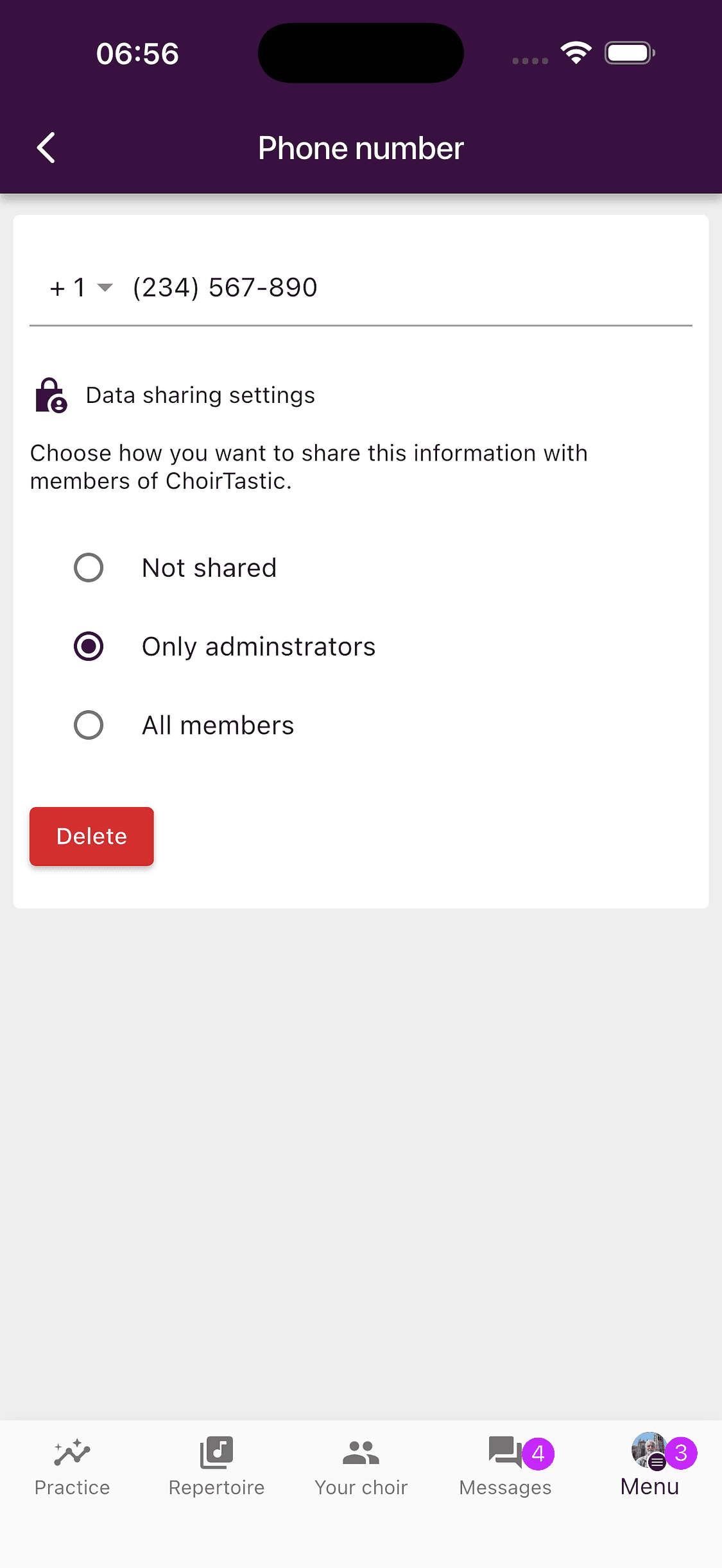
You enter and maintain your own details. For standard fields, open a field to choose who can see it in each choir:
- Not shared keeps the detail private
- Only administrators shares it with the choir's administrators
- All members makes it visible to the choir's members
Info
Review the sharing choice for each choir. You can share the same detail differently with different choirs.
Asking members for extended personal details requires a choir subscription that includes this feature.
Adjust your preferences
Further down the profile editor, you can find preferences that apply to your account. Depending on the platform and features available to you, these can include:
- interface language
- mobile audio player controls and recorder format
- sheet music viewer and dark mode choices
- piano and podcast preferences
- notification settings
- calendar settings and synchronization
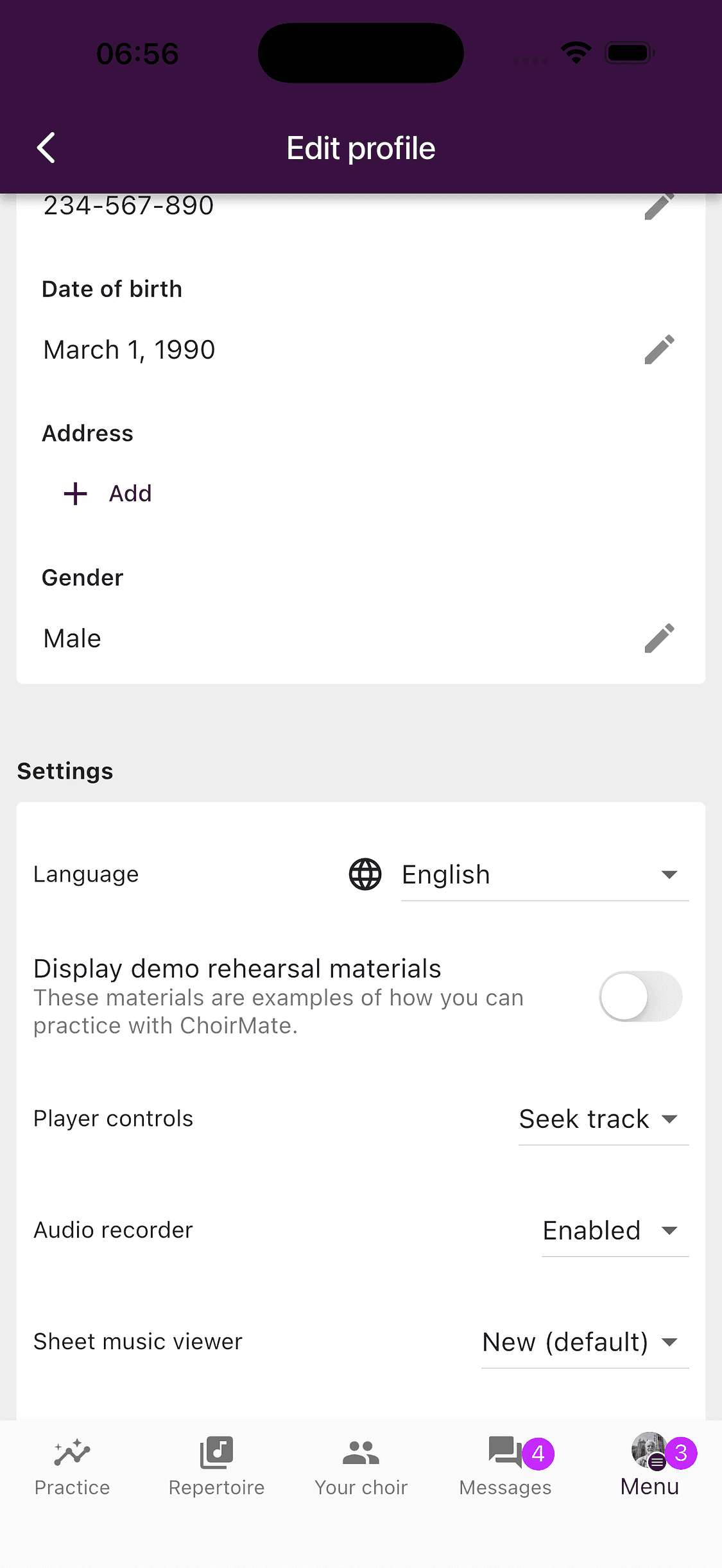
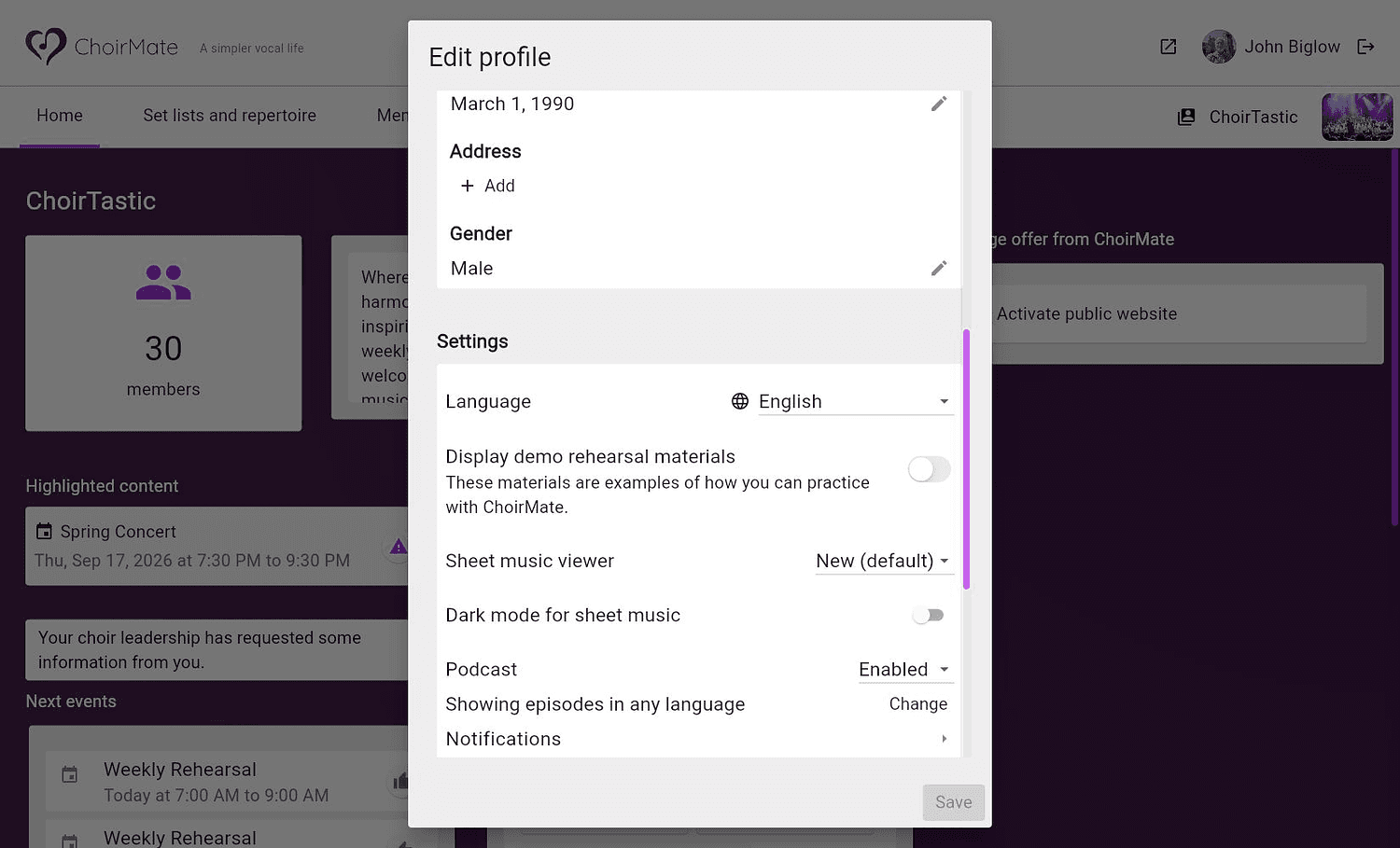
Not every setting is available on both platforms. Open the app when you need to change a mobile playback or recording preference.
Account settings and saving
Your email address, password options, and the choice to delete your account are near the bottom of the profile editor. See the related articles before making an account level change.
In the app, Save appears in the top right after you change something. On the web, use Save at the bottom of the dialog. Some personal detail screens save separately when you return to the profile editor.