ChoirMate lets you choose which updates reach you by push notification or email. The available choices depend on your role and on which notification channels each update supports.
Open Your Notification Settings
- 1
Open your profile
Tap Menu, then tap your name or profile picture.
- 2
Open the notification settings
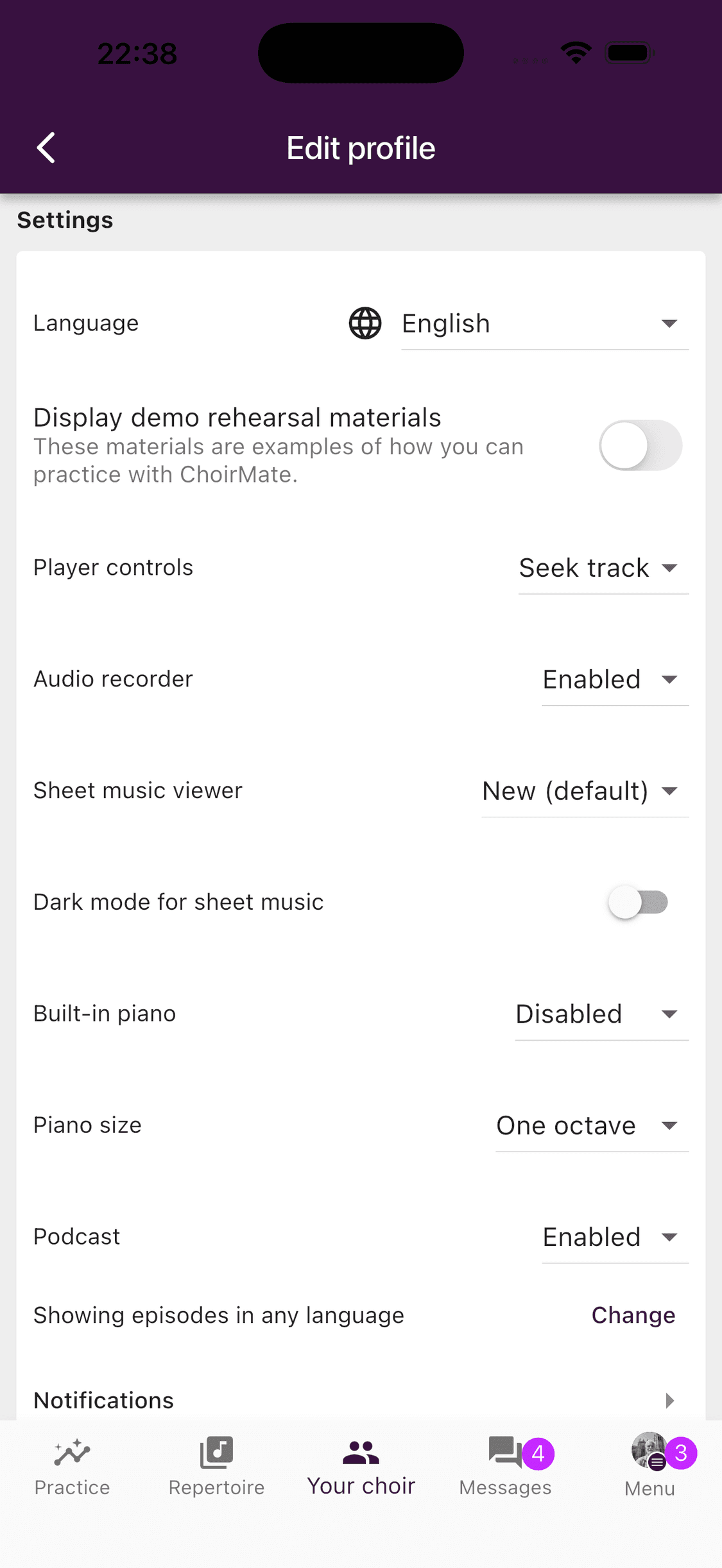
Tap Profile settings, scroll to Settings, then tap Notifications.
- 3
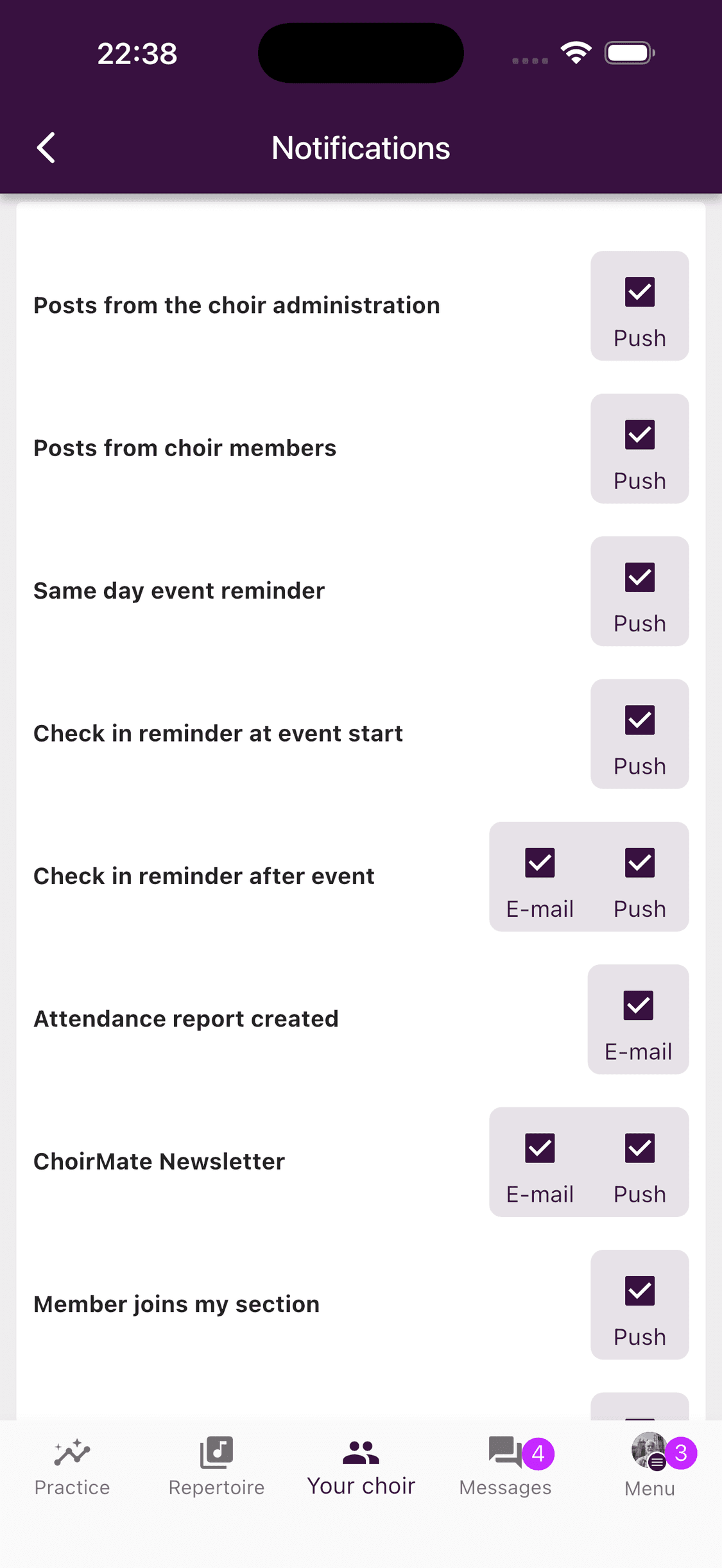
Choose how you want to be notified
Turn push or email on or off for each available notification.
- 1
Edit your profile
Select your name or profile picture in the upper-right corner, then choose Edit profile.
- 2
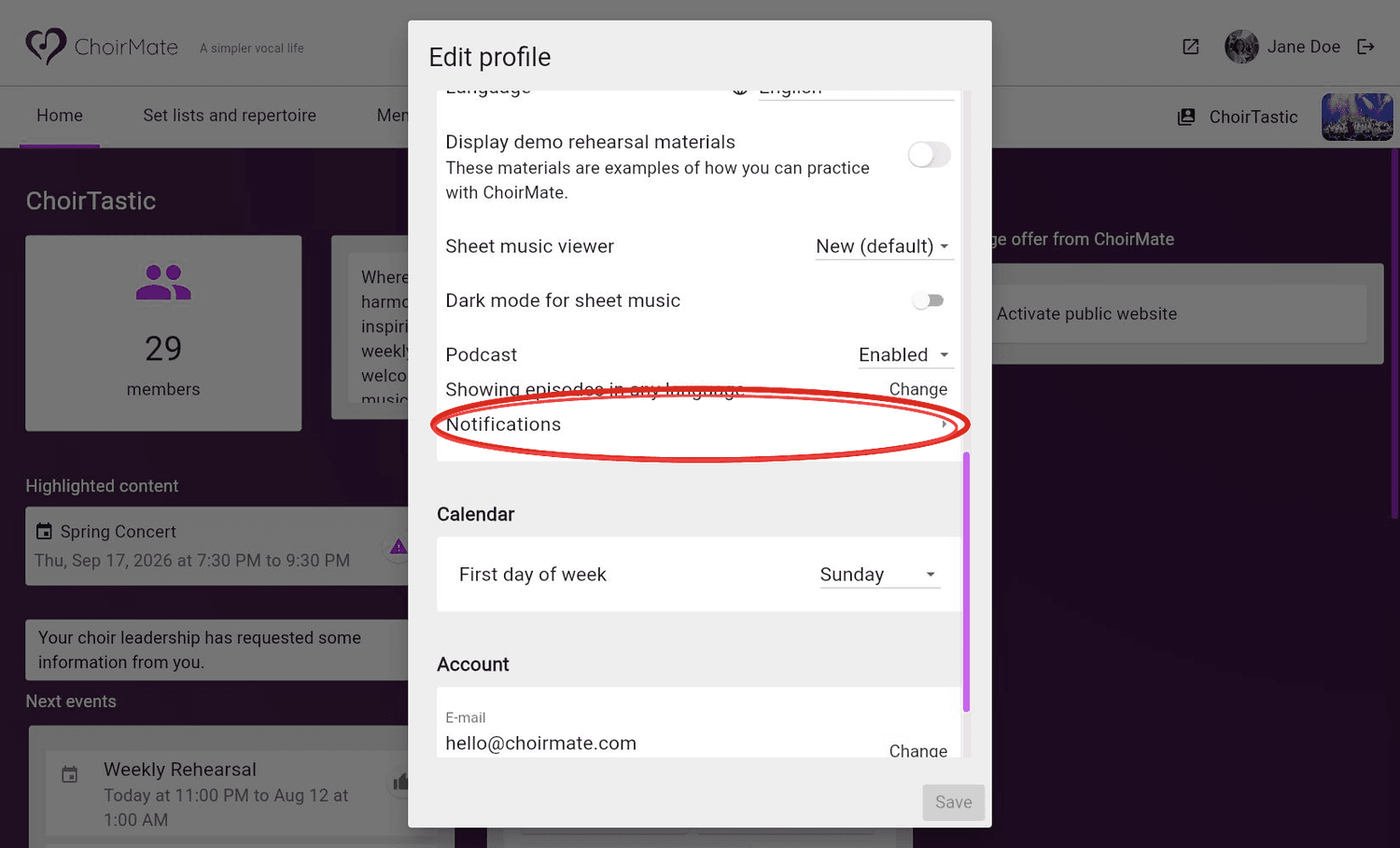
Open Notifications
Scroll to Settings and select Notifications.
- 3
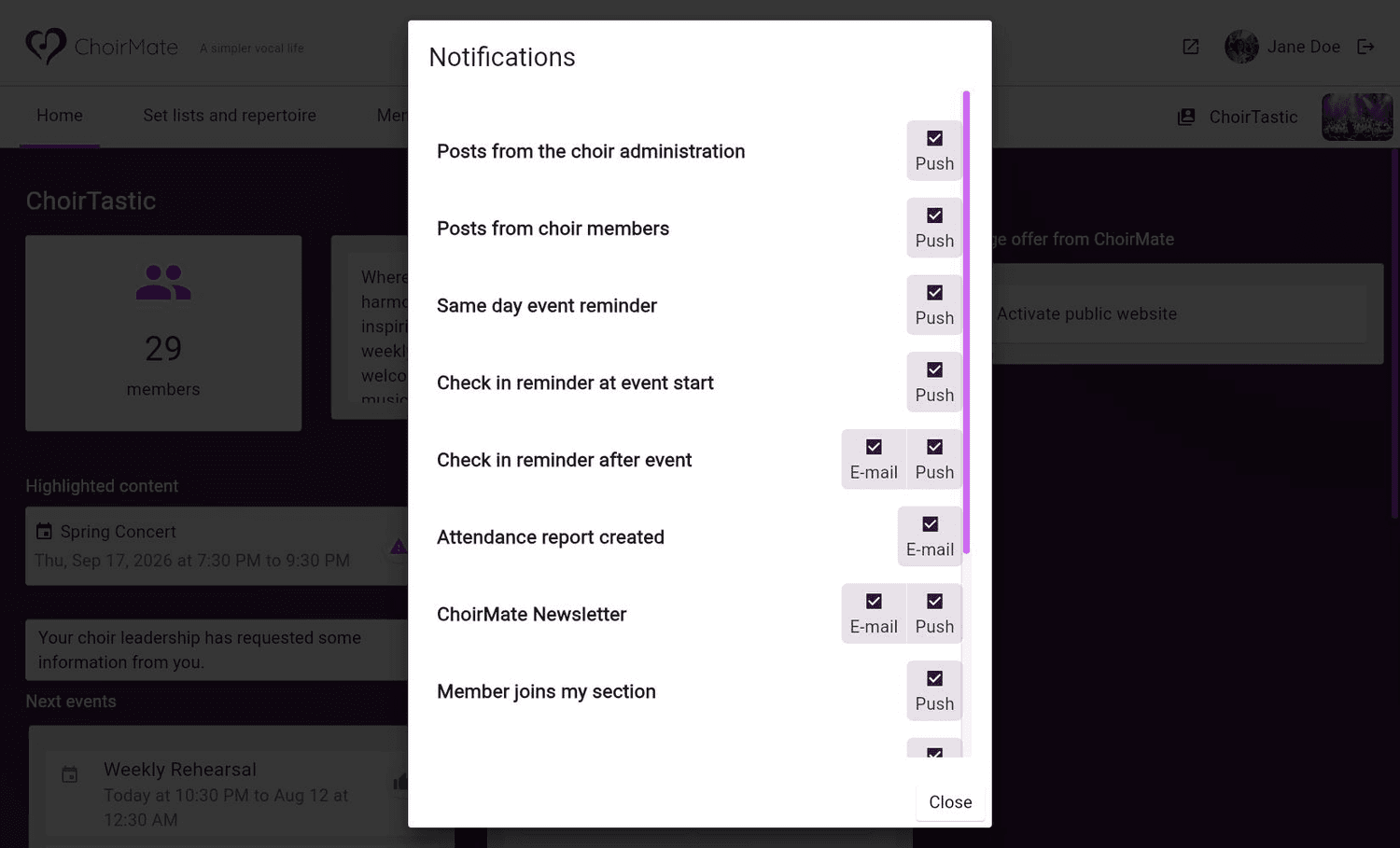
Choose your channels
Select push or email for each notification you want to receive, then close the window.
What You Can Be Notified About
Your list may include:
- posts from choir administrators or members
- replies, reactions, and comments on conversations you follow
- same-day event and check-in reminders
- newly published events
- new members joining your section
- completed attendance reports for administrators
- ChoirMate product news
Some updates support push, some support email, and some support both. ChoirMate only shows the channels available for each notification.
Comment Notifications
If Comment notifications appears, you can choose whether ChoirMate automatically follows comments on new administrator or member posts. You can also follow or unfollow an individual conversation from that conversation.
If Push Notifications Do Not Arrive
First check that push is selected for the relevant notification in ChoirMate. Then check the notification permission in your phone settings.
Open iPhone Settings, choose Notifications, select ChoirMate, and allow notifications.
Open phone Settings, choose Apps, select ChoirMate, then open Notifications and allow them.
In the mobile app, you can also use Test push notifications at the bottom of the notification settings. If the test succeeds but alerts remain quiet, check Focus, Do Not Disturb, and other system notification controls.