Calendar synchronization keeps rehearsals, concerts, and other ChoirMate events in the calendar you already use. You can connect a calendar in two ways:
- Device synchronization writes events to a calendar on your phone.
- Calendar subscription (iCal) provides a private URL for Google Calendar, Apple Calendar, or Outlook.
Calendar synchronization requires Premium access through your choir or an individual subscription.
Open Calendar Synchronization
- 1
Open your profile settings
Tap Menu, tap your name or profile picture, then choose Profile settings.
- 2
Open Calendar synchronization
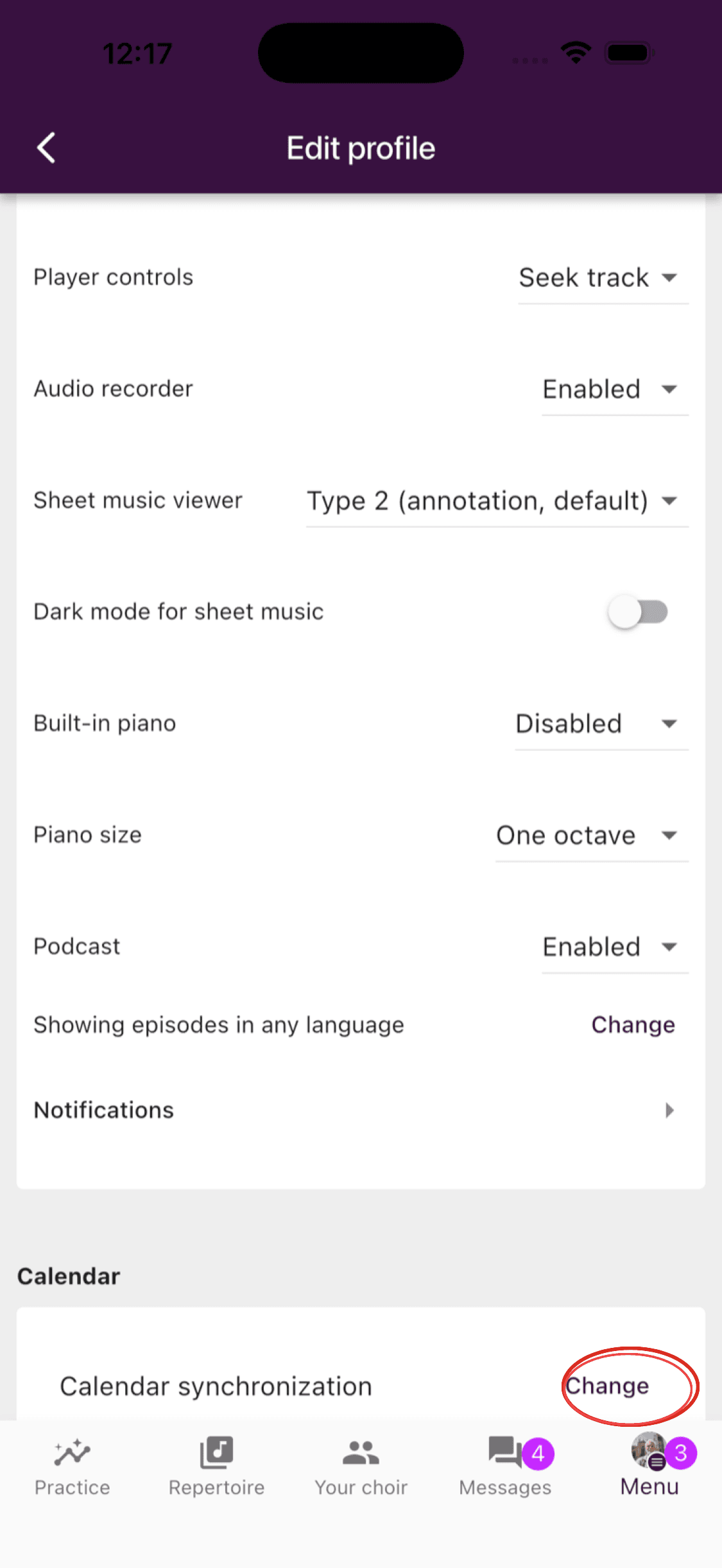
Scroll to Calendar and tap Change beside Calendar synchronization.
Synchronize with a Calendar on Your Phone
- 1
Continue with device synchronization
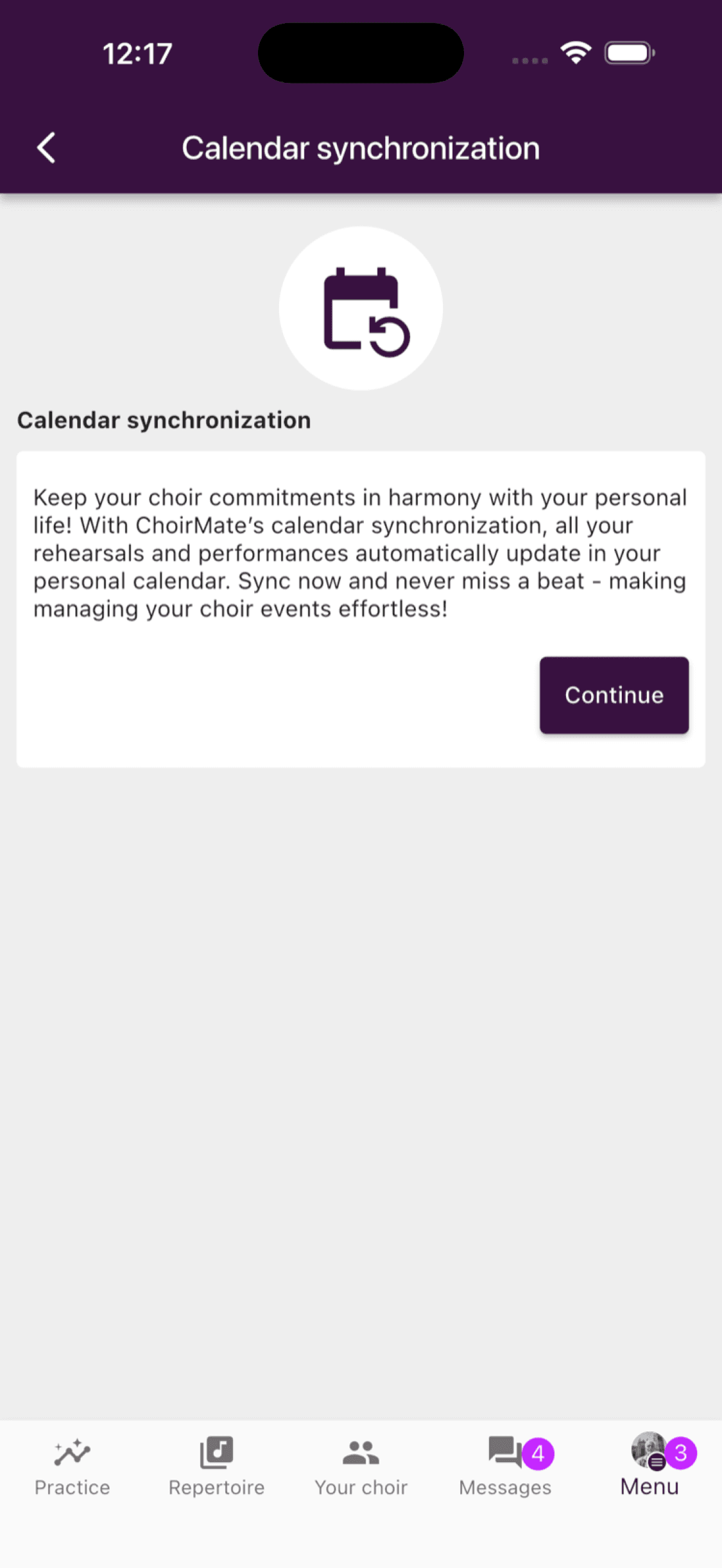
Tap Continue on the Calendar synchronization screen.
- 2
Allow calendar access
Allow ChoirMate to manage calendar events. On iPhone, choose Allow Full Access. The sync cannot write or remove events without this permission.
- 3
Name this device
Enter a name that helps you recognize the phone, then continue.
- 4
Choose a calendar
Select the calendar where ChoirMate should place your choir events.
Changes may take a little time to appear in your calendar.
Info
Only one device can control native synchronization for each choir at a time. This limit does not apply to an iCal subscription.
Subscribe with Google Calendar, Apple Calendar, or Outlook
On the Calendar synchronization screen, find Calendar Subscription (iCal) and tap Generate subscription URL. Treat this URL as private because anyone who has it can read the calendar feed. Tap Copy URL, then add it to your calendar service.
Google Calendar
Open Google Calendar on the web. Beside Other calendars, select +, choose From URL, paste the copied URL, and select Add calendar.
Apple Calendar
On iPhone or iPad, open Settings and go to Calendar > Accounts > Add Account > Other > Add Subscribed Calendar. Paste the URL and tap Next.
Outlook
Open Outlook on the web. Go to Calendar, select Add calendar > Subscribe from web, paste the URL, and select Import.
Calendar services decide how often subscriptions refresh, so updates may not appear immediately.
Move Native Sync to Another Phone
Open Calendar synchronization on the new phone. If another device is active, open the action menu and choose Assume control. The new phone can then become the active synchronization device.
If you still have the old phone, you can first open its action menu and choose Remove calendar synchronization. This removes the events that device added to its selected calendar.
Stop Synchronizing
- For native device sync, open the action menu and choose Remove calendar synchronization.
- For an iCal subscription, remove the subscribed calendar in your calendar service. You can also choose Revoke in ChoirMate to disable the private URL for every calendar using it.
Troubleshooting
If native sync does not work:
- Check that this phone is the active synchronization device.
- Confirm that ChoirMate has full calendar access in your phone settings.
- Check that you selected the intended calendar.
- Open ChoirMate to let it process recent changes.
If a subscribed calendar is slow to update, wait for Google Calendar, Apple Calendar, or Outlook to refresh the feed. ChoirMate cannot force those services to refresh immediately.