When an event asks for a response, your answer gives the choir leadership a useful headcount before the event. Responding records your plan. Check-in, when enabled, records whether you were actually there.
Respond in the app
- 1
Open the event
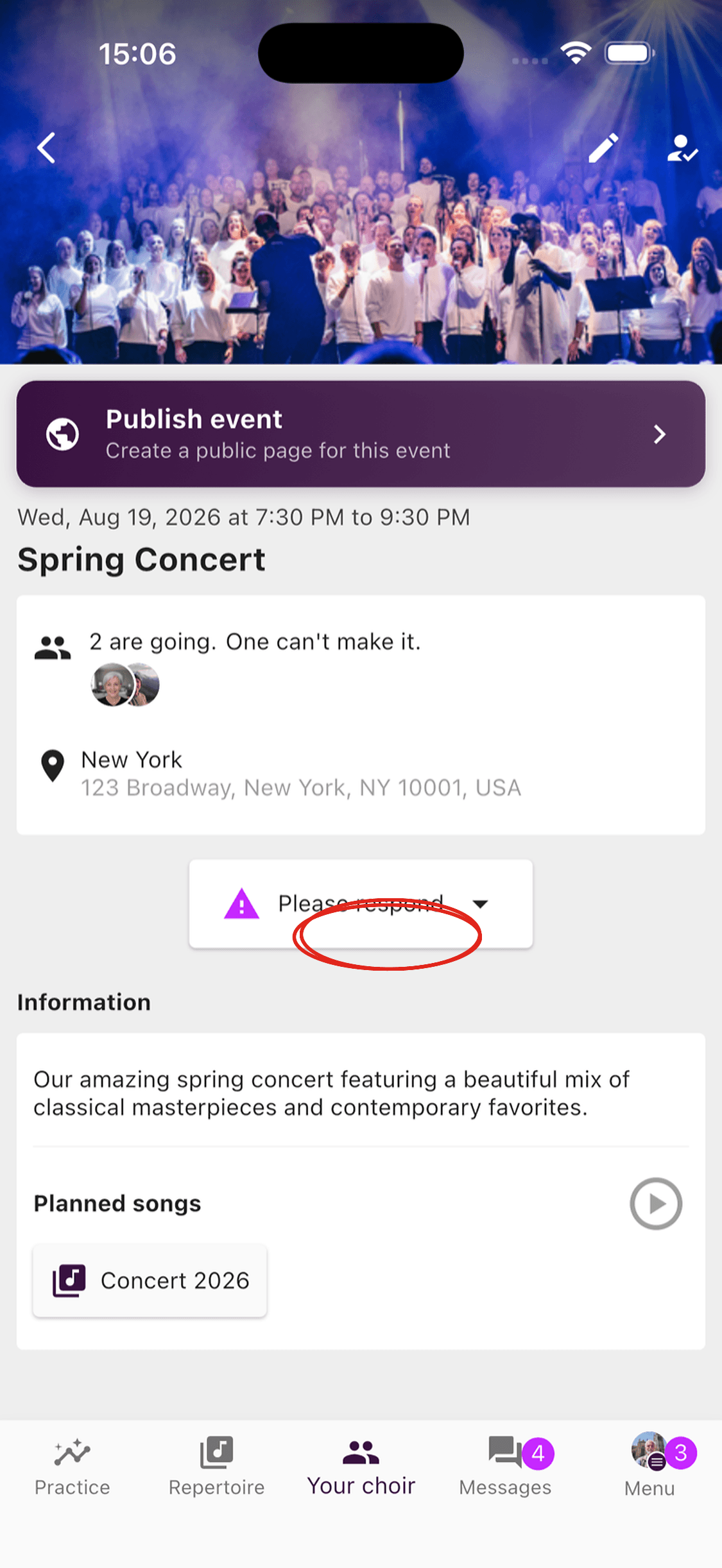
Open the event from Your choir or the calendar. Tap Please respond below the event details.
- 2
Choose your response
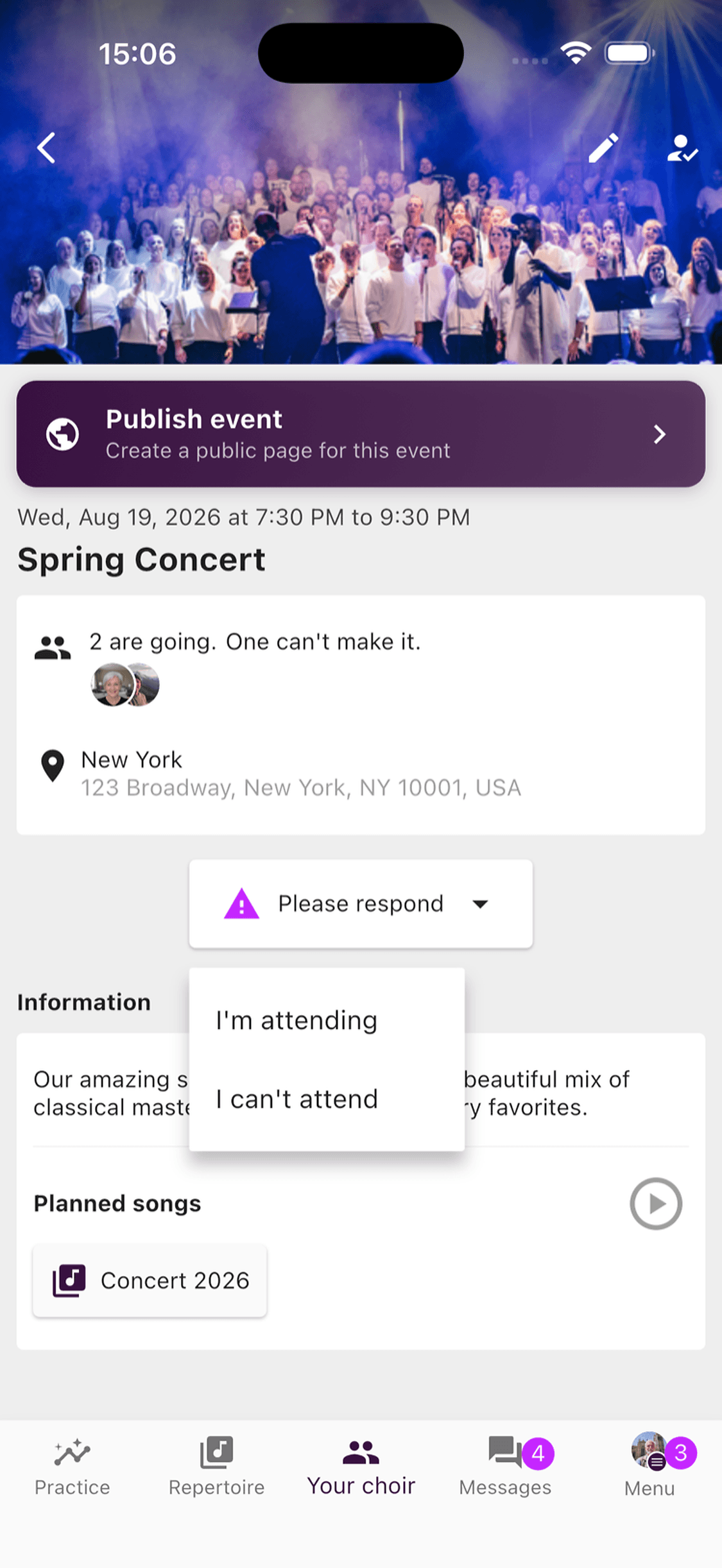
Select I'm attending or I can't attend. The response is saved to the event, and you can normally change it later unless responses have been locked.
- 3
Add an absence reason if useful
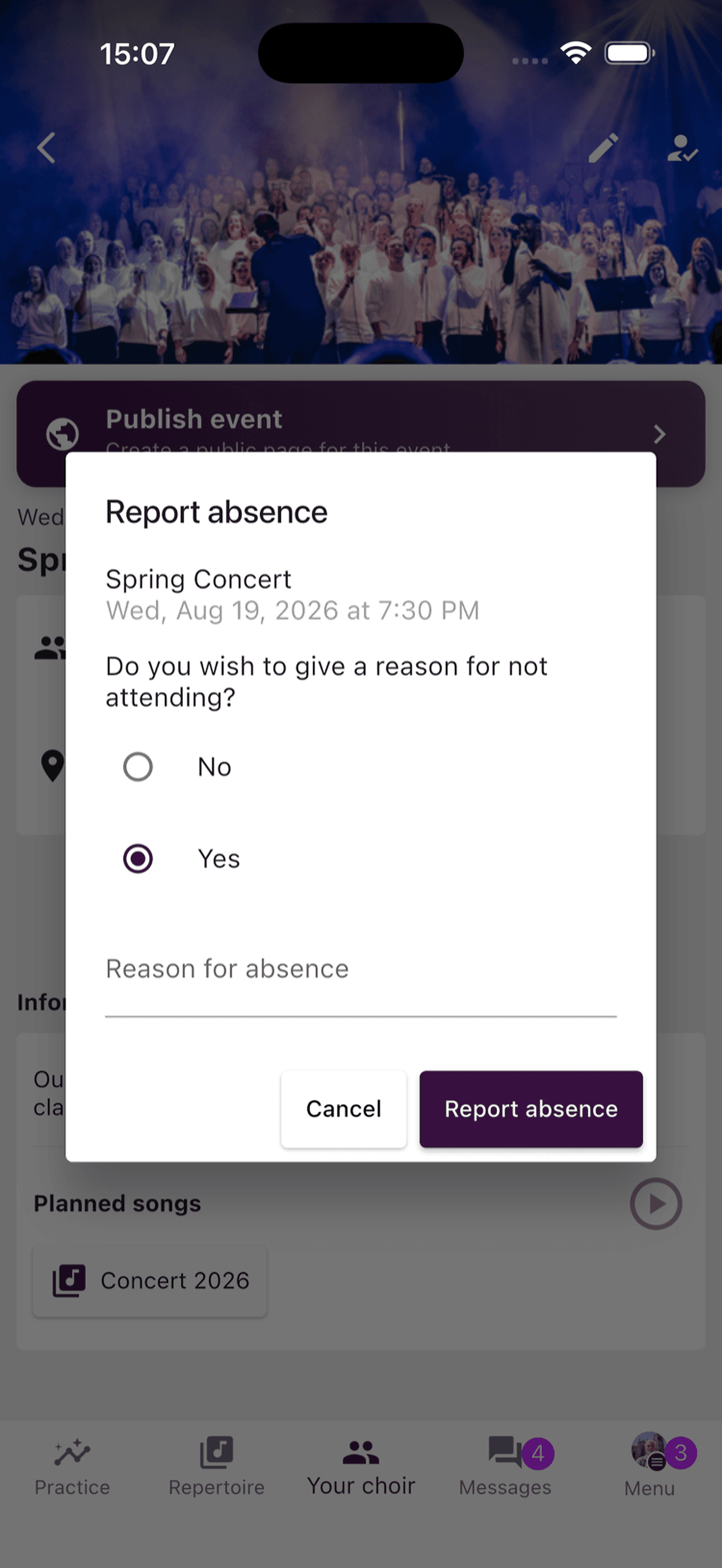
If you cannot attend, ChoirMate asks whether you want to give a reason. This is optional. Enter a short note or choose No to report the absence without one.
- 1
Open the event and respond
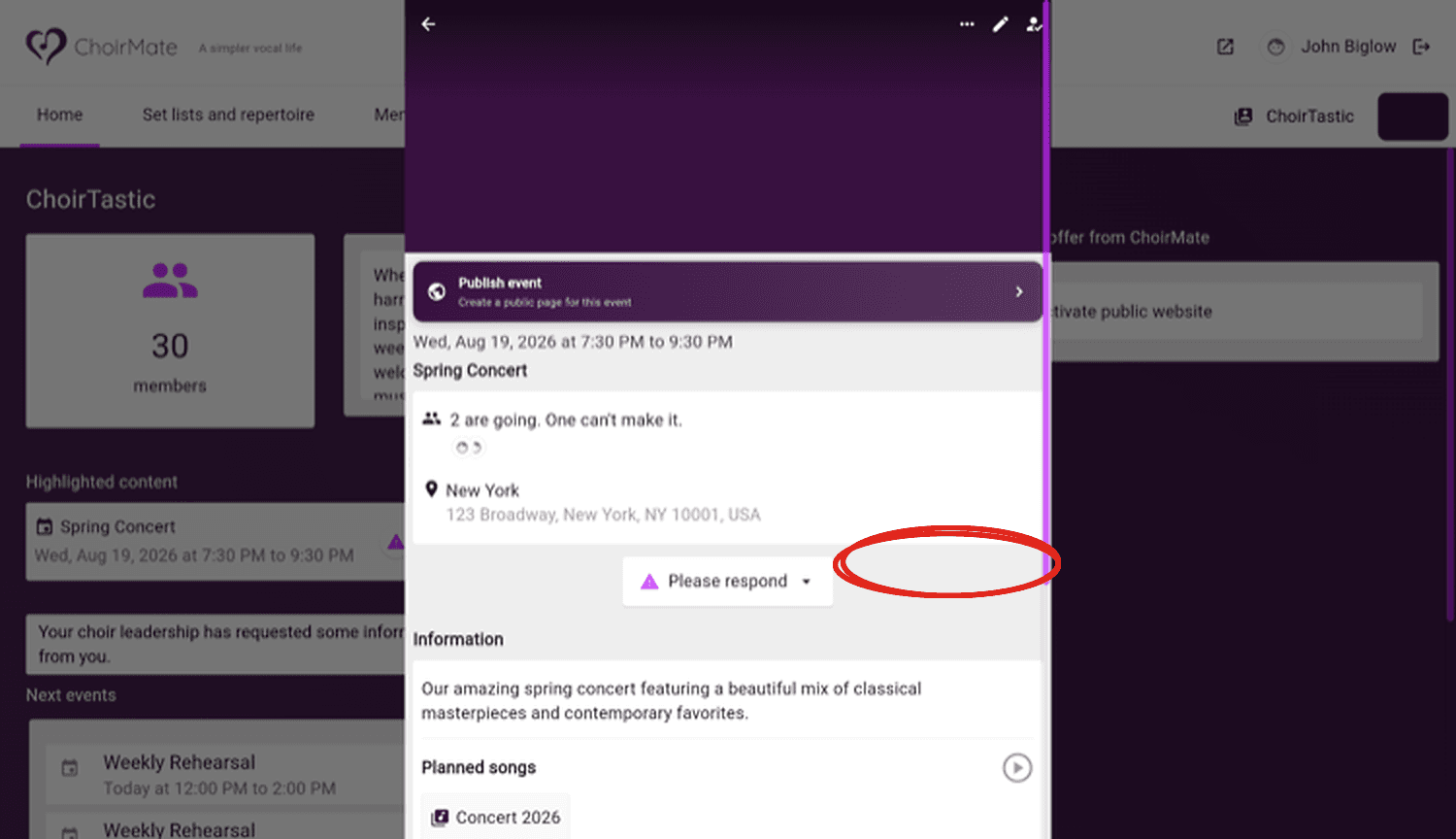
Open the event from the choir home page or calendar. Click Please respond, then choose whether you are attending. If you cannot attend, you can add an optional reason.
Responses, visibility, and check-in
Some events start with members marked as attending, while others require an explicit answer. The event can also control whether members see one another's responses. Choir administrators can always use the attendance view for planning.
If check-in is enabled, ChoirMate may ask attending members to confirm their presence during the event. Check-in does not replace your advance response. It helps the final attendance report reflect who was actually present. If the event allows it, an accidental check-in can be reversed.
Read the detailed guide to checking in to events for steps, time limits, reminders, and help with forgotten or incorrect check-ins.
Tip
Update your response when plans change. A current answer is more useful than an early answer that is no longer correct.