Choir administrators can follow responses before an event, correct attendance records, and review the report generated after the event. These views separate the expected headcount from the attendance that was actually recorded.
Review an event before it starts
Open an event with attendance enabled and select Attendance and absence. The overview shows how many members are expected, have not responded, or have reported an absence. Below that, each member's status is grouped by voice part.
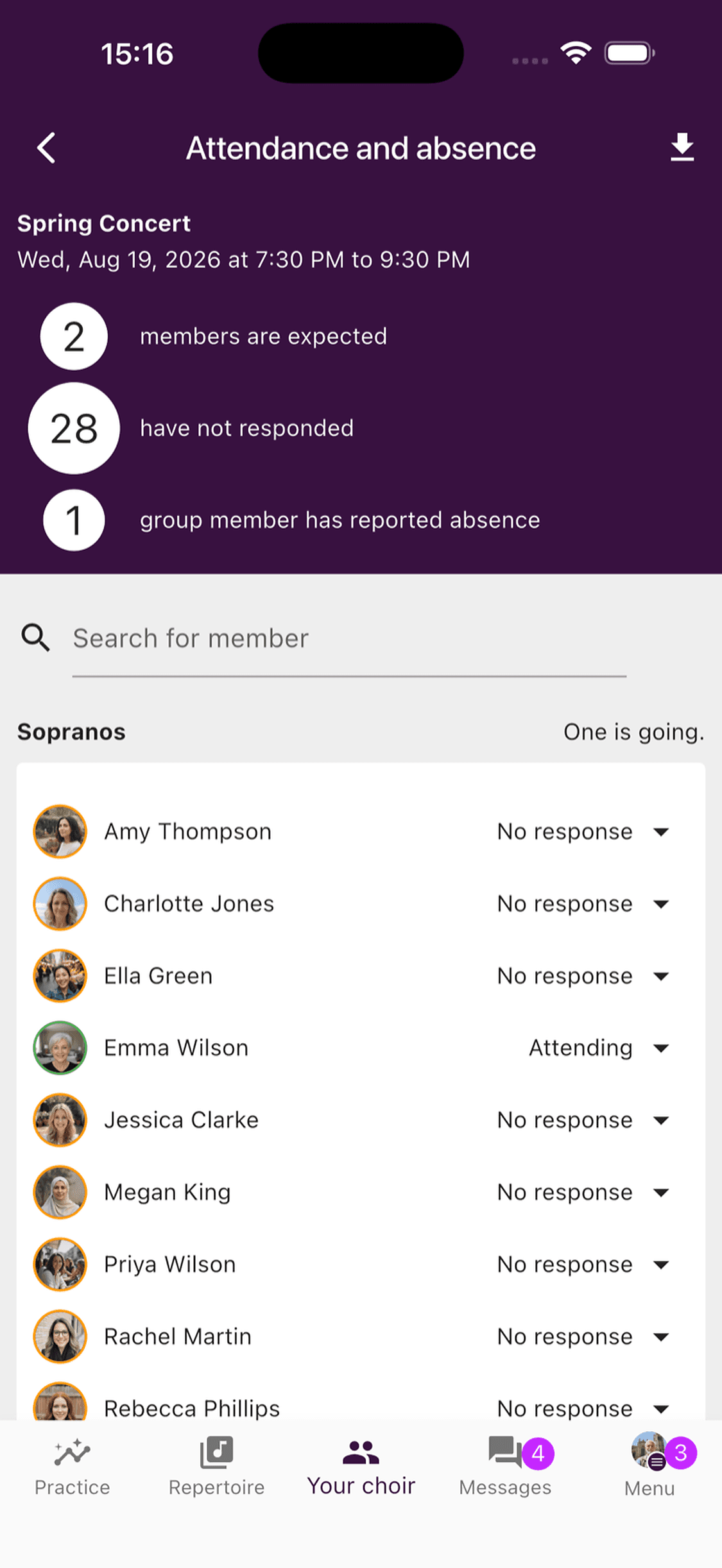
Administrators can update a member's status from this screen. Absence reasons are available to the roles allowed to manage attendance. What ordinary members can see depends on the event's response visibility setting.
Read the attendance report
A few hours after an event ends, ChoirMate generates its attendance report. Open the past event and select Attendance and absence to see:
- The overall attendance percentage
- The number of members who attended
- The total membership count at reporting time
- Attendance percentages for each voice part
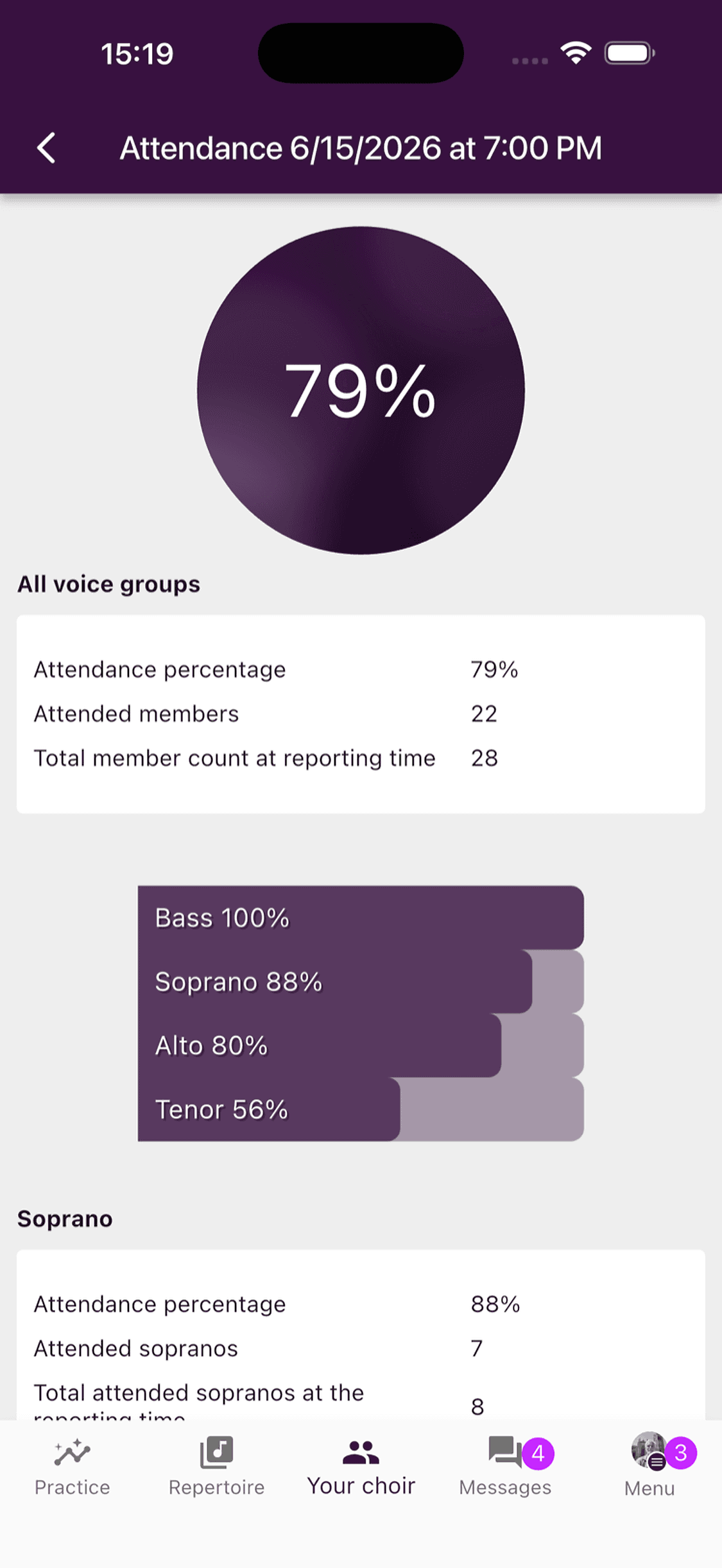
Administrators can still correct attendance when needed. Editors can work with attendance before and during an event, but the generated report is reserved for administrators.
Export attendance data
- 1
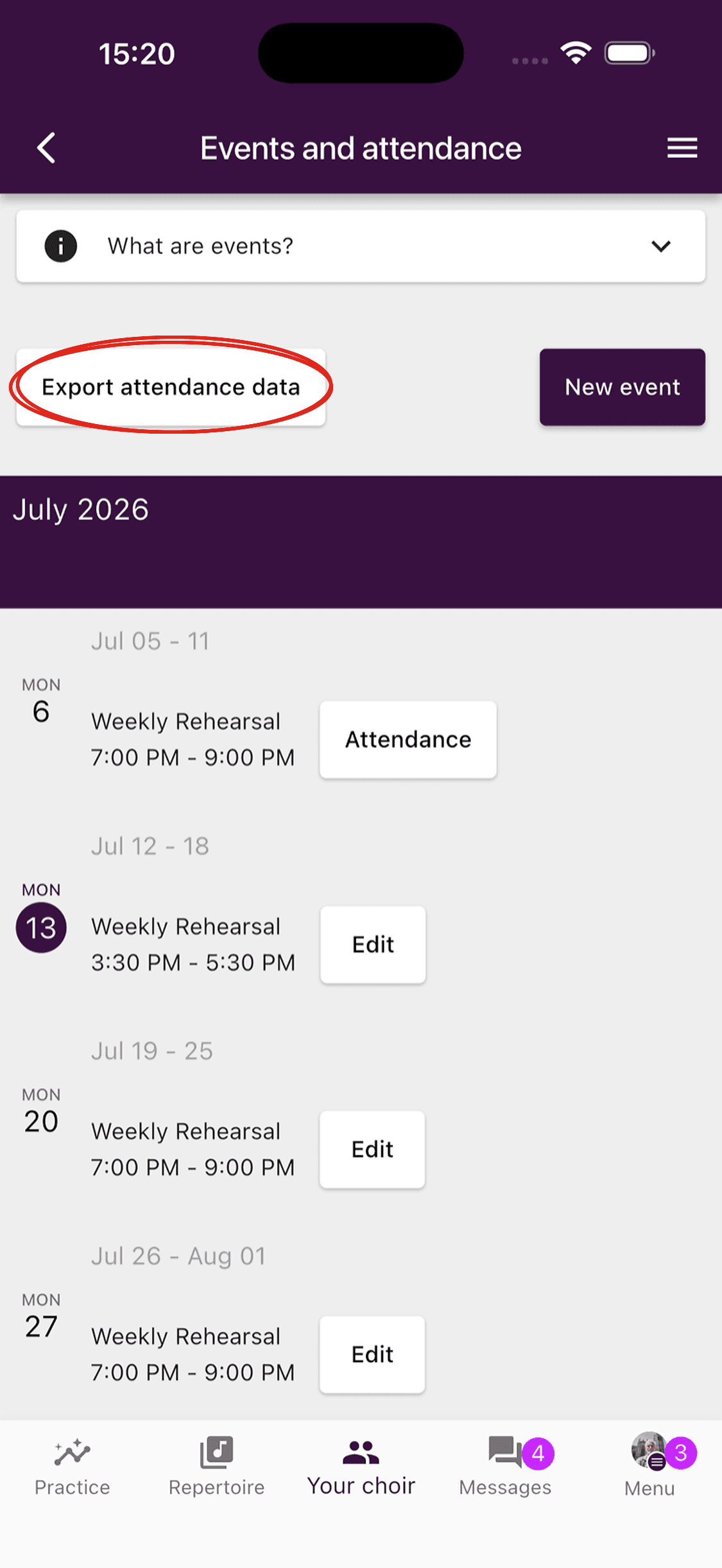
Open Events and attendance
Go to Your choir, open the administrator dashboard, and choose Calendar. The Events and attendance page has Export attendance data beside New event.
- 2
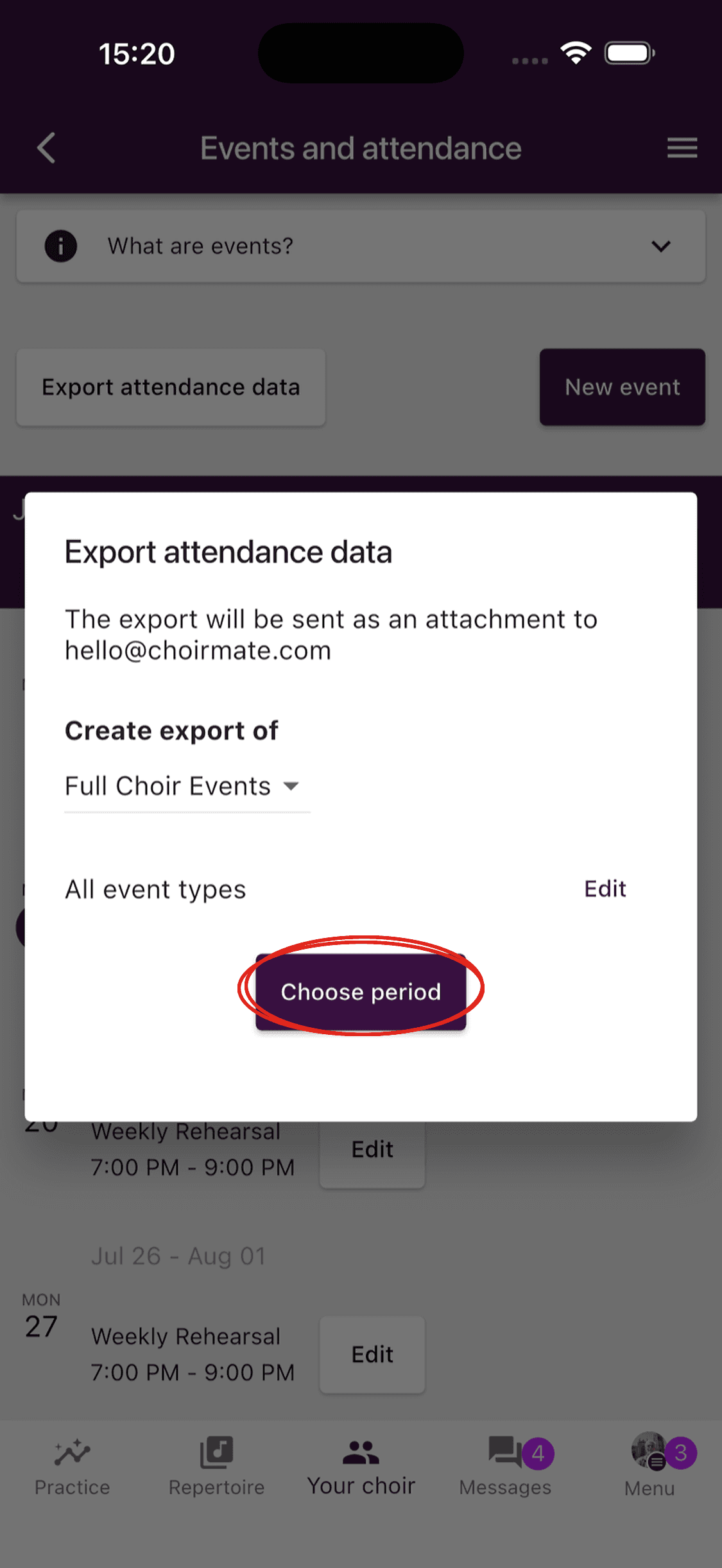
Set up the export
Choose full choir or section events, optionally filter event types, and select a period. Once the period is set, download the spreadsheet directly or send it to your registered email address.
- 1
Open the event management calendar
Open your choir's management area and go to the events calendar.
- 2
Configure the export
Click Export attendance data, choose the event scope and optional event types, then select a period. Download the spreadsheet or send it to your registered email address.
Tip
Correct obvious attendance mistakes before exporting a season or semester. The spreadsheet will then match the reports you see in ChoirMate.