ChoirMate has four choir roles: Conductor, Administrator, Editor, and Member. A role sets a person's basic access. Your choir's settings can then give Editors or Members permission to do specific tasks.
Everyone with administrator access is equal and shares ownership of the choir. ChoirMate has no single owner account, master administrator, or super administrator. The Conductor has the same administrator privileges. The role only changes how conductor-specific controls and remarks are presented.
What each role means
Conductor
The Conductor has administrator access and represents the choir's musical leader in ChoirMate. This role can add conductor remarks to songs, which are shown separately from remarks written by Editors. The Conductor can also be included in voice group chats when that option is enabled.
Administrator
Administrators manage the choir. They can open the administration area, manage members and roles, change choir settings, and work with events, attendance, communication, subscriptions, and repertoire.
Give this role only to people who should be able to make changes for the whole choir.
Editor
Editor is a limited management role. It suits section leaders and other people who help maintain content without needing full administrator access.
What an Editor can do depends on the choir's settings. For example, Administrators can decide whether Editors may manage events, polls, audio imports, recordings, sharing, and other repertoire tasks.
Member
Members use ChoirMate for everyday choir participation. They can view the content shared with them, practise songs, respond to events, and use messages and other features available through the choir's subscription.
Some content permissions can also be opened to Members. This lets a choir allow a specific action without giving everyone an Editor or Administrator role.
A quick comparison
| Role | Typical access |
|---|---|
| Conductor | Administrator access, plus conductor-specific remarks and choir leader context |
| Administrator | Full choir administration, including members, settings, events, repertoire, and subscription |
| Editor | Selected management tasks allowed by the choir's settings |
| Member | Normal participation and any extra actions allowed by the choir's settings |
Info
Subscription level, content visibility, and individual choir settings can affect whether a particular control is available. If the screen differs from this summary, check the choir settings before changing someone's role.
Change a role in the app
- 1
Open the member administration
Go to Your choir, tap the settings icon, open the menu in the top right, and choose Members.
- 2
Choose the new role
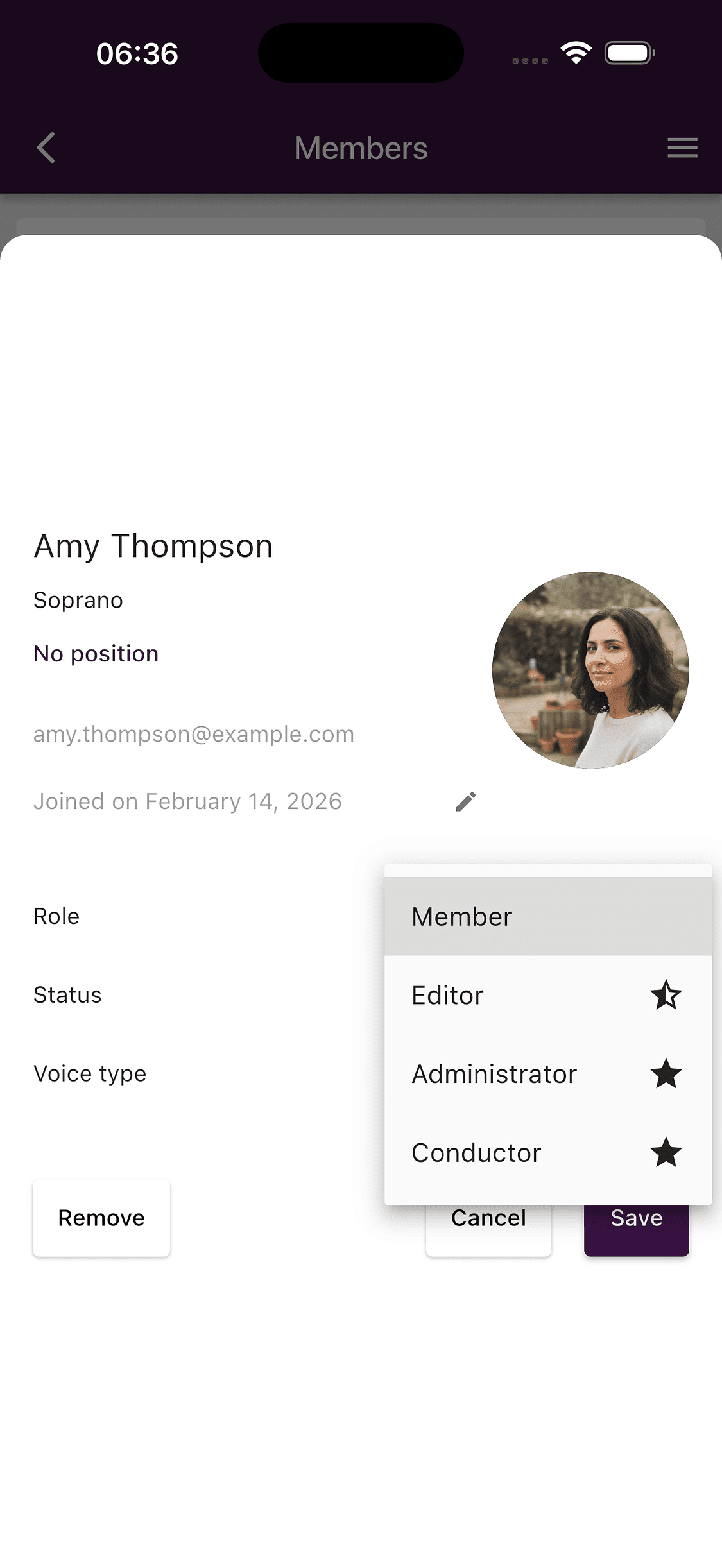
Open the member, then use the Role menu to choose Member, Editor, Administrator, or Conductor.
- 3
Save the change
Tap Save. The new access takes effect after the change has been processed.
Change a role on the web
- 1
Open Members
Open ChoirMate on the web and choose Members in the main navigation.
- 2
Choose the member and role
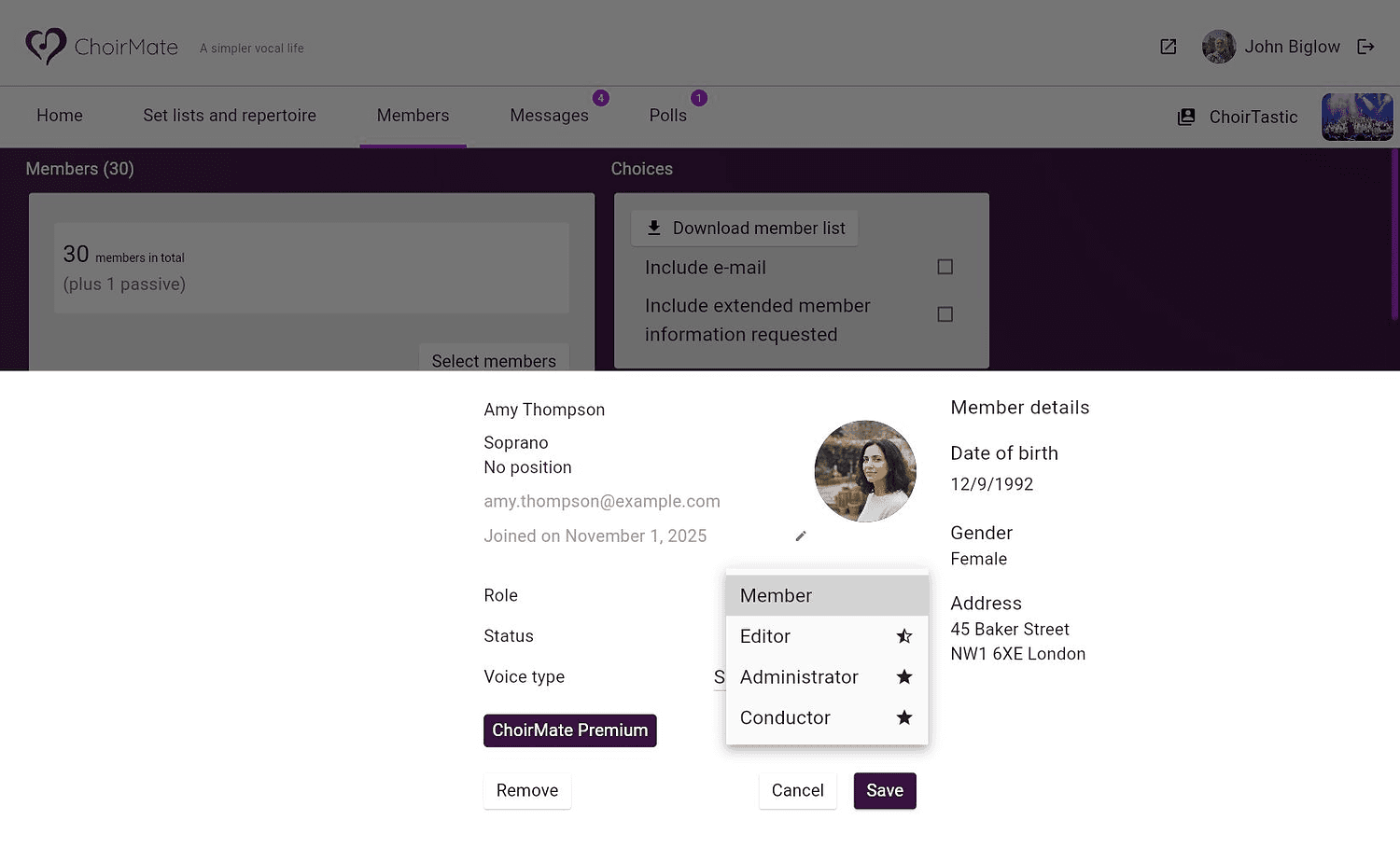
Select the member, open the Role menu, and choose the appropriate role.
- 3
Save the change
Select Save to apply the role.
Warning
Only people with administrator access can change choir roles. A member must also have a verified account before an Administrator can assign a higher role.
Adjust permissions without changing roles
Open the choir administration area and choose Settings to review the configurable permissions. These include settings for events and attendance, polls, audio importing and recording, audio sharing, and communication.
Use role settings for broad responsibility, then use these controls for the details. This keeps access understandable and avoids giving full administrator access just so someone can complete one task.
Good role management
- Keep at least two trusted people with administrator access.
- Give Editor access to people who regularly maintain choir content.
- Review the permission settings when an Editor cannot find an expected control.
- Remove elevated access when a person's responsibilities change.