Choir Administrators can manage the choir's members in the app or on the web. The administration view lets you search and filter the list, update one member, select several members, and download a spreadsheet.
Open member administration
In the app
- 1
Open the administration dashboard
Go to Your choir and tap the settings icon over the choir picture.
- 2
Open Members
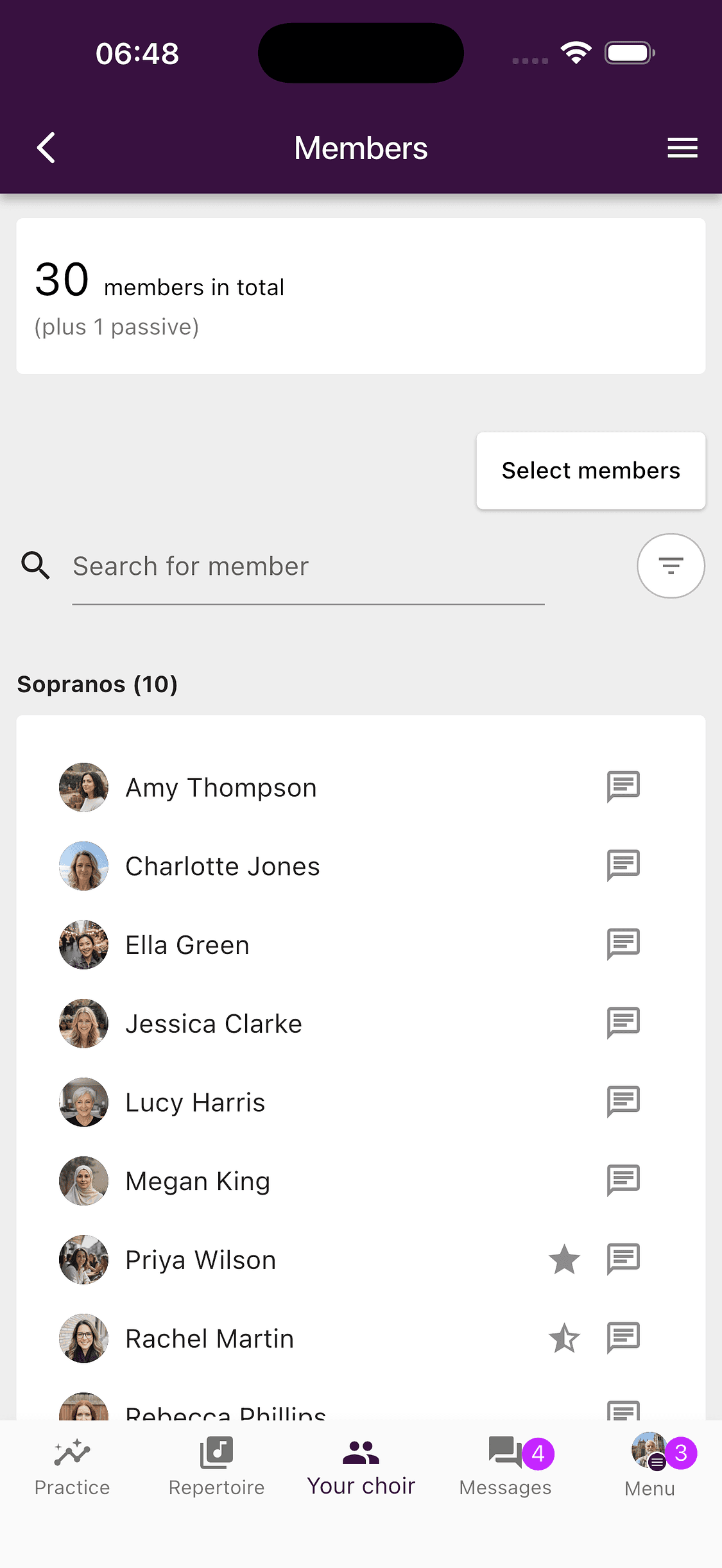
Open the menu in the top right and choose Members. You can search by name, filter by status, or scroll through the voice groups.
On the web
- 1
Choose Members
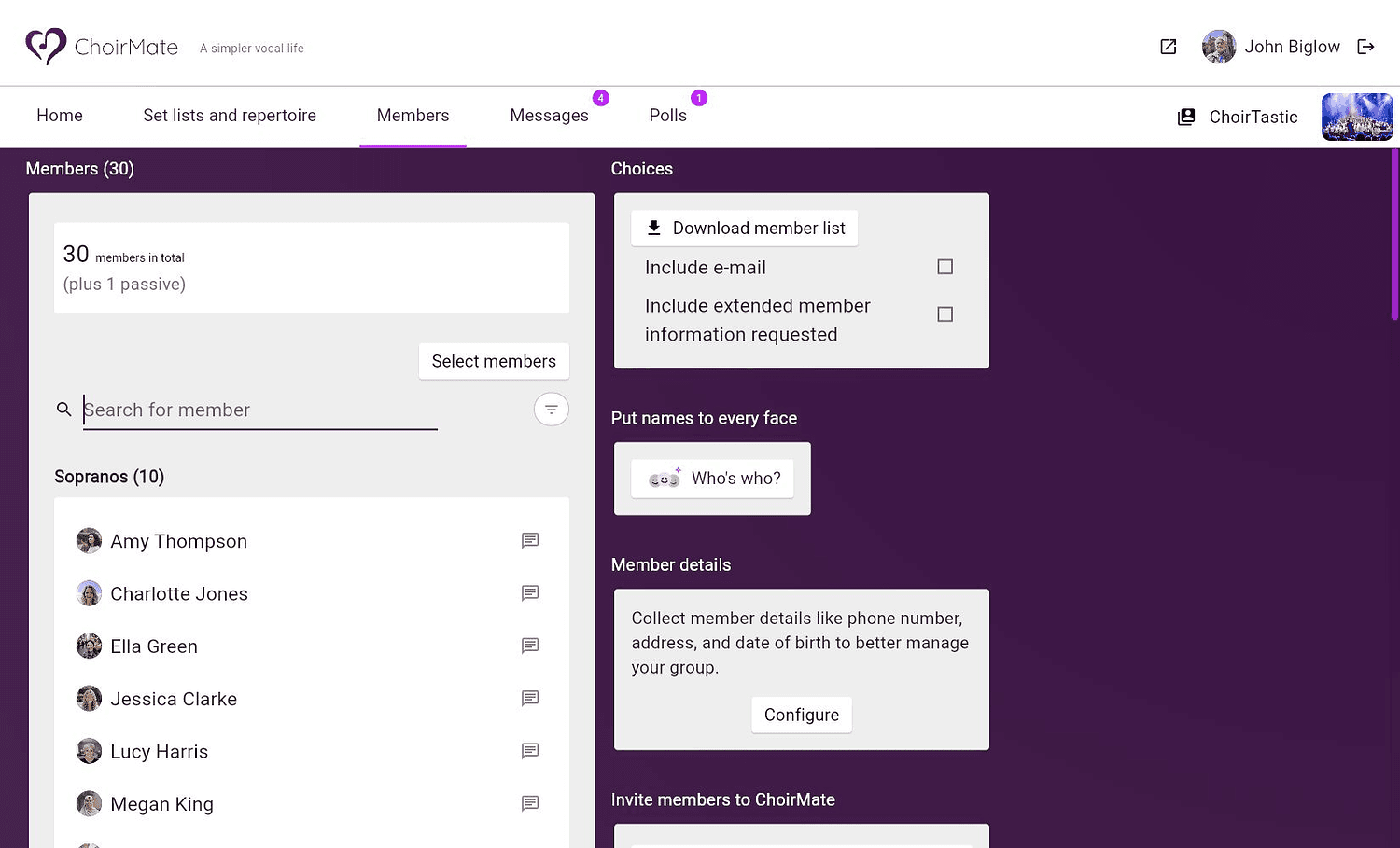
Open ChoirMate on the web and choose Members in the main navigation. The list appears on the left, while export and member-detail choices appear on the right.
Info
The Members shortcut on the app's regular Your choir page is a directory for everyday use. Open Members from the administration dashboard when you need management controls.
Update one member
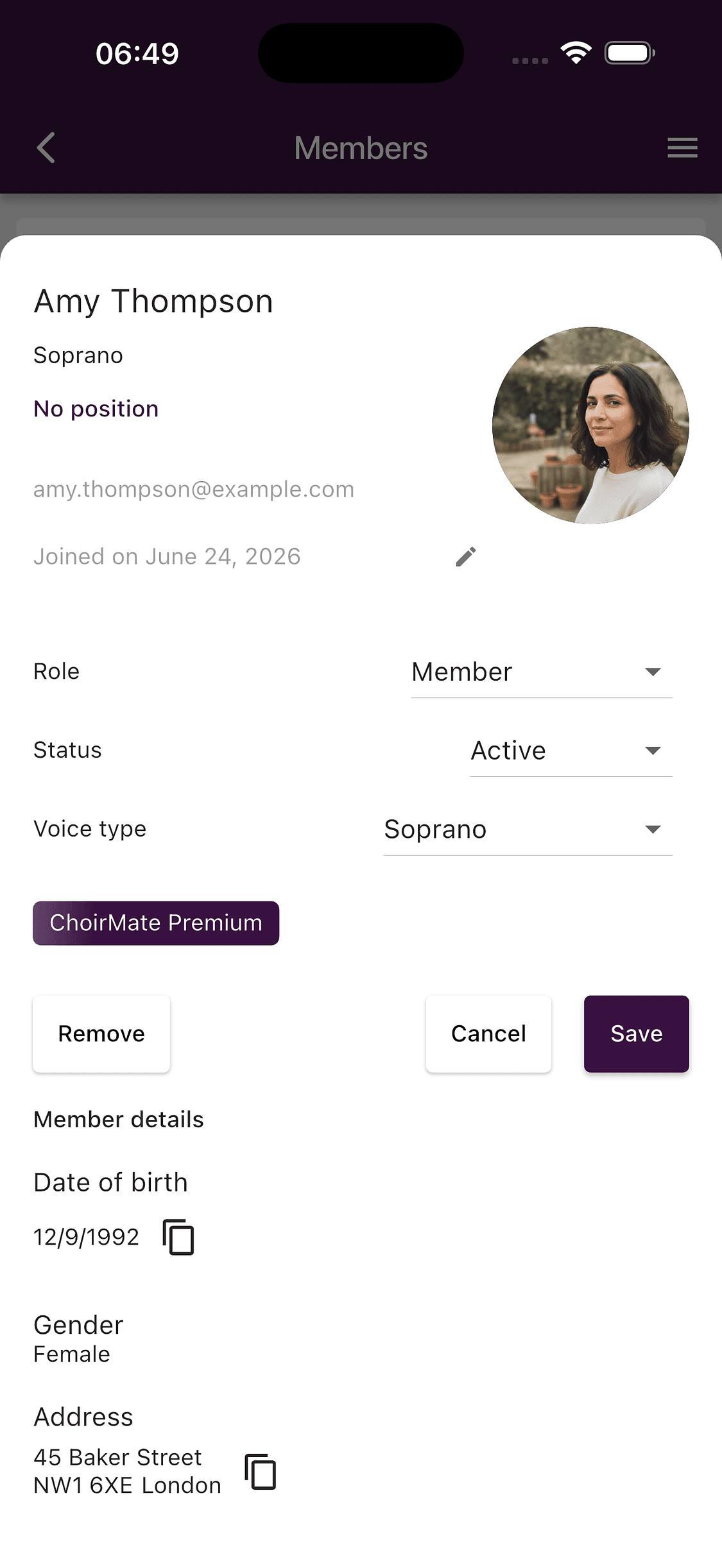
Select a member to open their membership details. Depending on your access and the choir's settings, you can change:
- Role, such as Member, Editor, Administrator, or Conductor
- Status, which can be Active, Passive, or Disabled
- Voice type, which places the member in the appropriate voice group
- the member's position or title and membership start date
In the app
- 1
Choose a member
Tap a name in the administration list.
- 2
Make the changes
Update the relevant fields. Member details that the person has supplied are shown further down the page.
- 3
Save
Tap Save to apply the changes.
On the web
- 1
Choose a member
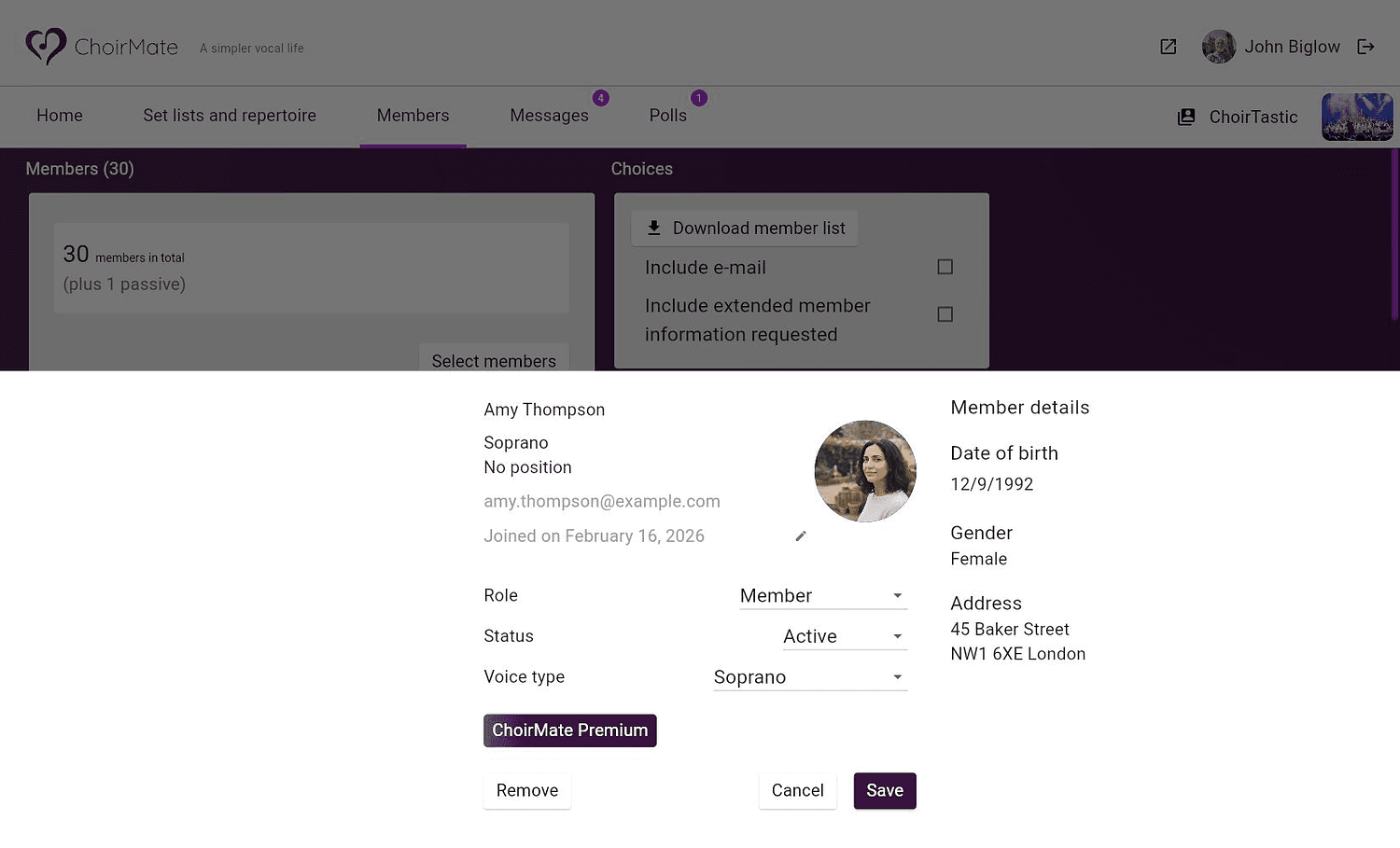
Select a name in the list. The member editor opens across the lower part of the page.
- 2
Update and save
Change the role, status, voice type, or other available fields, then select Save.
Tip
Use Passive for someone who should keep access but should not be included in attendance reports. A Disabled member loses access to the choir.
Role changes affect what the person can manage. See Admin Roles and Permissions before giving someone elevated access.
Remove members
Open a member and select Remove if they should no longer belong to the choir. They lose access to the choir's content, but they can be invited to join again later.
To remove several people, select Select members above the list, choose the members, and open the actions menu. Your own membership is left out of a multi-member removal.
Warning
Check the selected names carefully before confirming. Removing a member changes their access immediately.
Request member details
Administrators can choose which additional details the choir asks members to provide, such as a phone number, address, date of birth, gender, emergency contacts, or custom fields.
Open the Members administration page and choose Configure in the member-details section. Members enter and maintain their own information. The details they have supplied are then available in their member record.
Collecting extended member details requires a choir subscription that includes this feature.
Export the member list
The member administration page can download a spreadsheet of the choir's members. On the web, the export choices are shown beside the list. In the app, scroll below the member list and capacity summary.
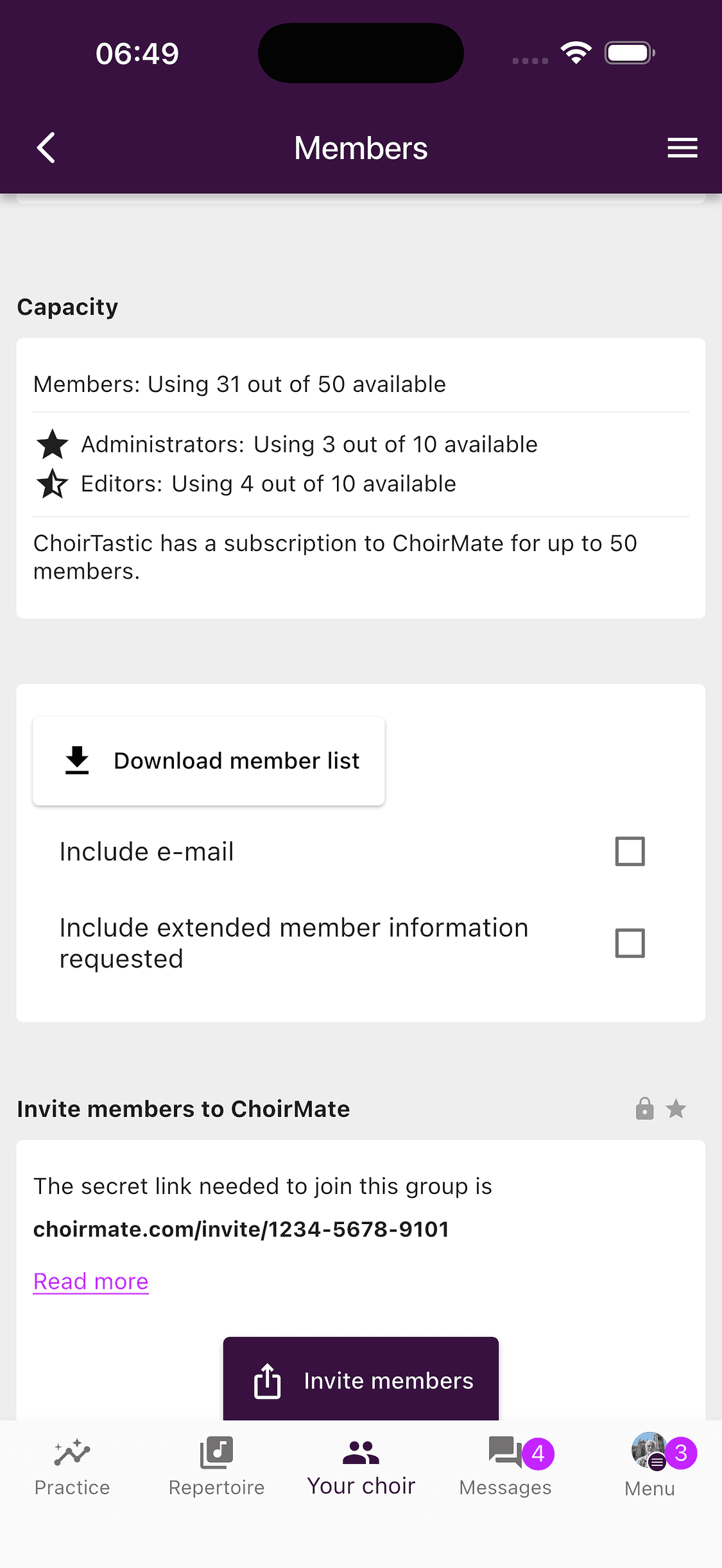
Choose whether to include email addresses. If the choir requests extended member details, you can also include the information members have supplied. The export only includes fields that are available to the choir.
Check capacity and role limits
The app shows current member, Administrator, and Editor usage below the list. These limits depend on the choir's subscription. If a role cannot be assigned or a new member cannot join, review the capacity summary and subscription before trying again.