Choir Administrators can keep the choir's identity and settings up to date from the app. Changes to the name, description, and picture are shown to members and also appear in ChoirMate on the web where that information is used.
Open the choir administration area
Go to Your choir and tap the settings icon over the choir picture. The administration dashboard opens. Use the menu in the top right to move between Choir info, Members, Communication, Subscription, Settings, and the other administration pages.
Update the choir information
- 1
Open Choir info
From the administration dashboard, open the menu in the top right and choose Choir info.
- 2
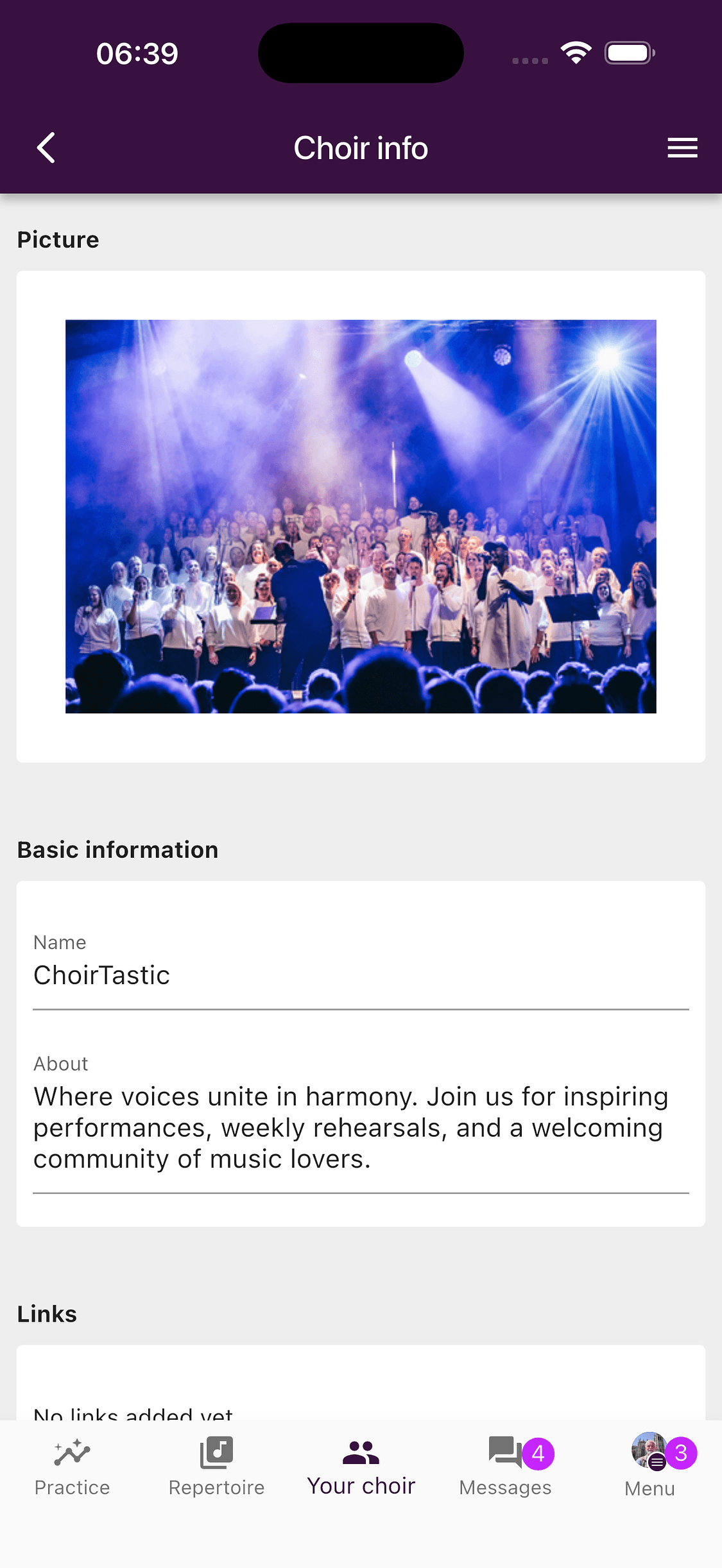
Change the picture or basic information
Tap the picture to choose a new image. You can also edit the choir name and the About text.
- 3
Review links and contact details
Scroll down to add links, a public or internal email address, phone numbers, and a web address. Public and internal fields are kept separate so you can choose what is suitable outside the choir.
- 4
Save the changes
Select Save at the bottom of the page. The updated information is then available across the choir's ChoirMate views.
Tip
A landscape photo works well as a choir picture. After choosing it, adjust the crop so important faces are not placed close to the edges.
What members see on the web
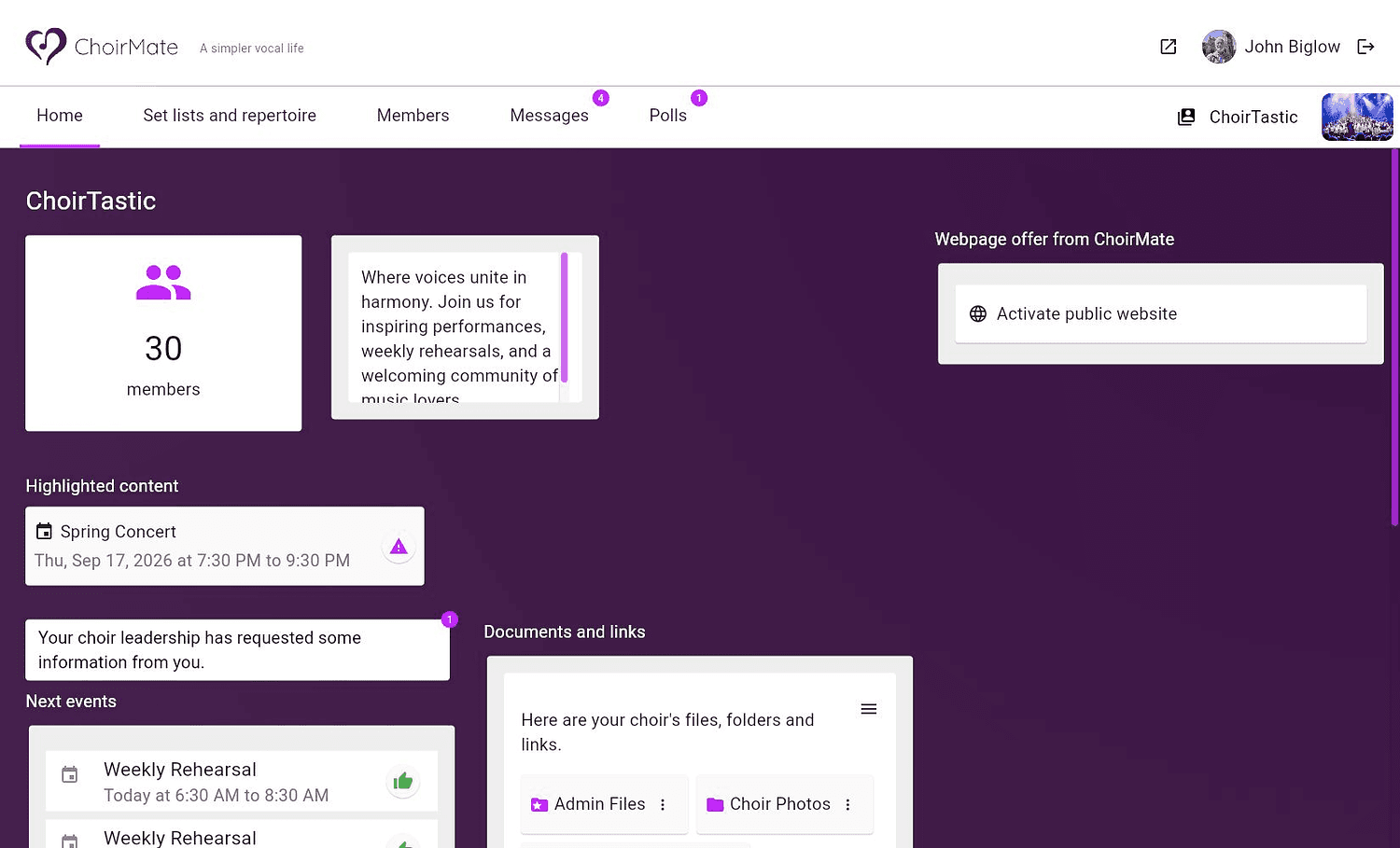
The web home page uses the same choir name, picture, description, and highlighted content as the app. It also shows the next events and available documents. Choir information is edited in the app, not from this web home page.
Review the choir settings
The Settings page controls how members and Editors can work with choir content. Open it from the dashboard shortcut or from the menu in the top right.
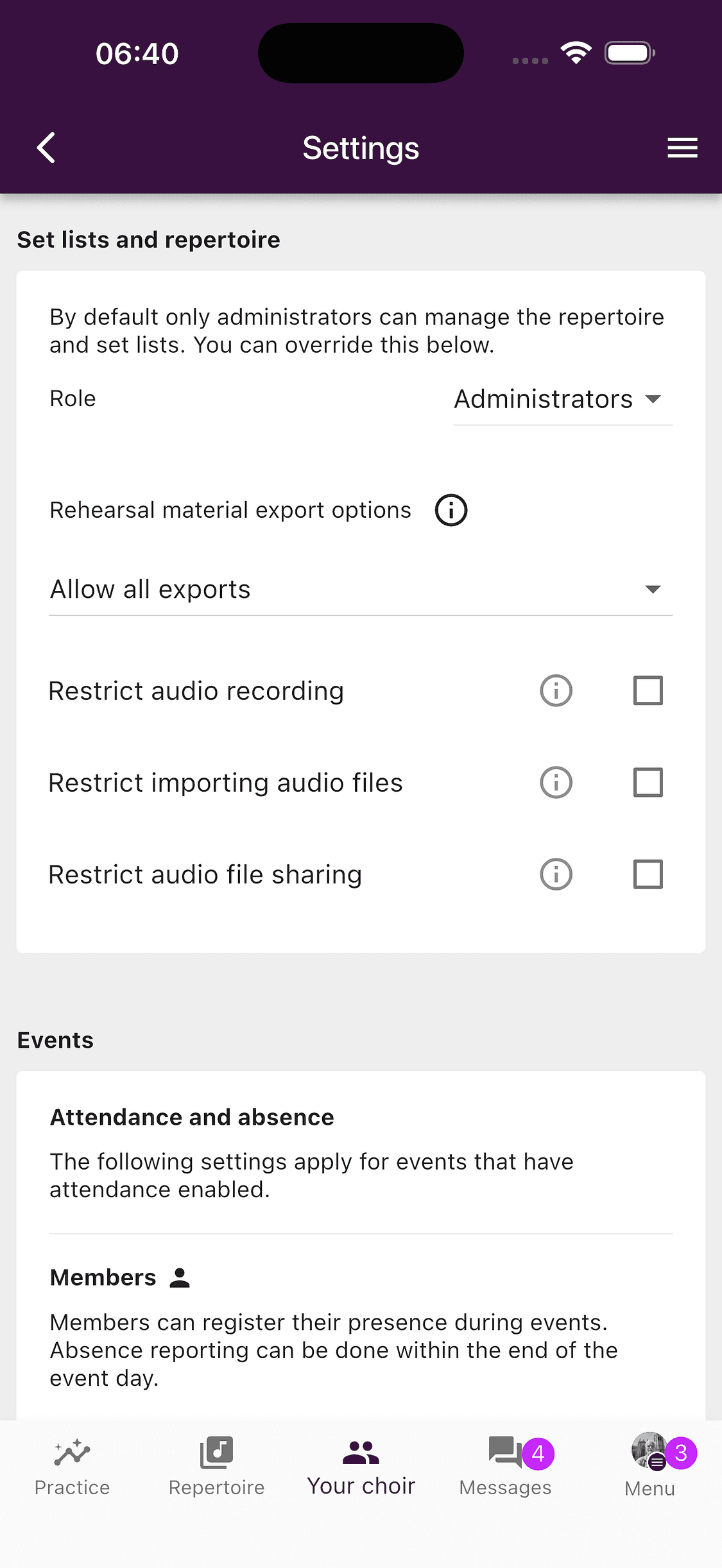
The available sections include:
- set lists, repertoire, and rehearsal material exports
- recording, importing, and sharing audio files
- events, attendance, absence, and reminders
- polls and communication
- language, notifications, and other choir-wide behaviour
Some choices are role based. For example, you can decide whether only Administrators or also Editors may manage part of the repertoire. Check these settings when someone cannot find an expected control.
Voice groups
Voice groups are created when the choir is set up and are used throughout the repertoire, practice lists, messages, and member profiles. They cannot currently be renamed or reorganised from the choir-info page. Contact ChoirMate support if the choir needs a structural voice-group change.
Before you finish
- Check the choir name and description for outdated details.
- Use internal contact fields for information that should remain within the choir.
- Review permission settings when responsibilities change.
- Open the web version once to confirm that the updated choir page looks right on a larger screen.