Highlighted content places selected choir items near the top of Your choir in the app and on the choir home page in the web version. Use it for information that members should be able to reach quickly.
Choir Administrators can manage highlighted content. A ChoirMate Premium group subscription makes it available to the choir's members. Without Premium, highlighted content is only available to Administrators. Learn more
What you can highlight
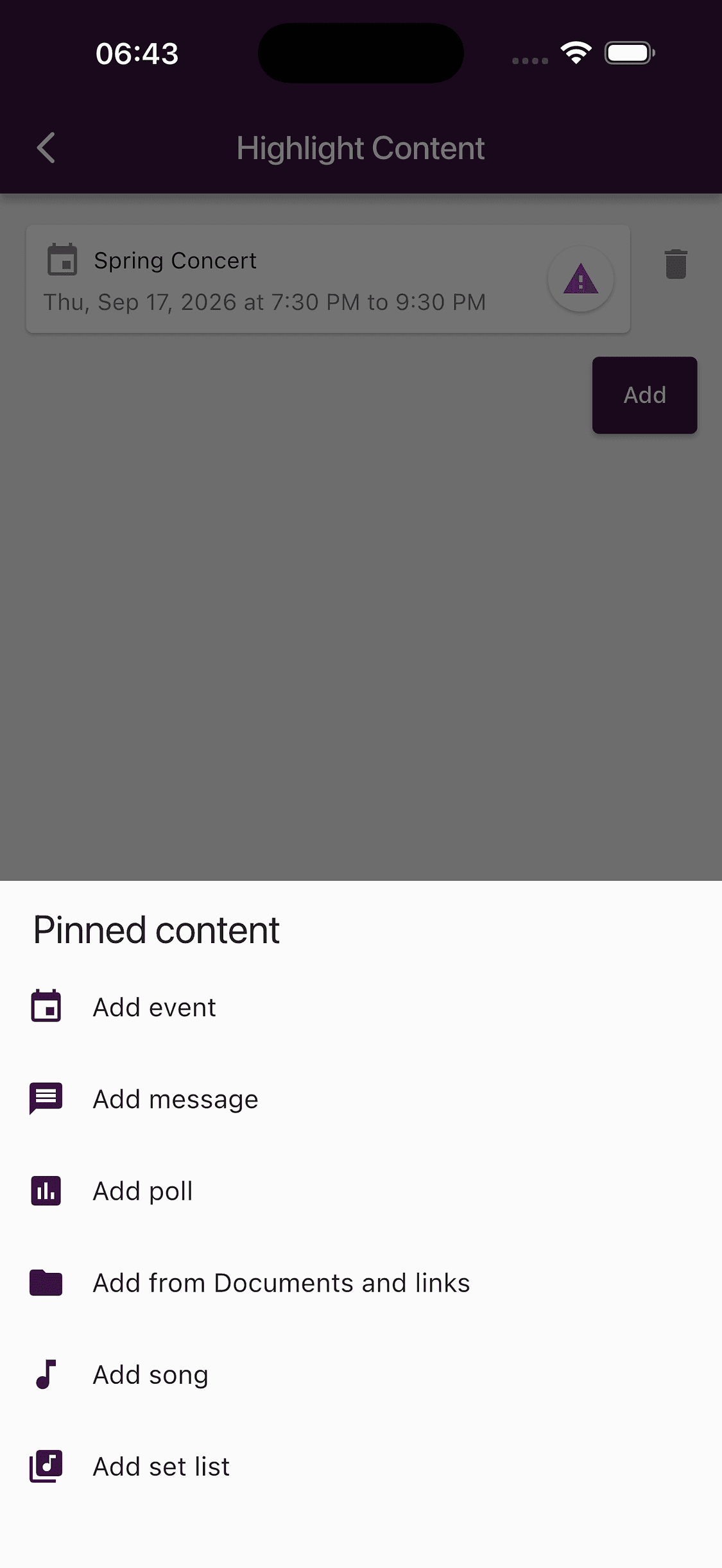
The current chooser includes:
- events
- message posts
- polls
- files, folders, and links already stored in Documents and links
- songs
- set lists
The item must already exist in ChoirMate before you can add it. To highlight an external link, add the link to Documents and links first, then choose it from there.
Add highlighted content
- 1
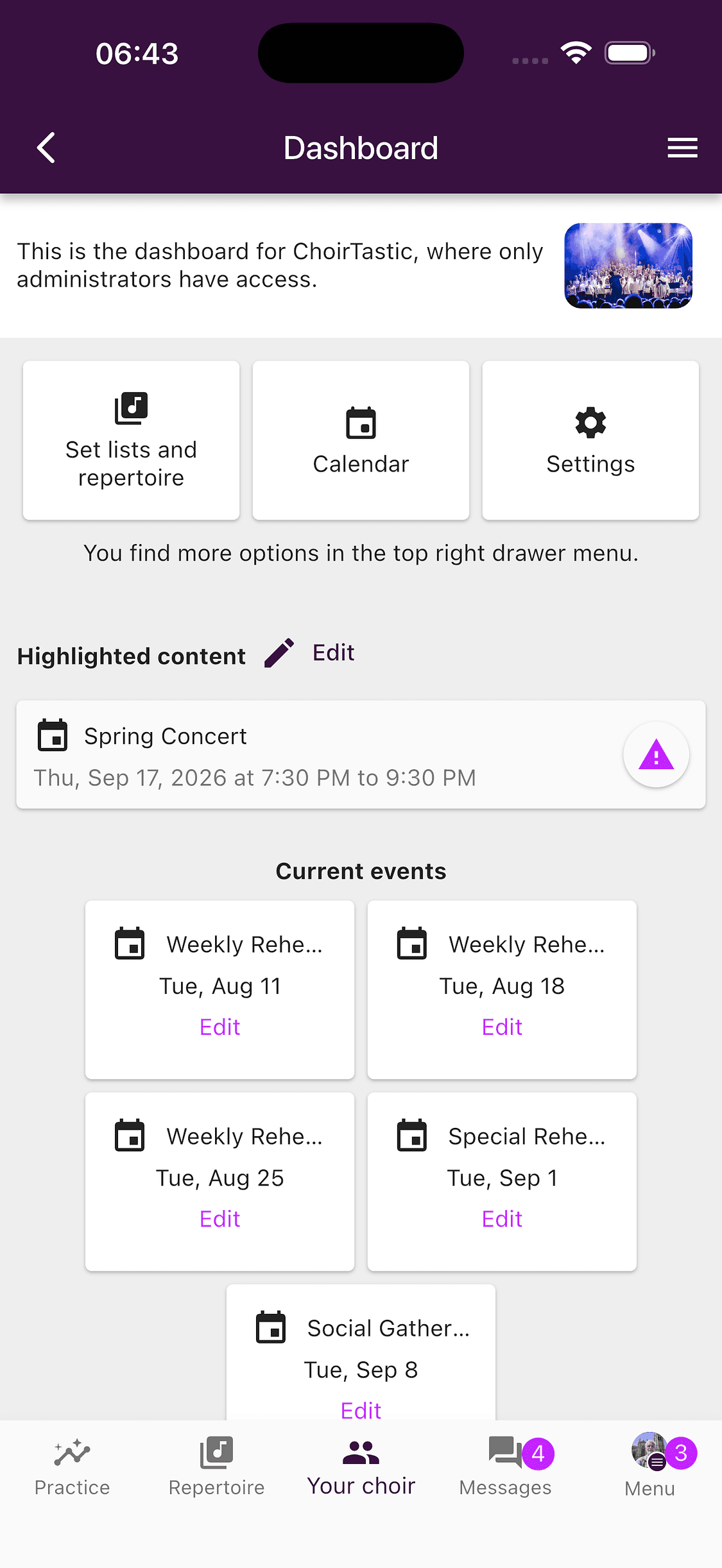
Open the administration dashboard
Go to Your choir and tap the settings icon over the choir picture.
- 2
Open Highlight Content
Find Highlighted content on the dashboard. Choose Edit when items are already present, or Add when the list is empty.
- 3
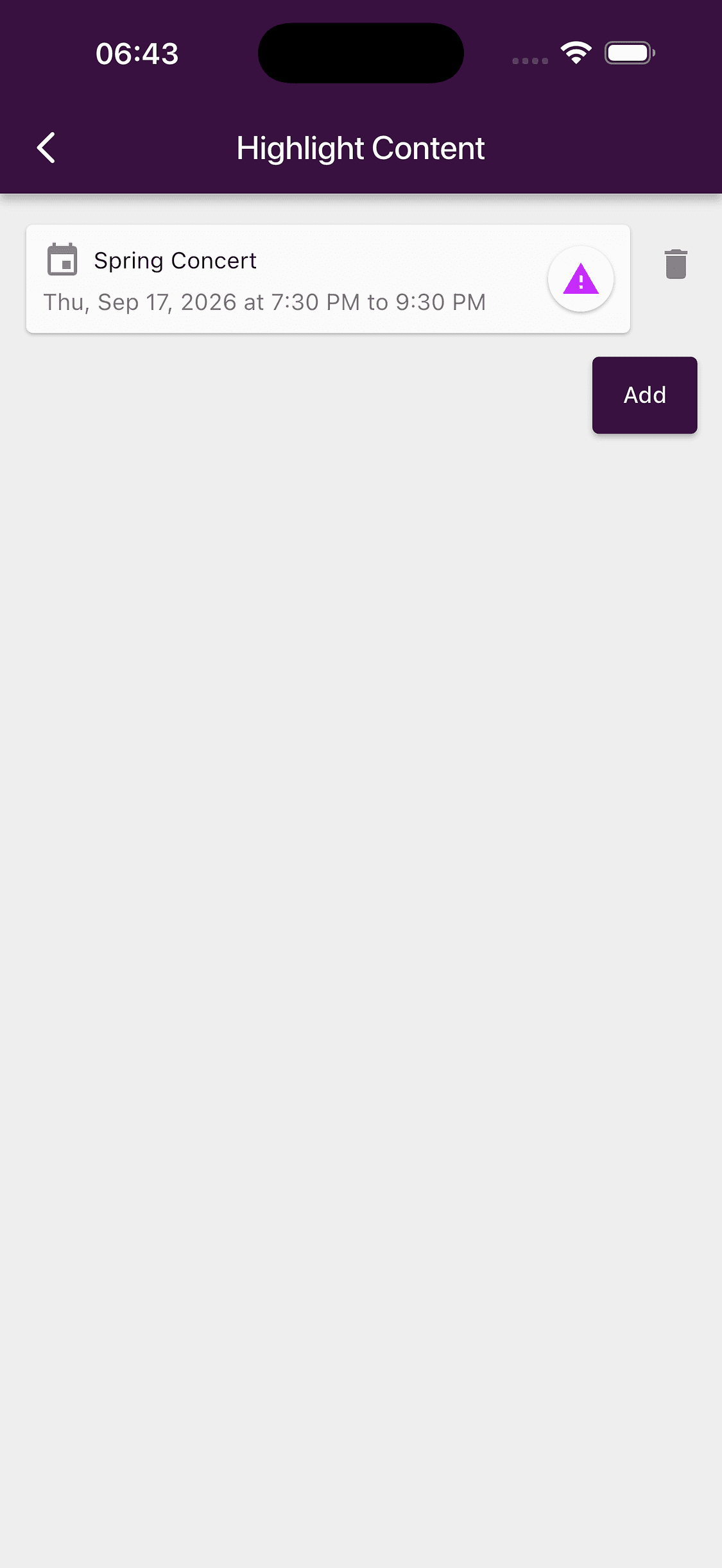
Review the current list
The Highlight Content screen shows the items in their current order. Drag an item to move it, or use the bin icon to remove it from the home page.
- 4
Choose what to add
Select Add, choose a content type, and then choose the specific item.
- 5
Save the list
When you return to the Highlight Content screen, select Save in the top right. Reordering and removal are not applied until you save.
Info
The app shows the maximum number of highlighted items when the list reaches its limit. Remove an older item before adding another one.
What members see
Highlighted items appear in the order you saved them. The same list is shown in the app and in ChoirMate on the web.
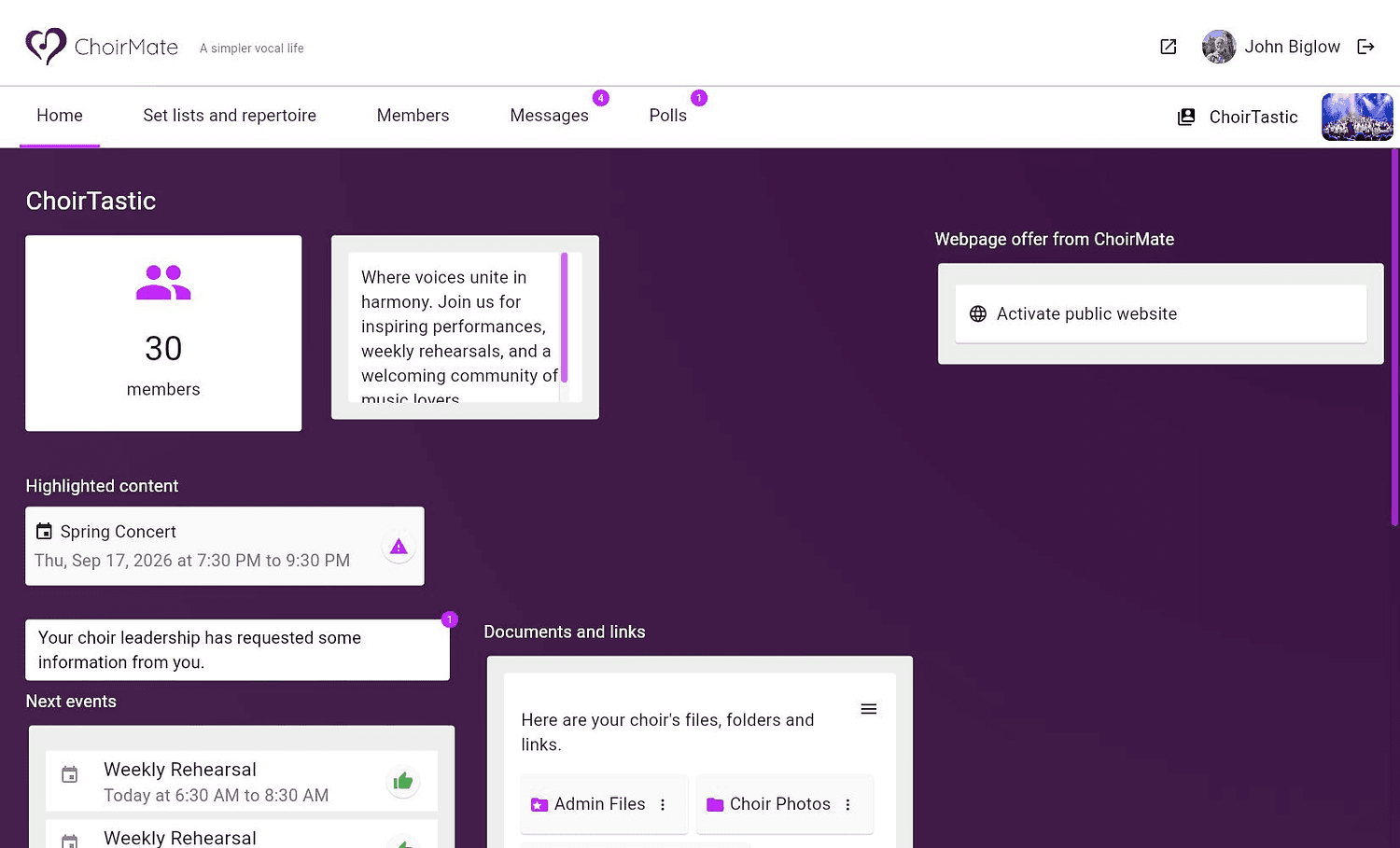
Highlighting an item does not change the underlying content. Removing it from this list only removes the shortcut from the home page. The event, post, poll, document, song, or set list remains in its normal location.
Keep the list useful
- Highlight a small number of items that need attention now.
- Remove completed events and closed polls.
- Put the most important item first.
- Prefer a set list over several separate songs when members need the complete programme.
- Check that the underlying item is published and visible to the intended members.