A set list is an ordered collection of songs from your choir's repertoire. Use one for a concert programme, the music for a rehearsal period, or any collection members should be able to find together.
Adding a song to a set list does not create a second copy. Removing it from the list does not remove it from the repertoire.
By default, choir owners and administrators can manage the repertoire and set lists. A choir owner can change the minimum role in the choir settings. Learn more about roles and permissions.
Create a set list
- 1
Open set-list management
Open Repertoire, select Manage repertoire, then Manage set lists.
- 2
Create the list
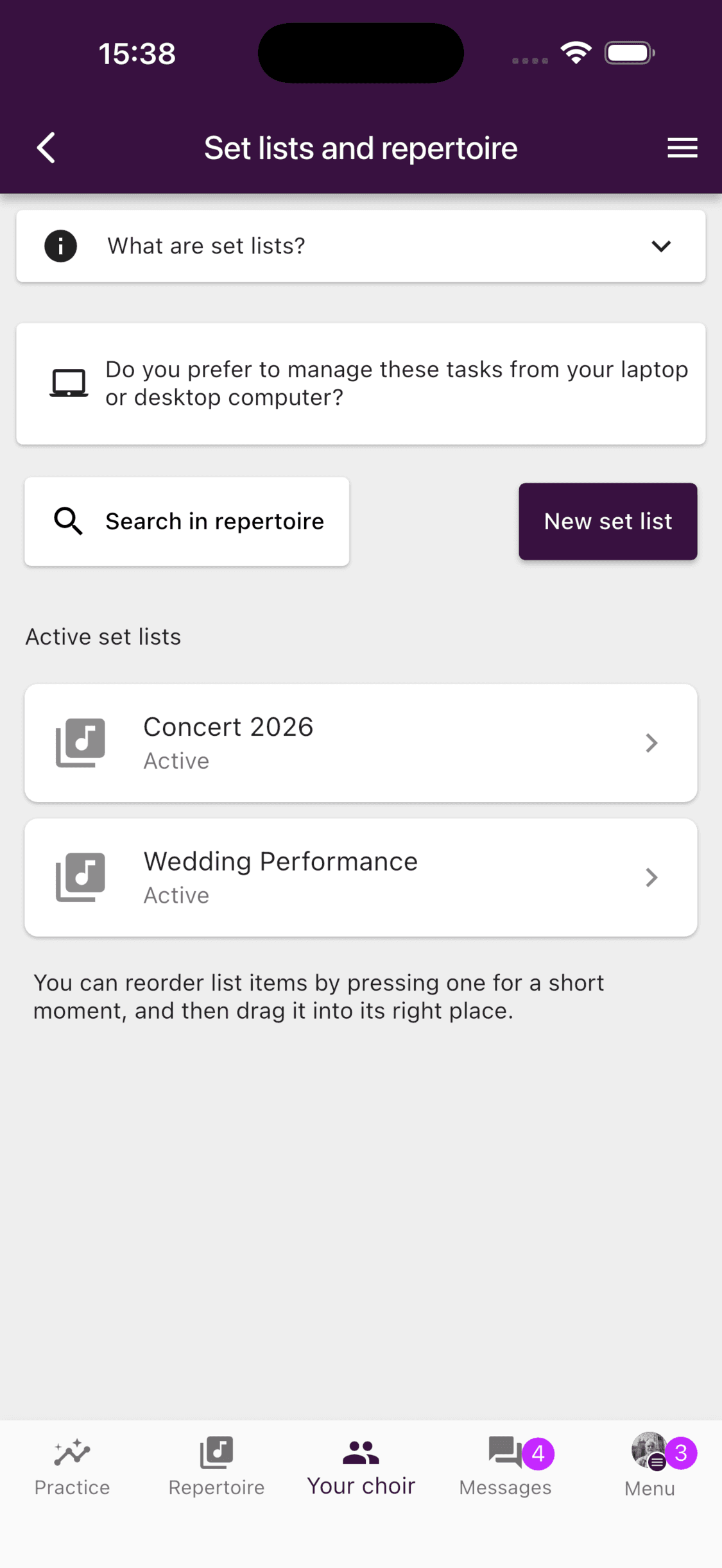
Tap New set list, enter a name, and choose whether members can see it now or after a chosen date and time. Tap Save.
- 1
Open Set lists
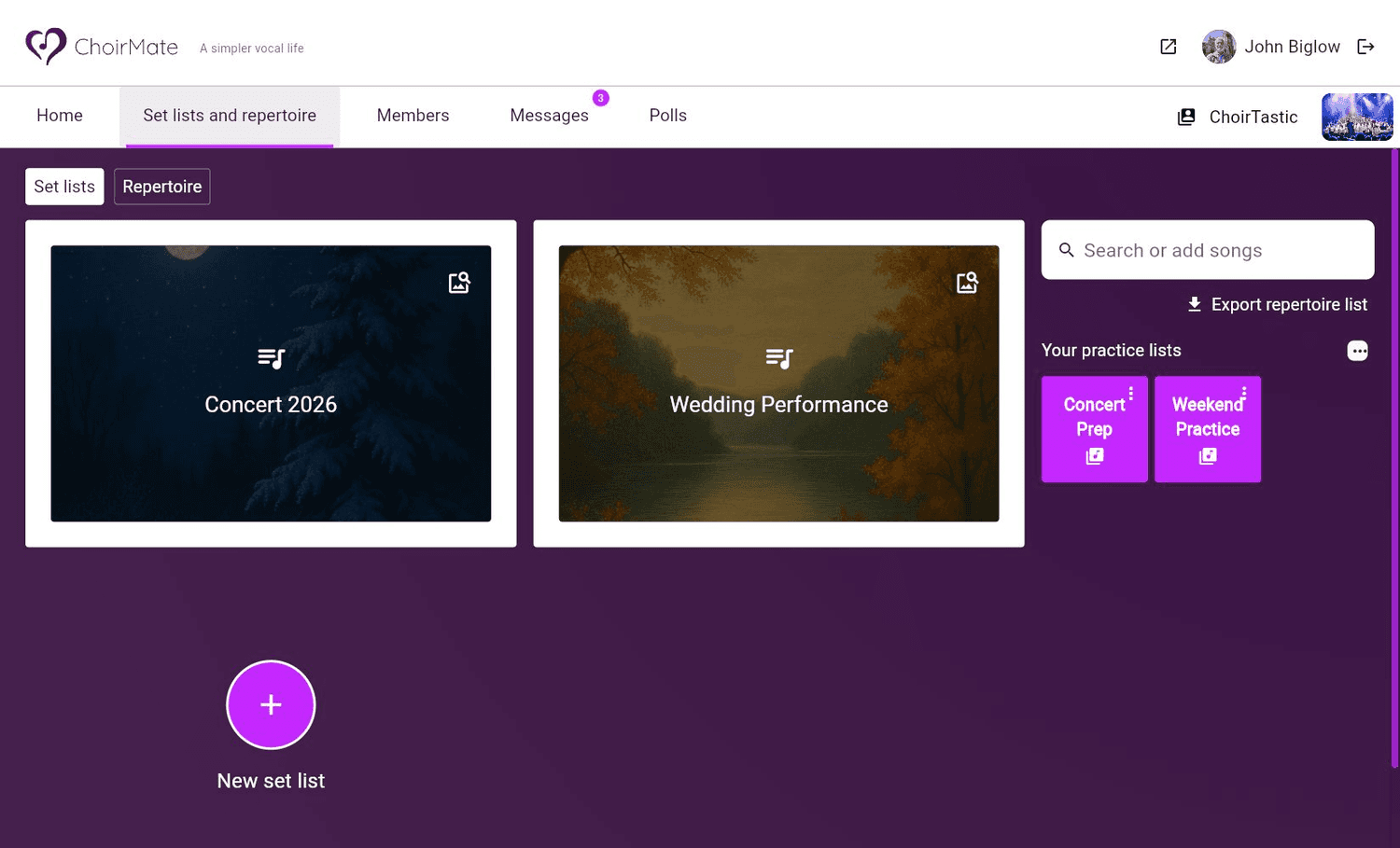
Sign in at web.choirmate.com, open Set lists and repertoire, and choose Set lists.
- 2
Create the list
Select New set list, enter a name, and select Create. You can add songs and adjust the status after opening the new list.
Add or remove songs
- 1
Open the set list
Return to Manage set lists and select the list.
- 2
Edit the selection
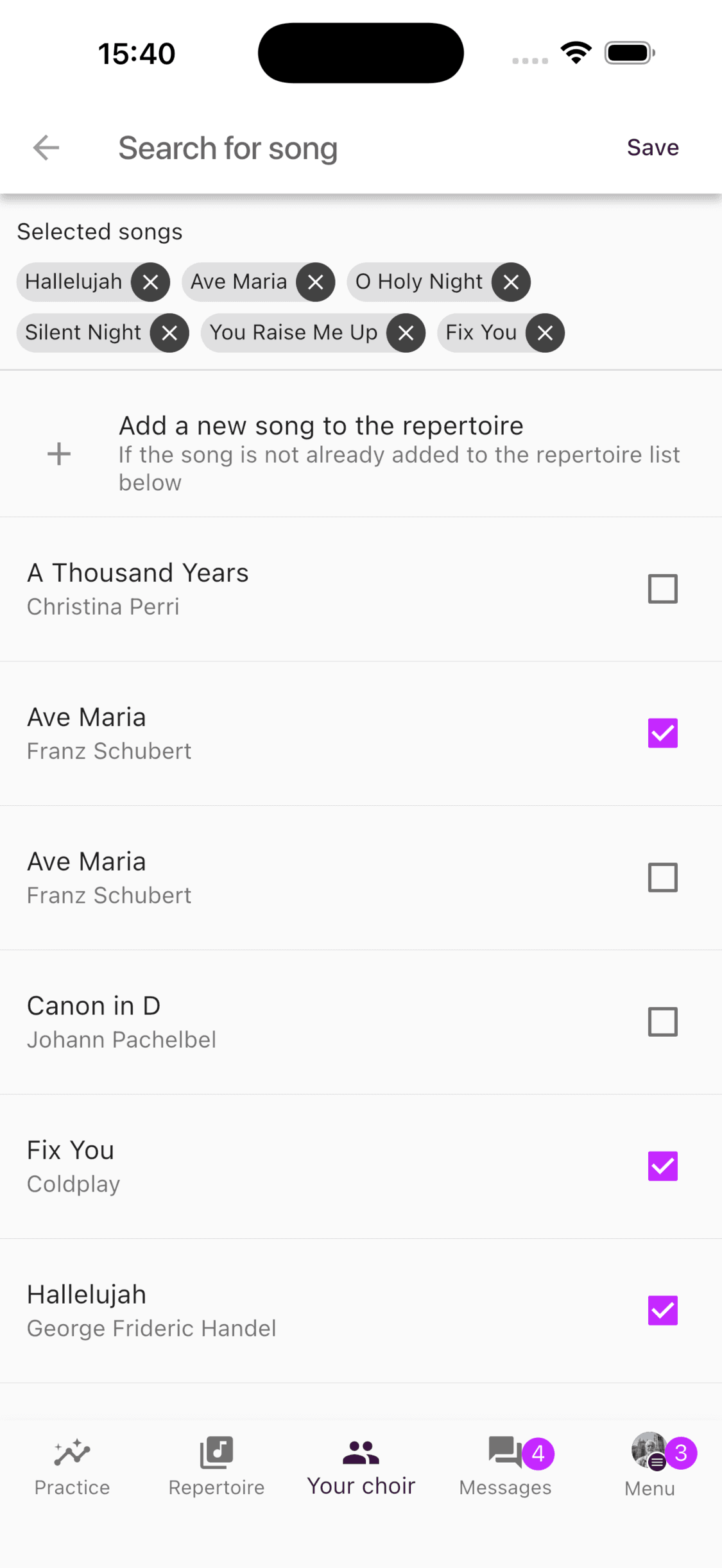
Tap Edit songs. Select songs to add and clear songs to remove, then tap Save. If a song is not in the repertoire yet, you can add it from this screen.
- 1
Open the set list
Select the list from the Set lists overview.
- 2
Choose songs
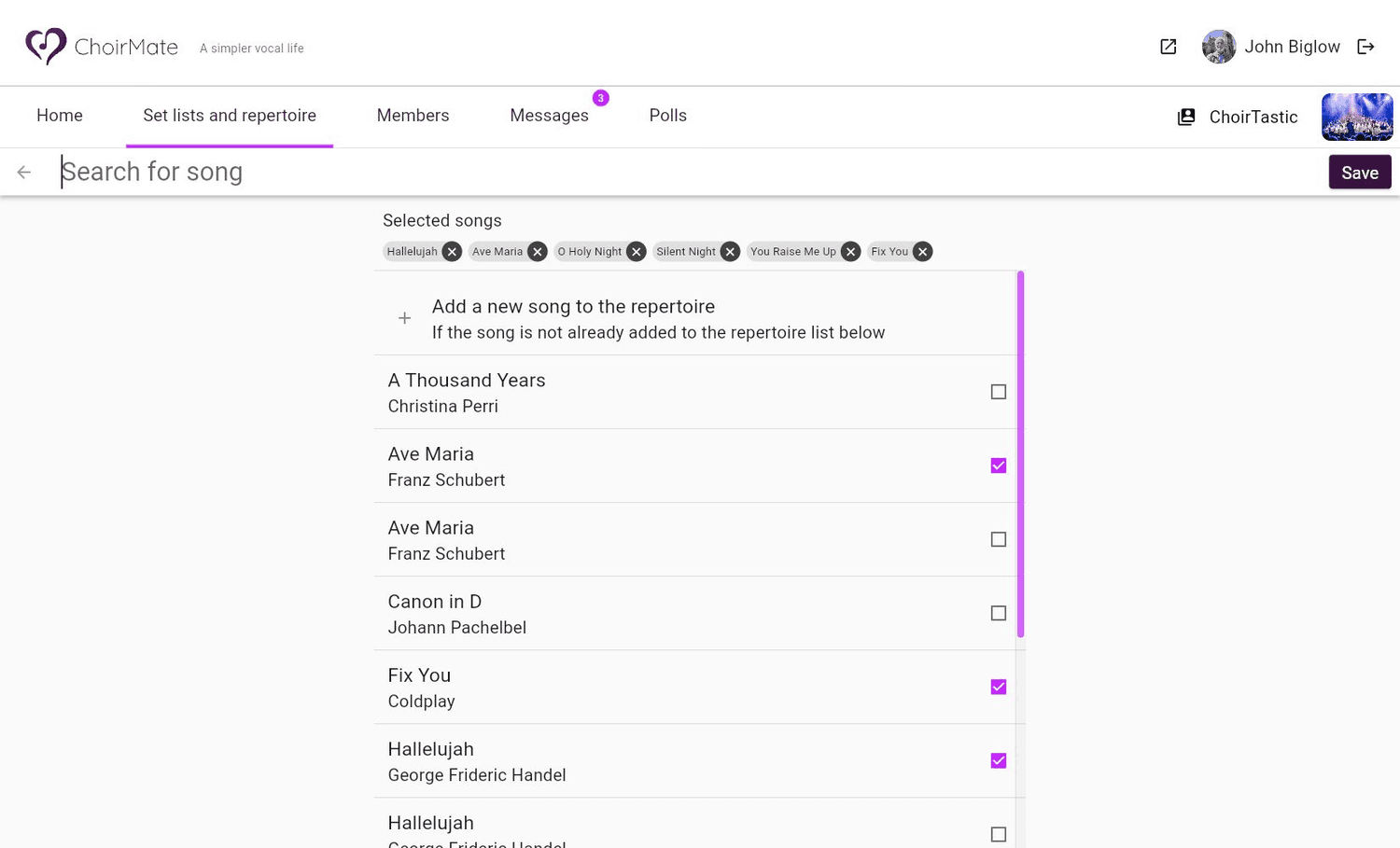
Select Choose songs for set list, change the selection, and select Save. You can also add a new repertoire song from this screen.
Put the songs in order
- 1
Open the set-list editor
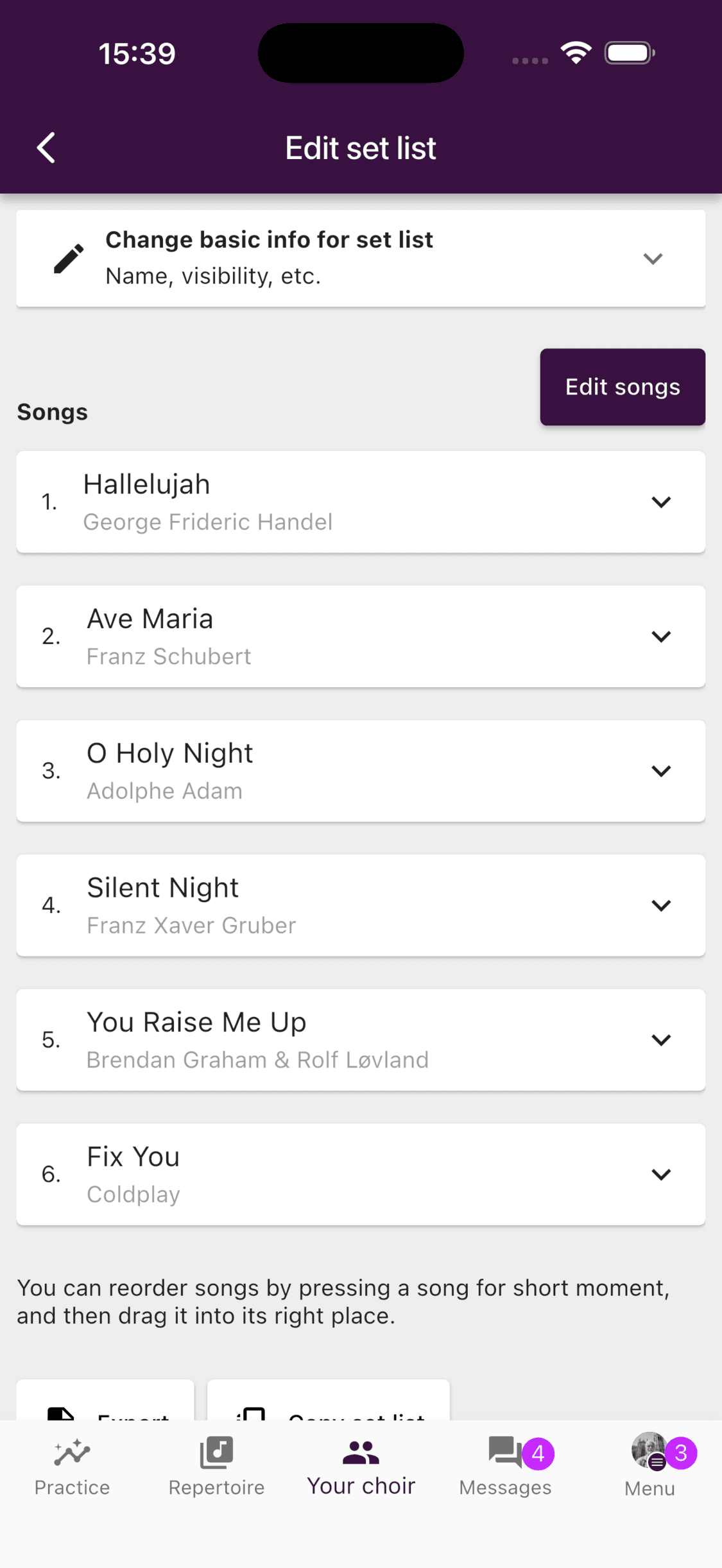
Open the list from Manage set lists. The songs appear in their current order.
- 2
Drag and save
Press and hold a song, then drag it to its new position. Select Save new order to keep the change, or Undo to discard it.
- 1
Start reordering
Open the set list and select Reorder songs.
- 2
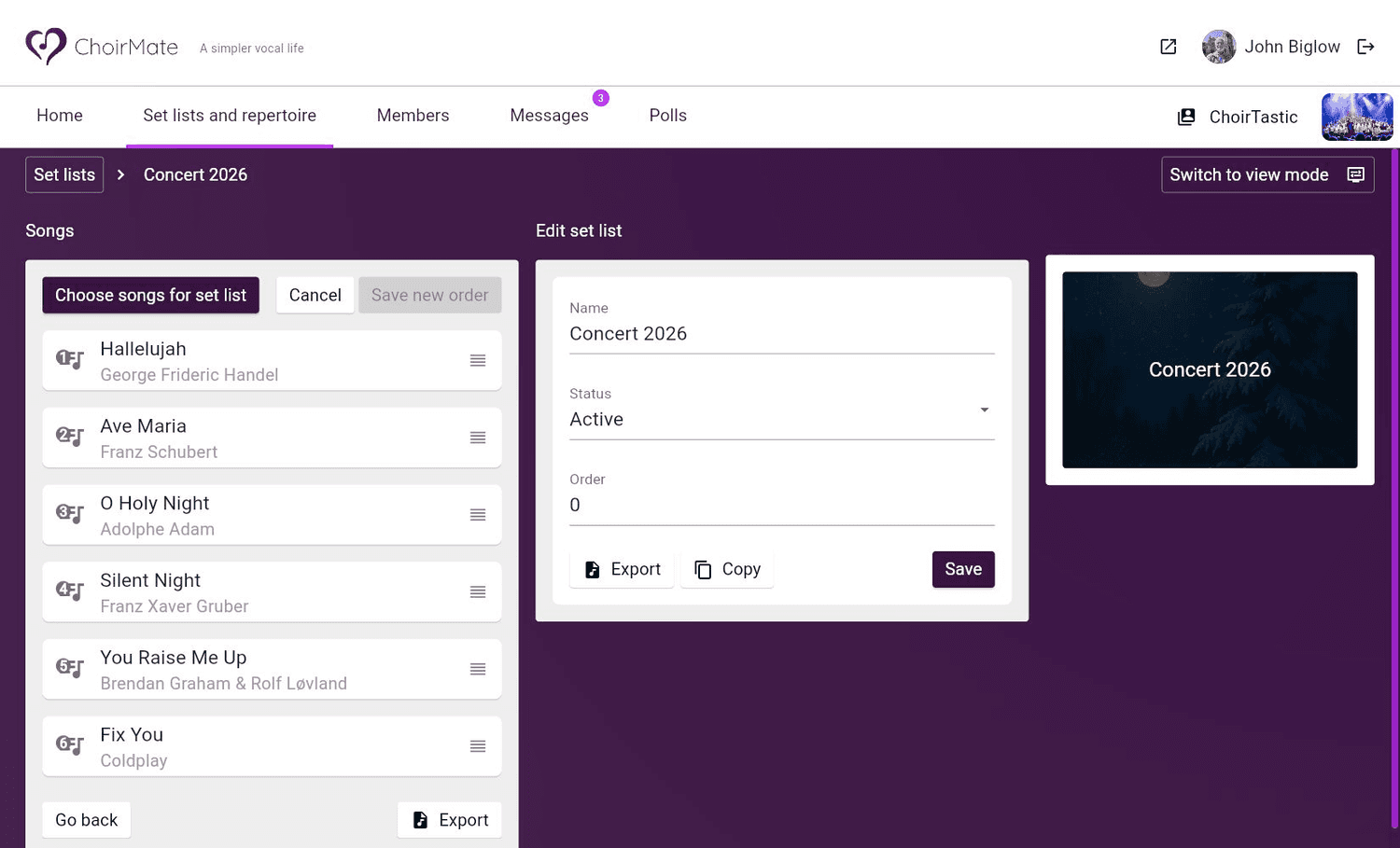
Drag and save
Drag songs with the handles on the right. Select Save new order when the sequence is correct, or Cancel to leave it unchanged.
Change the name, visibility, or status
- 1
Open the basic information
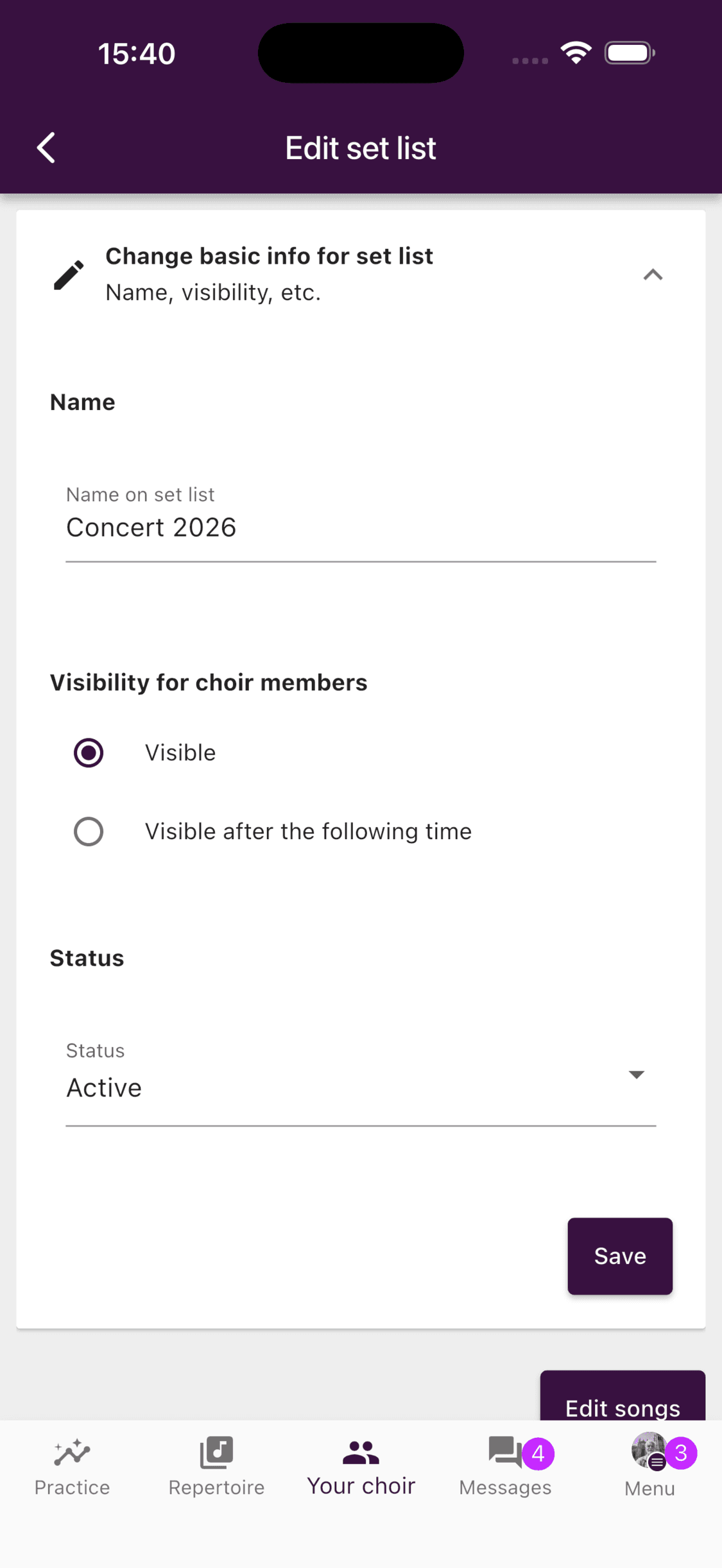
Open the set list and expand Change basic info for set list.
- 2
Make the change
Update the name, choose immediate or scheduled member visibility, or change the status. Tap Save.
- 1
Open the set list
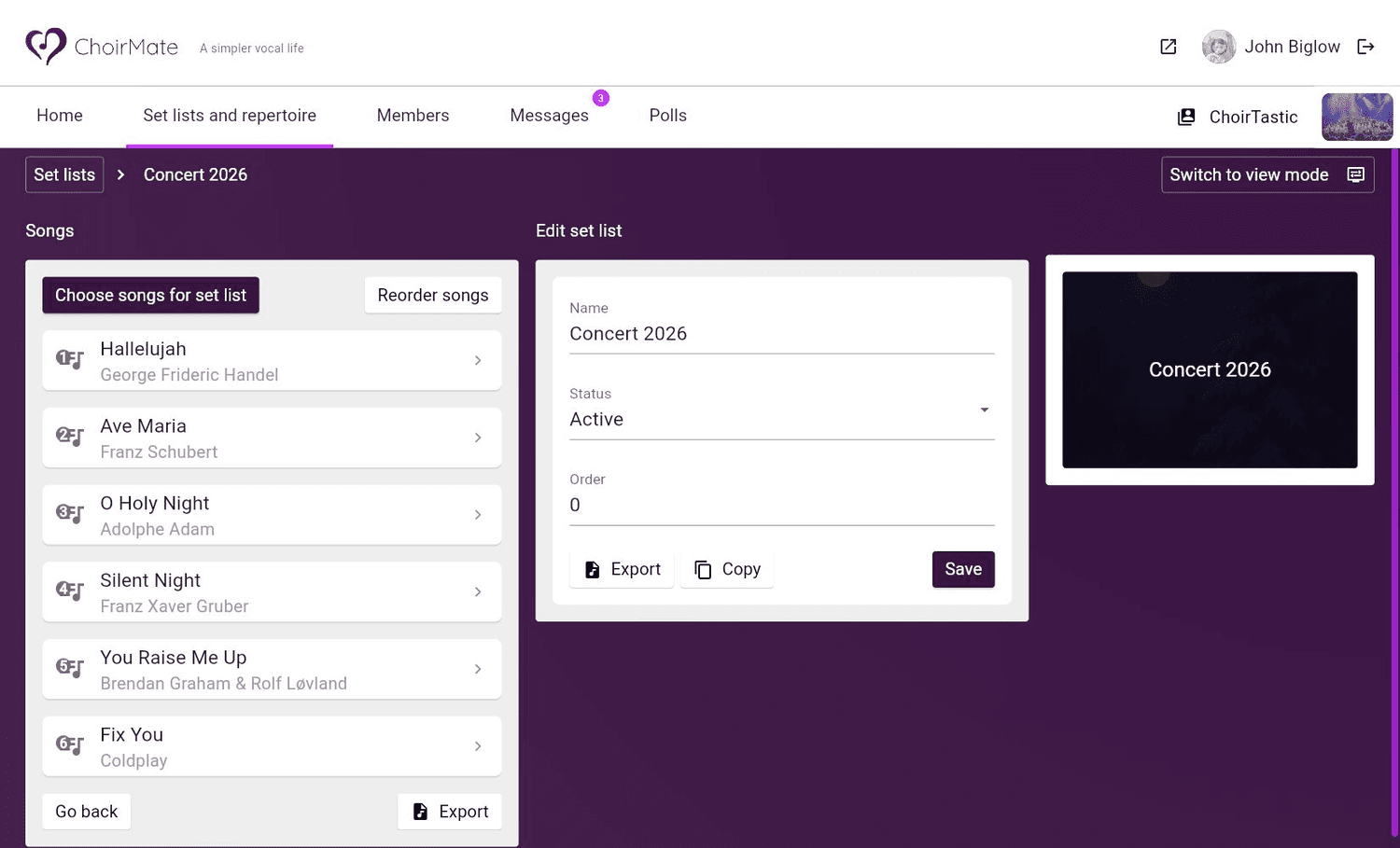
The web editor shows the list's name, status, and order beside its songs.
- 2
Save the details
Change the name or status, then select Save. Scheduled member visibility is currently available in the app. The web editor also lets you copy or export the list.
The status controls where the list appears:
- Active lists appear to members once their visibility time has been reached.
- Archived lists stay available to managers under Archived, but leave the active member view.
- Deleted lists are removed from normal use. Their songs remain in the repertoire. The mobile management screen keeps deleted lists in a Deleted section, where they can be made active again.
Tip
Choose Archived instead of Deleted when you may reuse a concert programme next season.
Set lists and practice lists
Group practice lists use songs and audio files from a set list. Keep the set list selection current before publishing practice material to members.