Individual practice lists let you collect recordings from different songs in one personal queue. Use a list for difficult passages, a concert programme, warm-ups, or anything else you want to practise together.
Premium Feature
Individual practice lists require Premium access. Your choir may also make the feature available to its members. See subscription plans.
Find your practice lists
- 1
Open Practice
Select Practice in the bottom navigation. Your personal lists appear under Your practice lists, above the group practice lists shared by your choir.
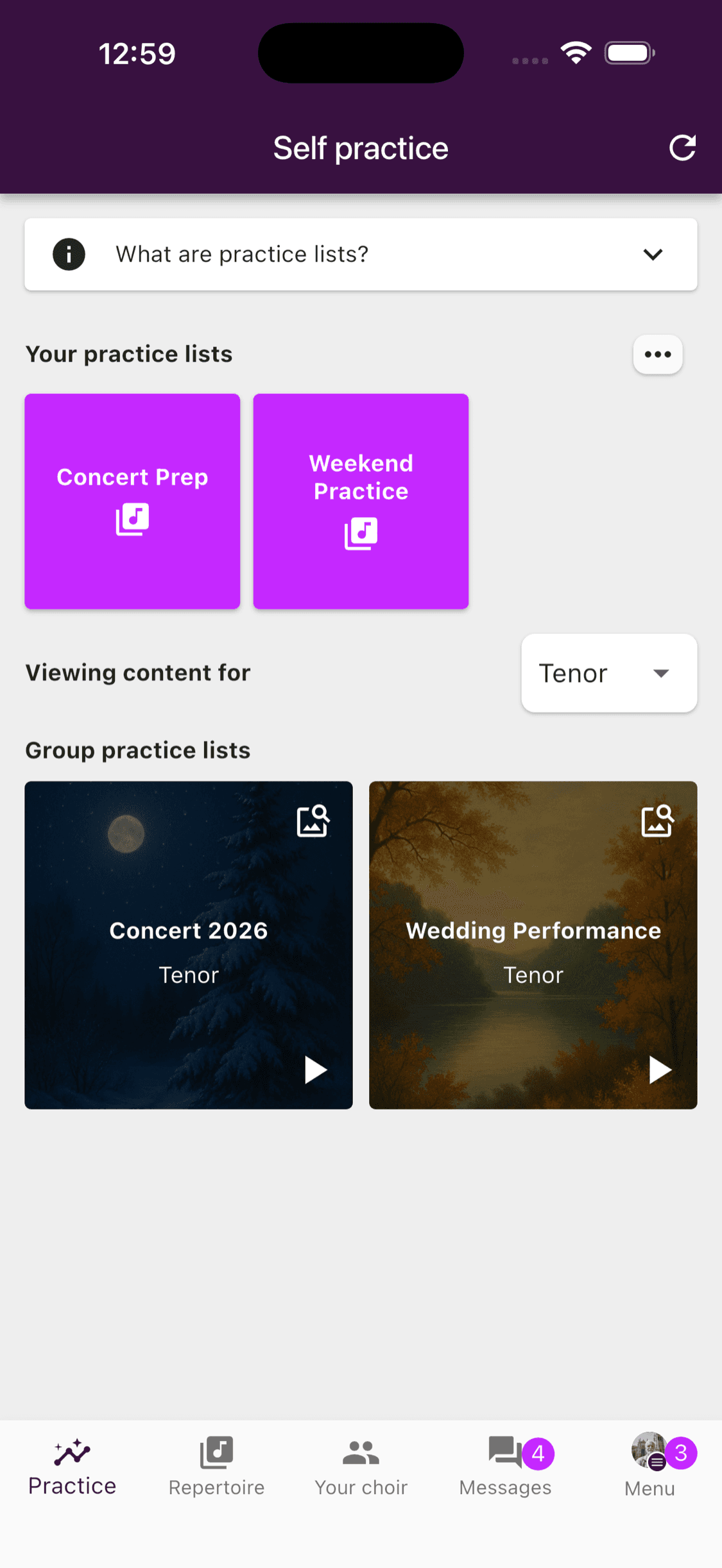
- 1
Open Set lists and repertoire
Select Set lists and repertoire. Your personal practice lists appear in the right-hand column.
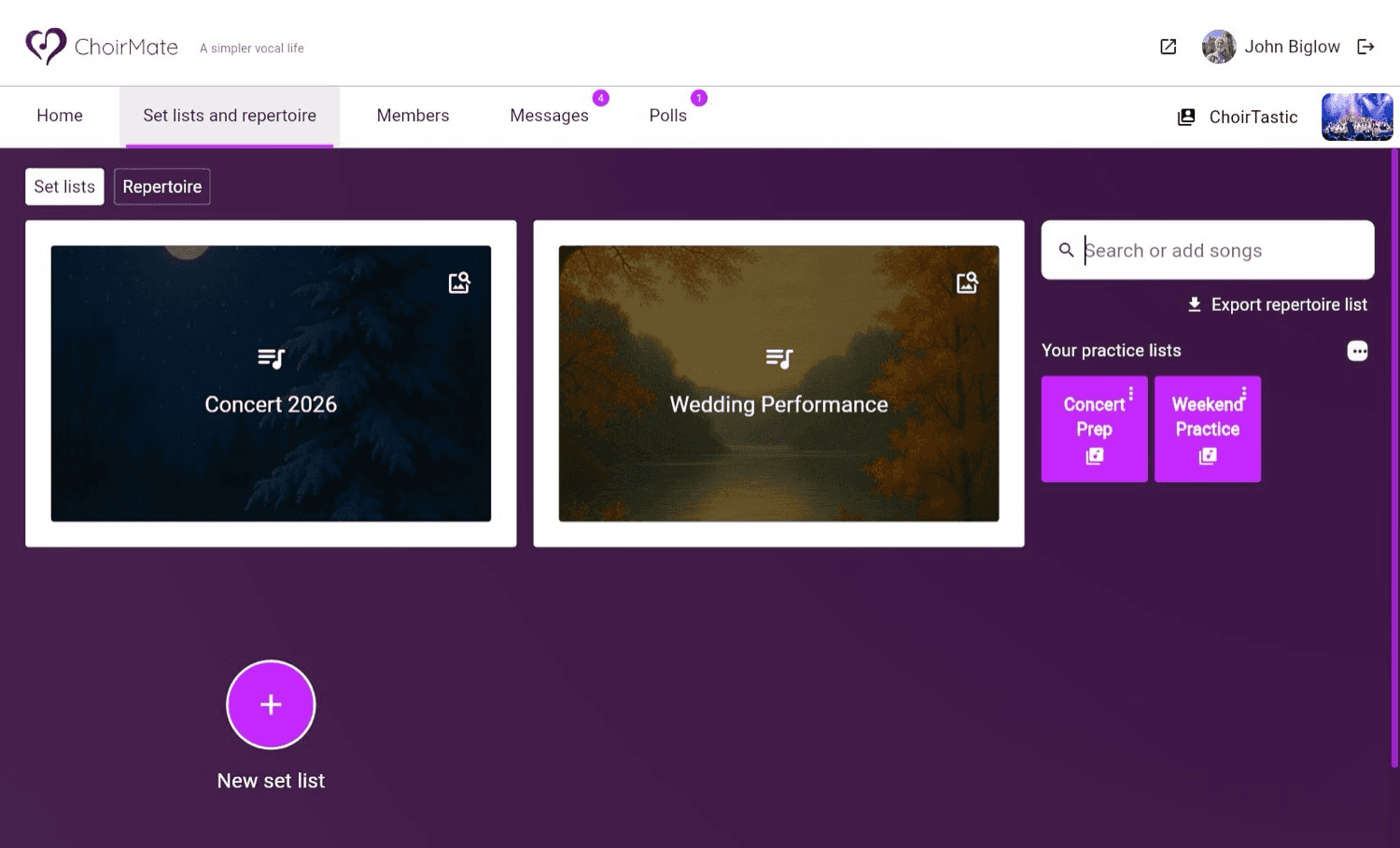
Select a list to start playing its recordings. ChoirMate follows the order saved in the list and opens the regular audio player.
Create a list
- 1
Open the list menu
In Practice, select the More button beside Your practice lists.
- 2
Create the list
Select Create new practice list, enter a name, and select Create. A new list is private until you choose to share it.
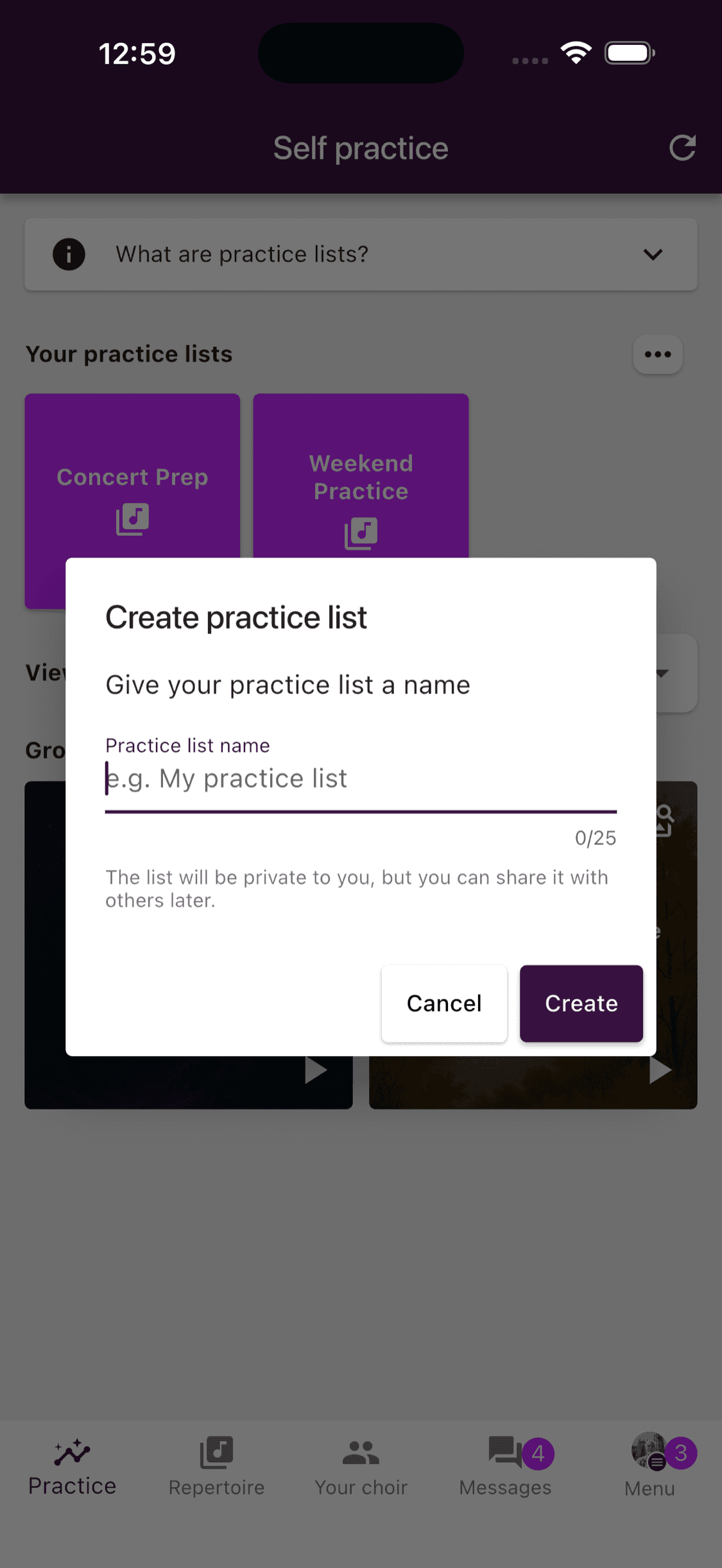
- 1
Open the list menu
In the right-hand column, select the More button beside Your practice lists.
- 2
Create the list
Select Create new practice list, enter a name, and select Create.
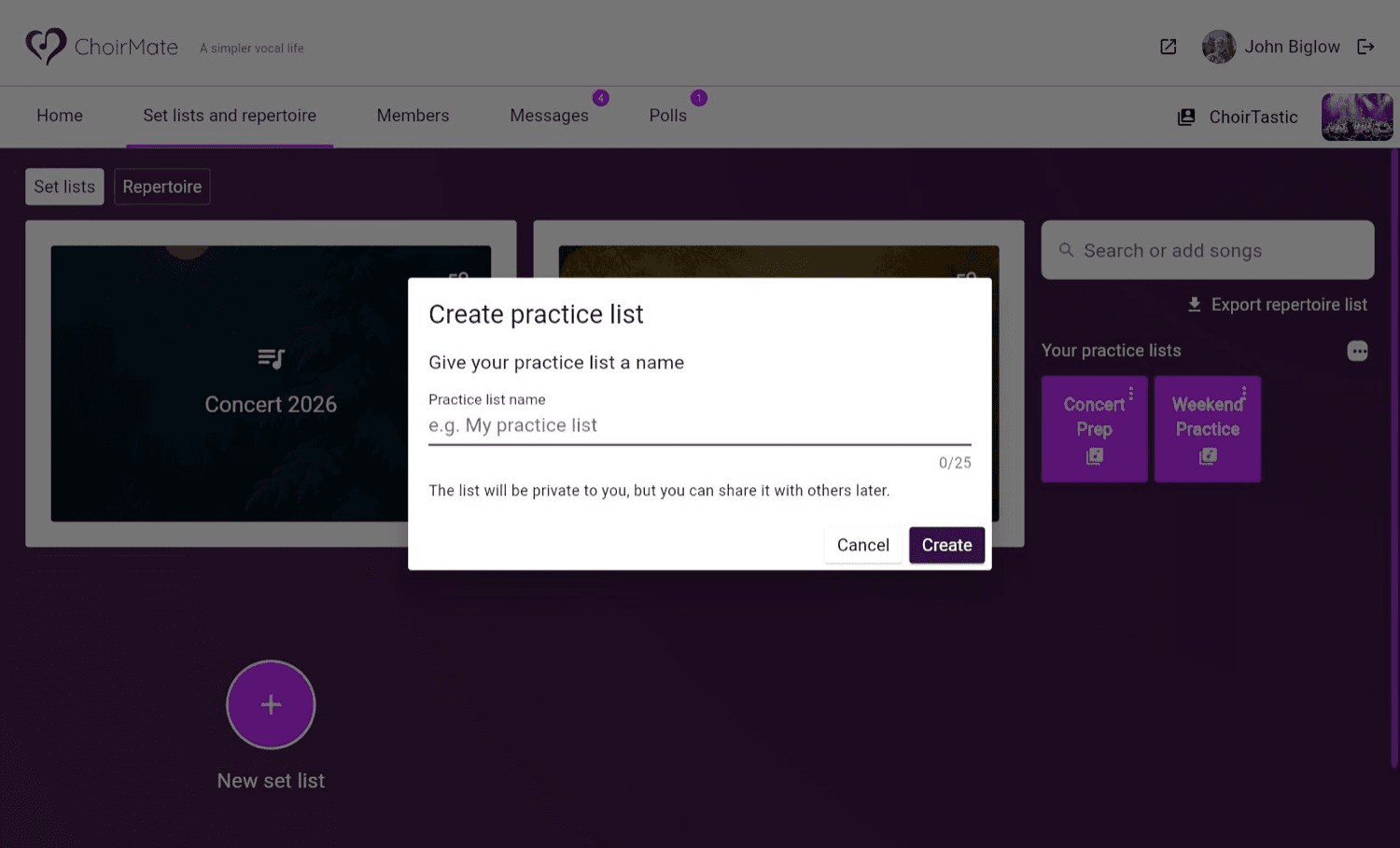
Add or remove a recording
You build a personal list from individual recordings, so the same song can contribute a tutti track, your voice-part track, or both.
- 1
Open a song
Select Repertoire, then open the song that contains the recording you want.
- 2
Open the recording menu
Select the More button beside the recording and choose Toggle in practice list.
- 3
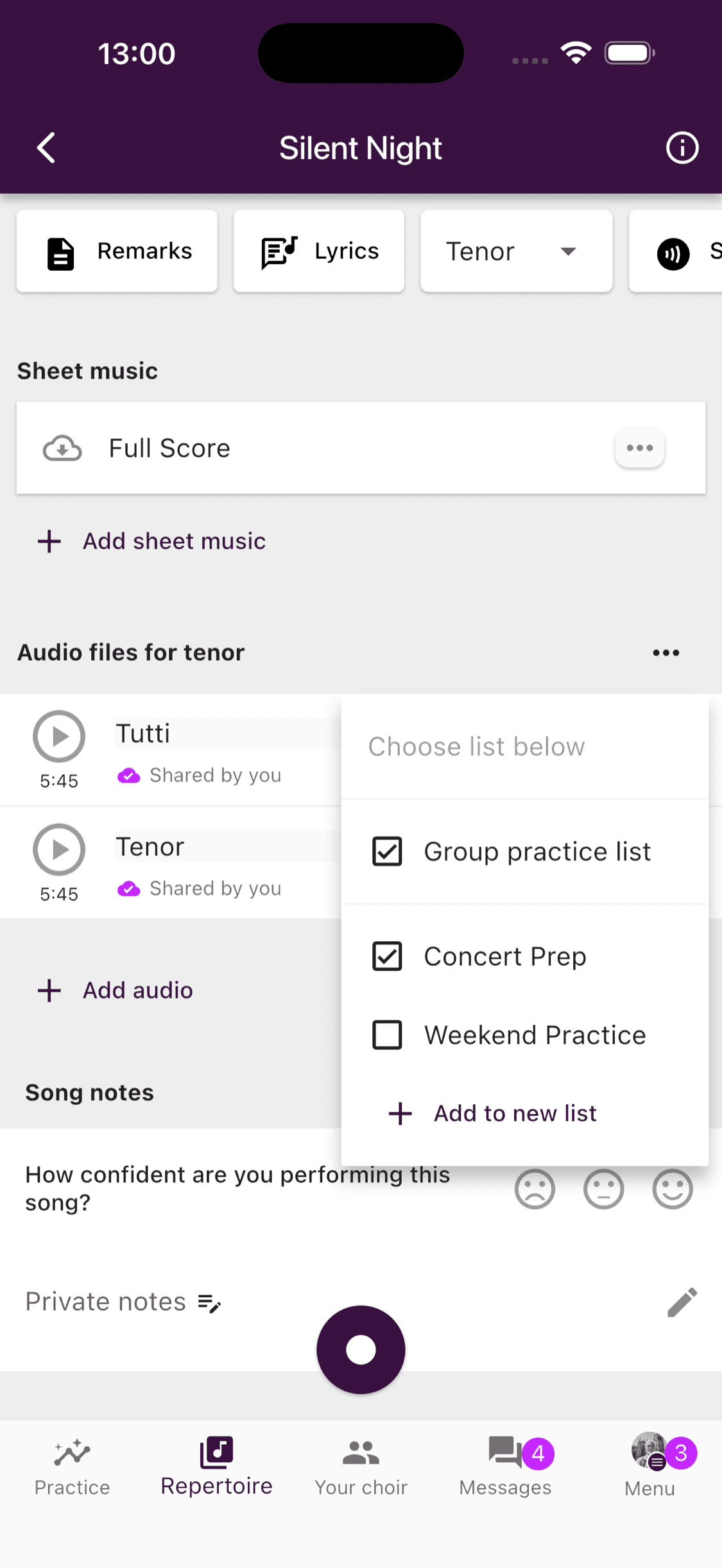
Choose the lists
Select a list to add the recording. Select a checked list to remove it. You can also choose Add to new list to create a list with this recording already included.
- 1
Open a song
In Set lists and repertoire, open the song that contains the recording you want.
- 2
Open the recording menu
Select the More button beside the recording and choose Toggle in practice list.
- 3
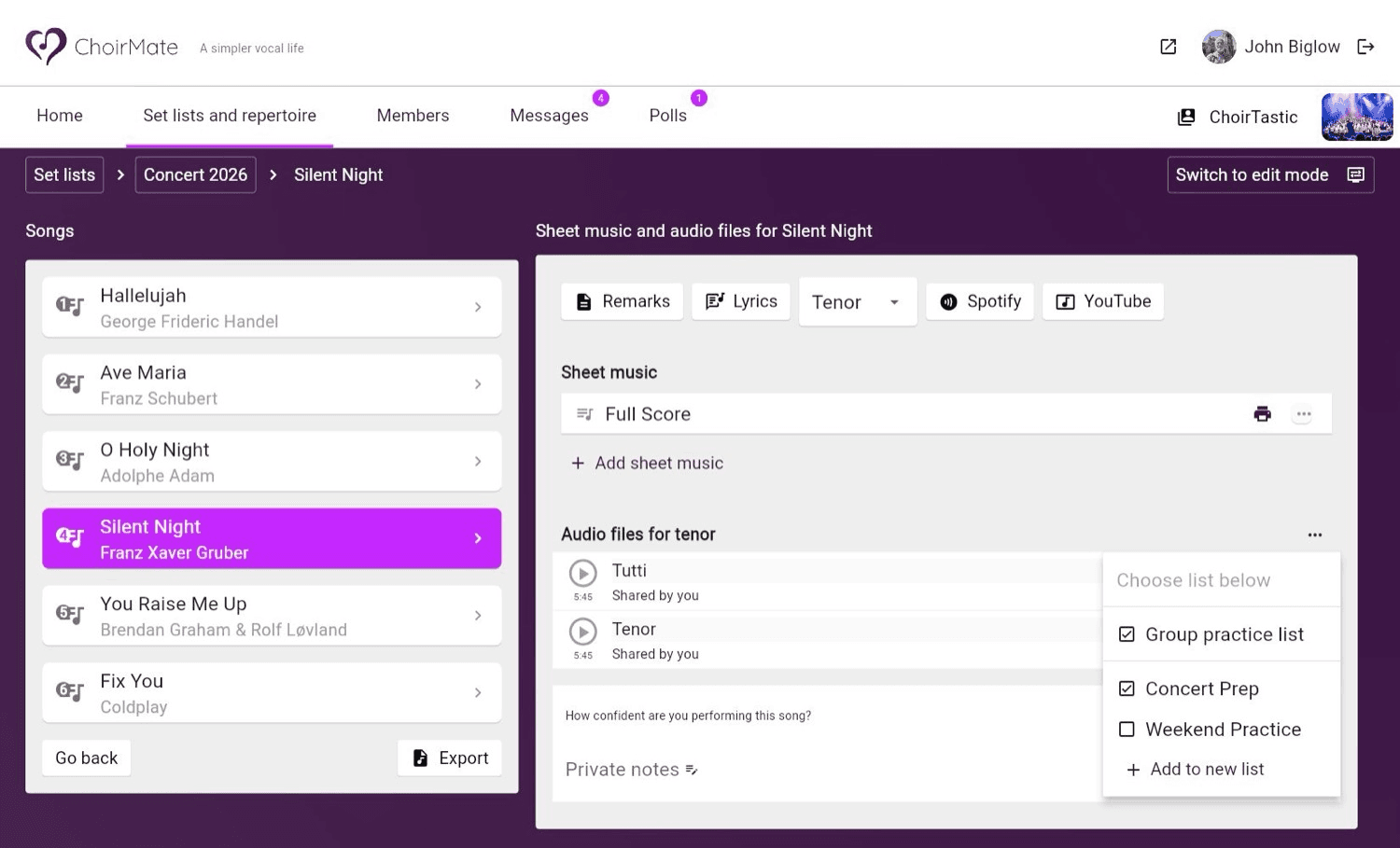
Choose the lists
Select a list to add or remove the recording. A checkmark shows where it is already included. Select Add to new list if you want to create another list.
Rename, share, or delete a list
- 1
Open the list actions
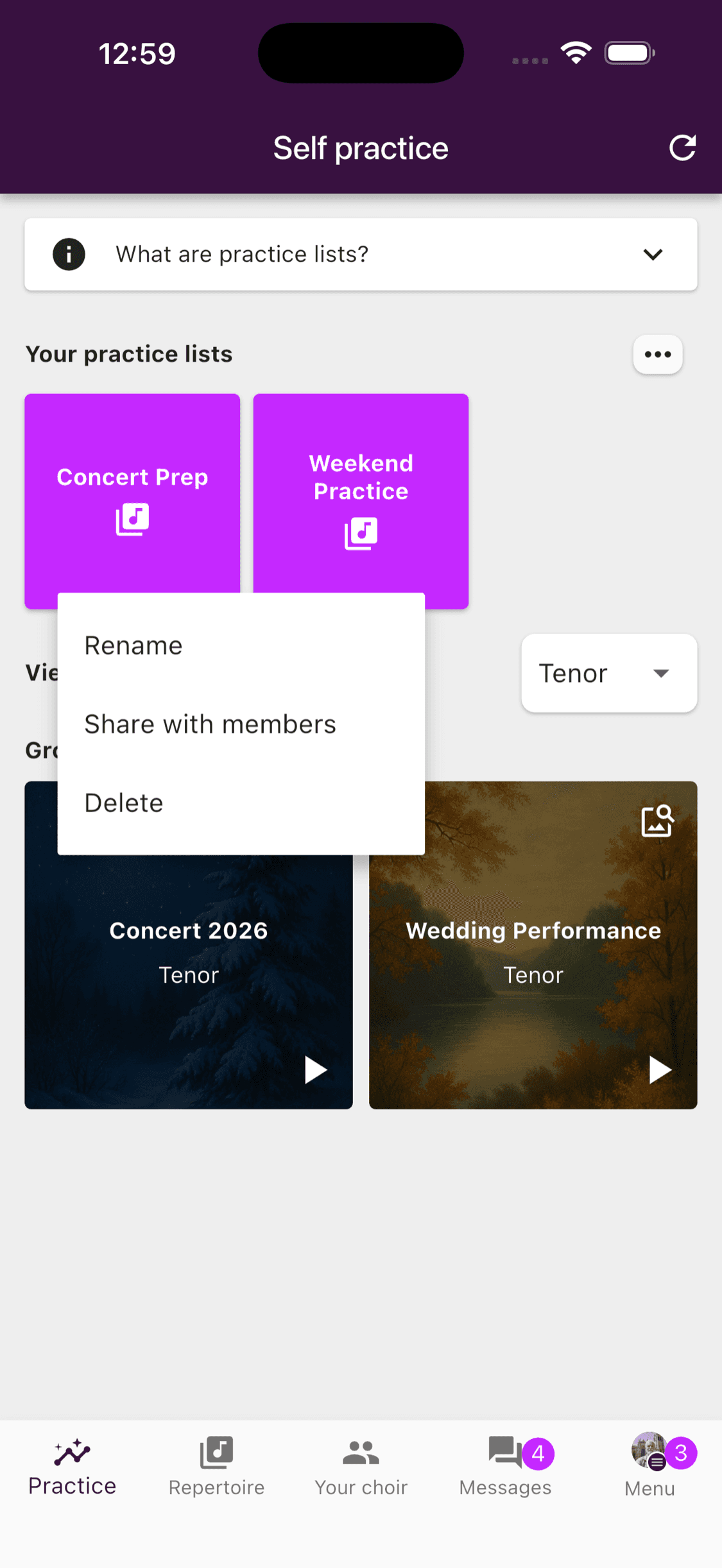
Long-press one of your personal practice-list tiles.
- 2
Choose an action
Select Rename, Share with members, or Delete. When sharing, choose the members who should receive the list and save your selection.
- 1
Open the list actions
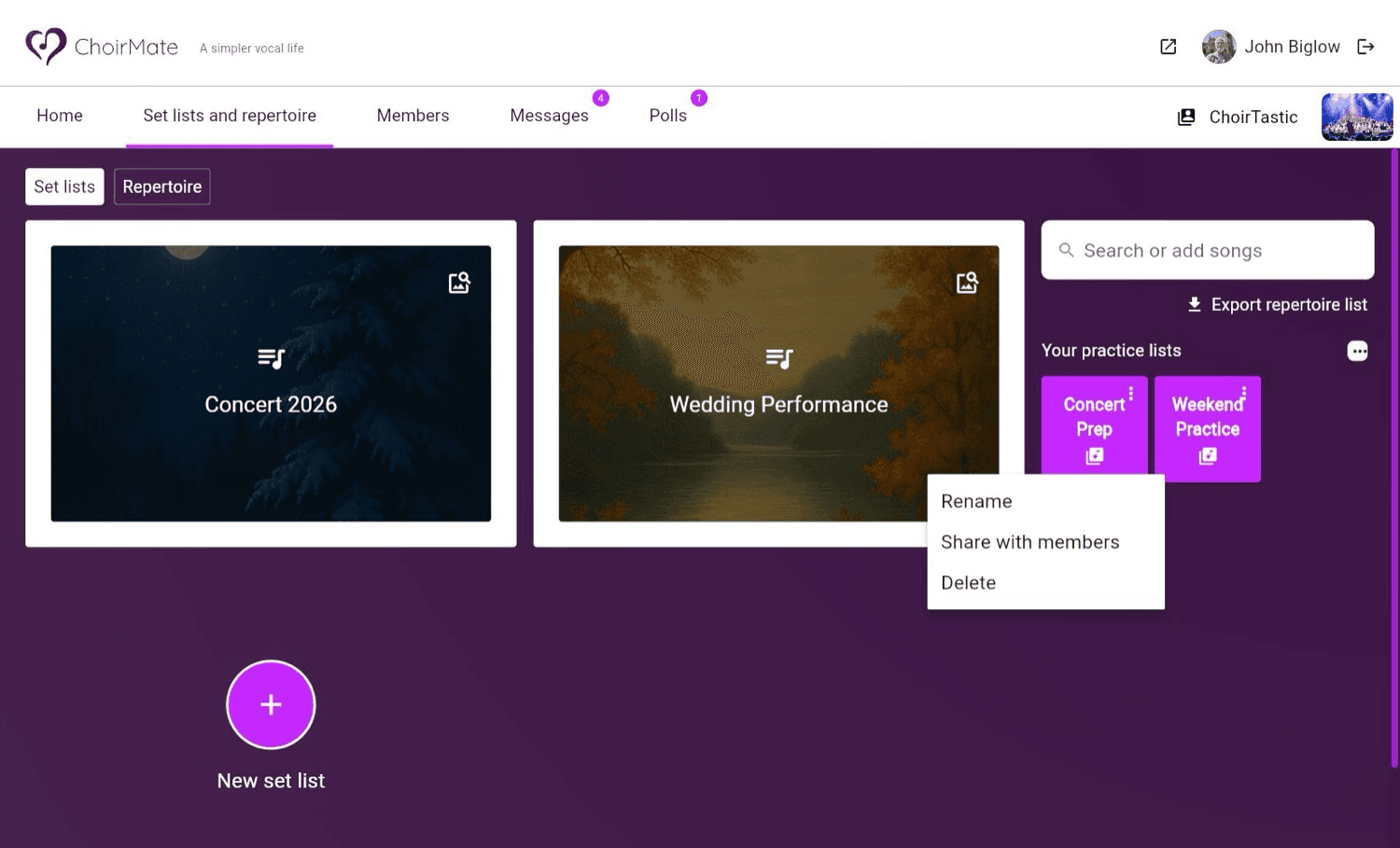
Select the More button on one of your personal practice-list tiles.
- 2
Choose an action
Select Rename, Share with members, or Delete.
Members you share with can play the list, but only its owner can change its name, recordings, or recipients. A recipient can leave a shared list from the list's action menu.
Info
Deleting a personal practice list does not delete any recordings from the choir repertoire.
Personal and group lists are different
| Personal practice list | Group practice list | |
|---|---|---|
| Created by | You | A choir administrator |
| Visible to | You and any members you choose | The members or voice parts chosen by the choir |
| Who manages it | You | The choir's administrators |
| Access | Premium feature | Provided by the choir |
Both types appear in Practice in the app. On the web, your personal lists appear beside the choir's set lists and repertoire.