ChoirMate's audio player works in the mobile app and on the web. You can start from a song, practice list, set list, event playlist, or previous concert, depending on what your choir has made available.
Info
Playback on the web, changing playback speed, and listening in the background require Standard or Premium access through your choir or a qualifying individual subscription. See subscription plans.
Start listening
- 1
Choose a recording
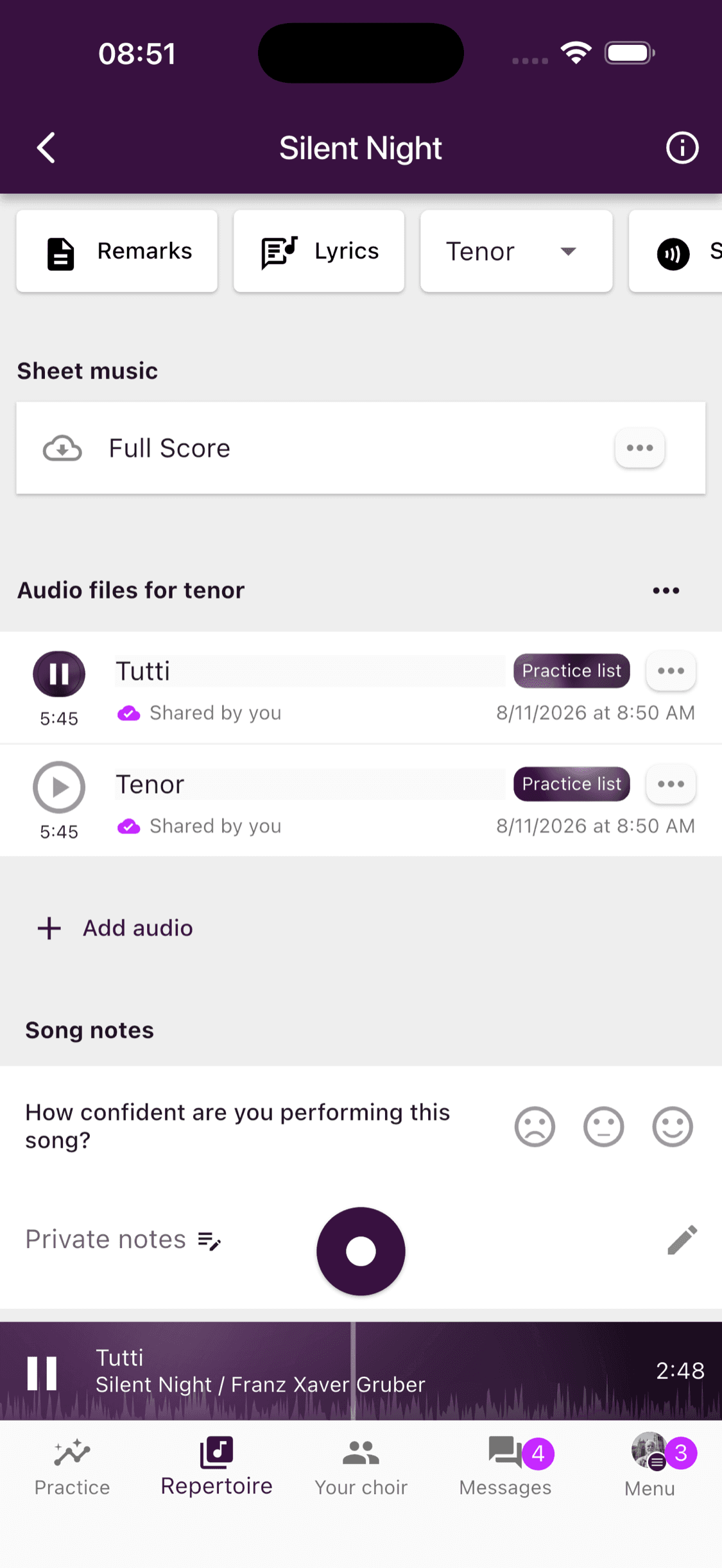
Open a song or practice list and tap the recording you want to hear. On a song page, choose your voice part first if you need to filter the available audio.
- 2
Use the mini player
Playback starts and the mini player appears above the bottom navigation. Use it to pause or resume, or tap it to open the full player.
- 3
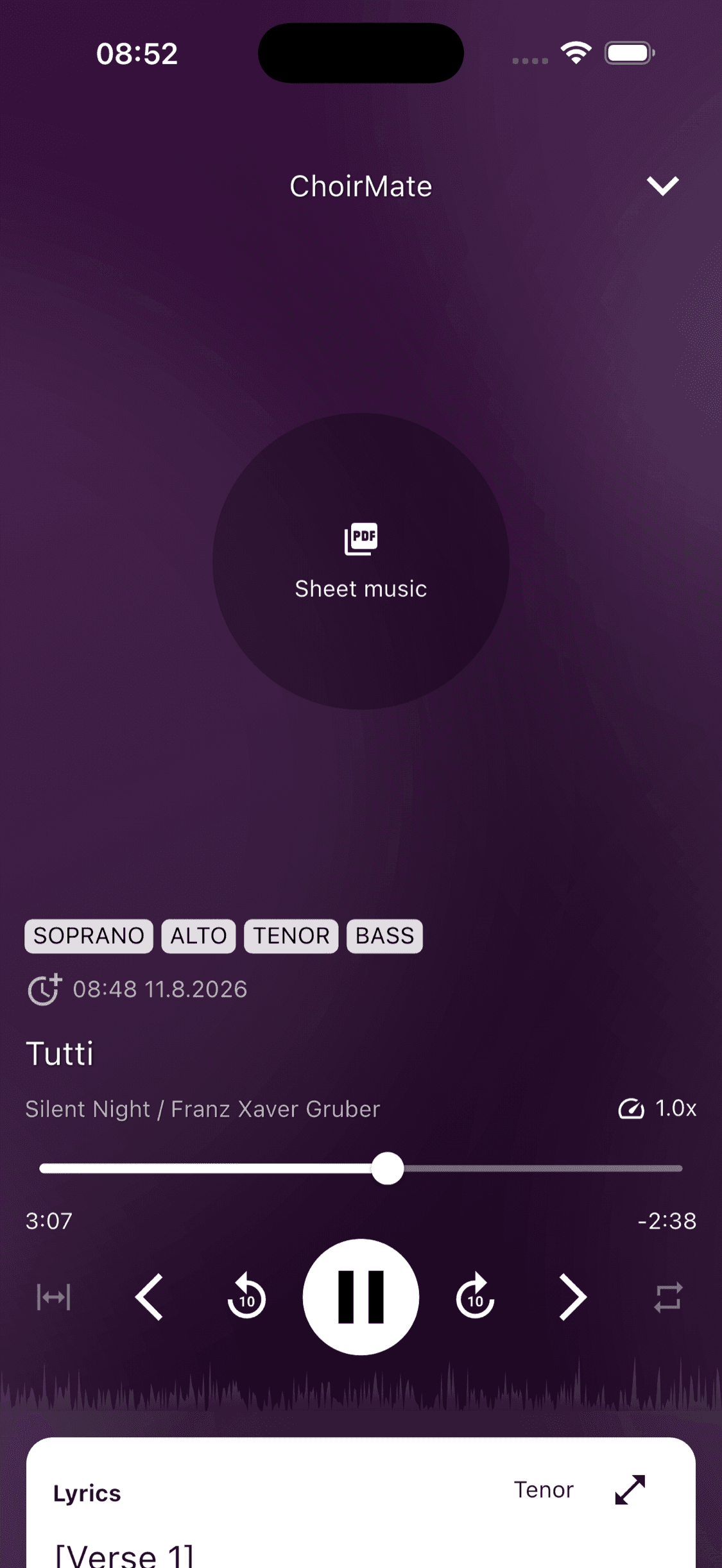
Open the full player
The full player brings the timeline, queue controls, speed, repeat options, linked sheet music, and lyrics into one view.
- 1
Open a song
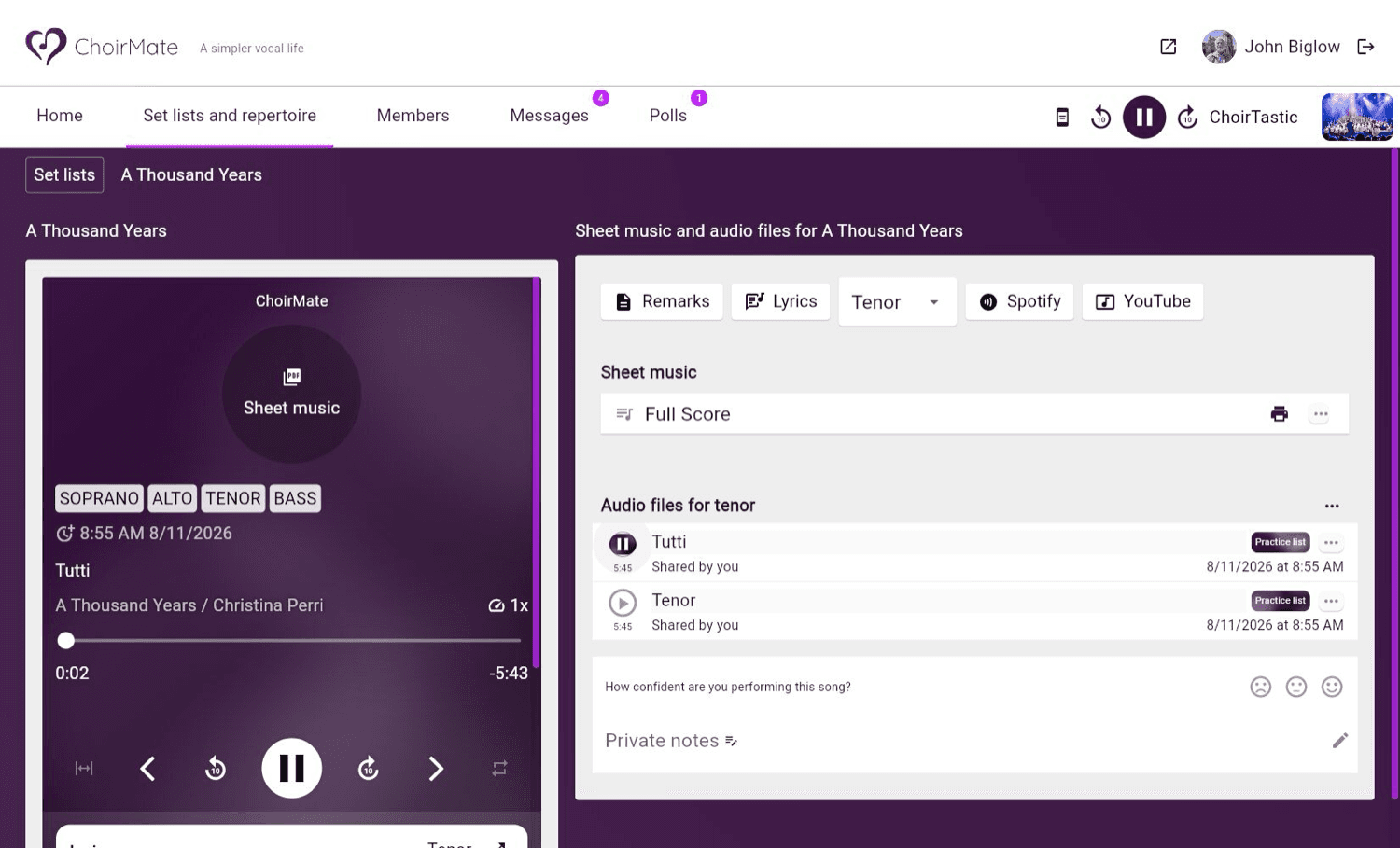
Open Set lists and repertoire, choose a set list or the repertoire, and select a song.
- 2
Play an audio file
Choose your voice part and select an audio file. The full player opens beside the song while compact controls remain available in the top bar.
Use the playback controls
The full player includes:
- Play and pause in the centre
- 10-second jumps for quickly replaying or skipping a short passage
- Previous and next for moving through the active queue
- a timeline that you can tap or drag to seek within the recording
- playback speed for slower or faster practice
- repeat part for looping a selected passage
- repeat for repeating the queue or the current recording
If the song has linked sheet music, select Sheet music to open it. When lyrics are available, they appear below the main controls.
Change the playback speed
Select the speed control, shown as 1x during normal playback. Choose 0.5x, 0.8x, 0.9x, 1x, 1.1x, 1.2x, or 1.5x.
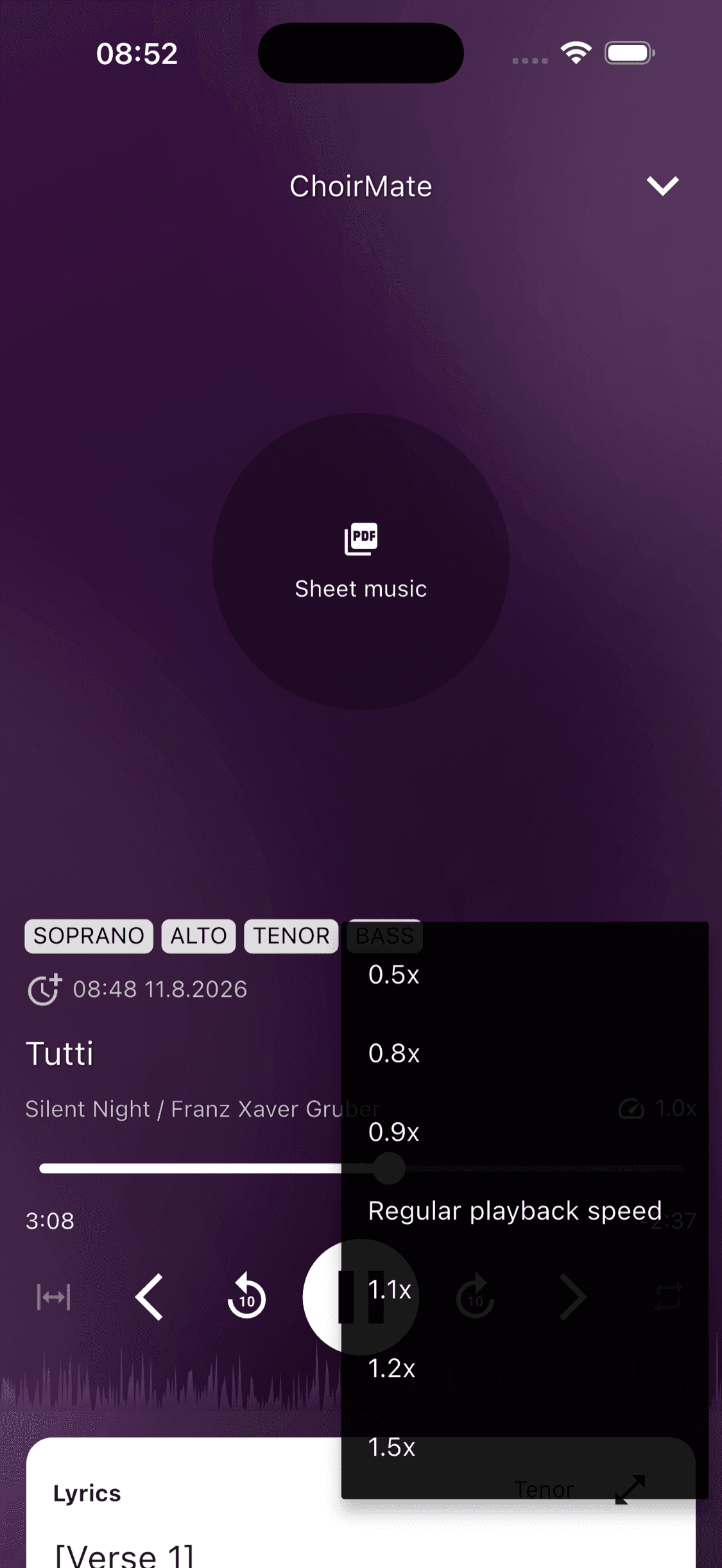
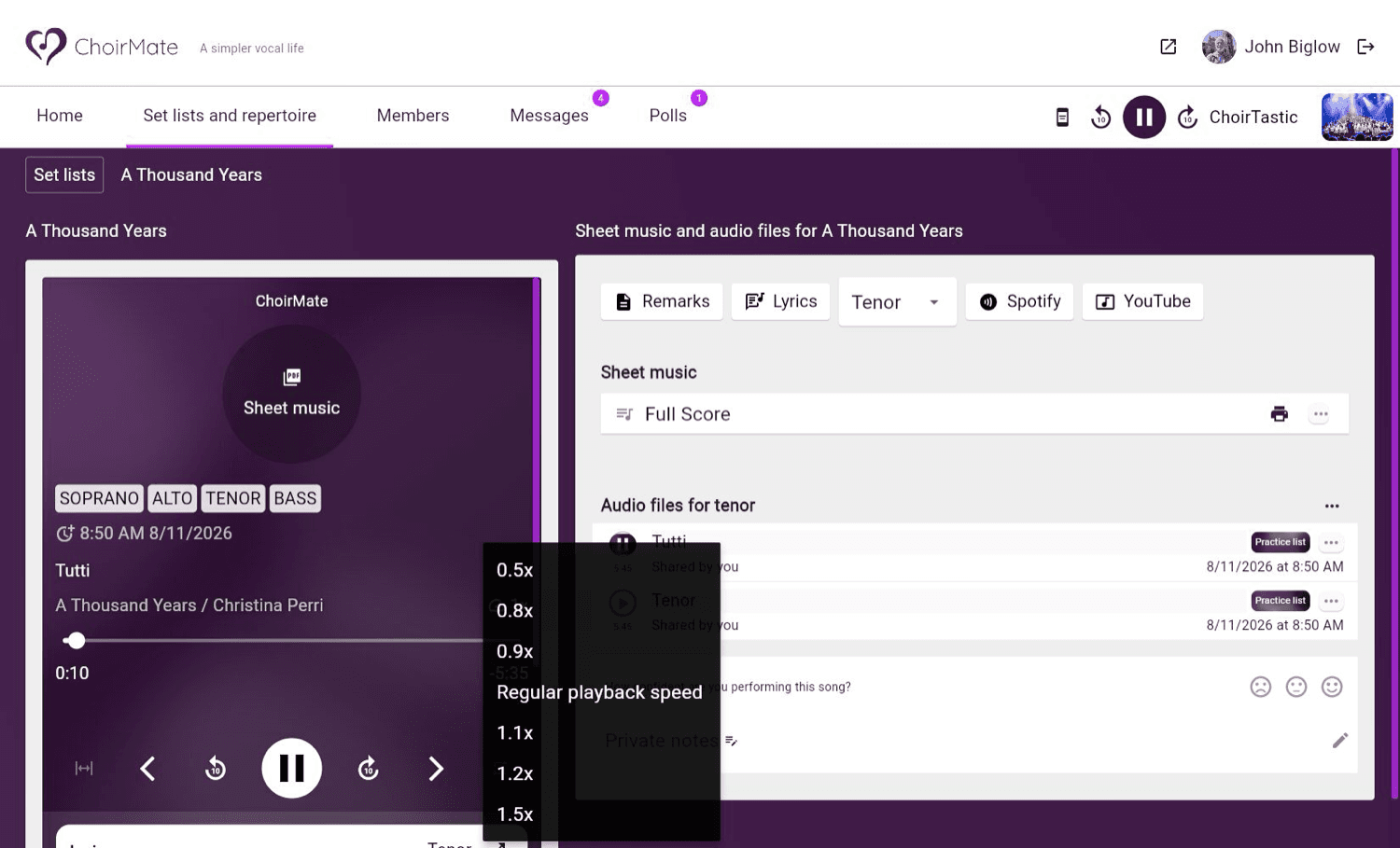
Slower speeds are useful when learning notes or text. Return to Regular playback speed when you want the original tempo.
Understand the queue
The active queue is created from the place where you started listening:
- From a song page, it contains the recordings currently available for the selected voice part.
- From a group or individual practice list, it follows that list's order.
- From an event playlist, set list, or previous concert, it follows the available recordings in that selection.
Tracks continue automatically. Use previous or next to move through the queue, or scroll farther down in the full player and choose a recording directly.
Tip
The voice-part selector is on the song page. Change it there before selecting a recording if you want a different set of audio files.
Choose a repeat mode
The repeat button cycles through the modes available for the current queue:
- Repeat off continues through the queue and stops at the end.
- Repeat queue starts the queue again after its final recording.
- Repeat one keeps replaying the current recording.
When the queue contains only one recording, ChoirMate only needs repeat off and repeat queue.
To loop only part of a recording, use repeat part instead. See Repeat Part Mode for the complete walkthrough.
Keep listening on your phone
With Standard or Premium access, playback can continue while you use another app or lock your phone. The lock screen and notification controls let you play, pause, and move between recordings without reopening ChoirMate.
Practice lists can also be used with CarPlay and Android Auto. See CarPlay and Android Auto.
If playback does not start
Check that the recording is visible for your voice part and that your device has an internet connection. Web playback also needs Standard or Premium access. For offline mobile playback, open the content while connected first so ChoirMate can prepare it on the device.
If the player still does not work, see Audio Not Playing.