A group practice list is the practice version of a choir set list. It keeps the set list's name and song order, but only includes recordings that have been selected for the chosen voice part.
You do not create or name a separate group list. A visible set list appears as a group practice list as soon as at least one of its recordings is included for that voice part.
Choose the recordings for a group list
Owners, admins, editors, and members with permission to manage the repertoire can change group practice lists. Work through the songs in a set list and choose the most useful recording for each voice part. You can include more than one recording from the same song if that helps the choir.
- 1
Open the song and voice part
Open Repertoire, choose the set list and song, then select the voice part you want to manage.
- 2
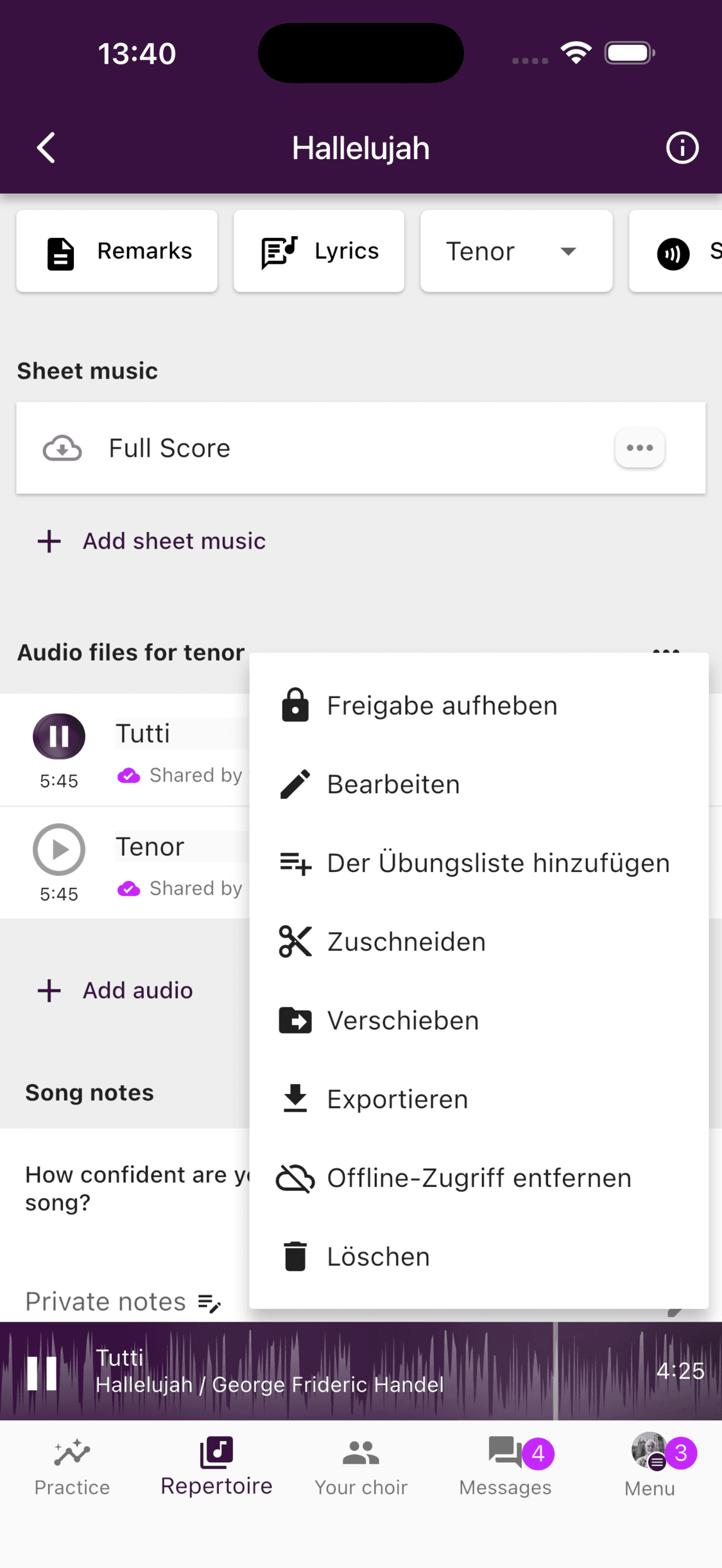
Open the recording menu
Select the More button beside the recording.
- 3
Open the practice-list choices
Select Toggle in practice list.
- 4
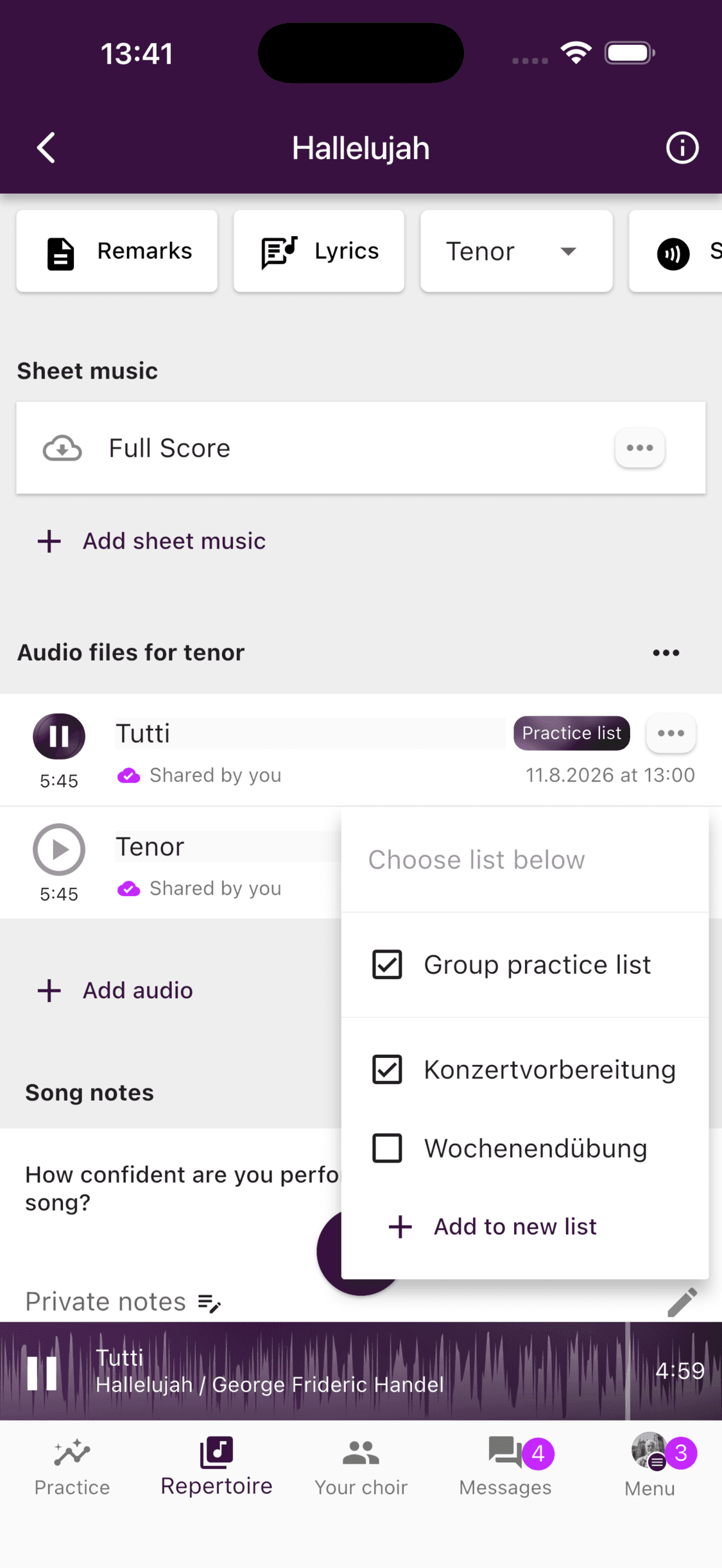
Select the group practice list
Select Group practice list. A checkmark means the recording is already included. Select it again if you want to remove that recording from the group list.
- 1
Open the song and voice part
Open Set lists and repertoire, choose the set list and song, then select the voice part you want to manage.
- 2
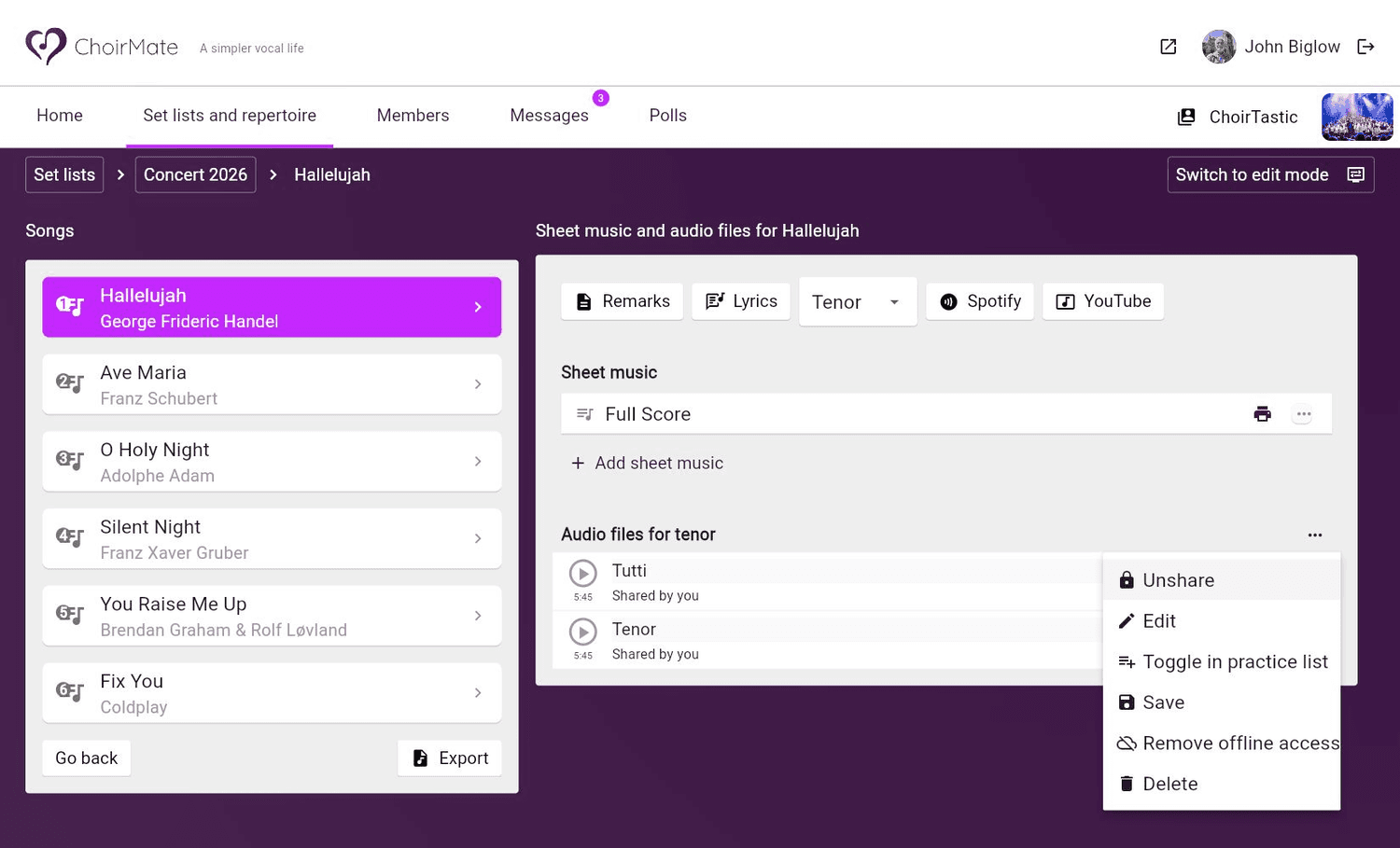
Open the recording menu
Select the More button beside the recording.
- 3
Open the practice-list choices
Select Toggle in practice list.
- 4
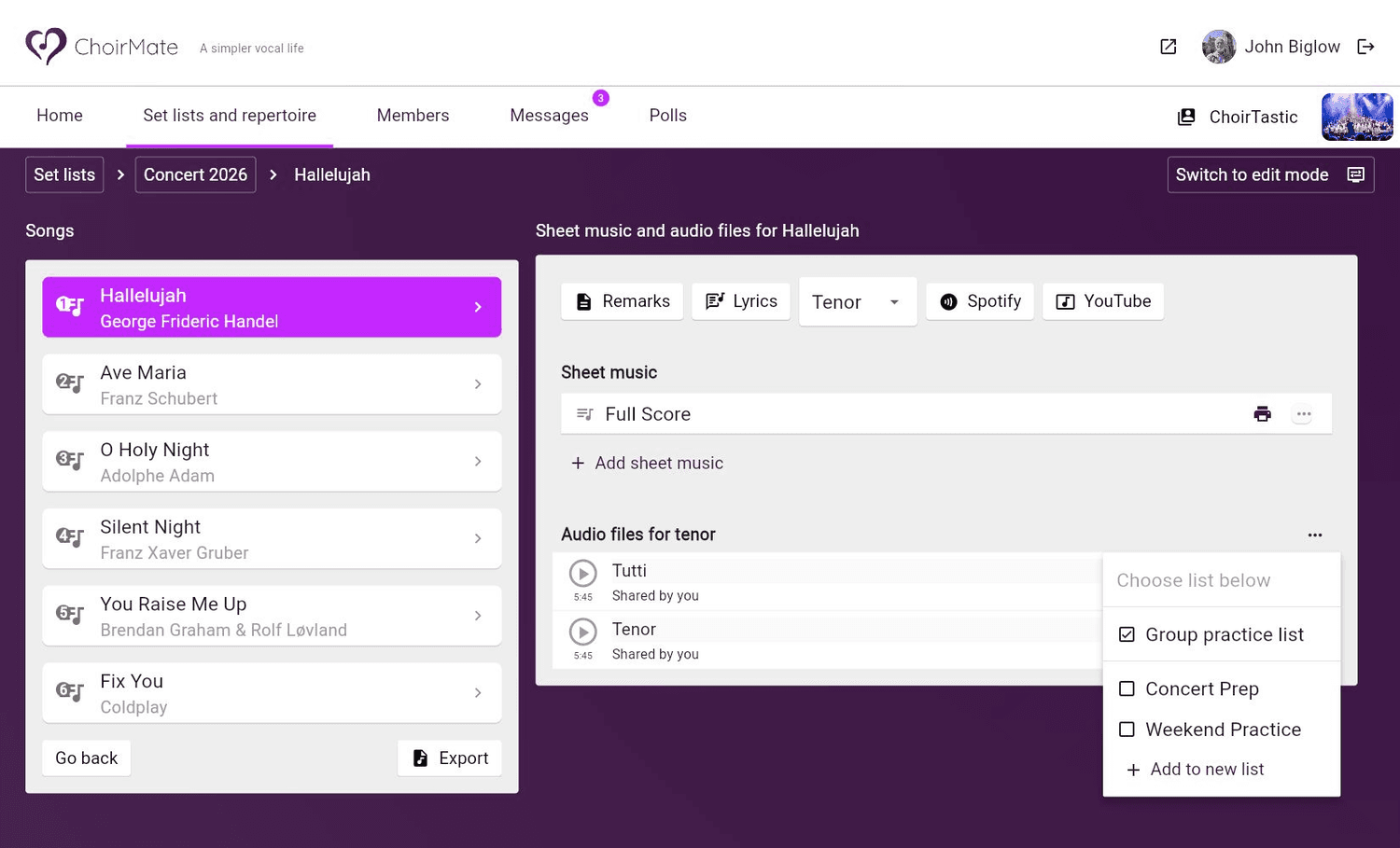
Select the group practice list
Select Group practice list. Select a checked group list if you want to remove the recording.
The group list follows the set list automatically. Rename or reorder the set list if its title or song order needs to change. Personal practice lists are separate and can contain recordings from different set lists.
Practise with a group list
- 1
Open Practice
Select Practice in the bottom navigation.
- 2
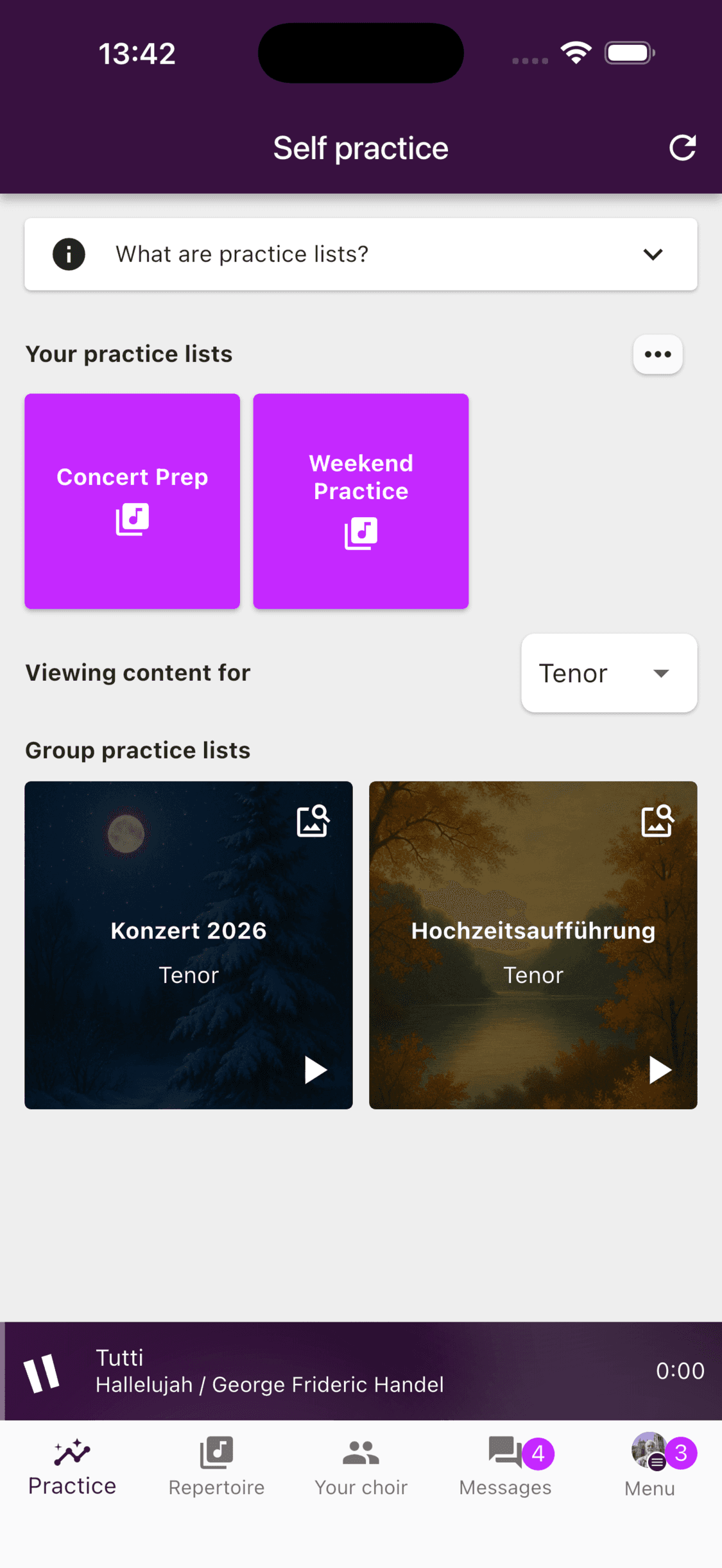
Choose the voice part
Use Viewing content for to choose the voice part you want to practise. The available tiles appear under Group practice lists.
- 3
Open the set list
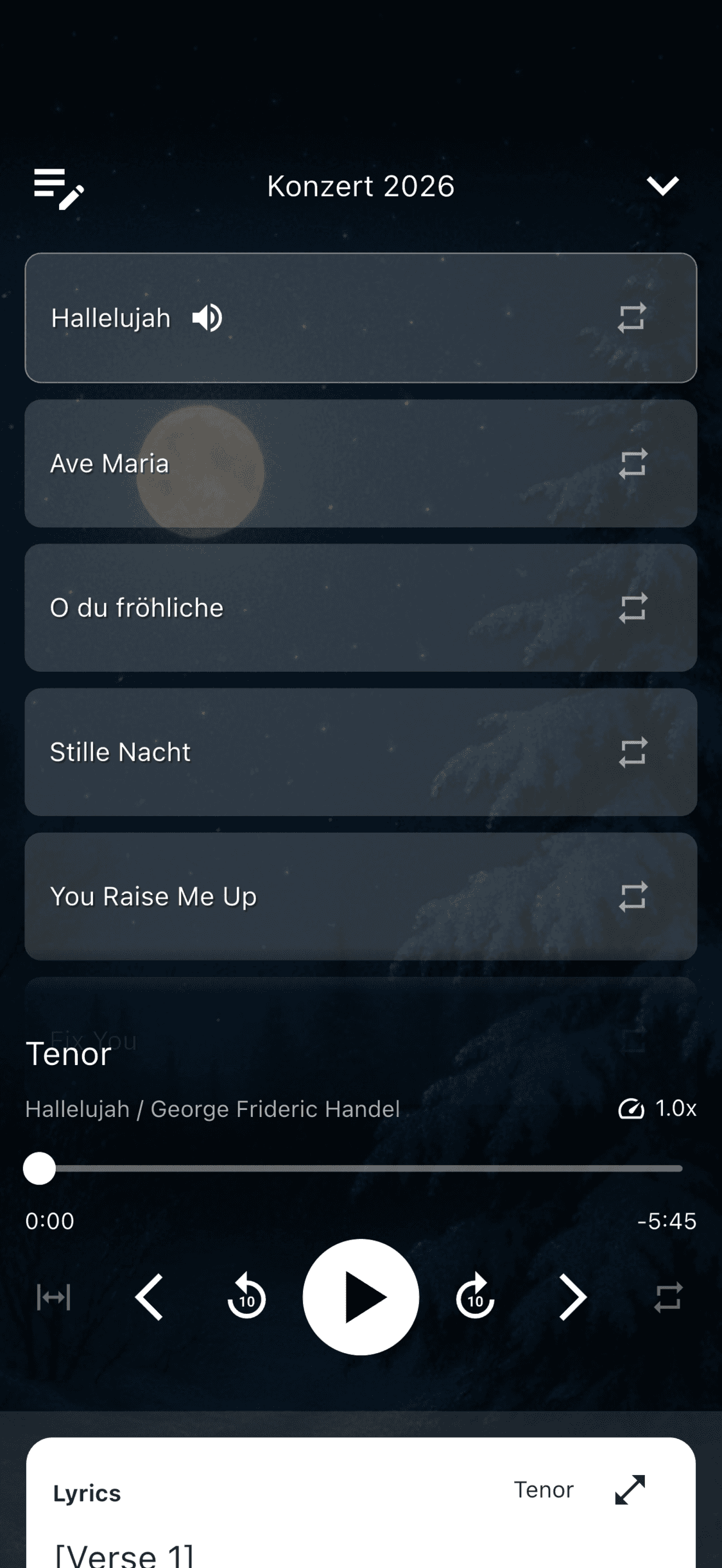
Select a group practice-list tile. ChoirMate loads the selected recordings in the set list's song order. Playback does not start until you press Play.
- 1
Open a set list
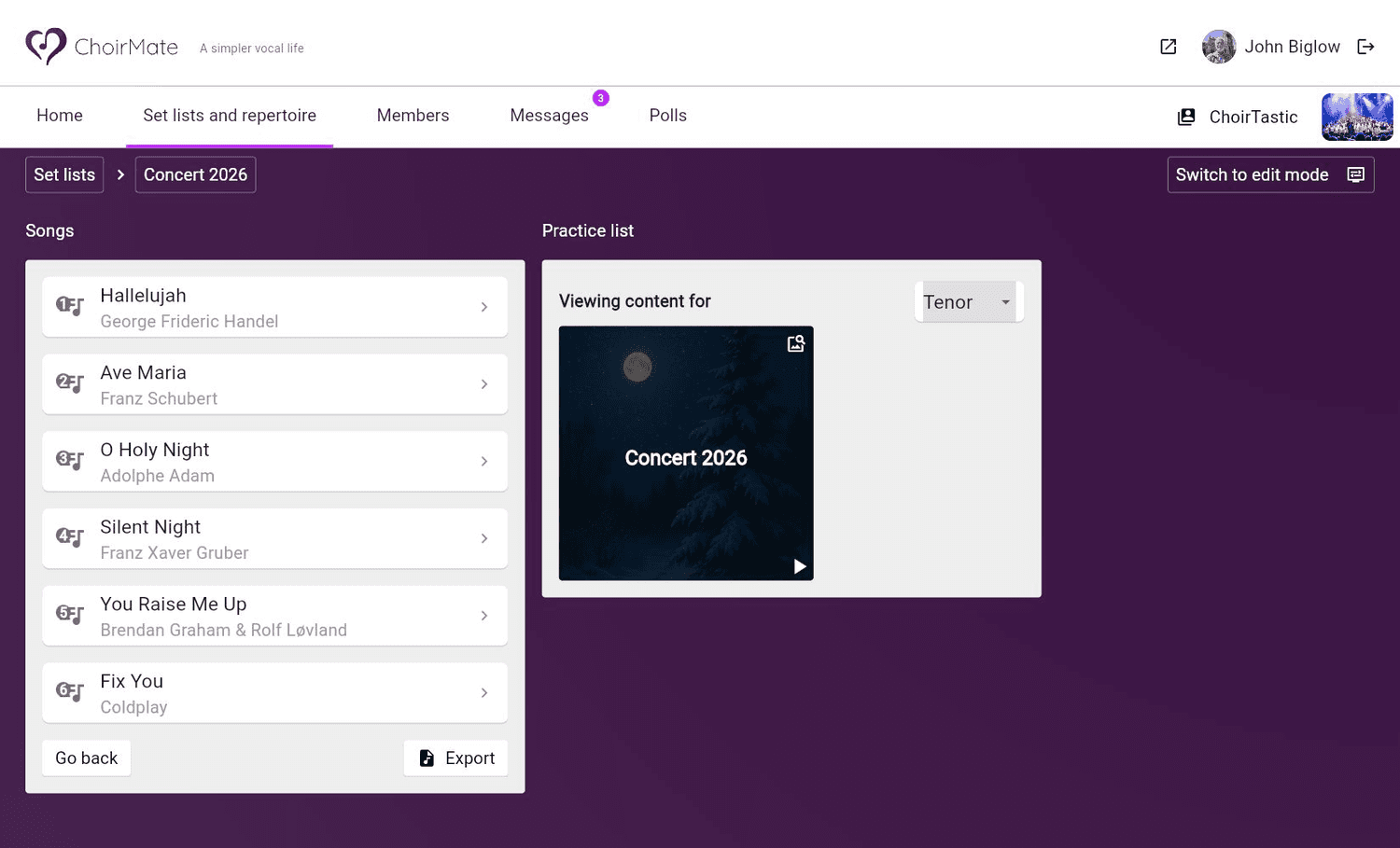
In Set lists and repertoire, select the set list you want to practise.
- 2
Show its practice list
Select Show practice list, then choose your voice part. The set-list tile appears when that part has at least one included recording.
- 3
Start practising
Select the tile or its Play button. ChoirMate opens the regular audio player and follows the set list's song order.
If a group list is missing
Check that you selected the intended voice part and that at least one shared recording in the set list is included for that part. If an editor has just changed the list, refresh the page or the Practice screen.
Members who cannot manage the repertoire can play group lists but cannot change their recordings. Ask an owner, admin, editor, or another member with repertoire permission to update the list.
Info
Group practice lists are available to choir members without an individual Premium subscription. Personal practice lists are a separate Premium feature.