Repeat Part mode lets you practise one section without restarting the whole track. Choose where the section begins and ends, then ChoirMate repeats it until you reset the range or leave the mode.
Set a repeat range in the app
- 1
Open the full player
Open Repertoire, choose a song, and start a practice track. Tap the compact player to open the full player.
- 2
Turn on Repeat Part mode
Tap the Repeat Part control at the far left of the player controls. A second progress bar appears with Mark in and Mark out below it. At first, this bar covers the whole track, so a shorter section is not repeated until you set its boundaries.
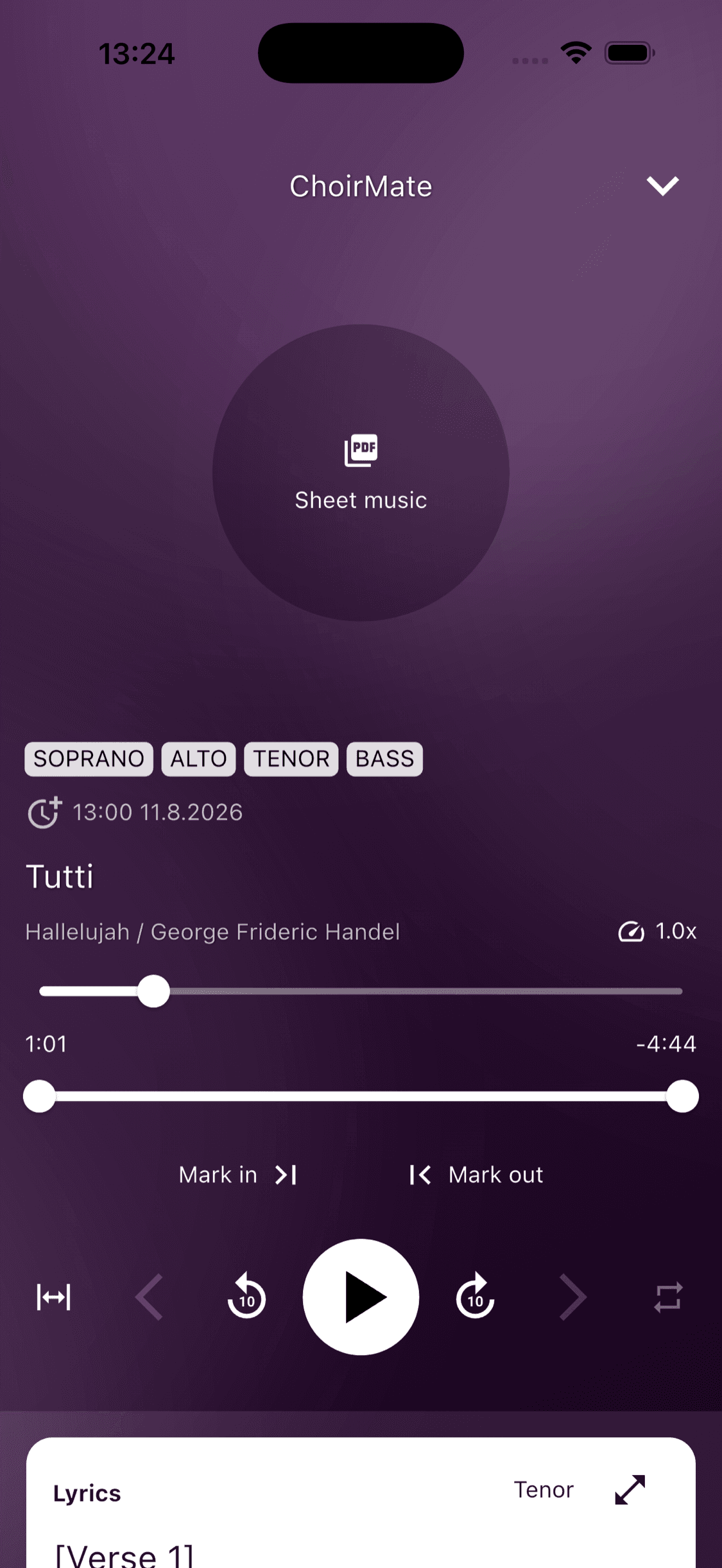
- 3
Set the beginning and end
Use the upper progress bar to move to the beginning of the section, then tap Mark in. Move to the end and tap Mark out. You can also drag either handle on the lower progress bar. Playback repeats between the two handles as soon as you create a shorter range.
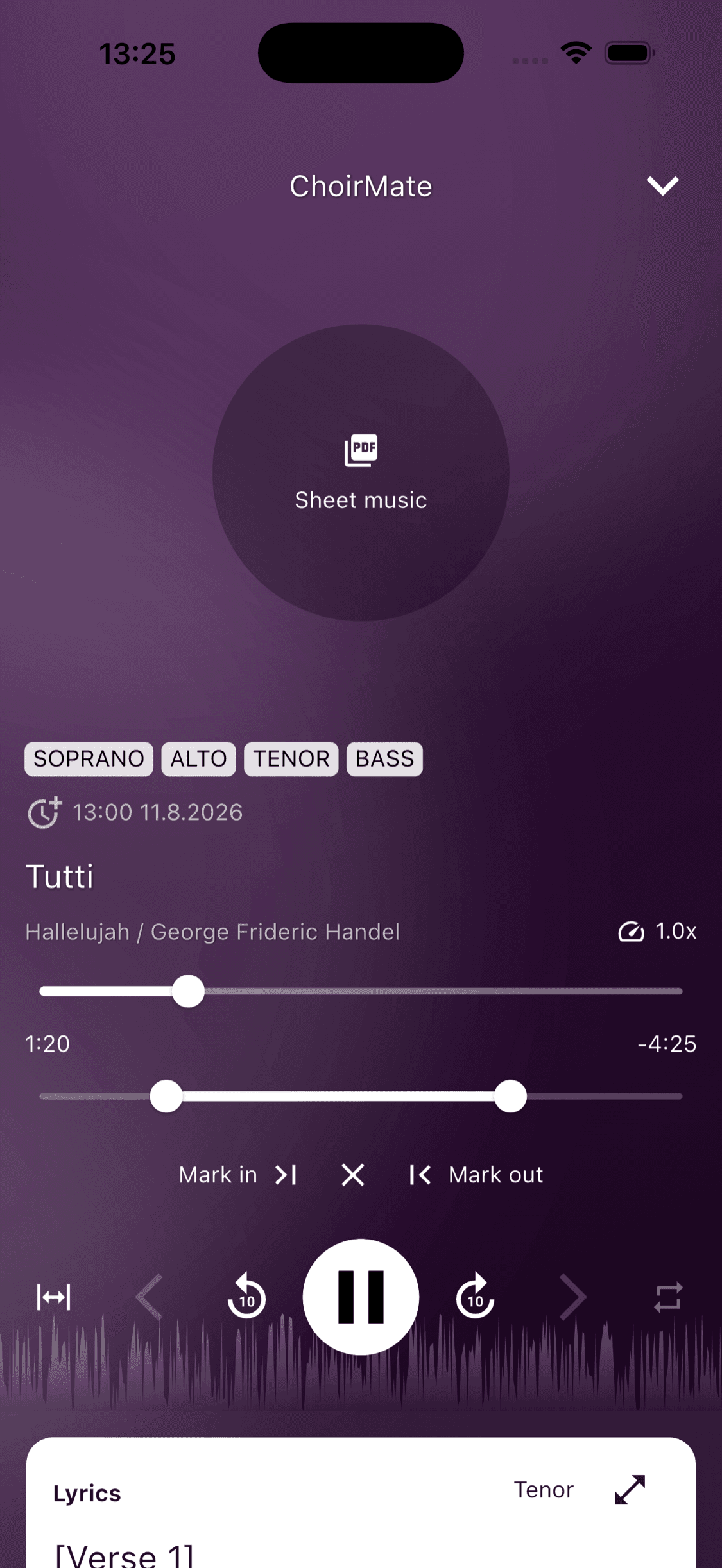
- 4
Adjust, reset, or exit
Drag either handle to refine the range. Tap the X between Mark in and Mark out to reset the range to the whole track while keeping Repeat Part mode active. Tap the Repeat Part control again to leave the mode.
Tip
The regular 10-second seek controls and playback speed remain available while a section repeats. Slowing the track and repeating a short phrase can make detailed practice easier.
Set a repeat range on the web
- 1
Start a practice track
Open Set lists and repertoire, choose a set list and song, and play an audio file. The docked player opens on the left.
- 2
Turn on Repeat Part mode
Select the Repeat Part control at the far left of the player's bottom row. The repeat bar and the Mark in and Mark out controls appear.
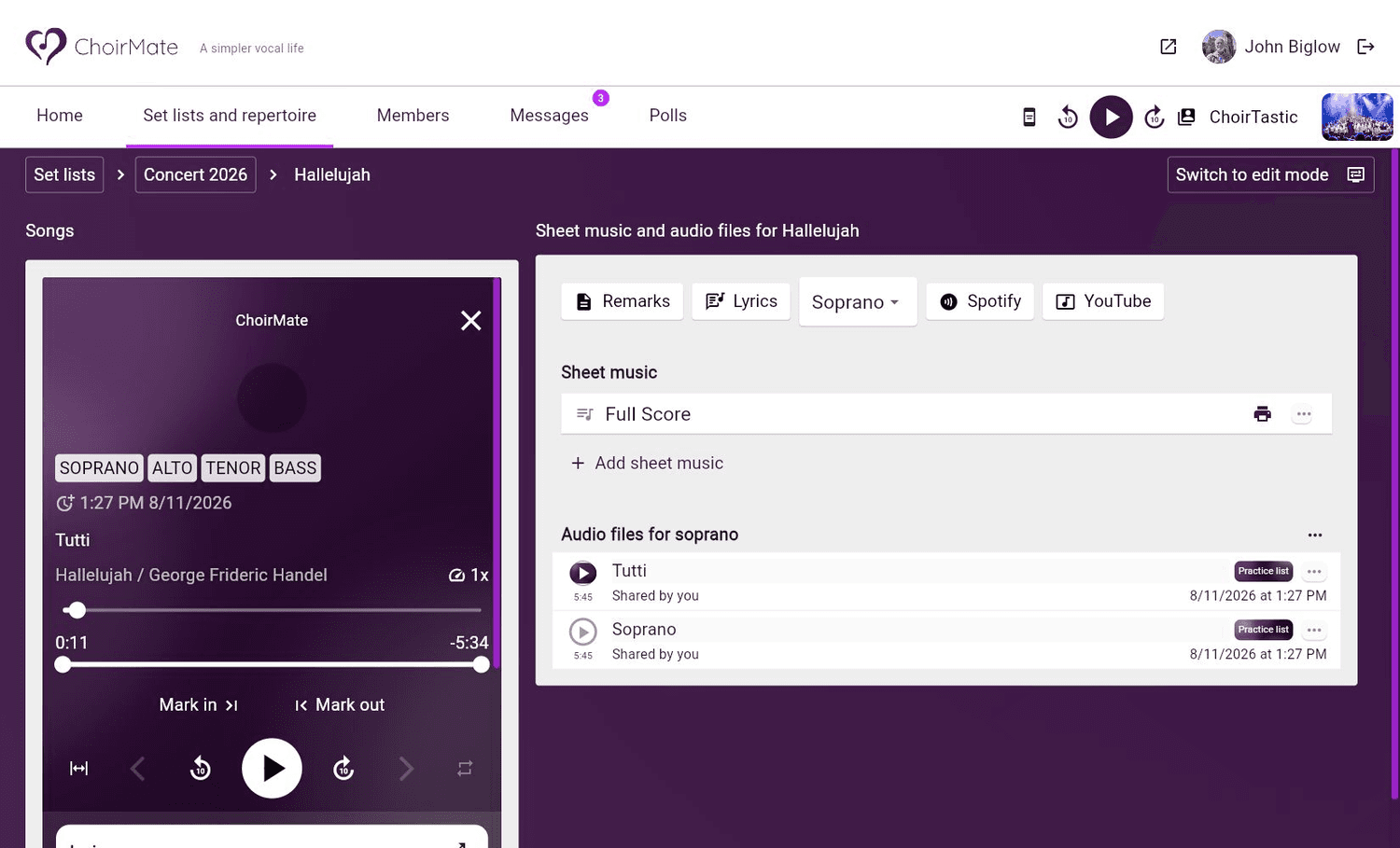
- 3
Choose the range
Move the upper progress bar to the beginning and select Mark in. Move to the end and select Mark out. You can also drag the handles on the lower repeat bar.
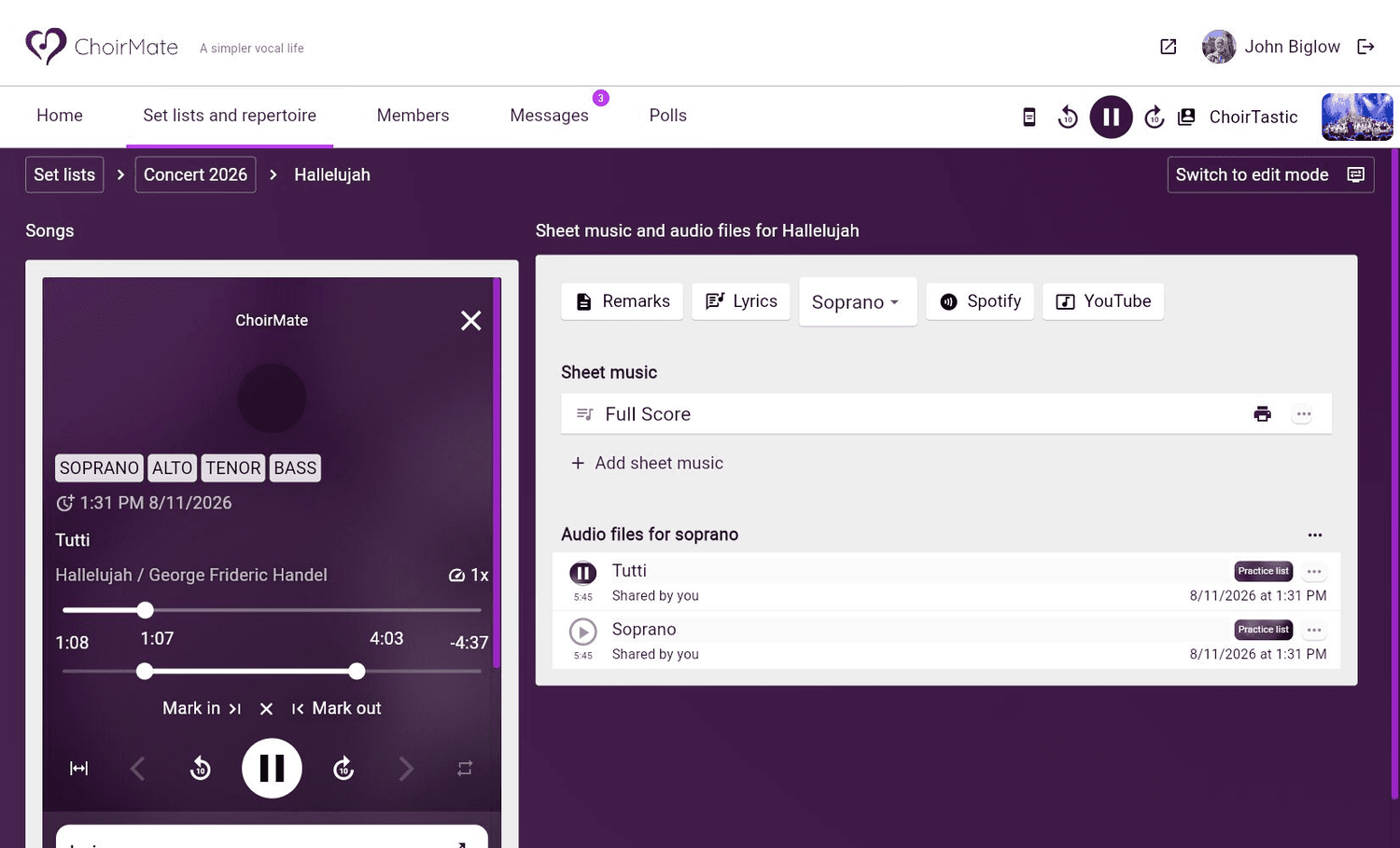
- 4
Reset or leave the mode
Select the X to return to the full-track range without leaving Repeat Part mode. Select the Repeat Part control again when you want to return to normal playback.
When the repeat range is cleared
ChoirMate clears the selected range when you switch to another track. In the app, closing the full player also leaves Repeat Part mode. If you only tap the X, the range returns to the full track but the mode stays active.
Use Repeat Part mode in the car
Repeat Part mode is also available through CarPlay and Android Auto. Both let you set the beginning and end from the vehicle display. CarPlay also offers 5-second adjustments for boundaries that have already been set. The exact controls differ from the phone and web players.
Set up playback before driving and only use the vehicle controls when it is safe to do so.