

ChoirMate on Your Smartwatch
Record your entire choir without leaving your spot. With ChoirMate on Apple Watch or Wear OS, place your phone in the middle of the singers and control the recording from your watch. You can also browse songs and read lyrics right from your wrist.

Getting Started
Before using ChoirMate on your watch, you need to install the ChoirMate app:
Apple Watch
- Open the Watch app on your iPhone
- Scroll down and find ChoirMate
- Tap Install to add the app to your watch
Wear OS
- Open Google Play Store on your phone
- Go to the ChoirMate app listing
- Download the Wear OS app from there
Your watch and phone connect automatically once both have ChoirMate installed and Bluetooth is active.
Browse Songs & Setlists
Open ChoirMate on your watch to see your choir's setlists and songs. Tap a list to see its songs, and tap a song to view details. Everything syncs automatically with your phone.
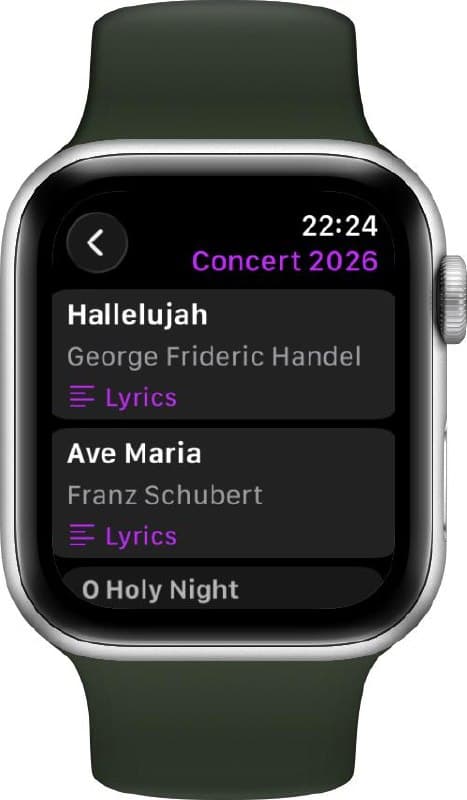
View Lyrics on Your Wrist
If a song has lyrics, you can read them right on the watch. Scroll down to see the full text. Perfect for a quick refresher before going on stage or during rehearsal.
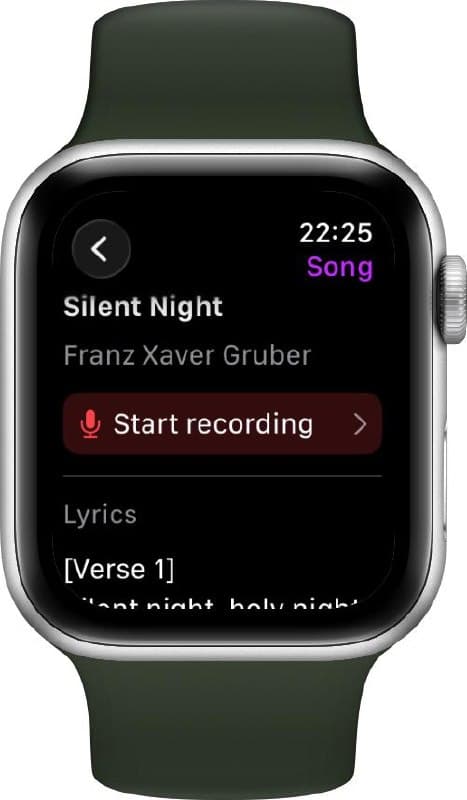
Remote Recording Mode
This is the big one. Use your phone as a microphone, place it among the singers, and control the recording from your watch. Capture how the full choir sounds without ever leaving your spot.
How It Works
Activate Remote Recording Mode on your phone
Open ChoirMate on your phone. When your watch is connected, Remote Recording Mode appears on the tracklist screen. Tap to activate.
Place your phone among the singers
Put your phone where it can pick up the whole choir. On the piano, a stand, or a chair in the middle of the room works well.
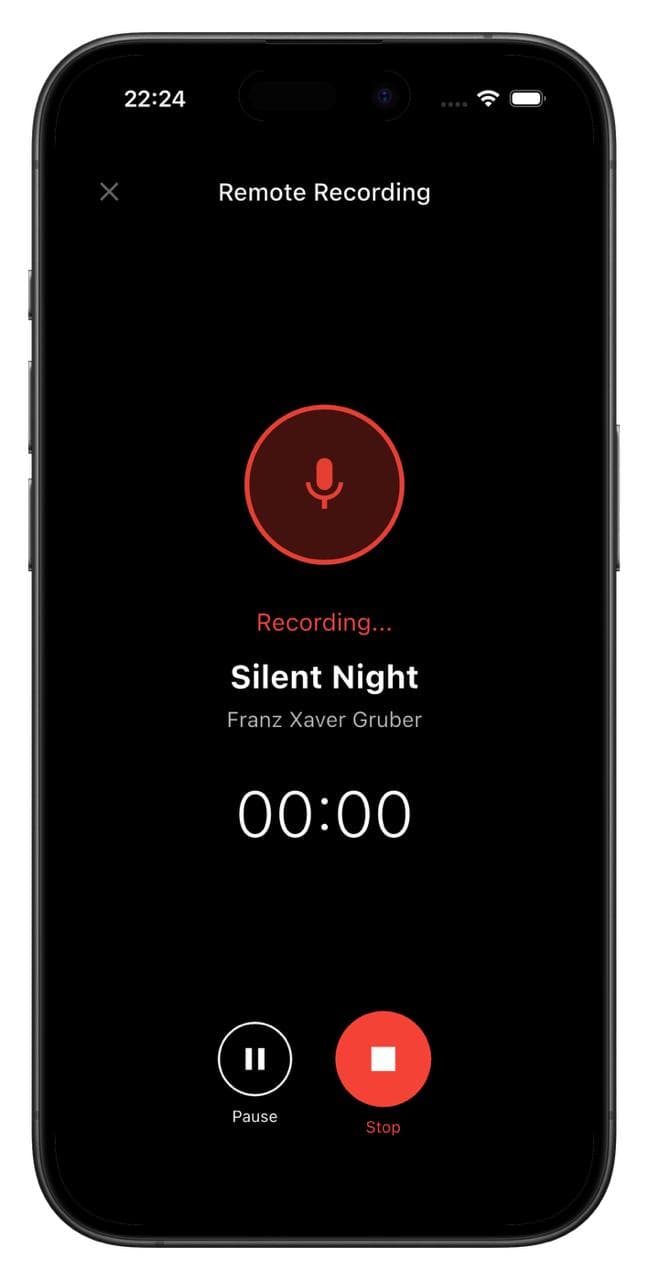
Pick a song and hit record from your watch
Navigate to the song on your watch and tap Start recording. Walk back to your spot and sing along.
Follow the lyrics as you sing
If the song has lyrics, they appear on your watch while recording. Scroll down to follow along.

Stop recording and listen back
Tap Stop on your watch when you're done. The recording saves automatically to the song in your repertoire, ready to listen back to.
Tips for the Best Recording
- 🎤Place your phone centrally in the room, ideally at chest height, for a balanced sound of all voices.
- 🔇Set your phone to silent and turn off vibrations to avoid interruptions.
- 🔋Make sure your phone has enough battery. Remote Recording Mode keeps the screen active throughout.
Premium feature: Remote Recording Mode and viewing lyrics on the watch require a Premium subscription. Browsing songs and setlists is available for everyone.
Requirements
Apple Watch
- watchOS 10 or later
- ChoirMate installed via the Watch app on your iPhone
Wear OS
- Wear OS 4 or later
- ChoirMate Wear app downloaded from Google Play