Attendees' Chat keeps practical event messages with the event they belong to. Use it for meeting points, transport, clothing, arrival times, and last-minute updates without filling the choir's main chat.
Attendees' Chat requires ChoirMate Premium for the choir.
Before you enable the chat
An Attendees' Chat can be added only to an event that tracks attendance and asks members to respond. The chat is created for that one event, and only members who are marked as attending can open it.
Choir administrators can enable the chat, but they are not automatically included. An administrator must also be attending the event to see and use the conversation.
Enable Attendees' Chat
In the app
- 1
Open the event
Open Your choir, choose the event, and tap the edit icon.
- 2
Find the attendance settings
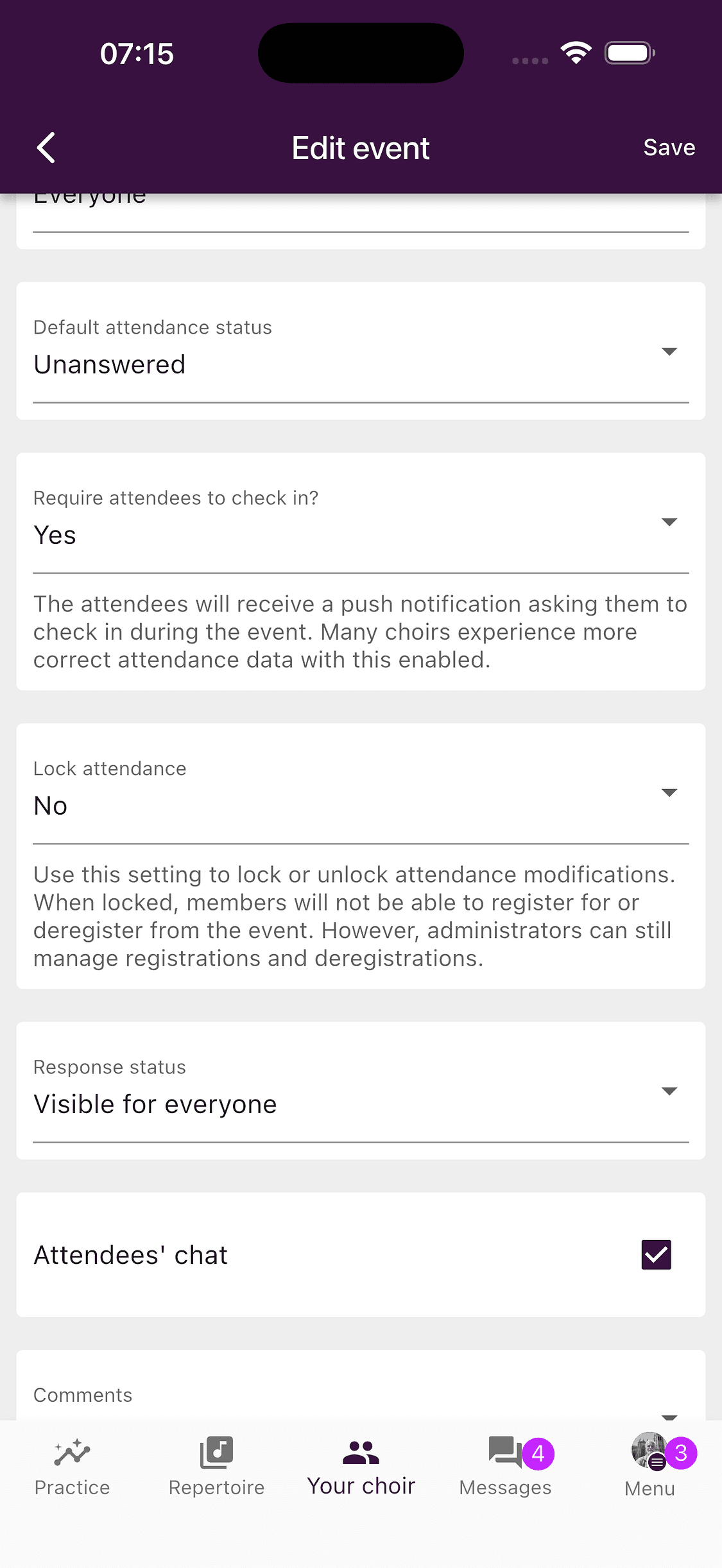
Scroll past the event details to the lower part of the attendance settings.
- 3
Enable the chat
Check Attendees' chat, then tap Save.
On the web
- 1
Open the event editor
Open the event from Home, then select the edit icon.
- 2
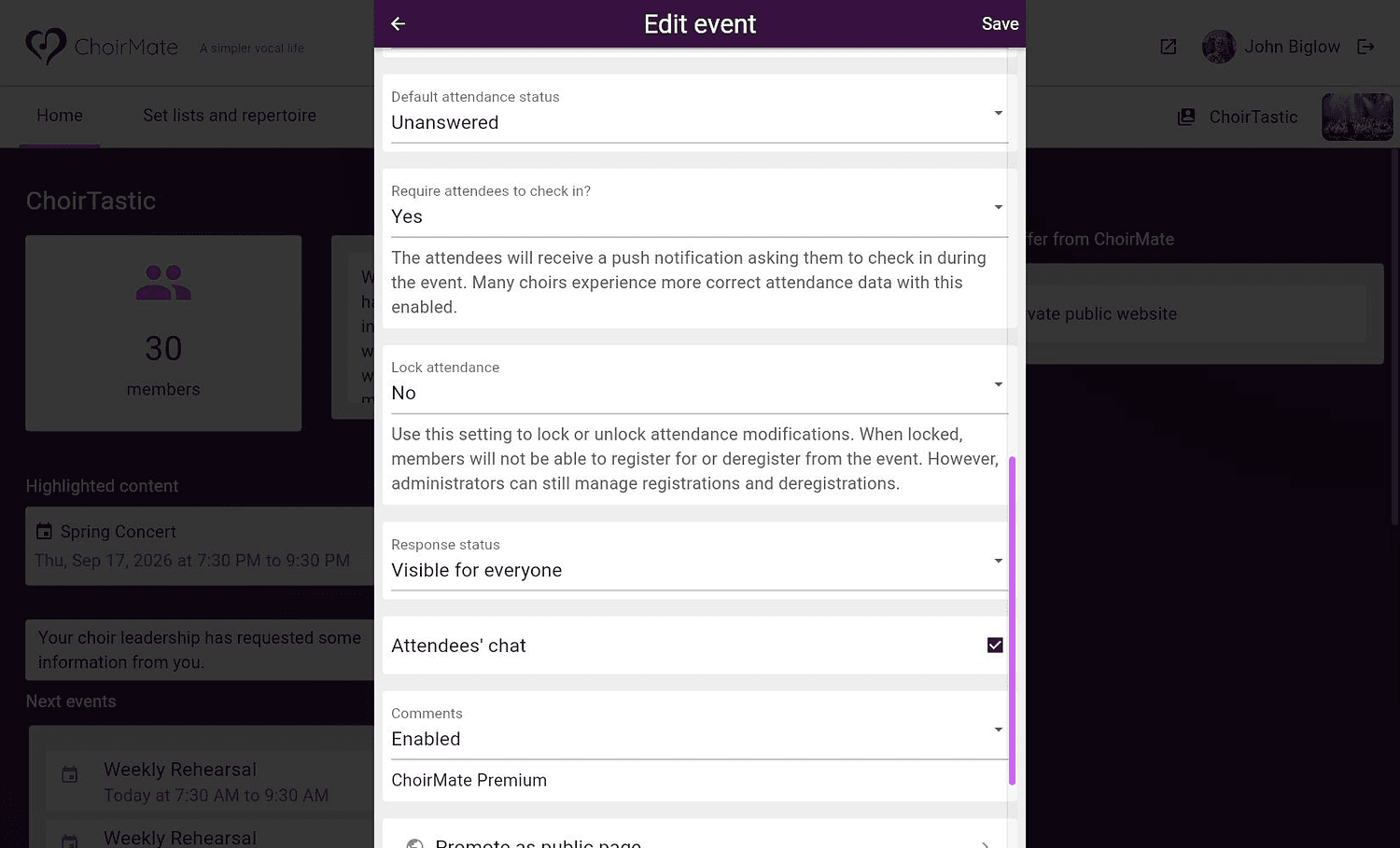
Enable and save
Scroll to the attendance settings, check Attendees' chat, and select Save.
Warning
A repeating series cannot share one Attendees' Chat. Create the series first, then enable the chat separately on each occurrence that needs one.
Open the conversation
First, make sure your response to the event says that you are attending. Members who have not responded or cannot attend do not see the event chat.
In the app
- 1
Open the event
Open the event from Your choir. When you are attending and the chat is active, a purple chat button appears beside the event name.
- 2
Open the chat
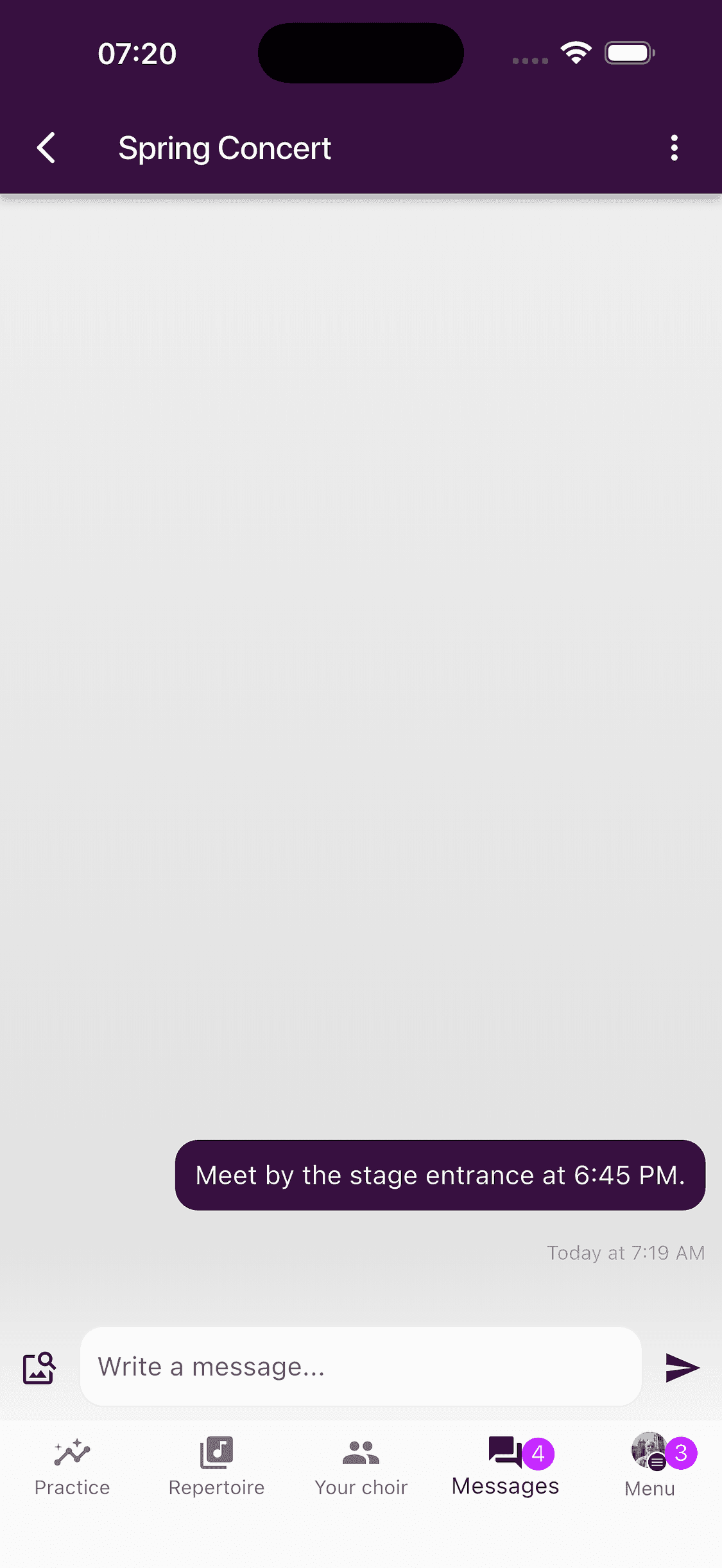
Tap the chat button. The same conversation also appears under Messages with the event name and a calendar badge.
On the web
- 1
Open the event chat
Open the event and select the purple chat button beside its name.
- 2
Continue in Messages
ChoirMate opens the conversation in Messages. The event chat is also shown among your recent chats with a calendar badge.
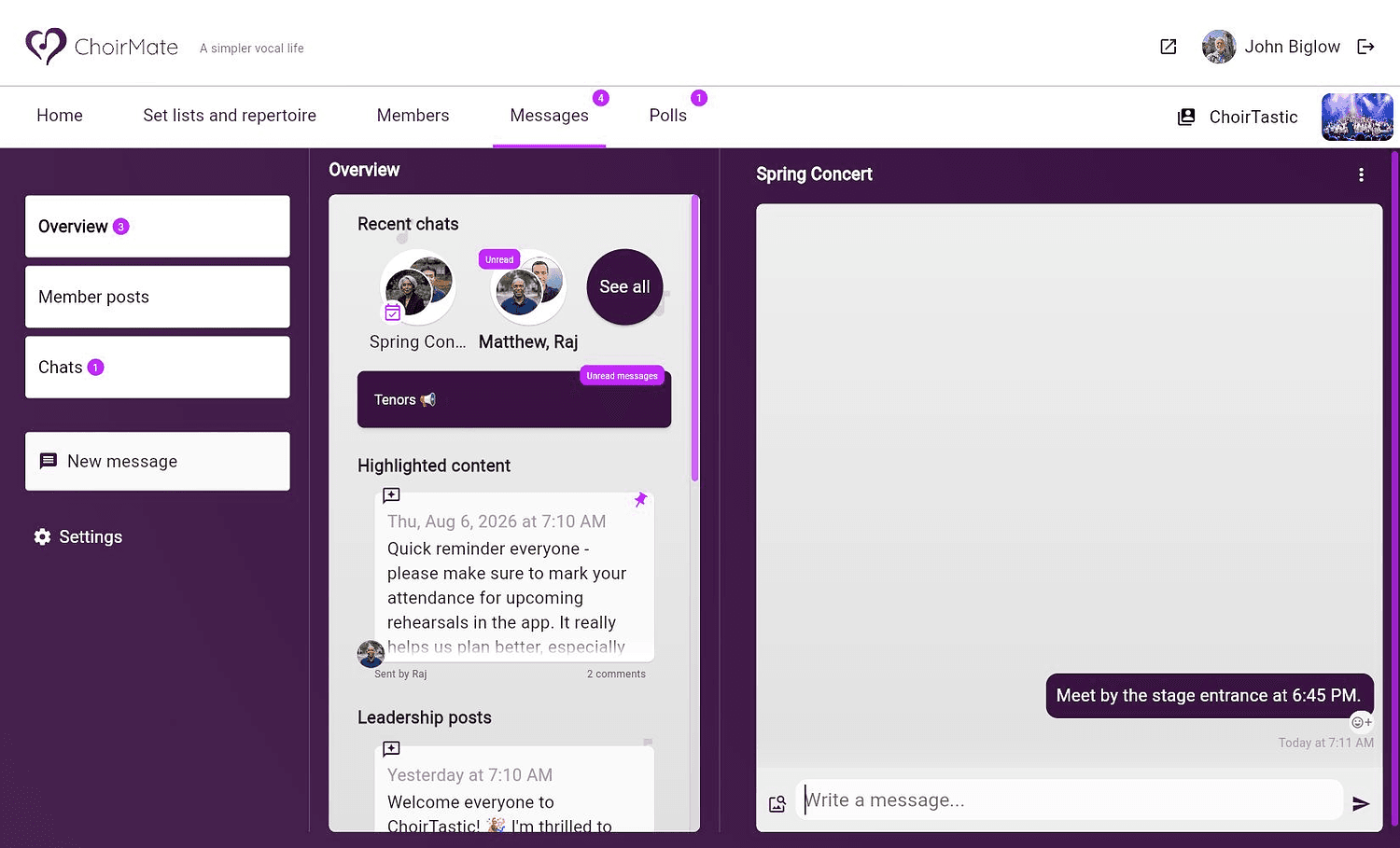
Use the conversation like any other chat. Send the practical details that matter to this event, and use the image button when image sharing is available to your choir.
Access follows the attendance response
The participant list follows the event responses. A member who changes from attending to not attending loses access to the conversation. A member who changes to attending is added.
The chat does not automatically move to an archive when the event ends. It remains in message history for members who still have access, and older conversations can be found from Messages.
If the chat is missing
Check that:
- the choir has ChoirMate Premium
- the event tracks attendance and requires a response
- Attendees' chat is enabled on this event
- your own response says that you are attending