ChoirMate keeps choir communication together in Messages, both in the app and on the web. The format you choose decides who receives the message and where they find it later.
Choose the right format
- Leadership posts are for updates from the choir administration. They are a good fit for rehearsal changes, concert information, and other messages for the whole choir.
- Member posts let members share something with the choir when the administration has enabled this option. They appear separately under Member posts.
- Chats are conversations for selected people. You can start a chat with one or several members if your choir's communication rules allow it.
- Choir-managed chats can bring together administrators, voice groups, or a combination of voice groups. An event can also have its own Attendees' Chat.
Posts and chats serve different purposes. A post gives an update a clear place in the feed and keeps its replies together. A chat is better for an ongoing conversation between a smaller group of people.
Find your messages
In the app
- 1
Open Messages
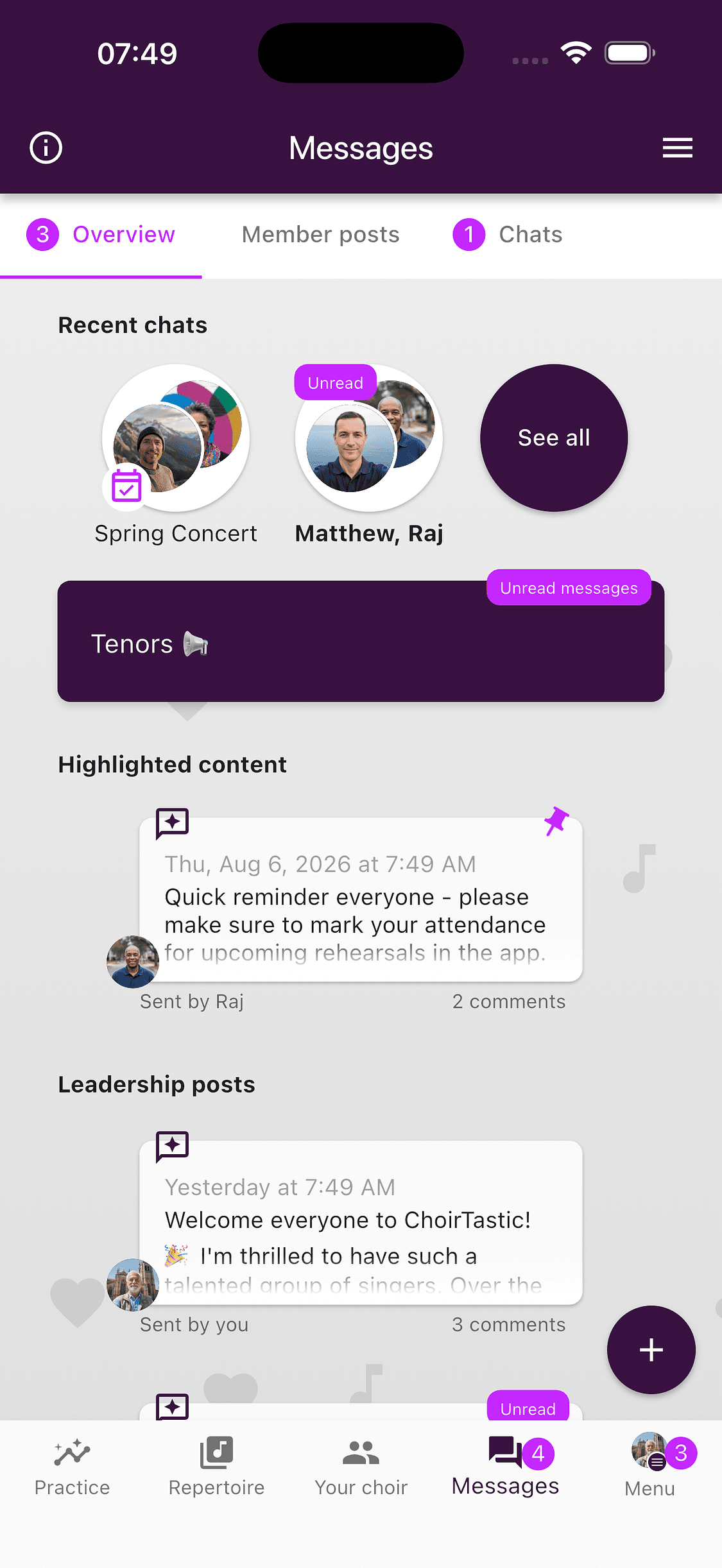
Tap Messages in the bottom navigation. Overview shows recent chats, highlighted content, and the latest leadership posts. Use Member posts or Chats when you want to narrow the list.
On the web
- 1
Open Messages
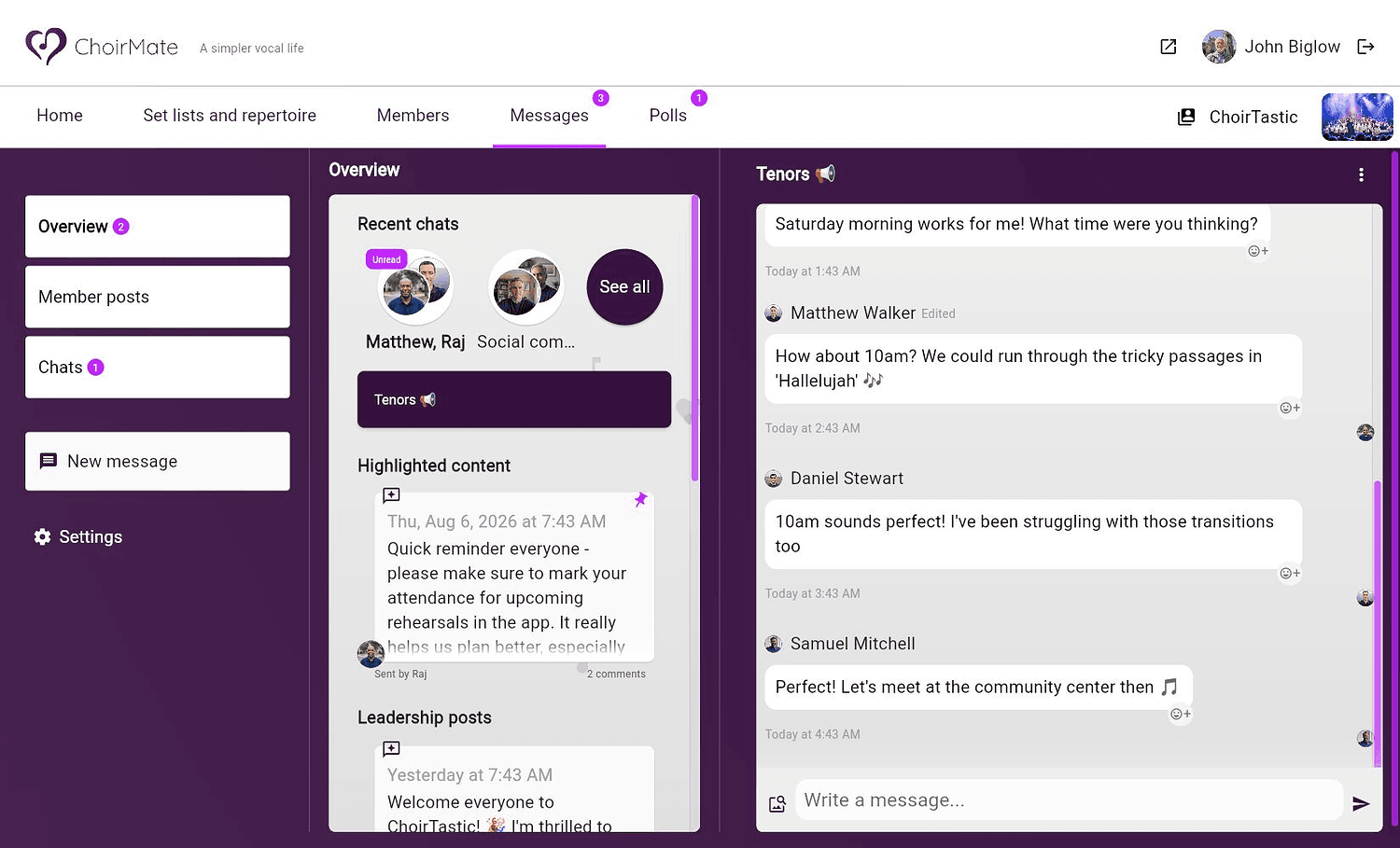
Select Messages in the top navigation. The left column switches between the overview, member posts, and chats. A selected conversation opens on the right.
Start a post or chat
In the app
- 1
Open the create menu
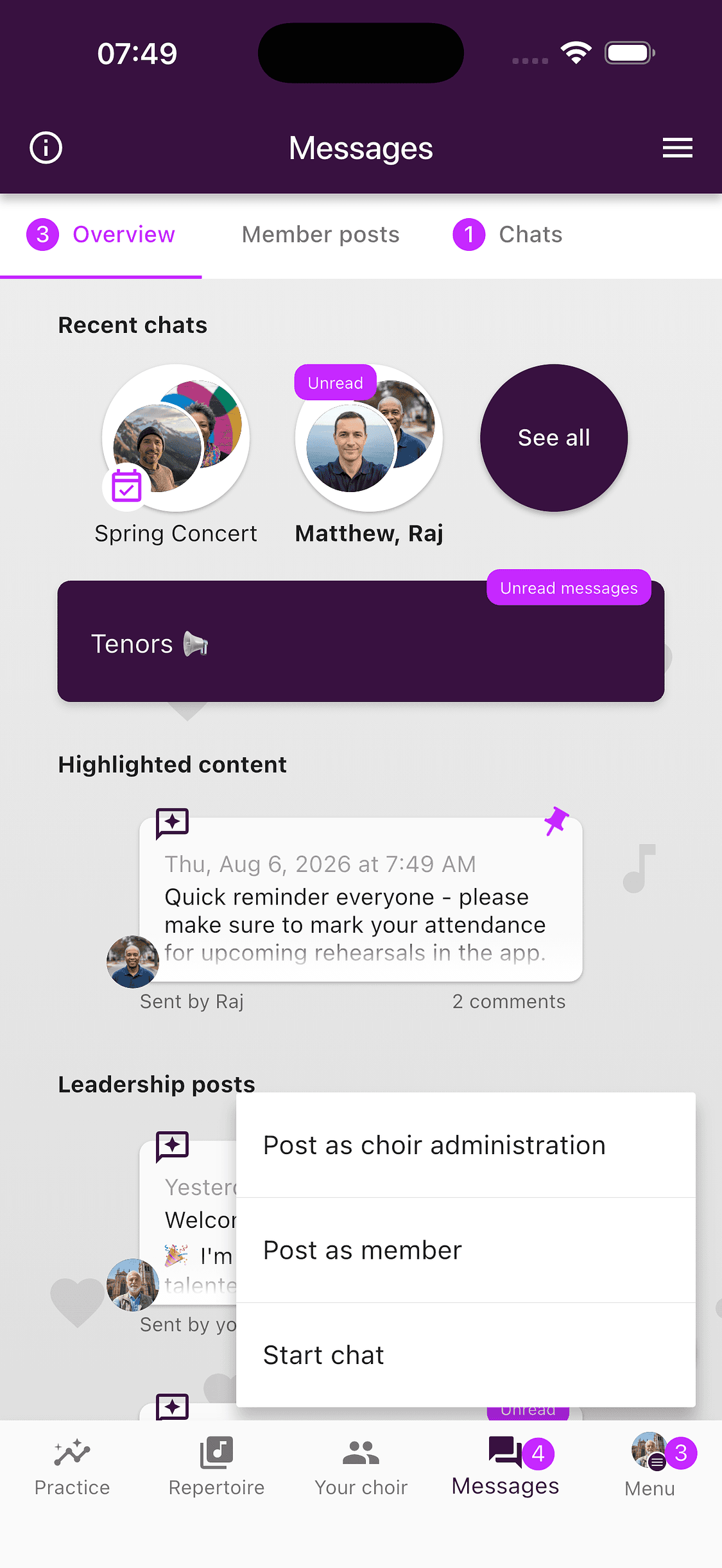
Open Messages and tap the purple + button.
- 2
Choose what to create
Administrators can choose Post as choir administration. If member posts are enabled, you can also post as a member. Choose Start chat to search for and select one or several members.
On the web
- 1
Open New message
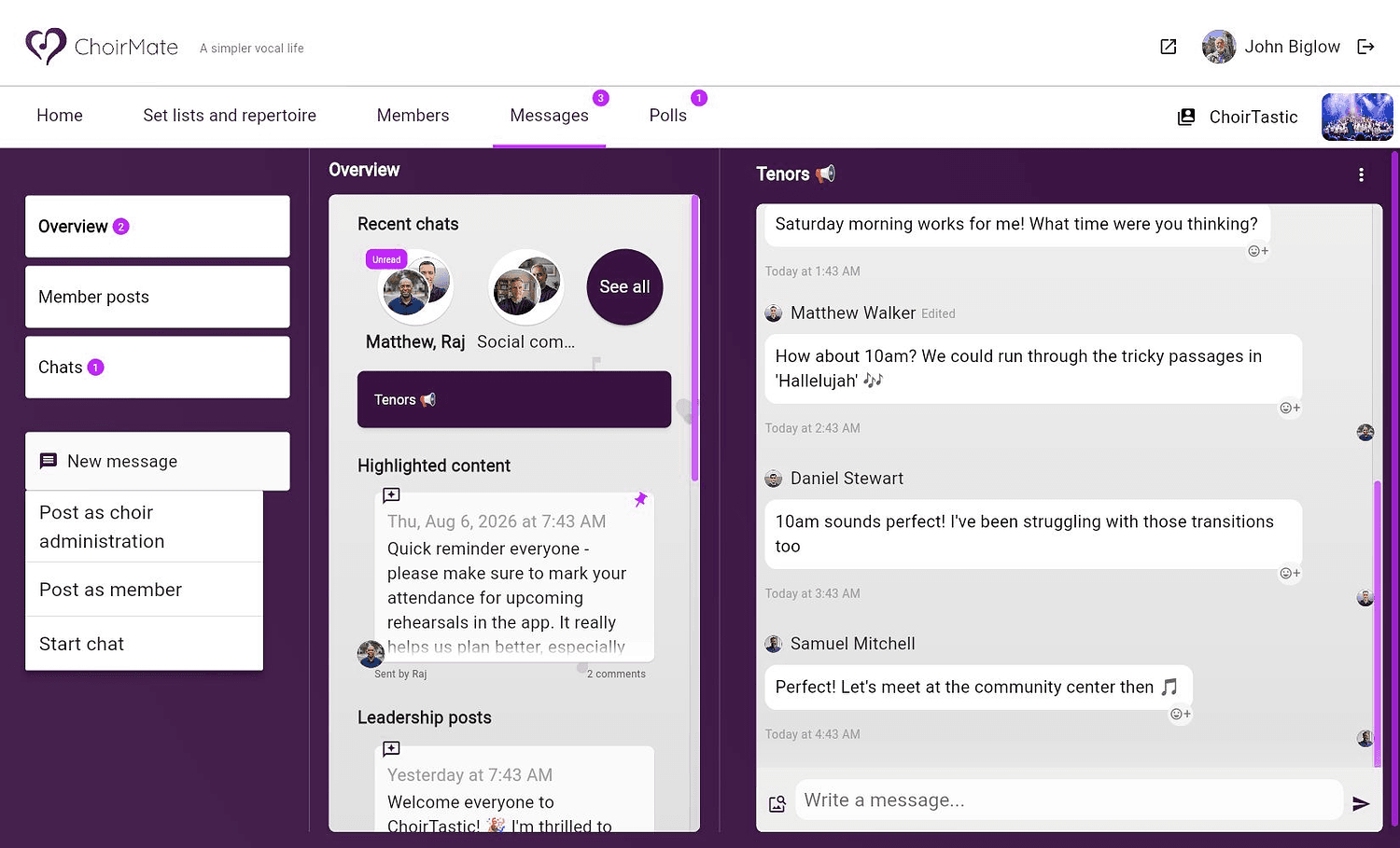
Open Messages and select New message in the left column.
- 2
Choose what to create
Select a leadership post, a member post, or Start chat. When you start a chat, search for the people you want to include and select them.
Info
You must have a verified email address before you can create a post or start a chat.
Work with posts and chats
Replies to a post stay with that post, which makes a longer discussion easier to follow. Chat messages appear in conversation order. The actions available on a message depend on the message type, your role, and whether you wrote it.
Open the conversation menu to see its participants, change its name when you have permission, or adjust notifications. Search inside a conversation is currently available in the app, but not on the web.
Control notifications for a chat
Open the chat menu and choose Notifications. You can mute that conversation for 15 minutes, 1 hour, 8 hours, or until you turn notifications back on. This changes only your own notifications.
Communication settings for administrators
In the app, open Your choir, select the settings icon, and choose Communication. On the web, open Messages and select Settings.
Here you can:
- allow or prevent members from creating group posts
- activate the administration chat and decide whether the conductor is included
- activate chats for individual voice groups
- create chats that combine several voice groups
- rename, deactivate, or adjust voice group chats
Members only see the chats they belong to. Direct chat options also follow the choir's access rules, so two members may not always have the same choices.
If an option is missing
Check that your email address is verified and that you are using the correct choir. If Member post or Start chat is not shown, the choir's settings or your role do not currently allow that action. Ask a choir administrator if you think the option should be available.