Use annotations to mark an entrance, highlight your part, add a musical symbol, or leave yourself a short reminder. Your work is kept on a layer for that sheet. To manage layers or share one with other singers, see Annotation Layers and Sharing.
Saving annotations requires access to the sheet music annotation feature. It may be included through your choir or an individual Premium subscription. During a release preview, saving may also be available without Premium.
If you do not have access, ChoirMate gives you one 20-second preview. Marks made during that preview are not saved and are cleared when the timer ends.
Start Annotating
- 1
Open a sheet
Open a song and choose the sheet music you want to mark.
- 2
Enter annotation mode
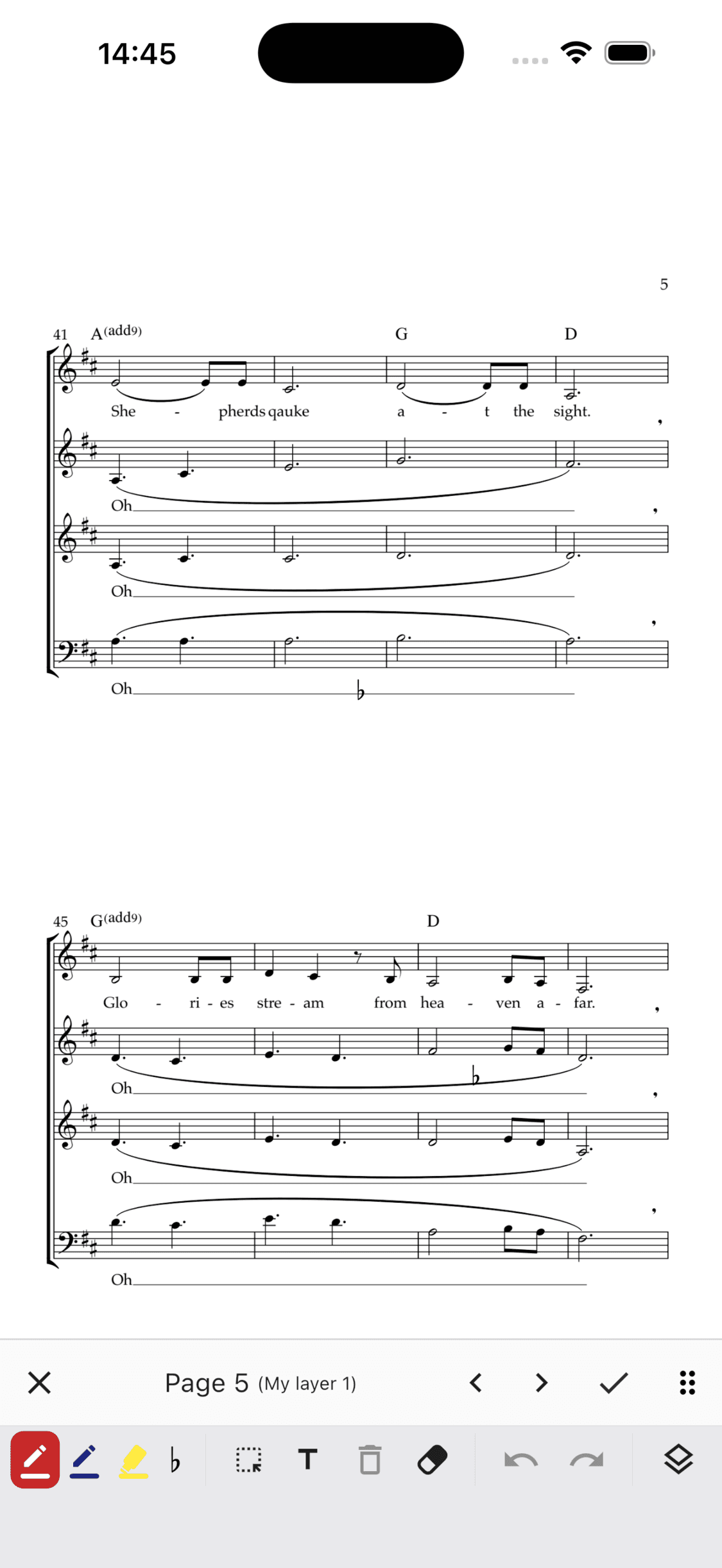
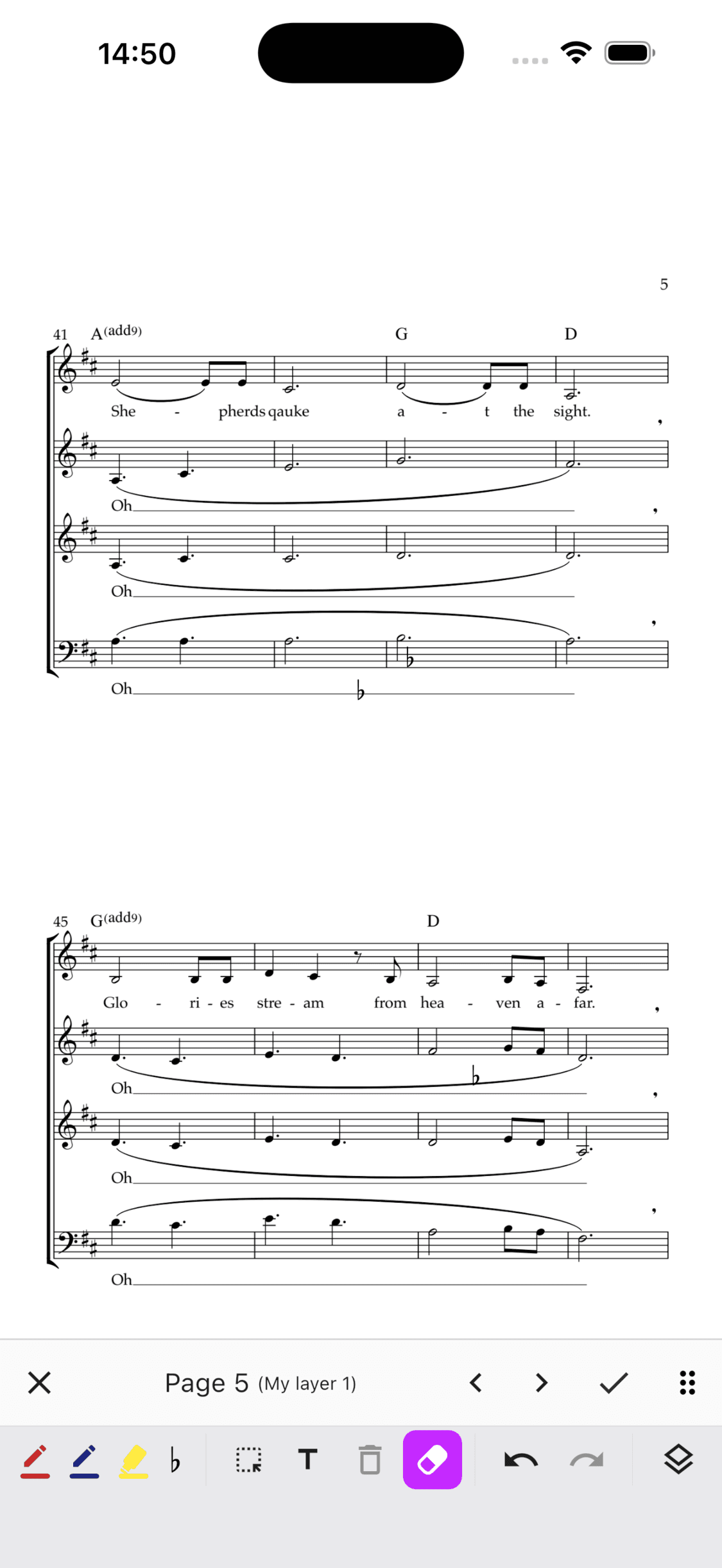
Long press the page, or show the viewer controls and choose Tools, then Annotate. The annotation toolbar replaces the normal viewer controls.
- 3
Choose or customise a pen
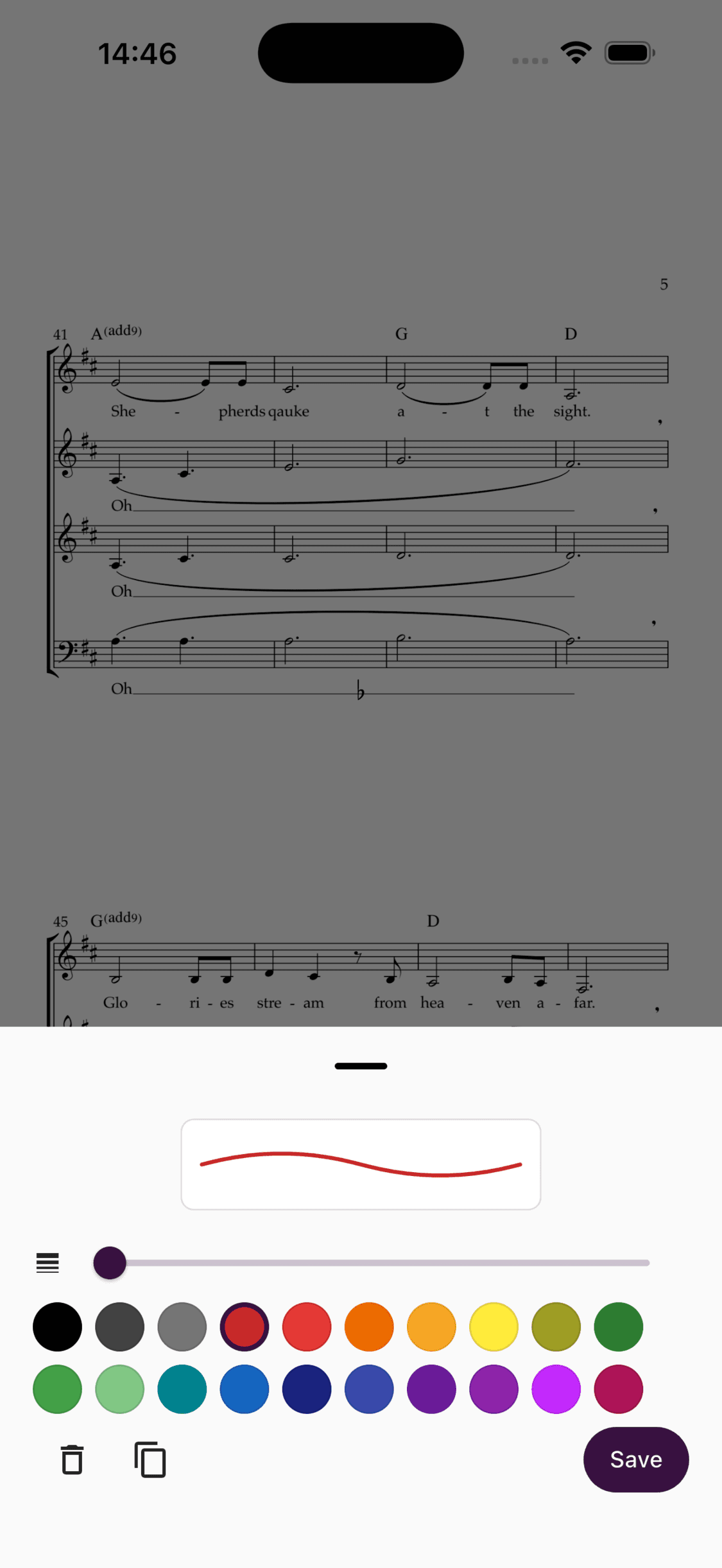
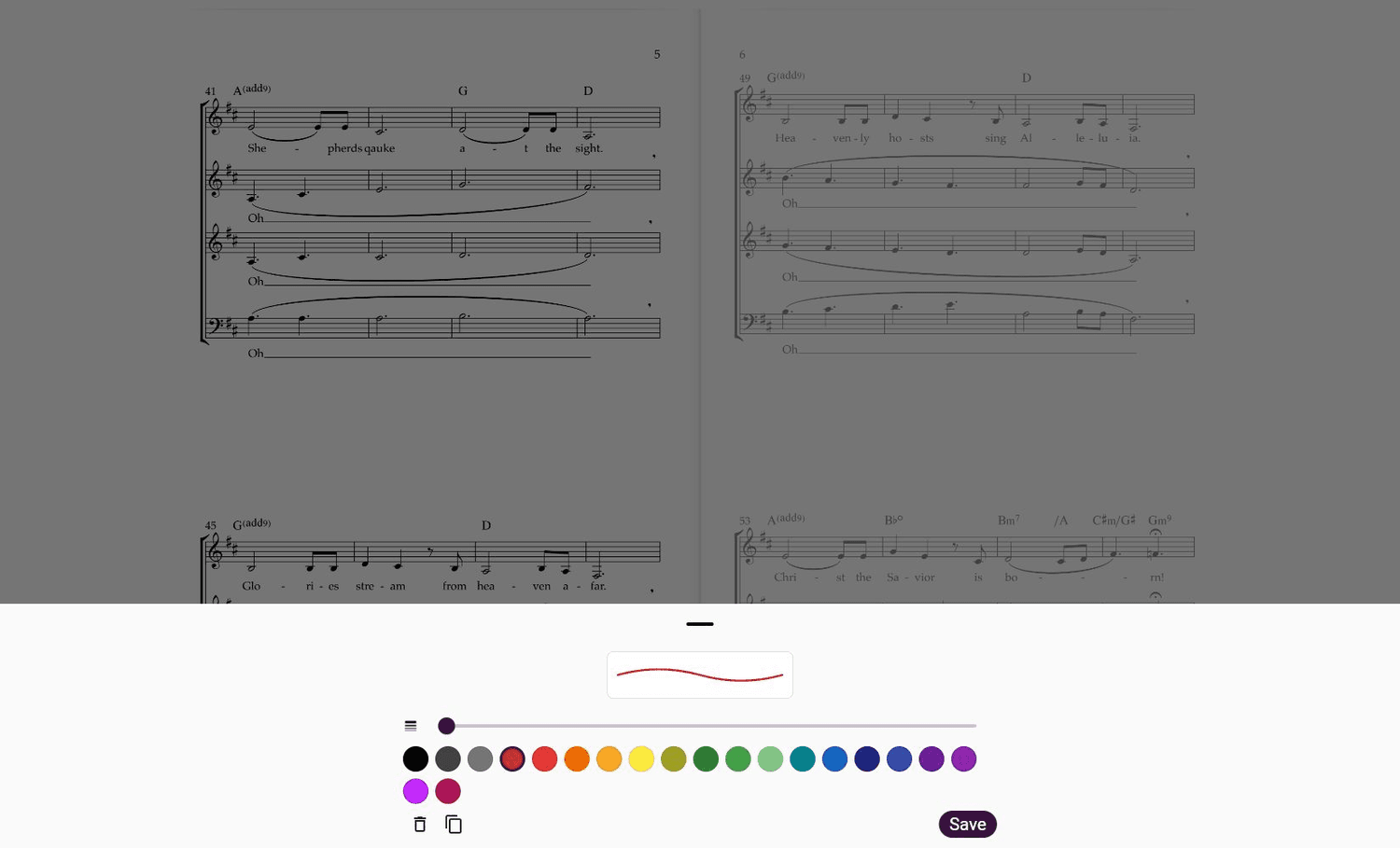
Tap a pen or highlighter to select it. Tap the selected preset again, or press and hold any preset, to change it.
- 4
Add a musical symbol
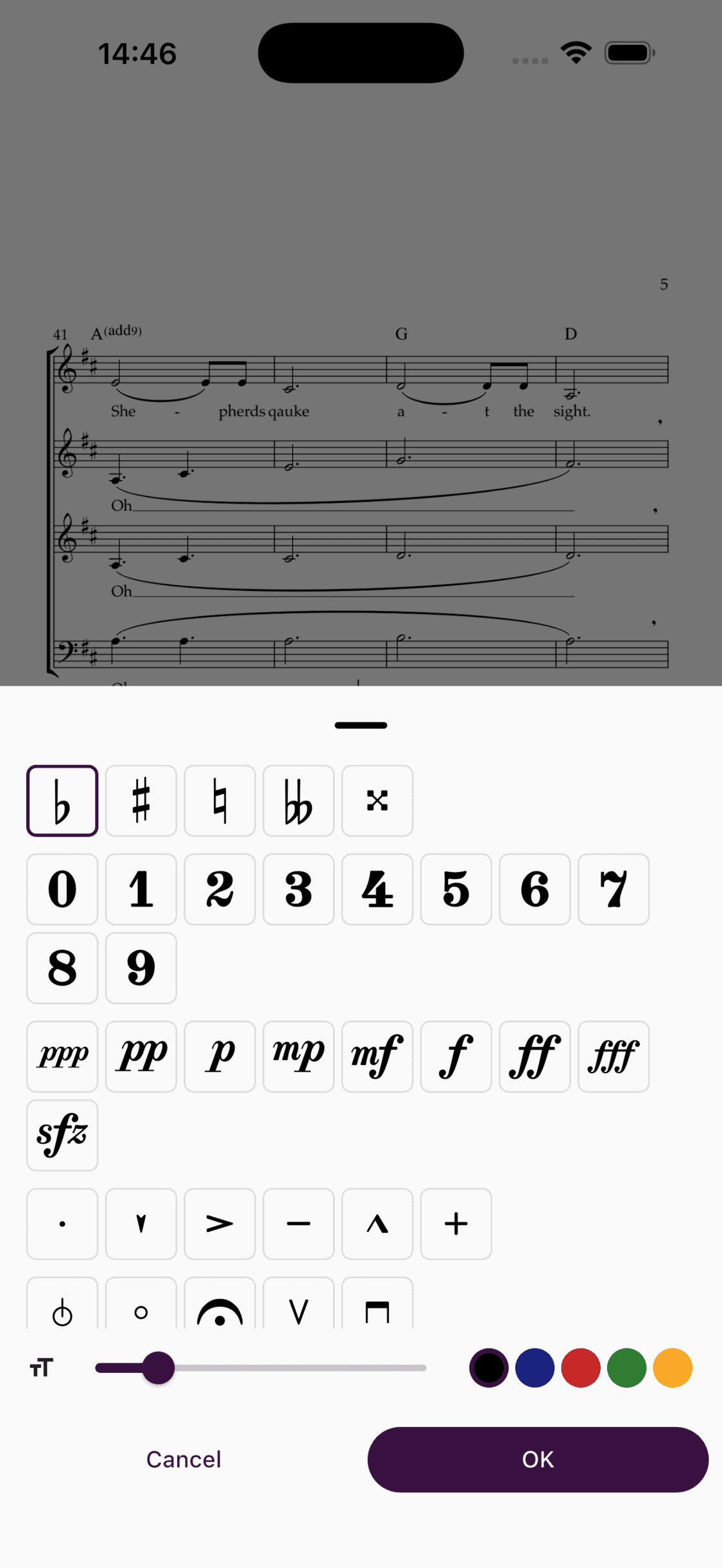
Open the stamp picker, choose a symbol, then place it on the sheet.
- 5
Add a text note
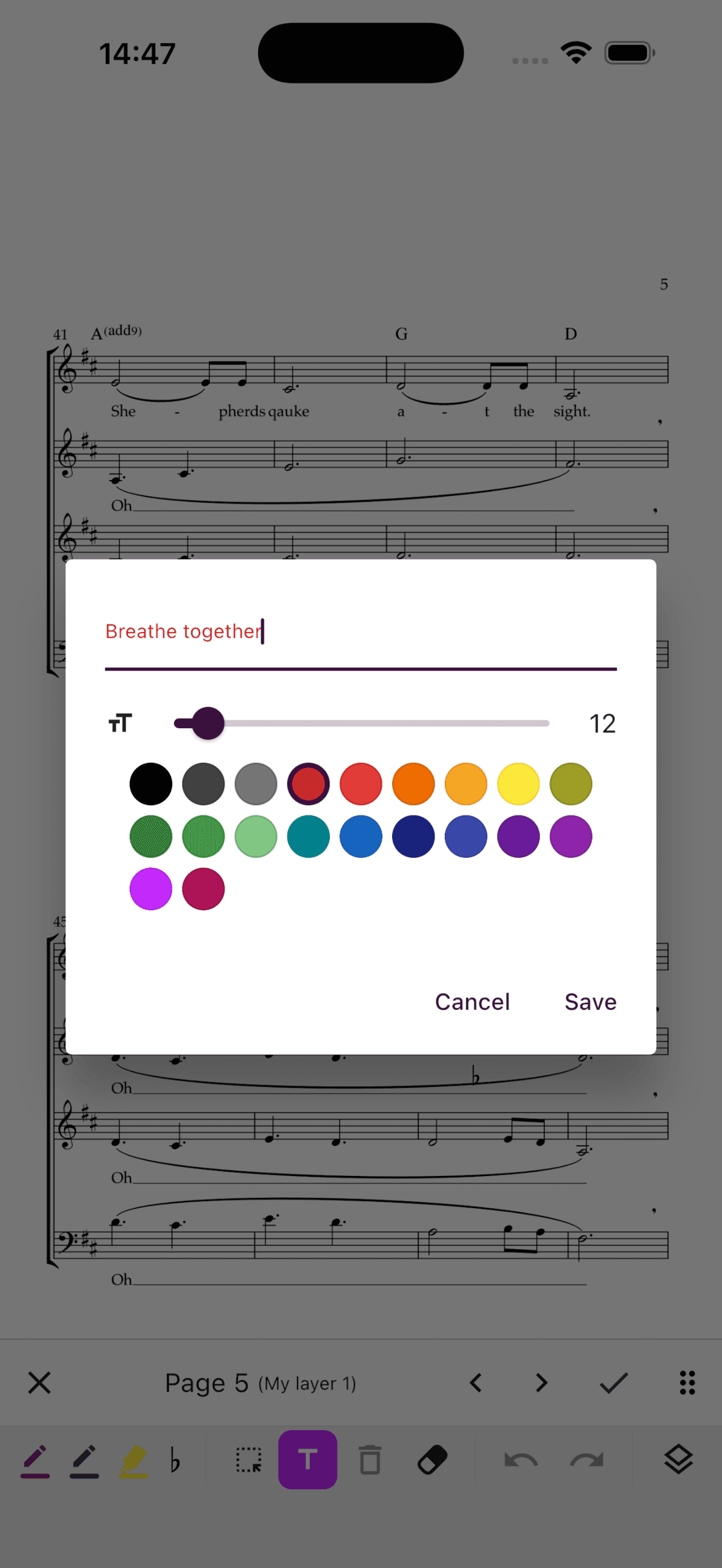
Select the text tool, tap the sheet, and enter your note.
- 6
Edit or erase a mark
Use the selection tool to move or edit an existing mark. Use the eraser when you only need to remove part of a stroke.
- 1
Open a sheet
Open Set lists and repertoire, choose a song, and open its sheet music.
- 2
Enter annotation mode
Open Tools and choose Annotate, or long press the sheet.
- 3
Use the annotation tools
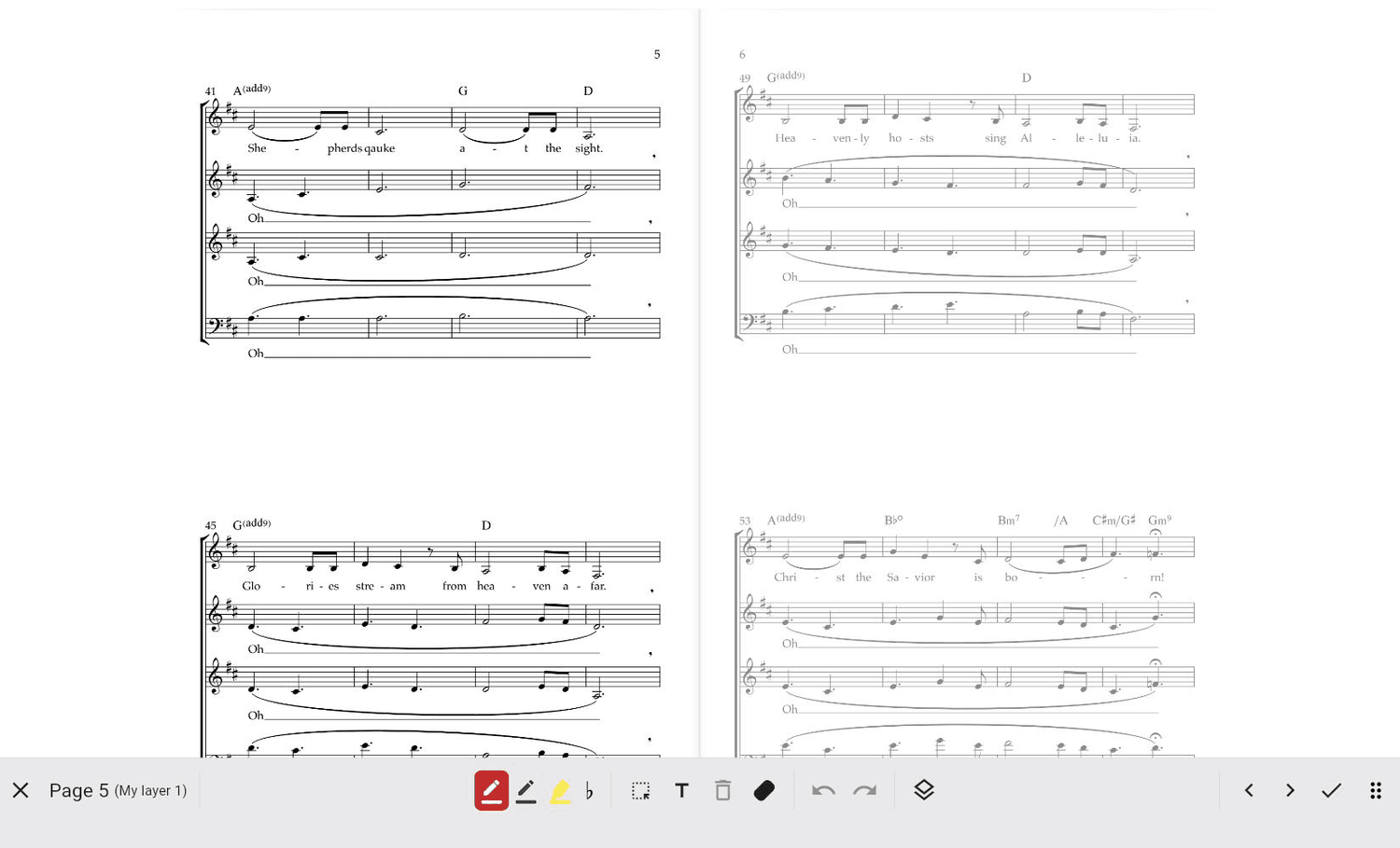
Select a preset or choose the stamp, text, selection, or eraser tool. Keyboard shortcuts for undo and redo also work while you annotate.
Tip
With an Apple Pencil or another supported stylus, you can start drawing immediately. Finger gestures still pan and zoom, which makes it easier to rest your hand on the screen while writing.
Use the Toolbar
The toolbar shows the current page and layer. Drag its handle to move it between the top and bottom of the viewer. While annotation mode is active, use the toolbar chevrons to change pages.
Choose the checkmark when you want to keep the session. Choose the cross to discard it. ChoirMate asks for confirmation if the session contains changes.
Pens and Highlighters
ChoirMate starts with ready-made pen and highlighter presets. A pen makes a solid stroke. A highlighter remains transparent enough for the notation to show through.
Open a preset's settings to change its colour, thickness, and opacity. You can also duplicate a preset to make another variation. Preset choices are remembered for your account.
Stamps and Text
The stamp picker contains common musical symbols, including accidentals, dynamics, articulations, fingerings, and a fermata. Choose a colour and size before placing the symbol. A magnifier appears while you position or move a stamp so you can place it accurately.
The text tool adds a movable note to the sheet. You can edit its wording, colour, size, and width later.
Select, Edit, Erase, and Undo
- Select: tap a mark or drag around several marks. Move the selection or delete it with the trash button.
- Edit an existing mark: select a stroke, stamp, or text note and open its settings. The available settings depend on the type of mark.
- Eraser: drag across the part of a pen or highlighter stroke you want to remove. The rest of the stroke stays in place.
- Undo and redo: use the toolbar arrows. On the web, you can also use the usual Control or Command keyboard shortcuts.
Save Safely
The checkmark saves the changes from the complete annotation session, including changes made on other pages. If the app closes or moves to the background before you finish, ChoirMate keeps a temporary local draft and offers it again when you reopen the sheet.
Info
A temporary draft protects an unfinished session, but it is not a replacement for saving. Choose the checkmark when you are done.