The sheet music viewer keeps the score at the centre while giving you quick access to page navigation, recordings, a piano, annotations, layers, lyrics, remarks, printing, and the rest of your choir's library. The controls adapt to the device and to the content attached to the song.
To add your own markings, see Annotating Sheet Music.
Open a Sheet and Find the Controls
- 1
Open a sheet
Go to Repertoire, open a song, and tap the sheet music you want to read.
- 2
Show the viewer controls
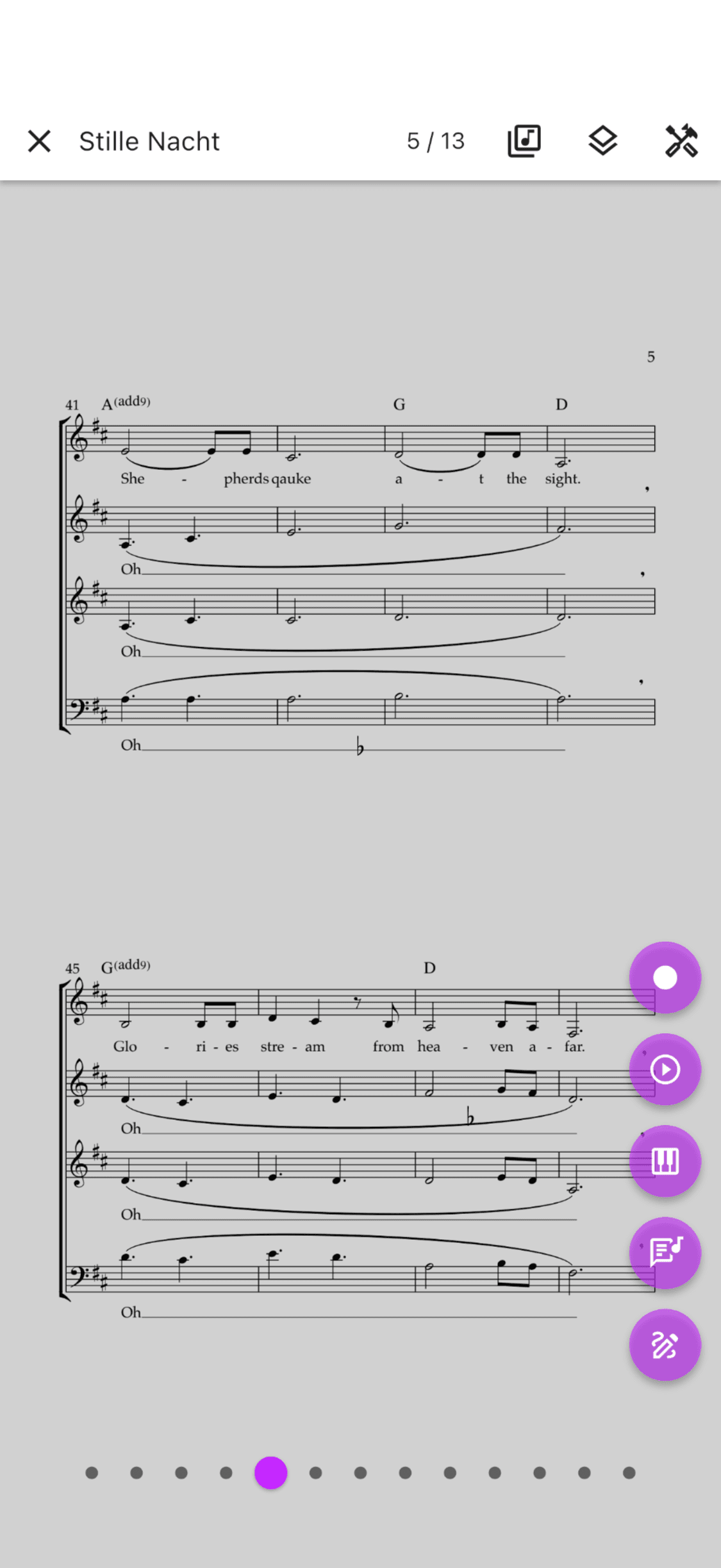
Tap the middle third of the page. The top bar, page scrubber, and available quick tools appear. Tap the middle again to return to a clean reading view.
- 3
Open the tools menu
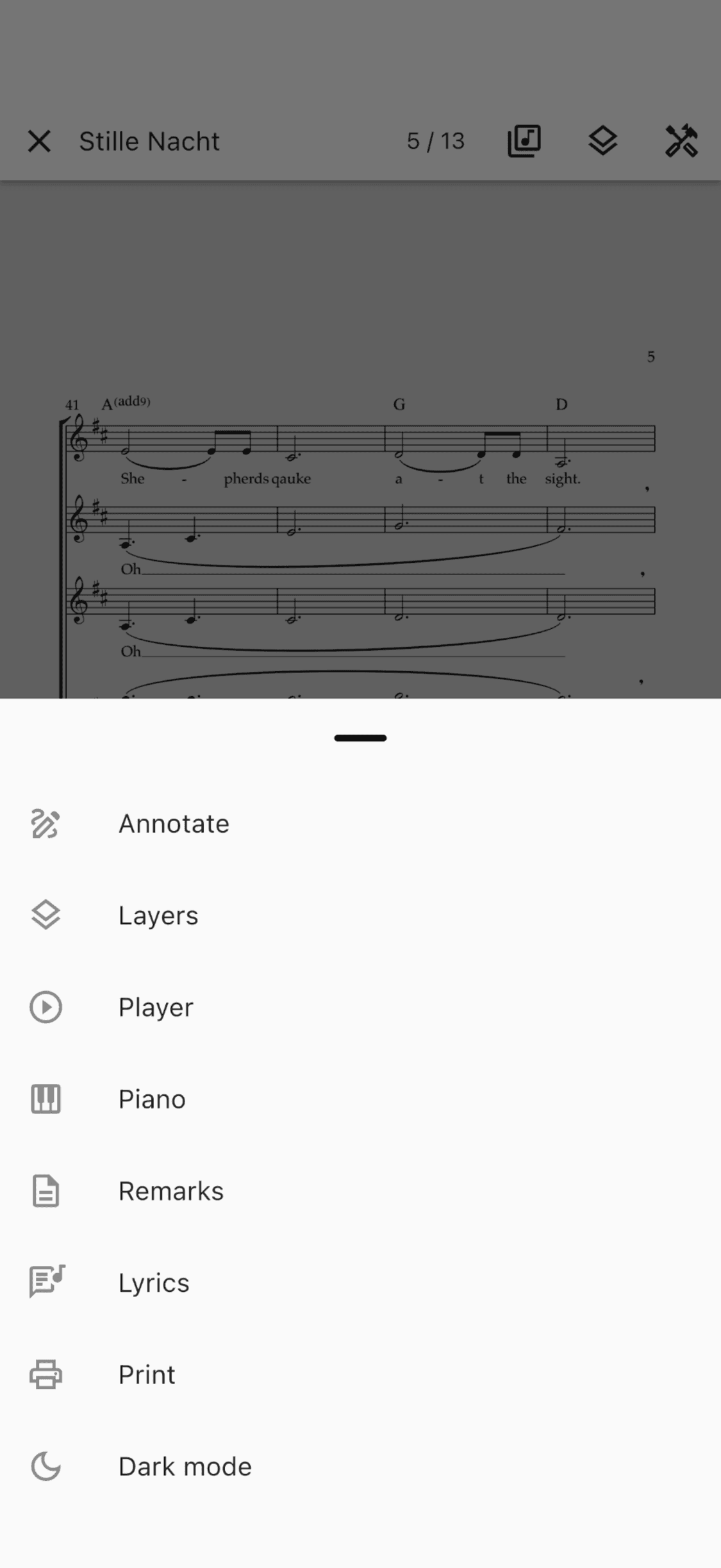
Tap Tools in the top bar. The menu only shows tools that are available for this sheet and device.
- 4
Listen while you read
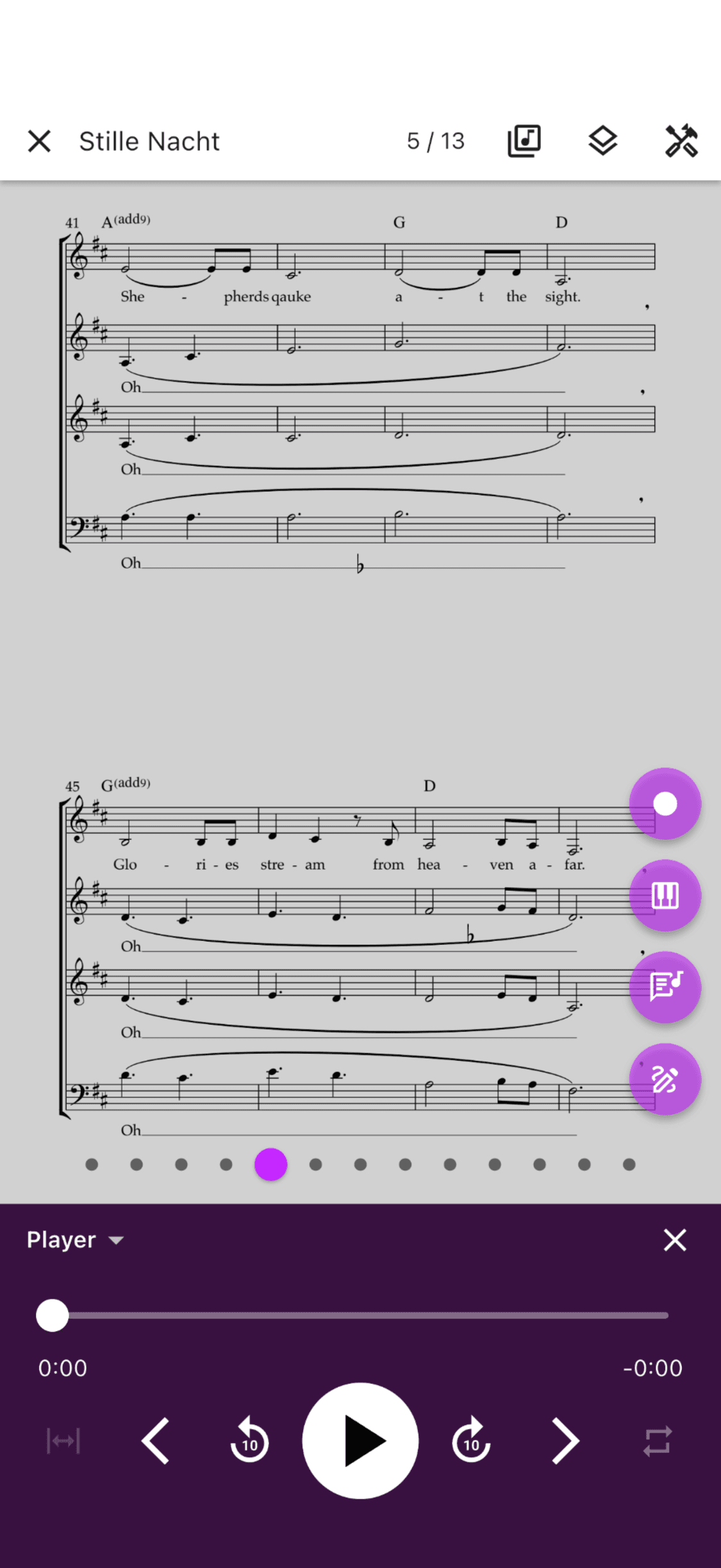
Choose Player from the tools menu or the quick-tool rail. The player docks below the score, so you can keep the current page in view.
- 5
Use dark mode when needed
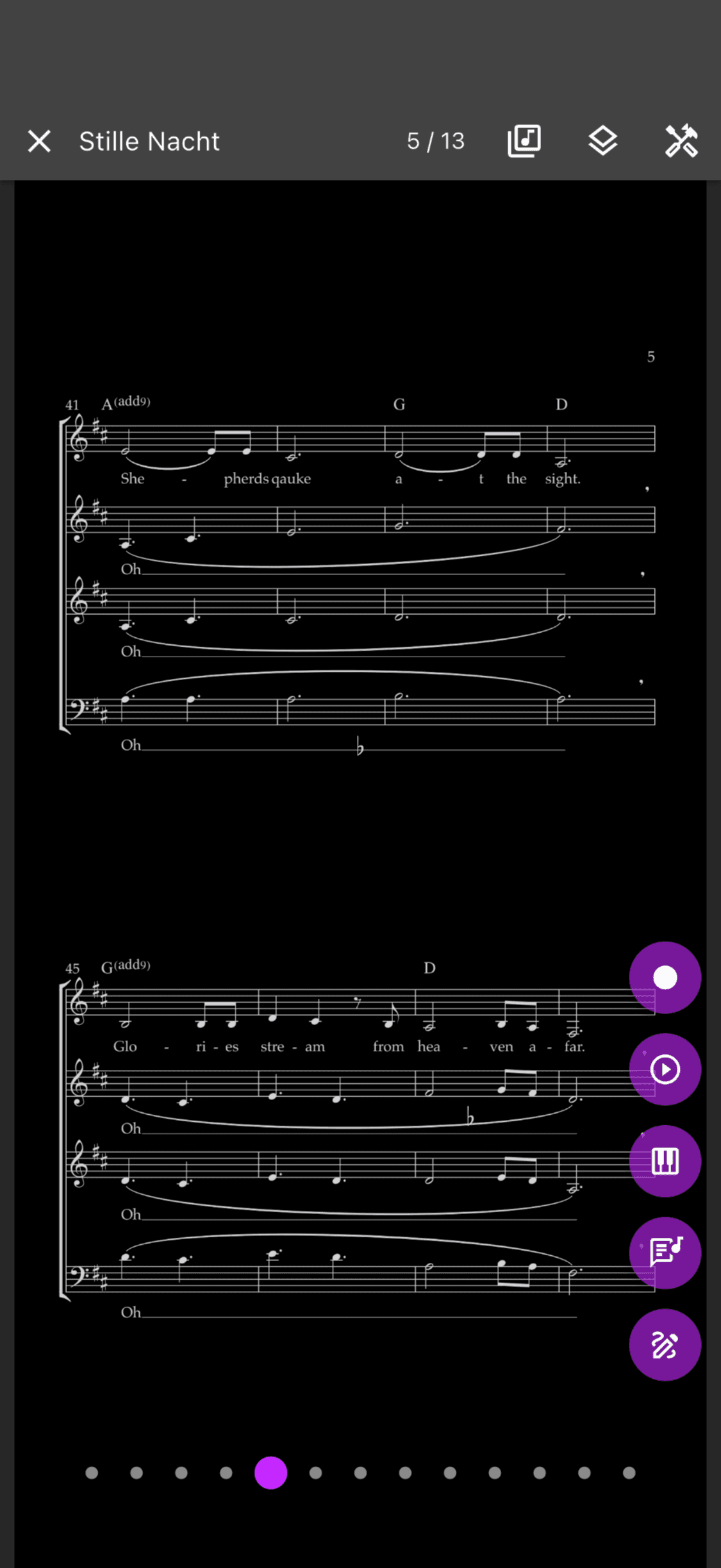
Open Tools and choose Dark mode. The score and viewer controls switch together, and ChoirMate remembers the choice.
- 1
Open a sheet
Open Set lists and repertoire, choose a song, and select its sheet music.
- 2
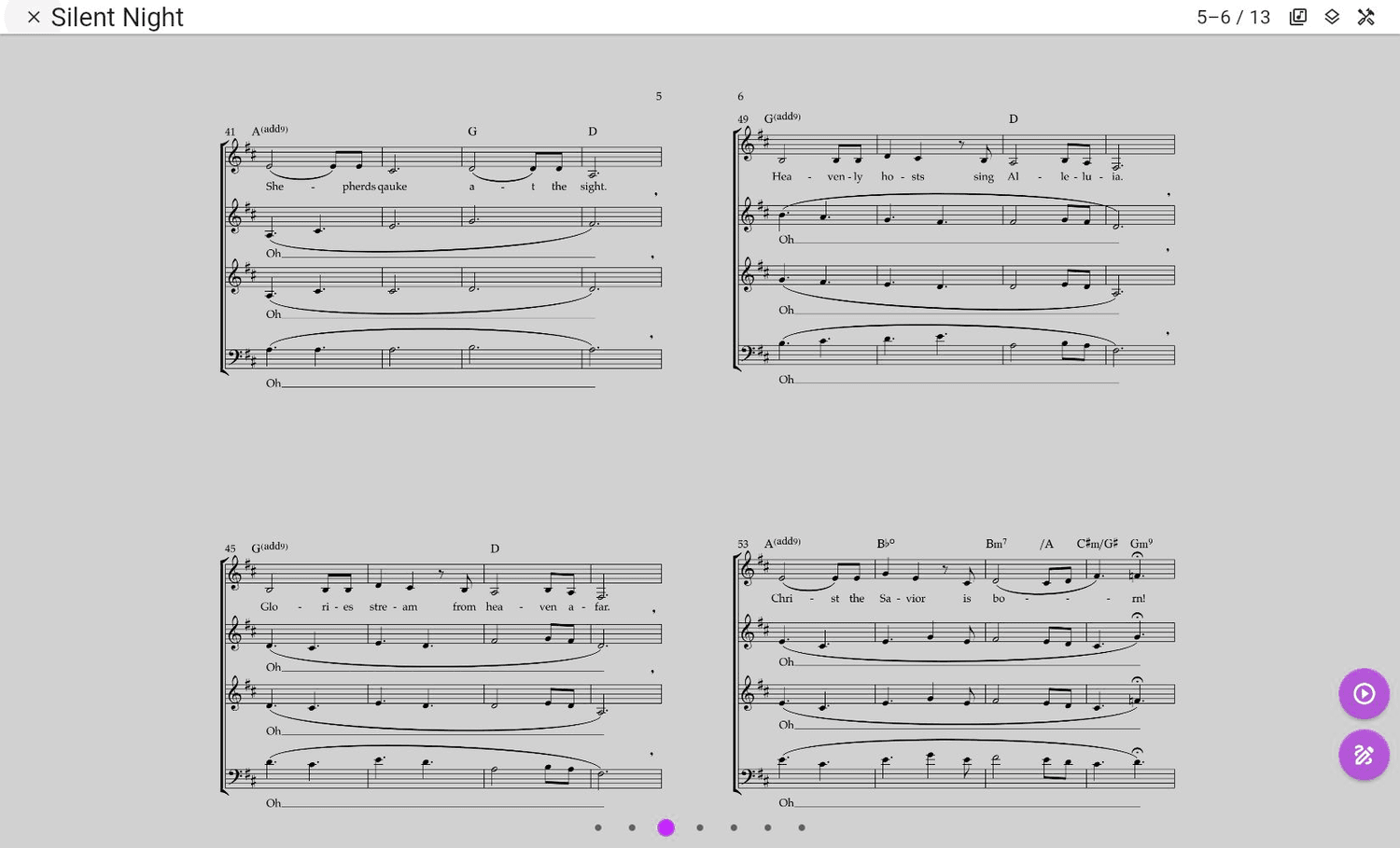
Use the laptop layout
Click the middle of the score to show the controls. A wide window displays two pages side by side when there is enough room.
- 3
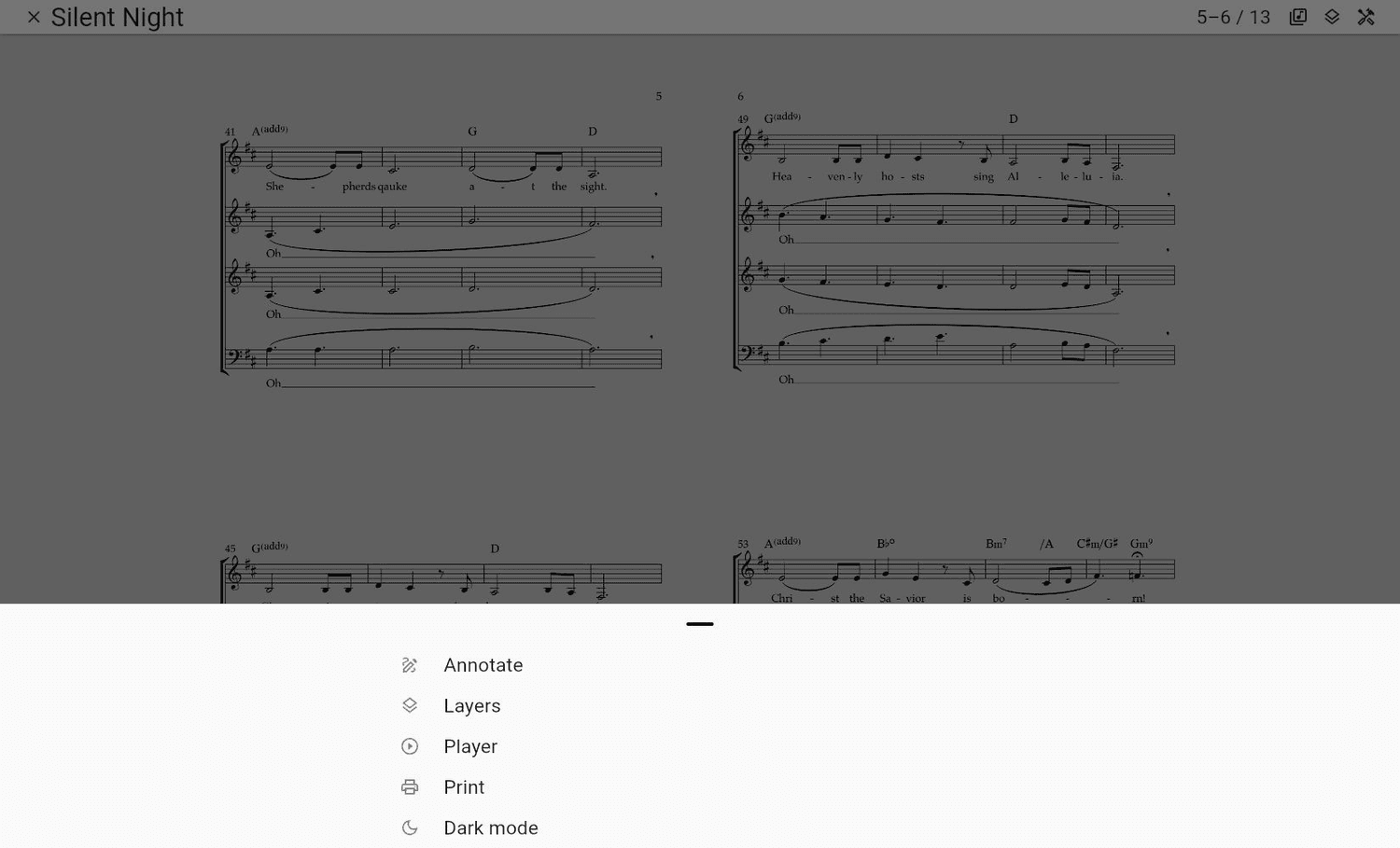
Open the tools menu
Select Tools for annotations, layers, the player, printing, dark mode, and any content-specific options available for the song.
- 4
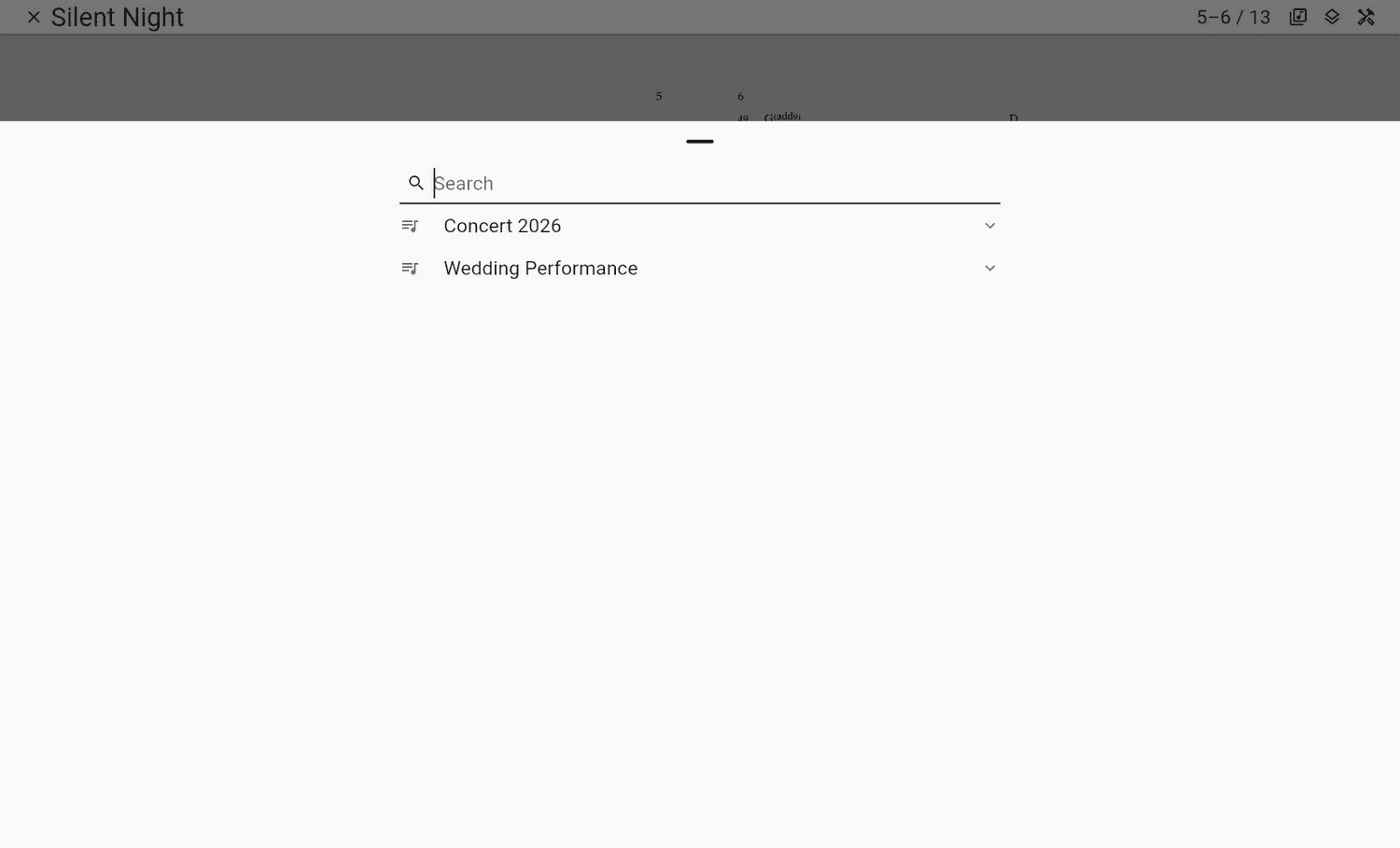
Open another sheet
Select Library in the top bar. Search the repertoire or expand a set list, then open a sheet in the current view or add it as another tab.
Turn Pages and Zoom
When the score is fitted to the screen, tap the left third to go back and the right third to go forward. You can also swipe left or right. Vertical swipes turn pages in layouts where the score is not being scrolled vertically.
With the controls visible, drag the page scrubber at the bottom to jump farther through the score. A preview shows the page under your finger. On the web, moving the pointer over the scrubber also shows a preview before you click.
The arrow keys, Page Up, Page Down, and a compatible Bluetooth page-turner pedal can change pages. The Space bar also moves forward on the web.
Pinch or use your trackpad to zoom. While zoomed in, the edge gestures pan instead of turning pages. Use the fit button in the lower corner to return to the complete page.
Choose a Layout on a Large Screen
Large landscape screens use a two-page spread automatically. Double tap the middle of the score to open the layout choices. Depending on the screen size and whether audio is playing, you can choose one page, two pages, or a layout with the player beside the score.
The selected layout is remembered. Smaller screens use the layout that keeps the score readable.
Use the Quick Tools and Tools Menu
The top bar always gives you access to Layers and Tools. When you are signed in to a choir, it also includes the in-viewer Library.
The round quick-tool buttons provide faster access to the tools most useful while reading. Depending on the song, your device, and your permissions, they can include the player, piano, lyrics, recording, and annotations. A tool that is already open is removed from the rail until you close it.
The tools menu can also include remarks, lyrics, printing, and dark mode. If an item is missing, that content or action is not available for the current sheet, device, or account.
Listen, Play a Pitch, or Record
The docked player lets you choose among the song's recordings, play and pause, move between tracks, jump ten seconds, and use the available repeat controls. Hide the main viewer controls for a compact play button while you read.
On iPhone, iPad, and Android, Piano opens a full-range keyboard below the score. You can resize it, change the visible range, zoom the keys, and show or hide note labels. The piano is not available in ChoirMate Web.
If recording is enabled for the song and your account has permission, a record button appears in the mobile quick-tool rail. It lets you make a practice recording without leaving the score.
Work With More Than One Sheet
Use Library to search all available repertoire or browse by set list. Selecting a sheet normally replaces the current one. Select its add-as-tab button when you want to keep the current sheet open as well.
Once at least two sheets are open, their tabs appear below the top bar. Select a tab to switch, use its close button when it is no longer needed, or choose the plus button to add another sheet. ChoirMate remembers open tabs for your account on this device and can restore them the next time you open the viewer.
Tip
Hide the controls before a rehearsal or performance. The clean view gives the score the most space, while the left and right page areas still work for navigation.