Open a sheet in ChoirMate's viewer when you need to print it, save a PDF, or send yourself a download link. If the score contains annotations, you can choose whether the exported copy should include the layers currently visible on your screen.
Info
Printing does not require Premium. Including annotations requires access to the sheet music annotation feature.
Open the Print Options
- 1
Open the sheet
Go to Repertoire, open a song, and tap the sheet music you want to print.
- 2
Choose Print
Show the viewer controls, open Tools, and choose Print.
- 3
Choose the PDF and delivery method
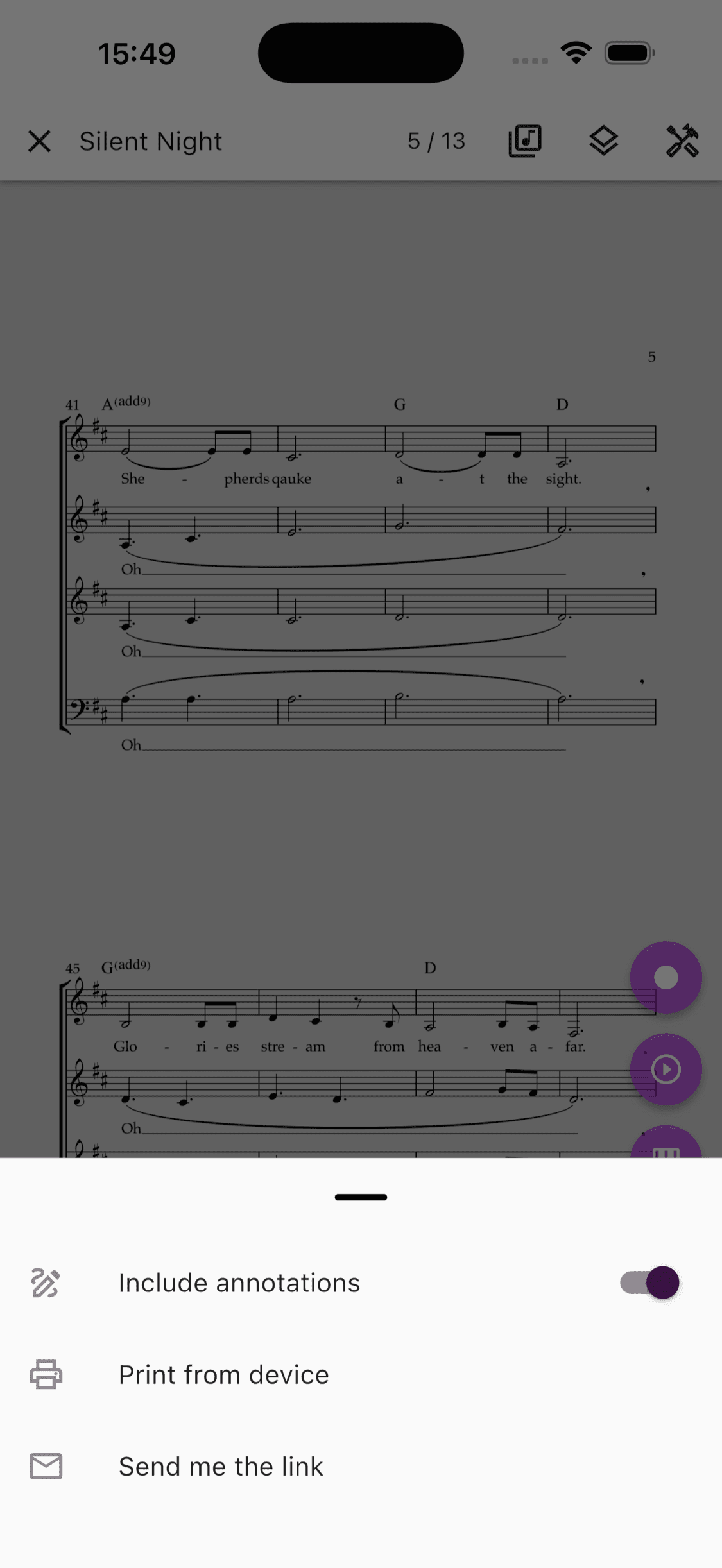
If visible annotations are available, leave Include annotations on to add them to the exported copy. Then choose Print from device or Send me the link.
- 1
Open the sheet
Open Set lists and repertoire, choose a song, and open its sheet music.
- 2
Choose Print
Show the viewer controls, open Tools, and choose Print.
- 3
Download or email the PDF
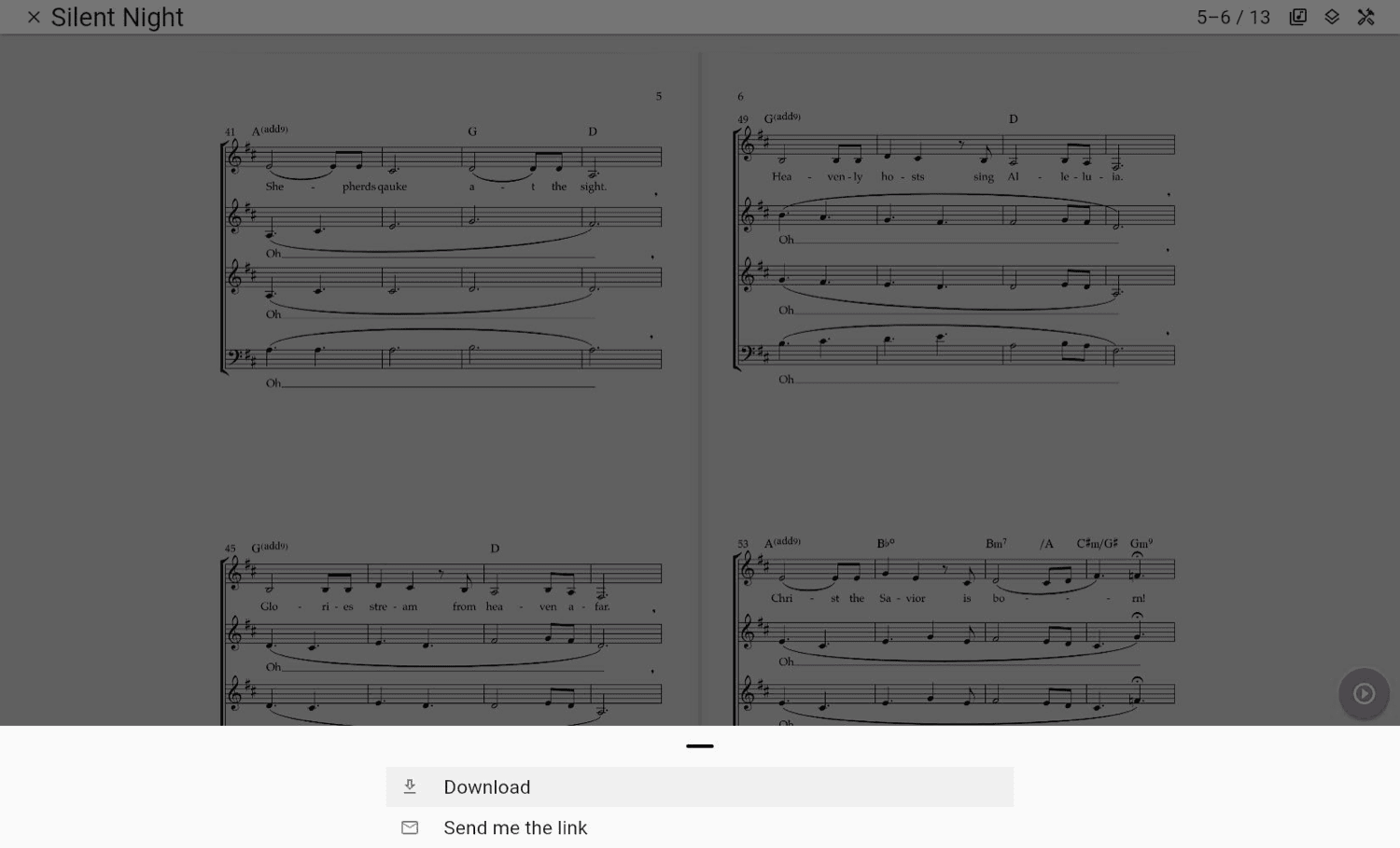
Choose Download to open the PDF from your browser, or choose Send me the link to receive a download link by email. When visible annotations are available, you can include them before choosing either action.
Print From a Phone or Tablet
Print from device prepares the selected PDF and opens the device's share sheet. On iPhone and iPad, choose Print to use AirPrint. On Android, choose the available system print service. The same share sheet can save the PDF to Files or open it in another app.
The PDF is already available to the viewer, so the plain version can also be shared while the device is offline. An annotated copy may need a connection while ChoirMate prepares it. If that preparation is unavailable on mobile, the app attempts to create the annotated PDF on the device instead.
Print From a Computer
Download opens the selected PDF in a new browser tab or starts the browser's normal download. Open the PDF and use the browser or system print command. Common shortcuts are Command+P on Mac and Ctrl+P on Windows or ChromeOS.
Your browser controls the printer, paper size, orientation, scaling, and page range. If the notation is clipped, choose a fit-to-page or fit-to-printable-area setting in the print dialog.
Send Yourself a Link
With Include annotations off, Send me the link shows the email address attached to your ChoirMate account and asks for confirmation. After sending, ChoirMate also shows the original PDF link so you can copy it directly.
With Include annotations on, ChoirMate prepares the annotated copy and sends its link to the email address on your account. A confirmation message appears when it has been emailed.
Tip
If the email address is wrong, update it in your account before sending the link. Also check spam or filtered mail if the message does not arrive.
Include or Exclude Annotations
The annotation switch appears when at least one visible layer contains markings on the open sheet. Turn the switch on to place all currently visible annotations into the exported PDF. Hidden layers stay out of the copy, and the original PDF in ChoirMate is not changed.
You need annotation access to turn the switch on. Marks created during the unsaved preview cannot be exported. For help choosing visible layers, see Annotation Layers and Sharing.
If Print Is Missing
The Print item appears when the choir or the individual song allows sheet music export. A Choir Admin can set the choir default and can override it for a particular song. People who can manage the repertoire can still export the sheet while working with the song.
If the complete sheet is missing rather than only the print item, it may be limited to other voice groups. Ask a Choir Admin to check the sheet's voice-part assignment.
Warning
Only print or share music when your choir has permission to distribute it. ChoirMate provides access to uploaded files, but the choir remains responsible for copyright and licensing.