A group subscription gives the choir access to paid ChoirMate features. The owner or an admin starts the subscription for the group, and members receive the included access automatically. An individual Premium subscription is separate and does not replace features that require a group plan.
Trial or Free when creating a choir
When you create a choir, you can choose a one-month Premium trial or start with ChoirMate Free. The trial does not require a payment method. If no subscription is started before it ends, the choir moves to Free automatically.
The choir's data stays in ChoirMate after a trial or paid plan ends. If the choir exceeds a limit on the Free plan, some features can be restricted until an admin reduces the relevant content or starts a group subscription.
Choose a plan and capacity
ChoirMate offers Standard and Premium group plans. The account portal shows the current features and prices for each plan. Select a capacity that covers the choir's active membership:
| Capacity |
|---|
| 1 to 20 members |
| 21 to 50 members |
| 51 to 100 members |
| 101 to 150 members |
| 151 to 225 members |
| 226 to 300 members |
The portal uses the current membership when suggesting available options and prevents you from choosing a capacity that is too small. See the plan comparison for a detailed feature overview.
Start in the app
- 1
Open choir administration
Open Your choir and select the settings icon. If the dashboard is already open, use the menu in the top right.
- 2
Open Subscription
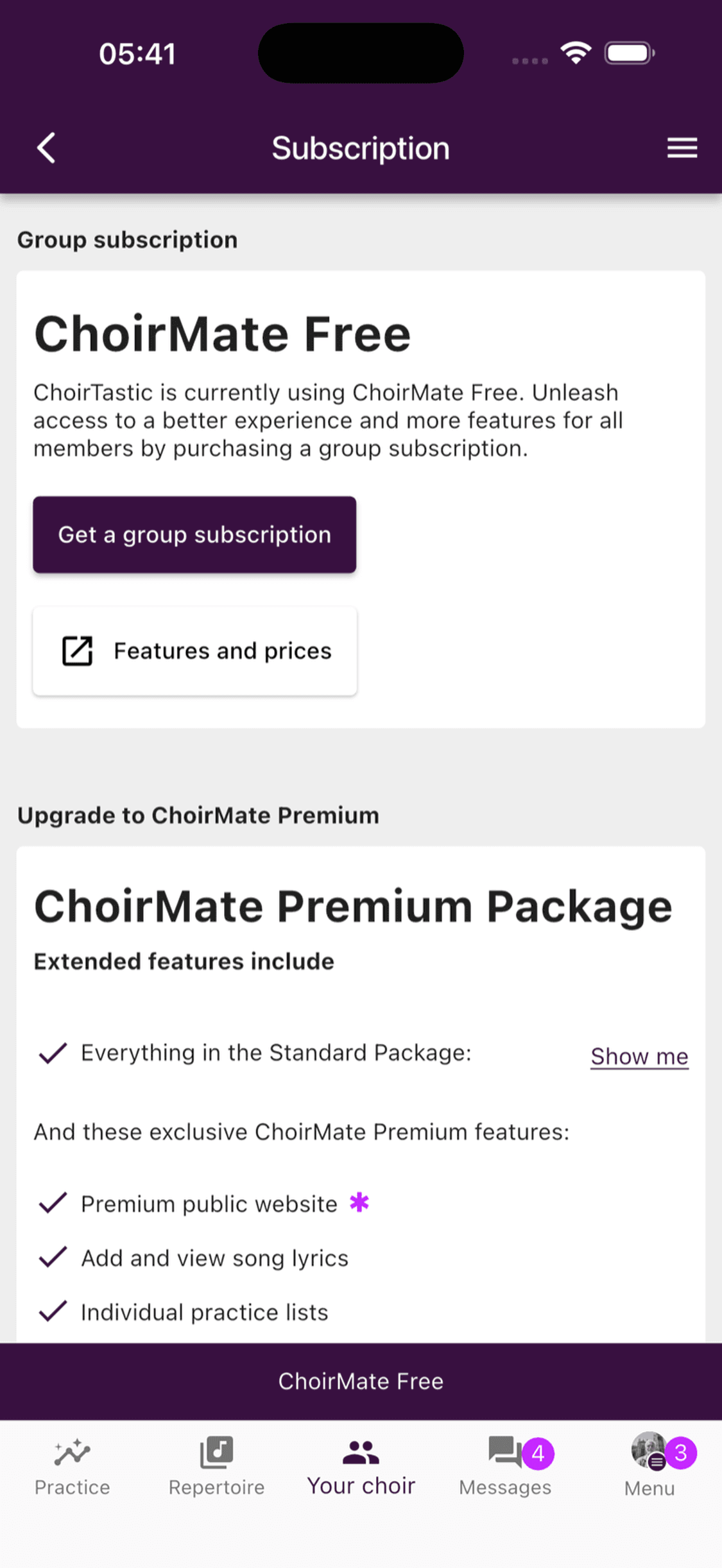
Select Subscription in the administration menu. The page shows the choir's current plan and the available upgrade.
- 3
Continue to the account portal
Select Get a group subscription. ChoirMate opens the secure account portal in your browser, where you can choose the plan, capacity, and billing period.
Start on the web
- 1
Sign in as an owner or admin
Open web.choirmate.com and select the correct choir.
- 2
Open the Subscription card
Find Subscription on the dashboard and select its action. The wording depends on whether the choir is on Free, in a trial, or already subscribed. ChoirMate opens the account portal.
- 3
Choose the subscription
Select Standard or Premium, monthly or annual billing, and a capacity that covers the active membership. Review the price before continuing.
- 4
Complete checkout
Enter the billing details requested by Paddle and confirm the purchase. The account portal returns to the subscription page when checkout is complete.
Only owners and admins can start or manage a group subscription. Regular members do not see the management controls.
Billing and payment
Self-service checkout is handled by Paddle, ChoirMate's payment and billing provider. Checkout shows the payment methods available for the selected country and currency. Paddle sends the receipt to the billing email used during checkout.
- Monthly billing renews each month.
- Annual billing costs about 17% less than paying monthly for the same plan.
- If you subscribe during a trial, the remaining trial days are applied before the first paid period begins.
Some choirs have an invoice option enabled in the account portal. When available, it is for an annual Premium plan. The subscription is activated after the invoice payment has been received. If the option is not shown, use the payment methods offered by Paddle or contact ChoirMate support.
Tip
If a payment is declined, check whether the card permits international online payments. Your bank may treat a Paddle charge as a foreign purchase.
For upgrades, capacity changes, payment details, and cancellation, see Managing Your Subscription.
For current public prices, visit choirmate.com/subscription-plans.