ChoirMate keeps the areas you use most in five tabs at the bottom of the screen. The same tabs stay available as you move around the app, so you can switch sections at any time.
The main navigation
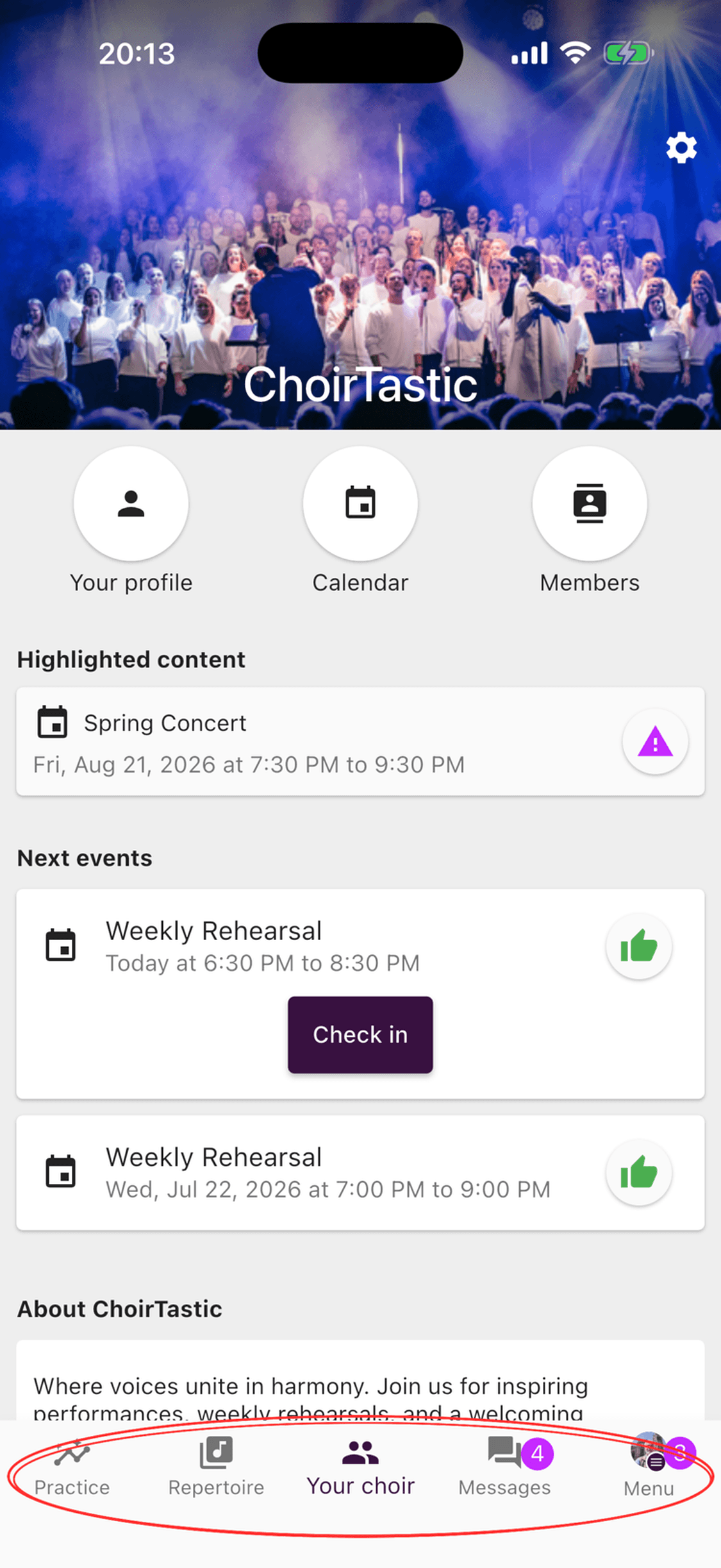
The active tab is shown in purple. Numbers beside Messages or Menu tell you that something needs your attention.
Practice
Open Practice when you want to rehearse. Here you will find practice material shared by your choir, along with your personal practice list. Open a list to play its audio files, adjust the playback speed, and follow lyrics when they are available.
Learn more: Using Practice Lists · Using the Audio Player
Repertoire
Repertoire contains the songs your choir has made available. Songs are organised into lists, making it easier to find the music for a concert, rehearsal period, or other programme. Open a song to see its audio files, sheet music, lyrics, and notes, depending on what your choir has added.
Your choir
Your choir is the app's home screen for the active choir. It gives you quick access to your profile, calendar, and member list. You will also see highlighted content and upcoming events. Open an event to read the details, respond to attendance, and see any planned repertoire.
Messages
Open Messages for conversations and announcements from your choir. The number on the tab shows how many unread items you have.
Menu
The Menu brings together your profile and the extra tools available to you.
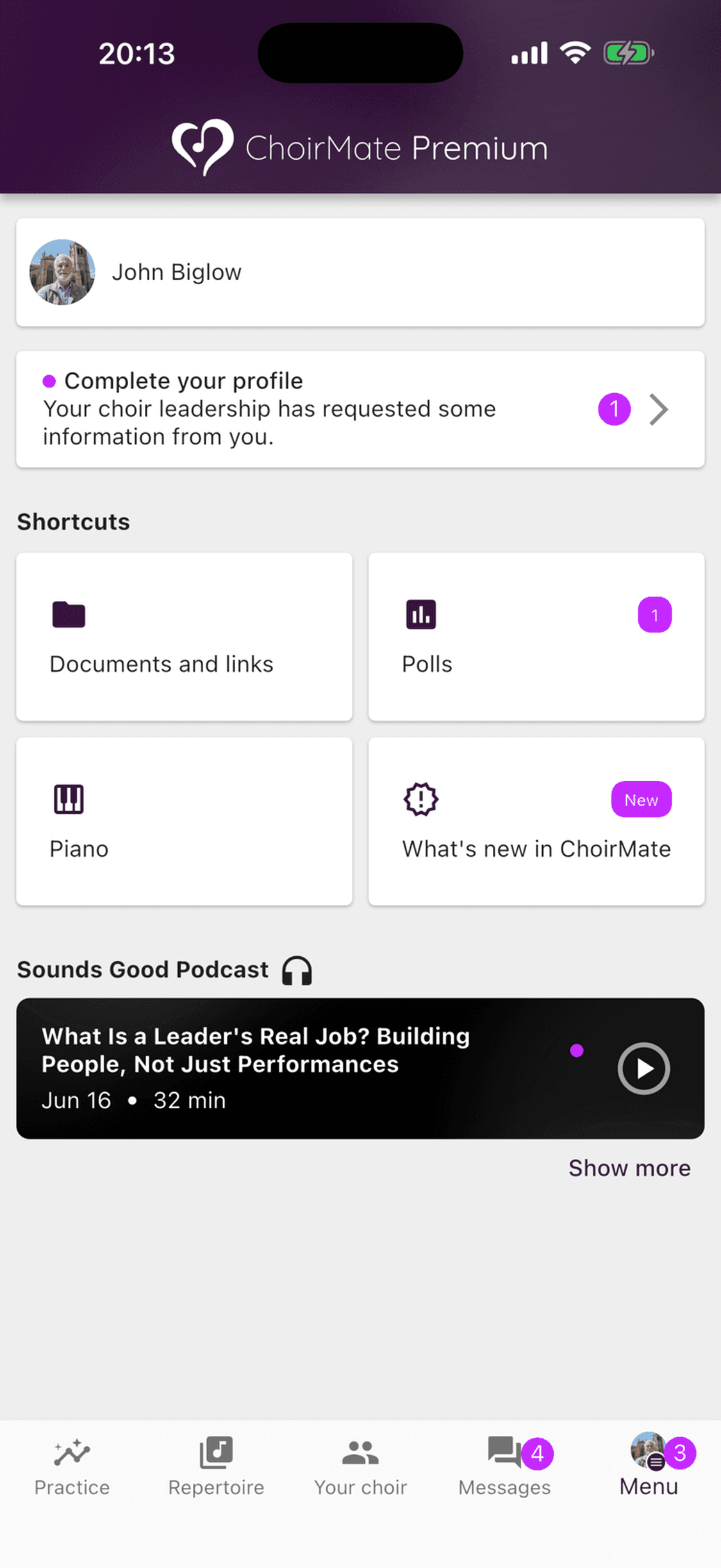
Tap your profile card at the top to review your personal details and settings. If you belong to more than one choir, the choir switcher is available on the same card. The shortcuts below it depend on your choir's setup and your access, so your Menu may look different from the example.
Tip
If you are new to ChoirMate, start with Your choir for the next events, then open Practice when you are ready to rehearse.
Switching between choirs
You can use one ChoirMate account for several choirs. Open Menu, use the choir switcher beside your profile, and choose the choir you want to open. ChoirMate then updates the repertoire, events, messages, and other content to match that choir.