Song notes give you a private place to remember what needs attention in each piece. Pair a note with a confidence choice to build a simple picture of what to practise next.
Private song notes and confidence choices require access to ChoirMate Premium.
Add a note and choose your confidence
In the app
- 1
Open a song
Open Repertoire, choose a set list, and tap the song.
- 2
Find Song notes
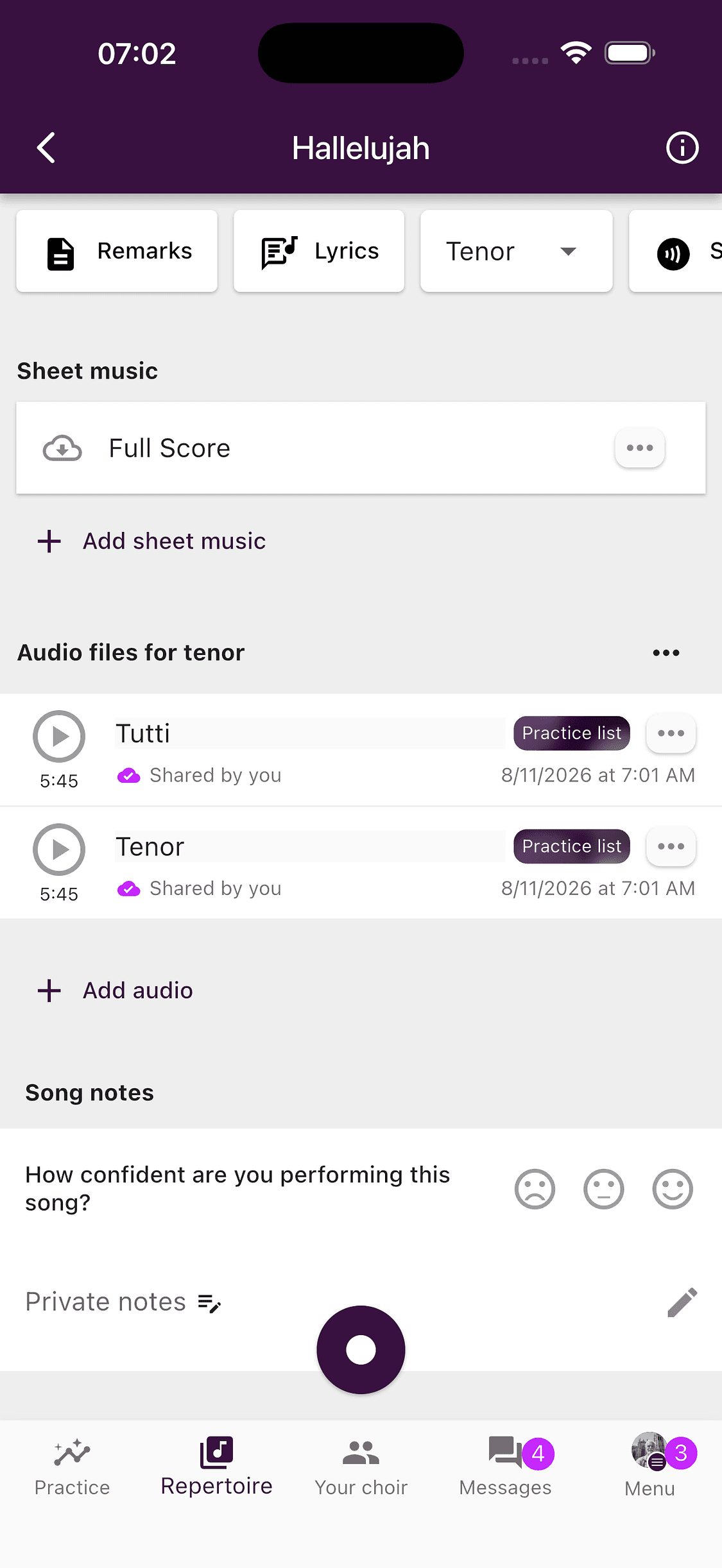
Scroll below the sheet music and audio files to Song notes.
- 3
Choose how confident you feel
Tap one of the three faces. From left to right, they represent needing more practice, feeling partly confident, and feeling confident. Your choice is saved immediately.
- 4
Write a private note
Tap Private notes and write a reminder. Finish editing or tap outside the field to save it.
On the web
- 1
Open a song
Open Set lists and repertoire, choose a set list, and select the song.
- 2
Update your note and confidence
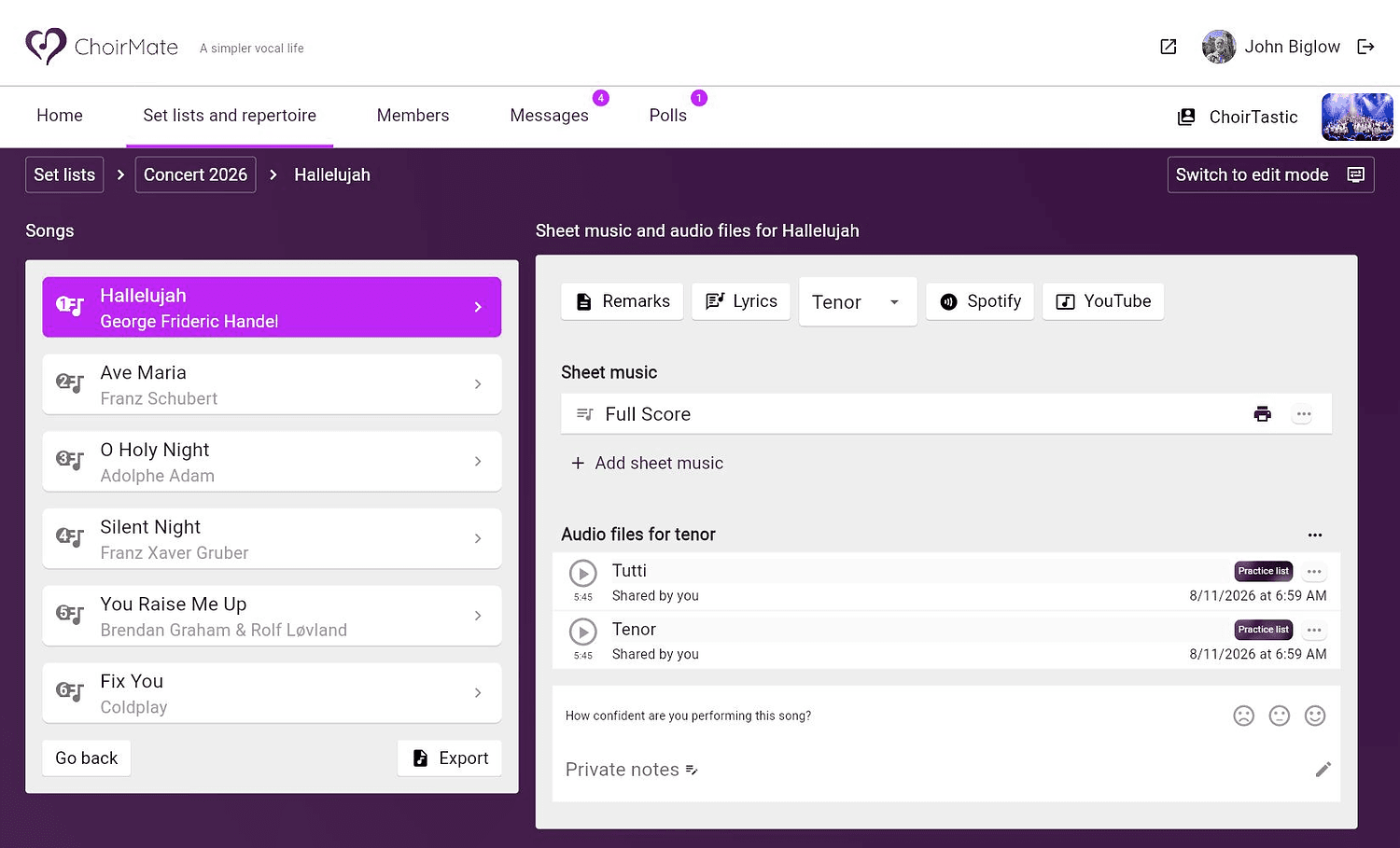
Use the confidence faces and Private notes panel below the audio files. Leave the note field when you are finished so the note is saved.
Info
Your written note is private to your account. Other members and choir administrators cannot read it.
Useful notes are short and specific. For example, remind yourself to check an entrance, practise a difficult interval, breathe at a particular point, or review a passage with your voice part.
Review a whole set list in the app
The app can show the notes and confidence choices for every song in a set list on one screen.
- 1
Open the set list
Open Repertoire and expand the set list you want to practise.
- 2
Open Song notes
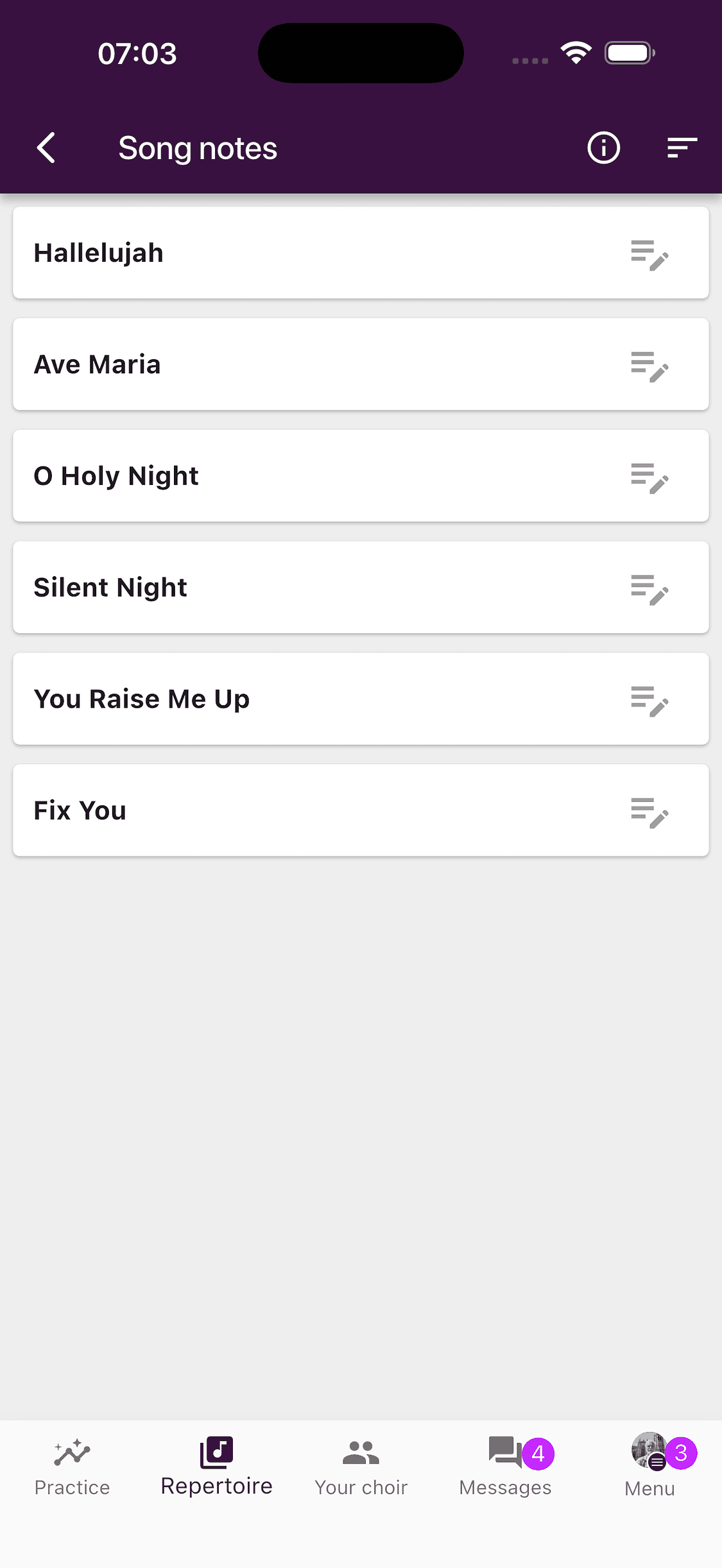
Tap the note icon beside the set list name. Songs with a confidence choice show the corresponding face. Songs you have not assessed yet show a note icon.
- 3
Open a song entry
Tap a song to expand its confidence controls and private note. You can update both without leaving the overview.
The all-songs overview is currently available in the app. On the web, open each song from its set list to update the same information.
Sort by confidence
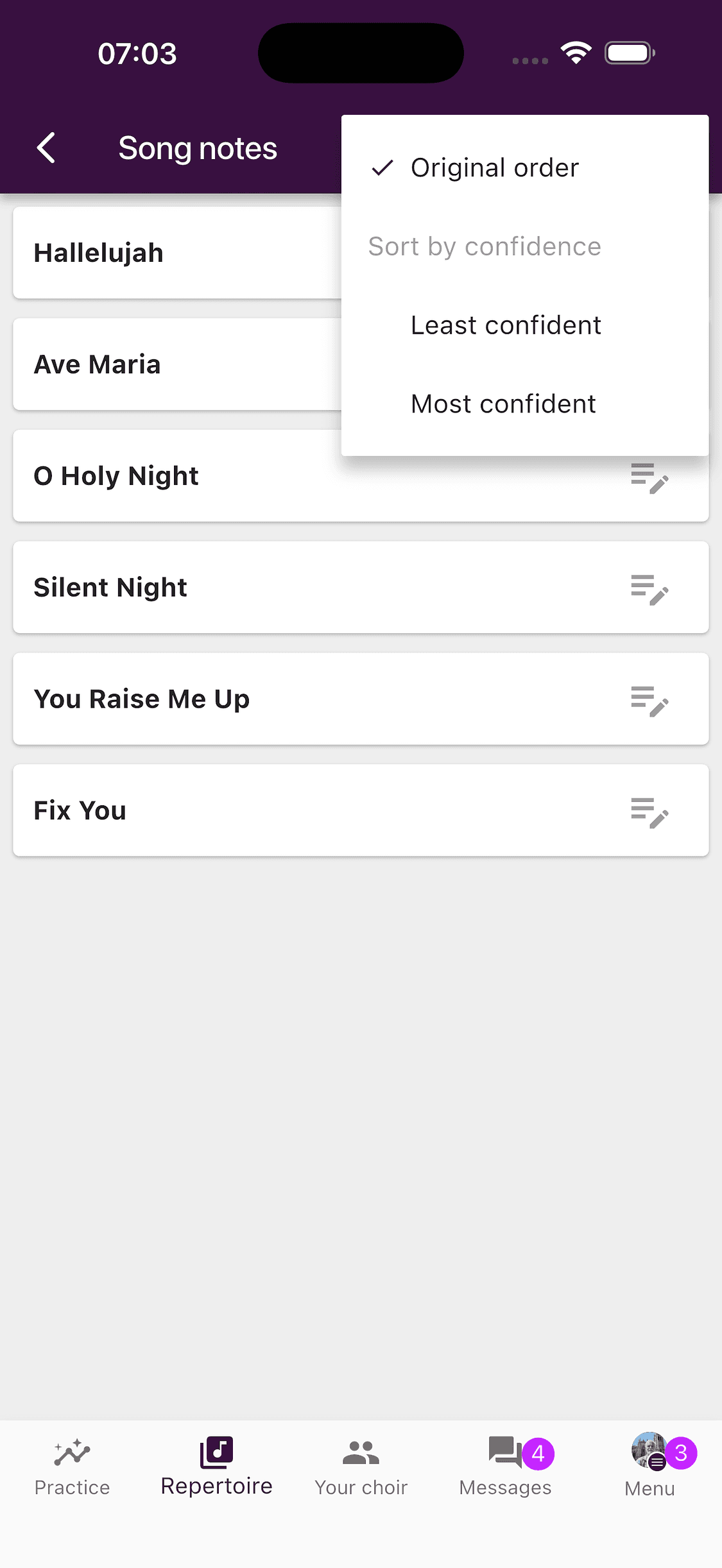
In the app’s Song notes overview, tap the sort icon and choose:
- Original order to match the set list
- Least confident to put the songs needing the most practice first
- Most confident to begin with the songs you feel ready to perform
Tip
Choose Least confident before a focused practice session, then work down the list as your confidence improves.
What choir leaders can see
Your written notes always remain private. If the choir has enabled confidence analysis, the choir owner and administrators may see anonymous, aggregated confidence for the choir or a voice group. The analysis does not identify who selected an individual response, and ChoirMate withholds small voice-group breakdowns when there are too few responses for anonymity.
Song notes and Remarks are different
Use Song notes for reminders that only you should see. Remarks contain shared instructions from the choir leadership or a voice group and are visible to the relevant members. Keeping the two separate means your personal practice plan stays private while shared rehearsal guidance remains available to the choir.