Who's Who is a short picture quiz that helps you connect the names and faces in your choir. Each game has ten questions, so it is easy to play whenever you have a few minutes.
Once the choir is ready, everyone can open Who's Who and see the three choices. Selecting an answer requires an active individual subscription, a choir subscription, or a free trial.
When Who's Who can start
You can start a Who's Who round when both of these requirements are met:
- the choir has at least seven members
- at least seven verified, active members have added both a first name and a profile photo
ChoirMate does not include your own profile in the questions. Profiles without a name or photo are not used either.
Tip
If too few members are ready, ask them to add a clear profile photo and check that their first name is correct. You can start the game as soon as enough profiles are ready.
Open Who's Who
In the app
- 1
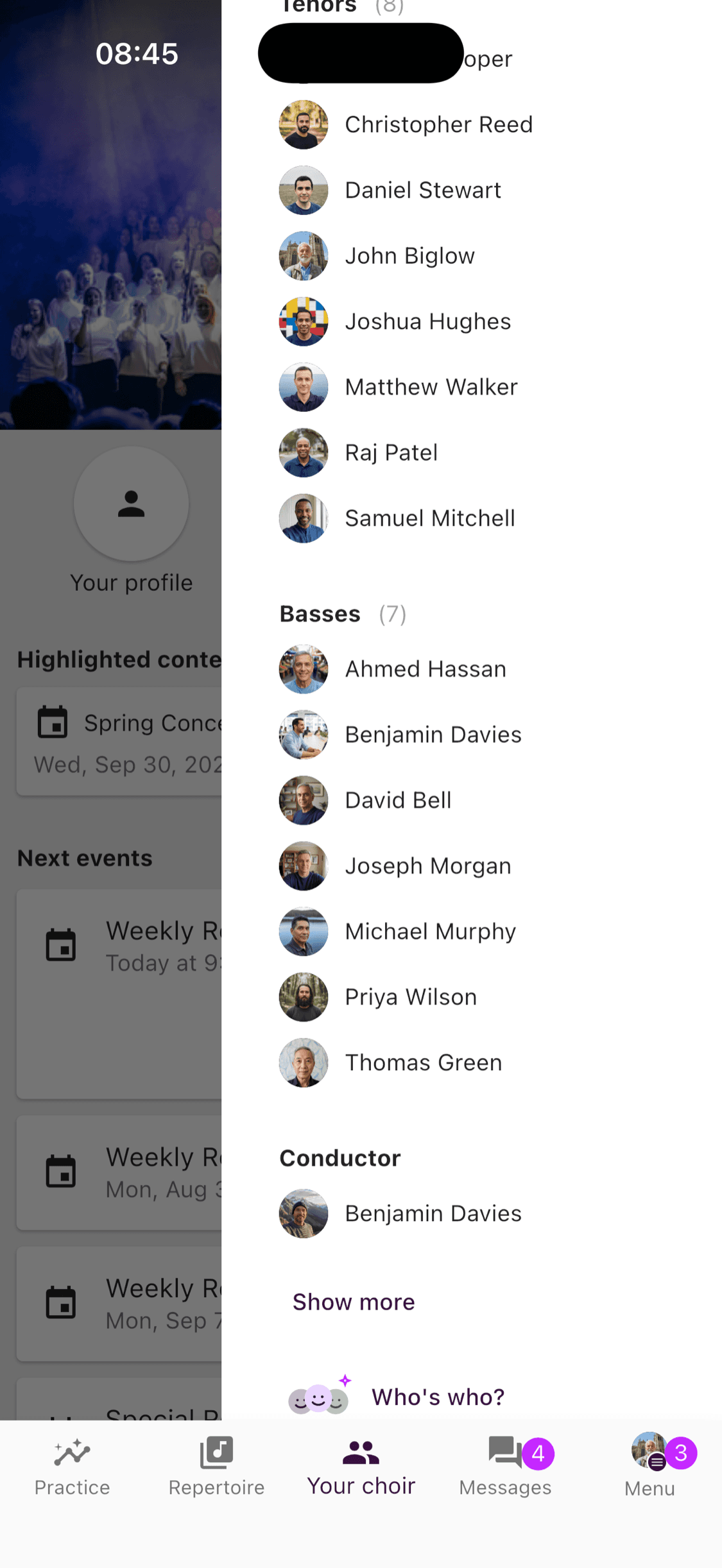
Open the member list
Go to Your choir and choose Members.
- 2
Start Who's Who
Scroll to the bottom of the member list and tap the Who's Who card.
On the web
- 1
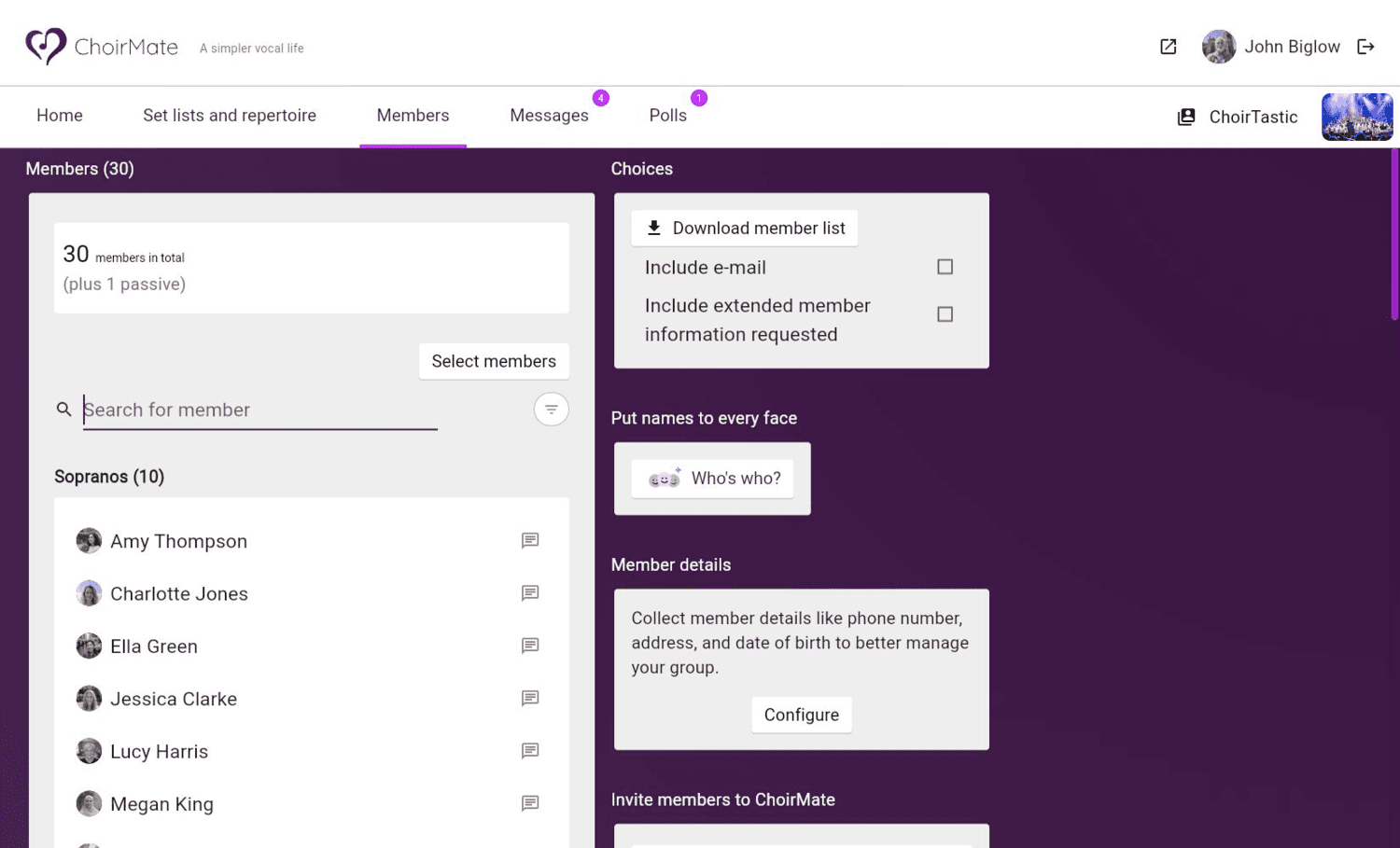
Open Members
Choose Members in the main menu.
- 2
Start Who's Who
Find Put names to every face and choose Who's Who.
Answer the questions
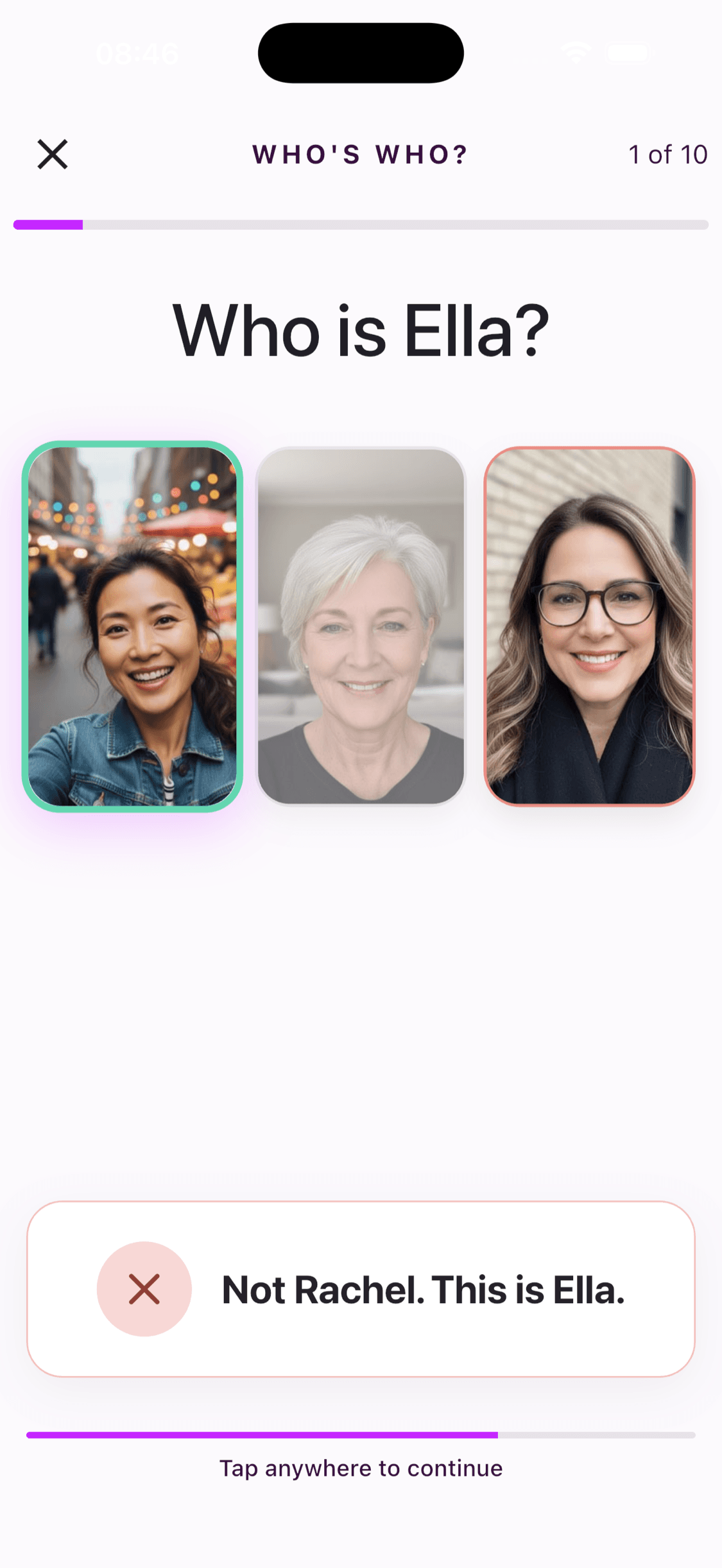
Each question shows a name and three profile photos. Choose the person you think matches the name.
In the app
- 1
Choose a profile photo
Tap one of the three photos. A correct answer turns green and is celebrated with confetti.

- 2
Learn from a wrong answer
If your choice is wrong, it is outlined in red and the correct person is outlined in green. The message below the photos also gives you the correct name.
On the web
- 1
Choose a profile photo
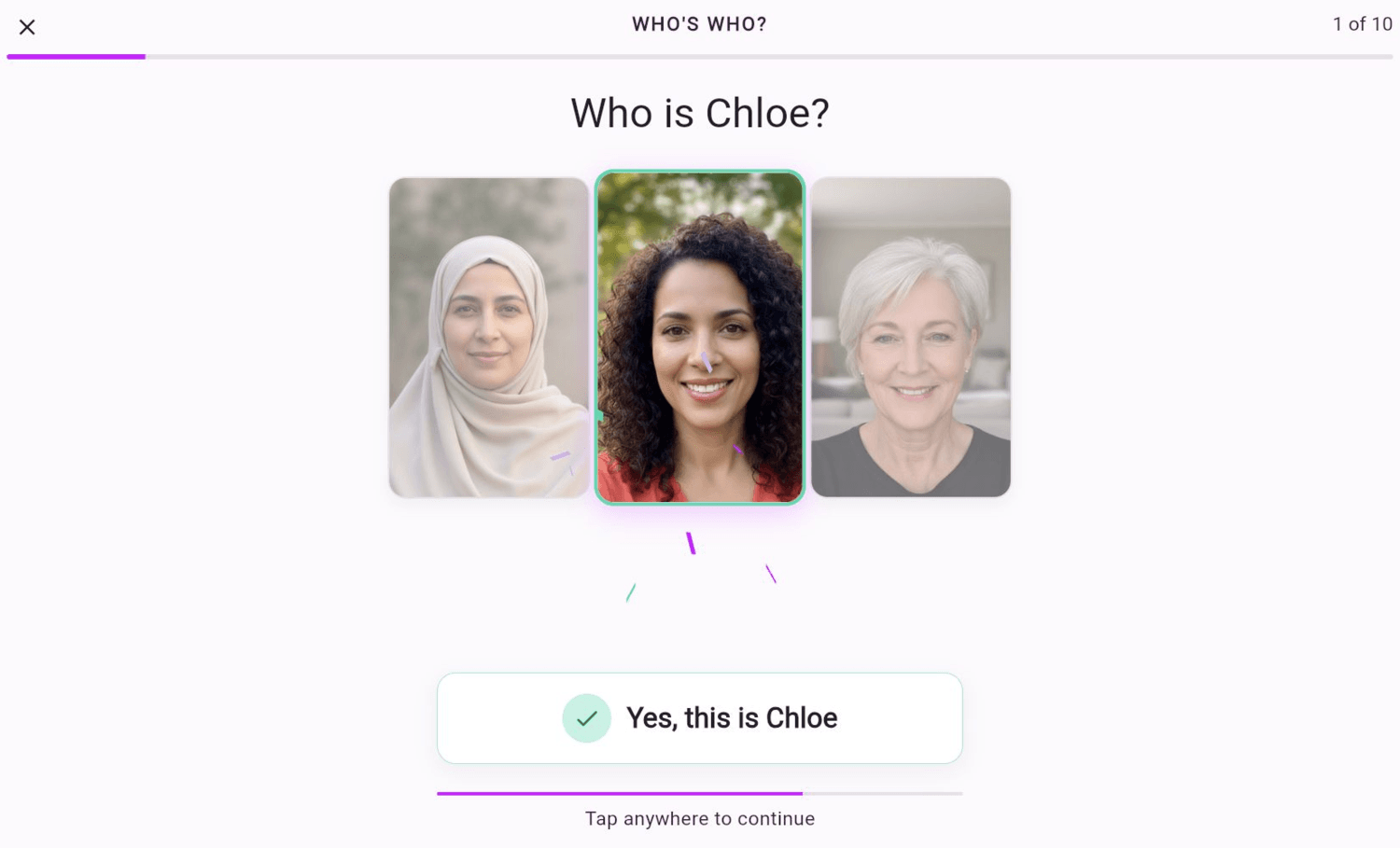
Select one of the three photos. A correct answer turns green and is celebrated with confetti.
- 2
Check the correct person
A wrong choice is outlined in red, while the correct person is outlined in green.
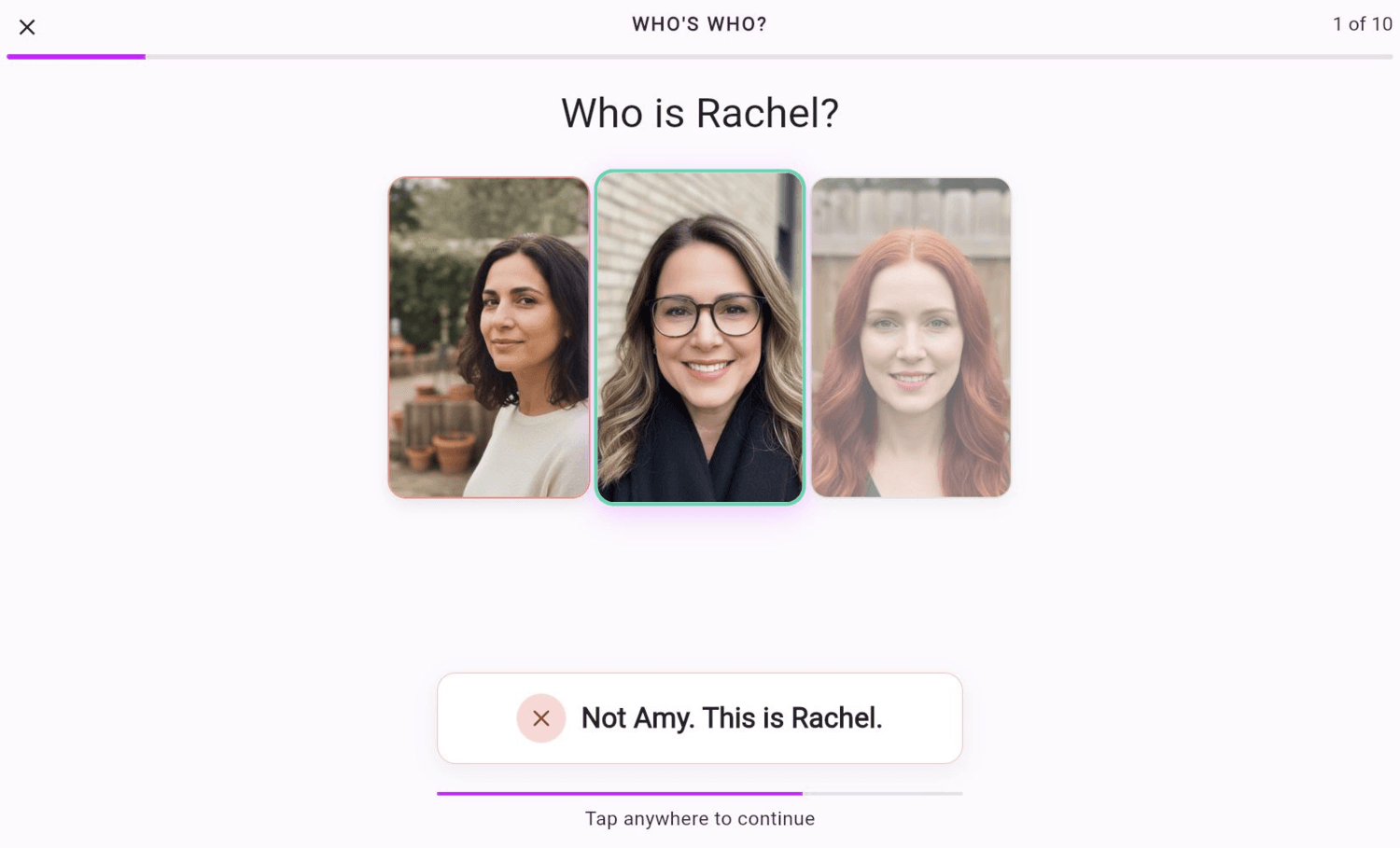
Tap or click anywhere to continue, or wait about four seconds for the next question. After ten questions, ChoirMate shows your score and a short result message. You can then play again and try to recognize more members.
More ways to remember names
For more practical ideas, read our guide to remembering names and faces in your choir.