Polls give your choir one clear place to suggest dates, choose between alternatives, or collect sign-ups. Members can vote in the mobile app or on the ChoirMate website.
Polls require a Standard or Premium group subscription. Choir owners and admins can create them by default. The owner can also allow editors to manage polls in the choir settings.
Open Polls
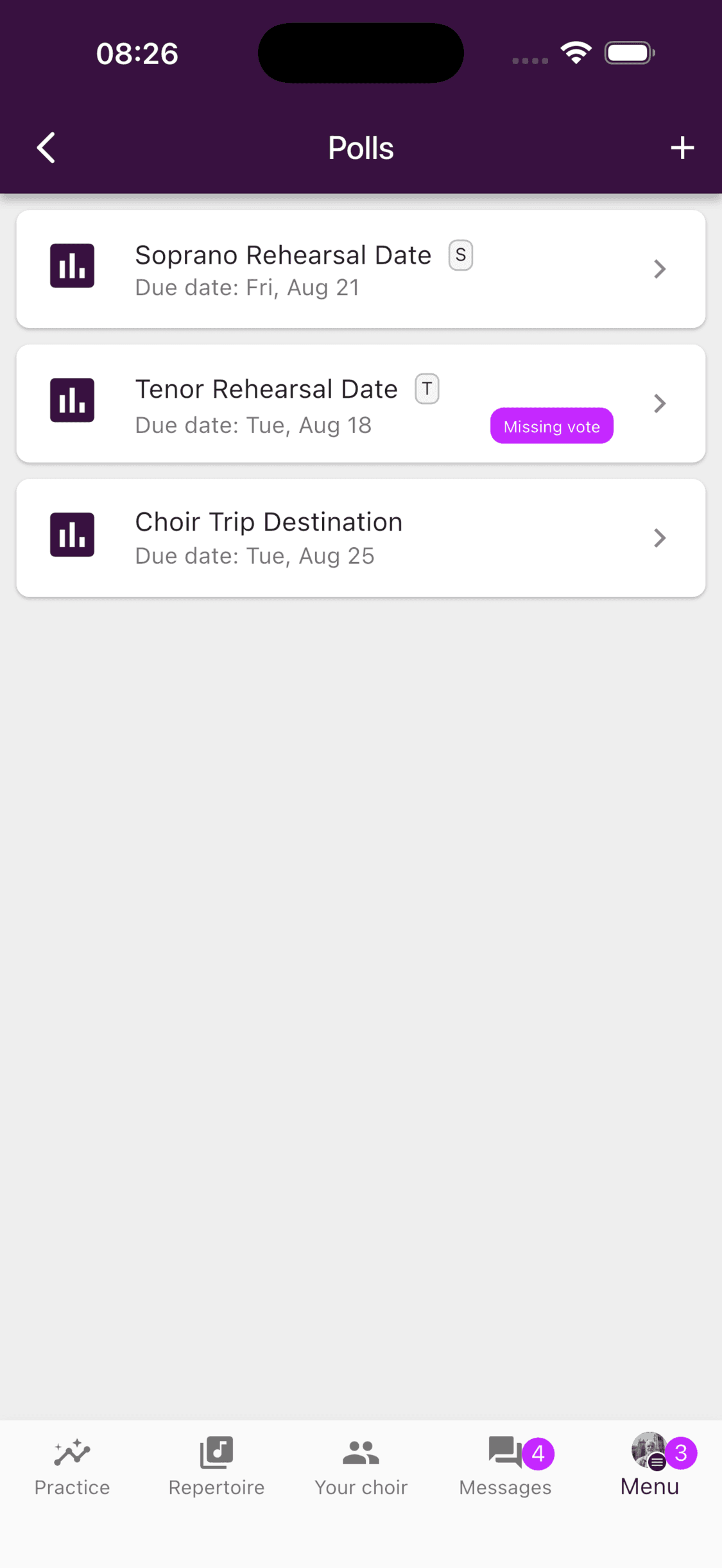
In the mobile app, open Menu and choose Polls.
On the web, choose Polls in the top navigation.
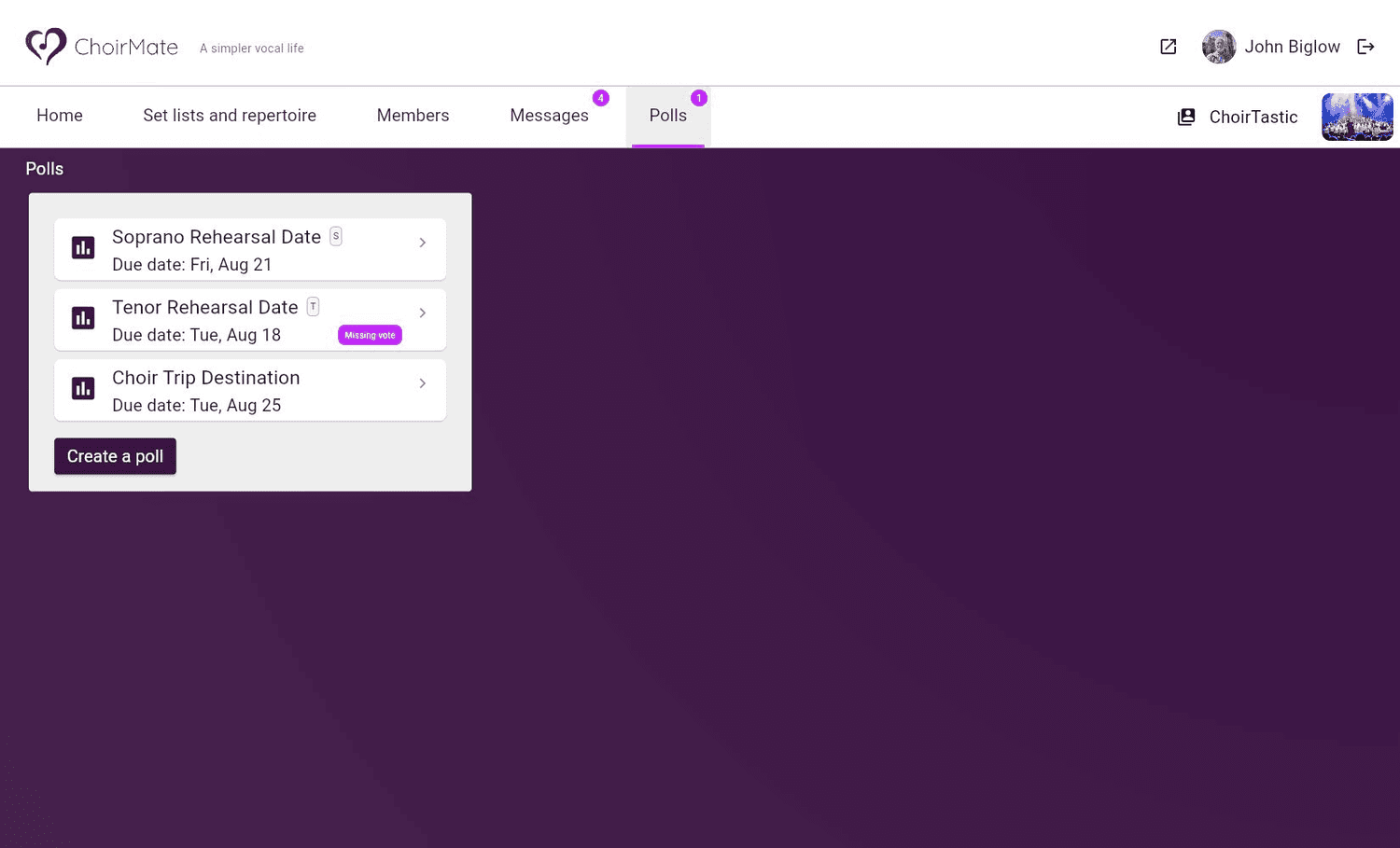
The list shows active polls and their due dates. A Missing vote label means a mandatory poll still needs your answer. ChoirMate also uses a badge for a poll you have not opened yet or a mandatory poll you have not answered.
Create a poll
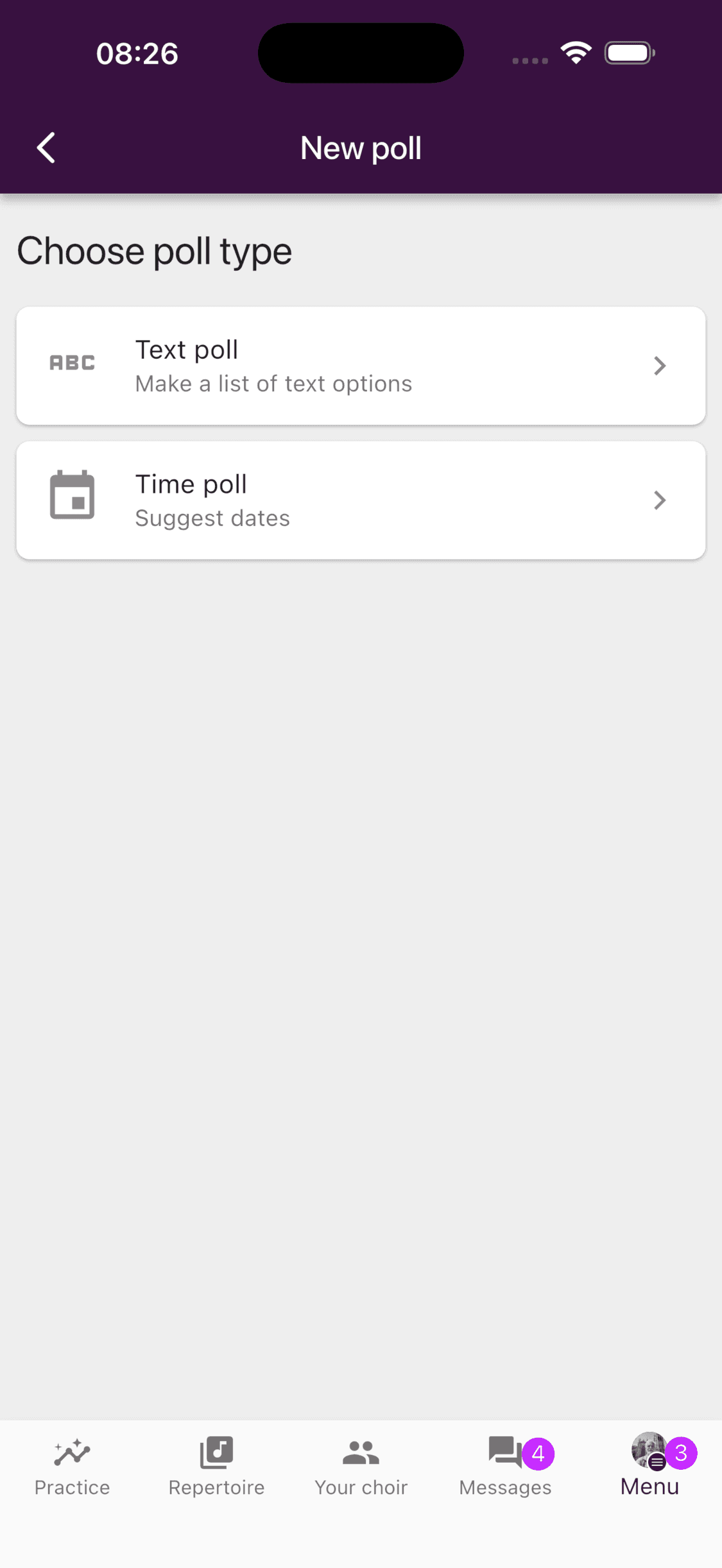
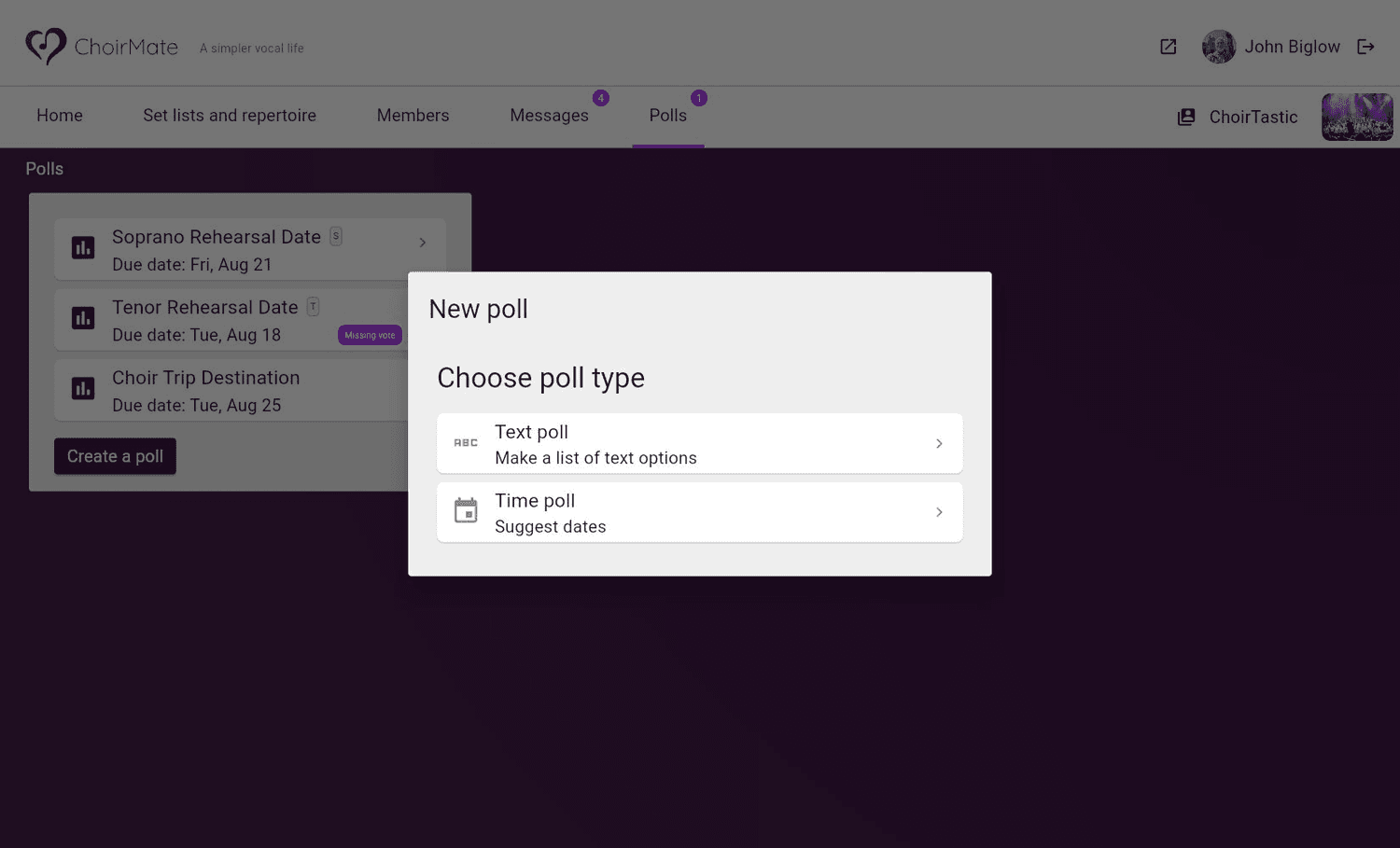
Select the plus button in the app or Create a poll on the web. Then choose the format:
- Text poll creates a list of written alternatives.
- Time poll creates a list of dates and times.
Complete the form:
- 1
Describe the poll
Add a short title and, if useful, a description that explains what members are deciding.
- 2
Add the alternatives
Add text choices or suggested times. You can reorder them and add an optional description or capacity to an individual choice.
- 3
Set the due date
Members can vote until this date and time.
- 4
Choose when to publish
Publish immediately or schedule the poll for later. You can also notify members when it is published.
- 5
Review the options
Open Show more options if you need to change the audience, voting method, result visibility, mandatory status, or comments.
- 6
Publish
Check the question and alternatives, then choose Publish.
Choose the right settings
The extended options let the poll manager control how the poll works:
- Visible to can include everyone or selected voice parts.
- Voting method per member can allow one choice or several choices. A multiple-choice poll can also limit how many alternatives each member selects.
- A limit on an individual alternative works well for a sign-up with a fixed number of places.
- Hide votes keeps counts and response details from ordinary members. The poll manager and the required leadership role can still review them.
- Mandatory highlights an unanswered poll and adds it to the badge count.
- Allow comments adds a discussion below the poll.
Use Time poll when the result may become an event. After voting, the poll manager can open the poll menu, choose Create event from poll, select a future alternative, and review the prefilled event before saving it. The event form starts with the poll title, description, audience, selected time, and members who voted for that alternative.
Cast or change your vote
Open an active poll and select an alternative. ChoirMate records the choice immediately, so there is no separate Save button.
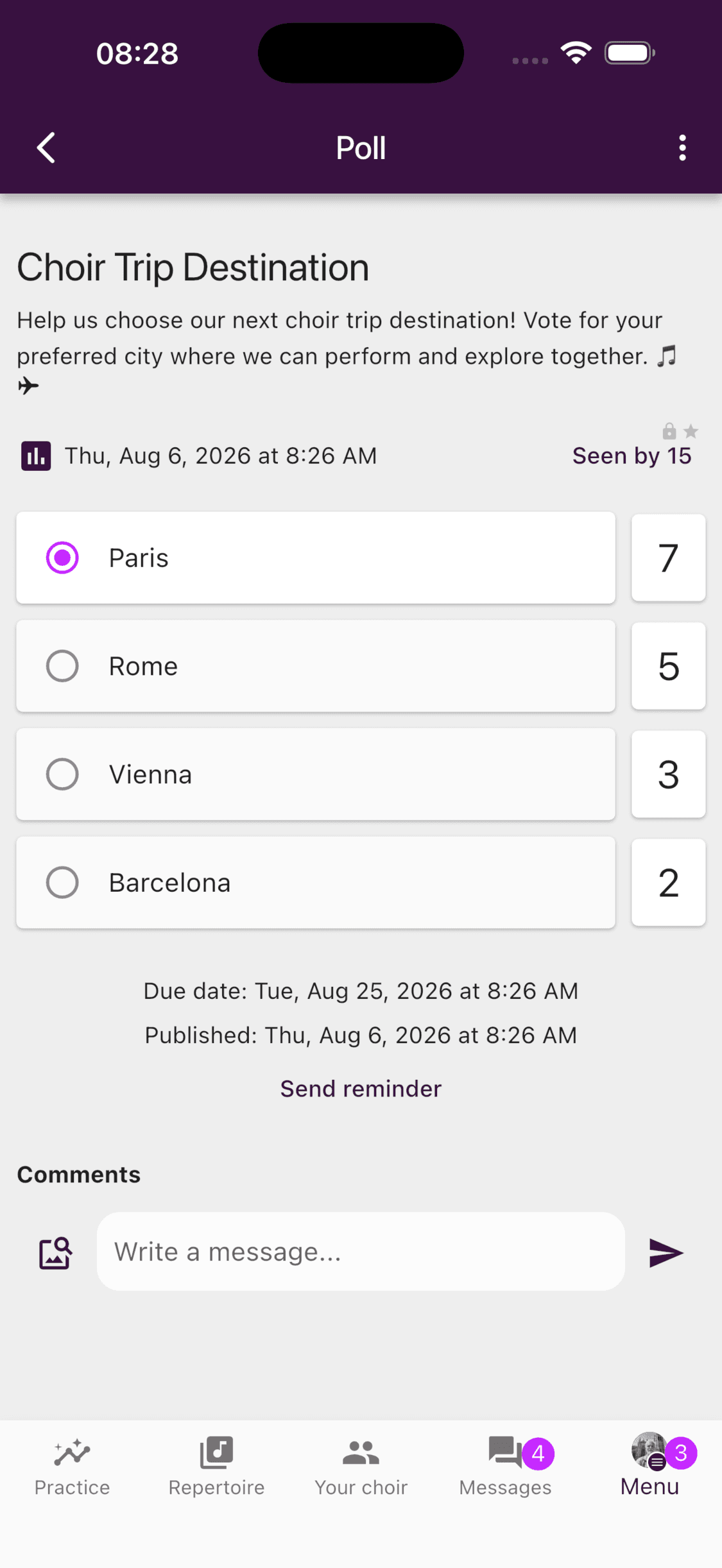
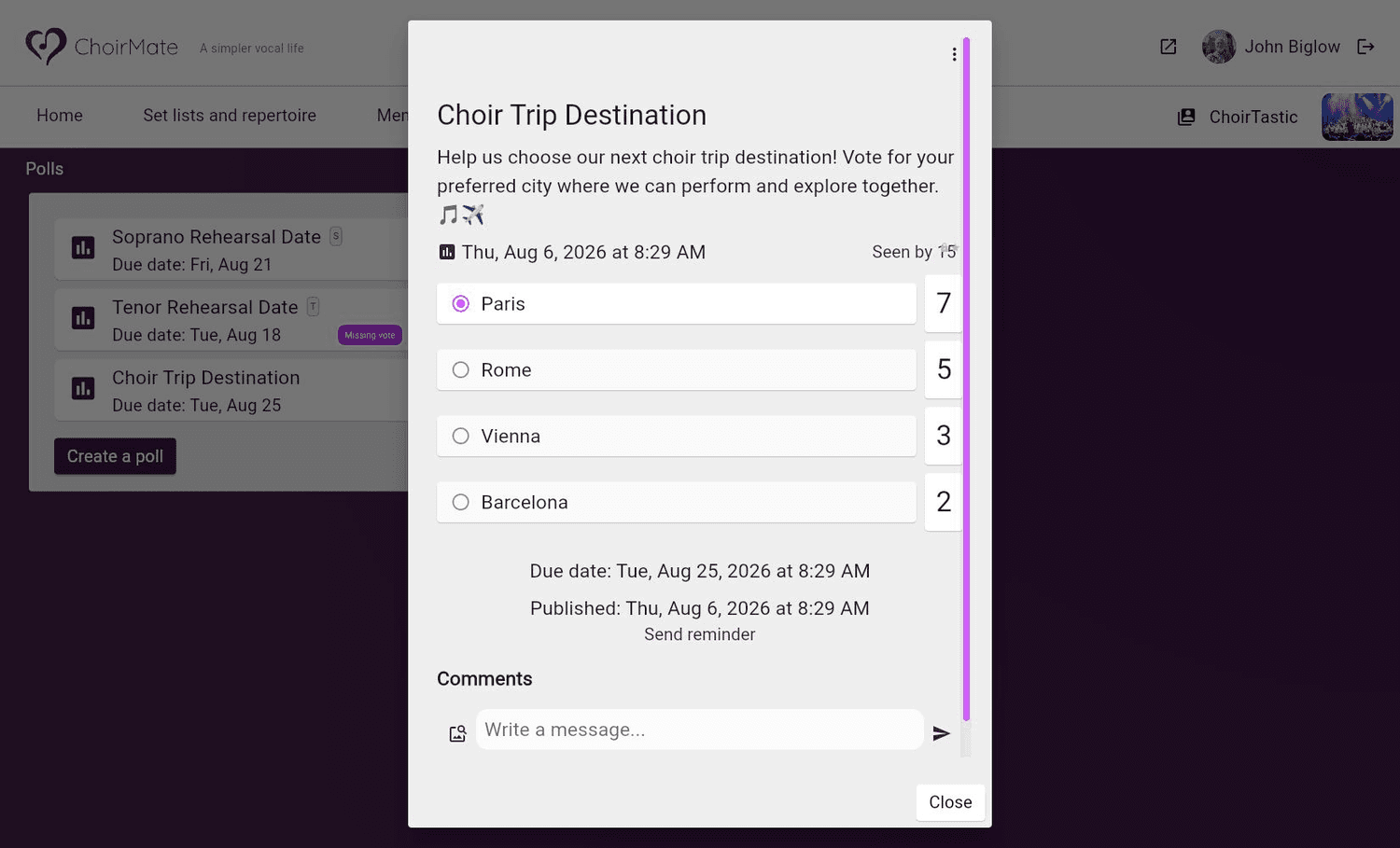
In a single-choice poll, selecting another alternative moves your vote. In a multiple-choice poll, select an alternative again to remove it. You can keep changing your answer until the due date, unless an alternative has reached its capacity.
If none of the choices fits, open the three-dot menu and choose Vote blank. A blank vote counts as a response without selecting an alternative.
View responses and follow up
When results are visible to your role, the number beside each alternative shows its vote count. Select the number, or choose View responses from the poll menu, to see who selected each alternative, who voted blank, and who has not answered.
Poll managers can send a reminder to members who have not voted and export the response list. If comments are enabled, everyone with access to the poll can join the discussion below it.
The poll menu also lets a manager edit, duplicate, or archive a poll. Editing an active poll may be limited when existing votes would conflict with a new voting method or a lower limit.
If Polls is missing
Check that:
- the choir has an active Standard or Premium group subscription
- you are looking in Menu in the app or the top navigation on the web
- the poll has been published and is visible to your voice part
- your role is allowed to create polls if the create control is missing
If a poll should be available but is not listed, ask a choir admin to check its publication time, audience, status, and due date.