ChoirMate includes two piano views in the mobile app. The standalone piano is a quick one or two octave keyboard. The new sheet-music viewer has a full-range piano that stays beside the score while you practise.
Info
The piano requires Standard or Premium access. This can come from your choir or an individual subscription.
Open the standalone piano
- 1
Open Menu
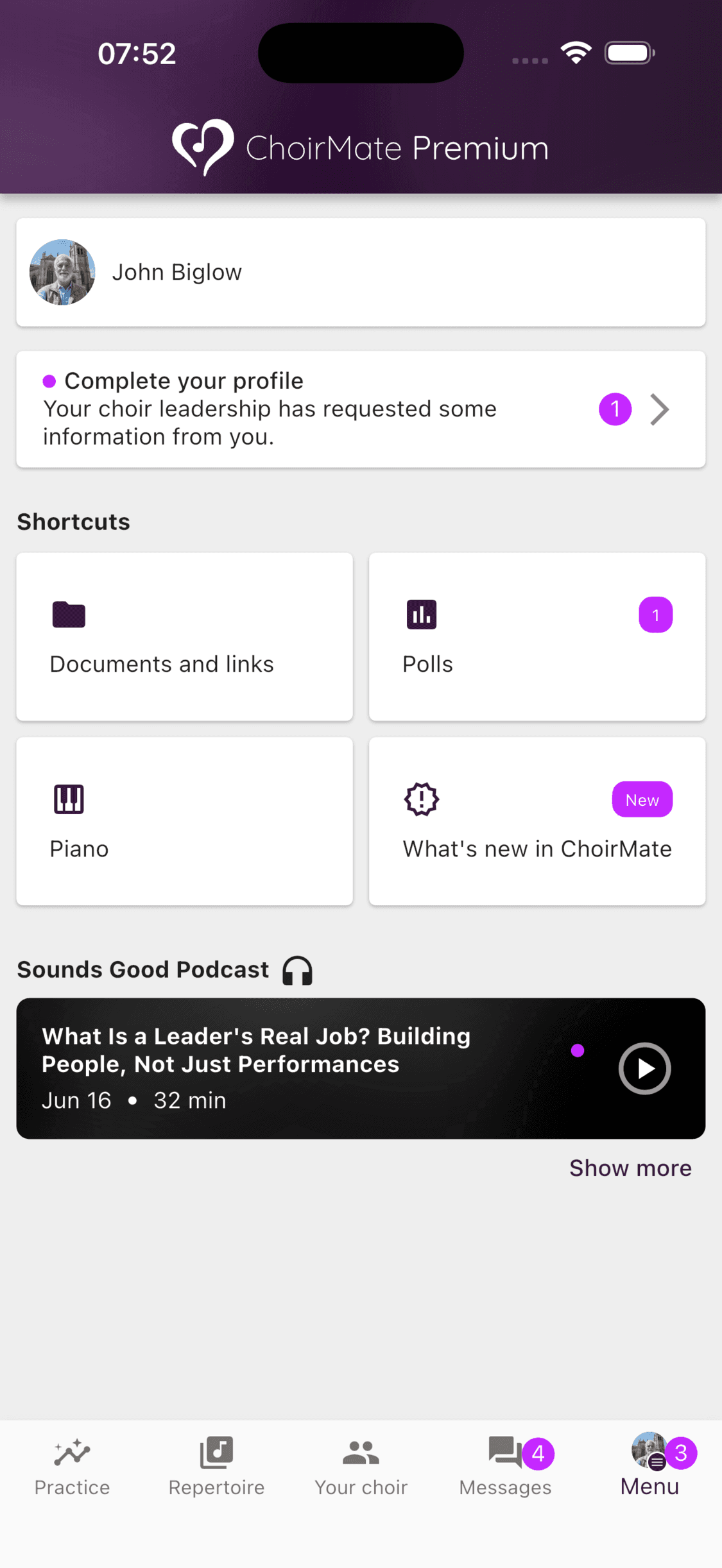
Tap Menu in the bottom navigation. The Piano shortcut is shown under Shortcuts.
- 2
Open Piano
Tap Piano. ChoirMate turns the keyboard to landscape so the keys have more room.
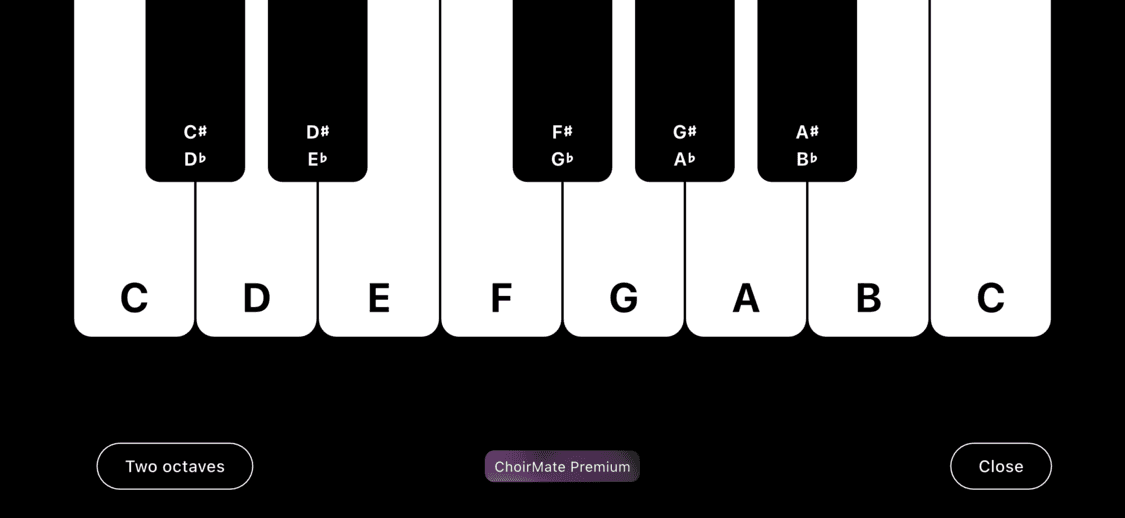
Tap a key to hear its note. You can also slide across the keyboard to compare nearby notes. Use the size button to switch between one and two octaves. The button names the size you can switch to, not the size that is currently open.
Tap Close when you are finished. ChoirMate returns to portrait and opens the screen you were using before the piano.
Use the piano with sheet music
The new sheet-music viewer has a separate piano designed for practice with a score.
- 1
Open a score
Open a song from Repertoire and select the sheet music you want to practise.
- 2
Show the viewer controls
Tap the score once if the controls are hidden, then choose the piano icon in the tool rail.
- 3
Adjust the keyboard
The full-range keyboard opens below the score. Drag the handle to change its height, use the bar to move through the keyboard, and open the gear for zoom and note-label settings.
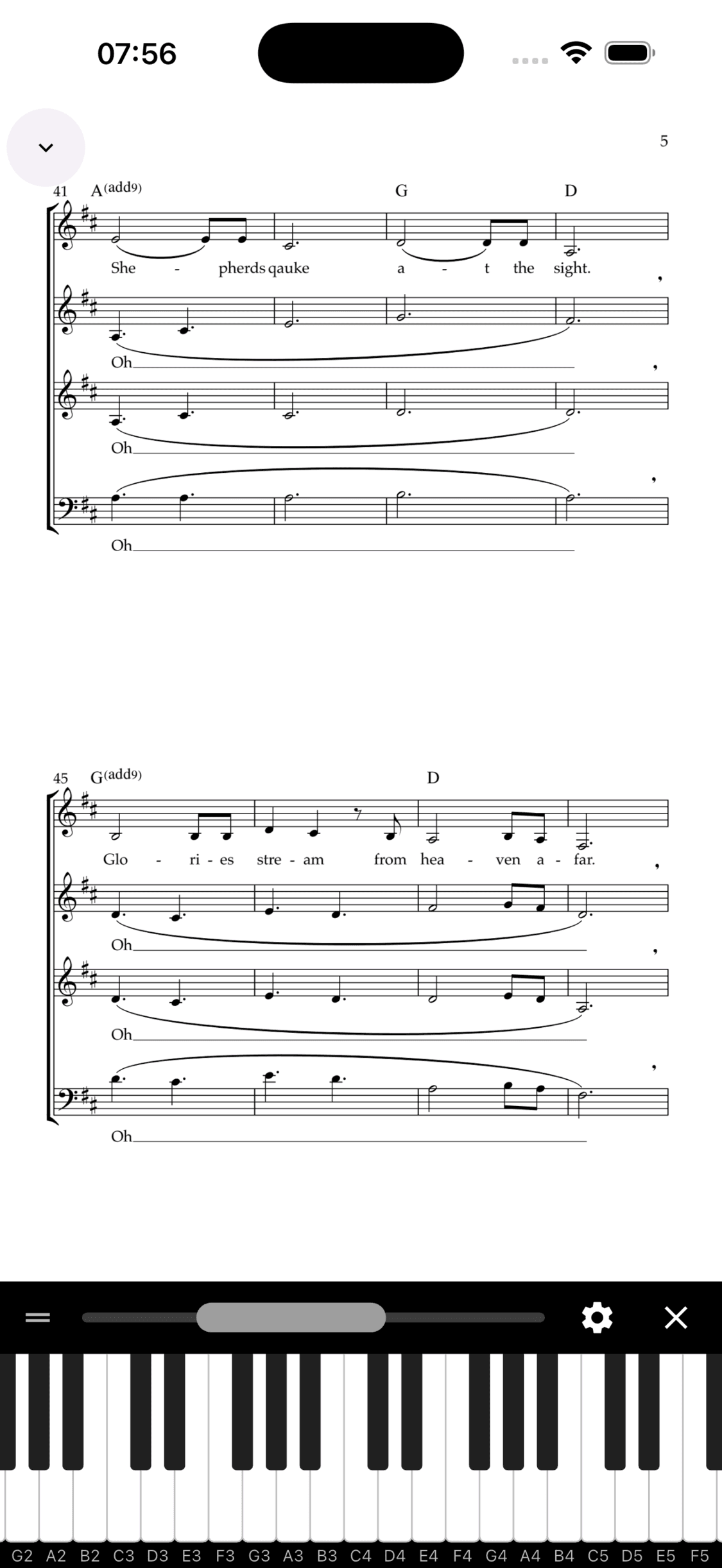
The viewer piano covers the full A0 to C8 range. Its position, height, zoom, and note-label choices are remembered on the device. Select Close in the piano bar to return the full screen to the score.
Info
The piano inside the sheet-music viewer is available in the mobile app. It is not shown in the web viewer.
Choose the default size and shake shortcut
Open Your choir, choose Your profile, and select the profile settings icon. Scroll to Settings.
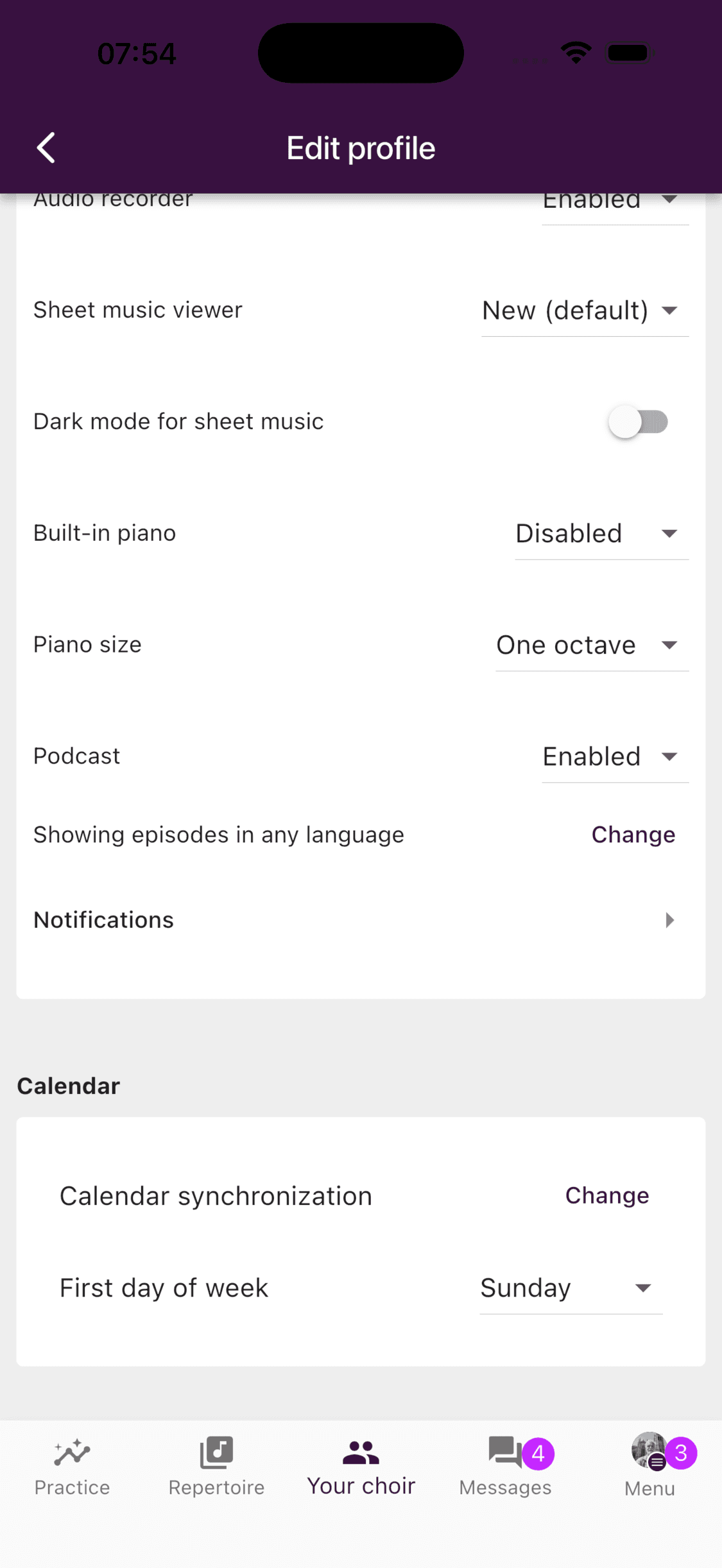
- Built-in piano controls the shake shortcut. It is Disabled by default. Choose By shaking if you want a deliberate shake to open or close the standalone piano.
- Piano size sets whether the standalone piano starts with One octave or Two octaves.
Changing the size inside the standalone piano also updates this preference.
If the piano does not play
Check that:
- you have verified your ChoirMate account
- your choir or individual subscription includes Standard or Premium access
- the device volume is turned up
- you are using the mobile app if you want the piano inside the sheet-music viewer
The Piano shortcut can still be visible without paid access. In that case, ChoirMate opens the subscription information instead of the keyboard.