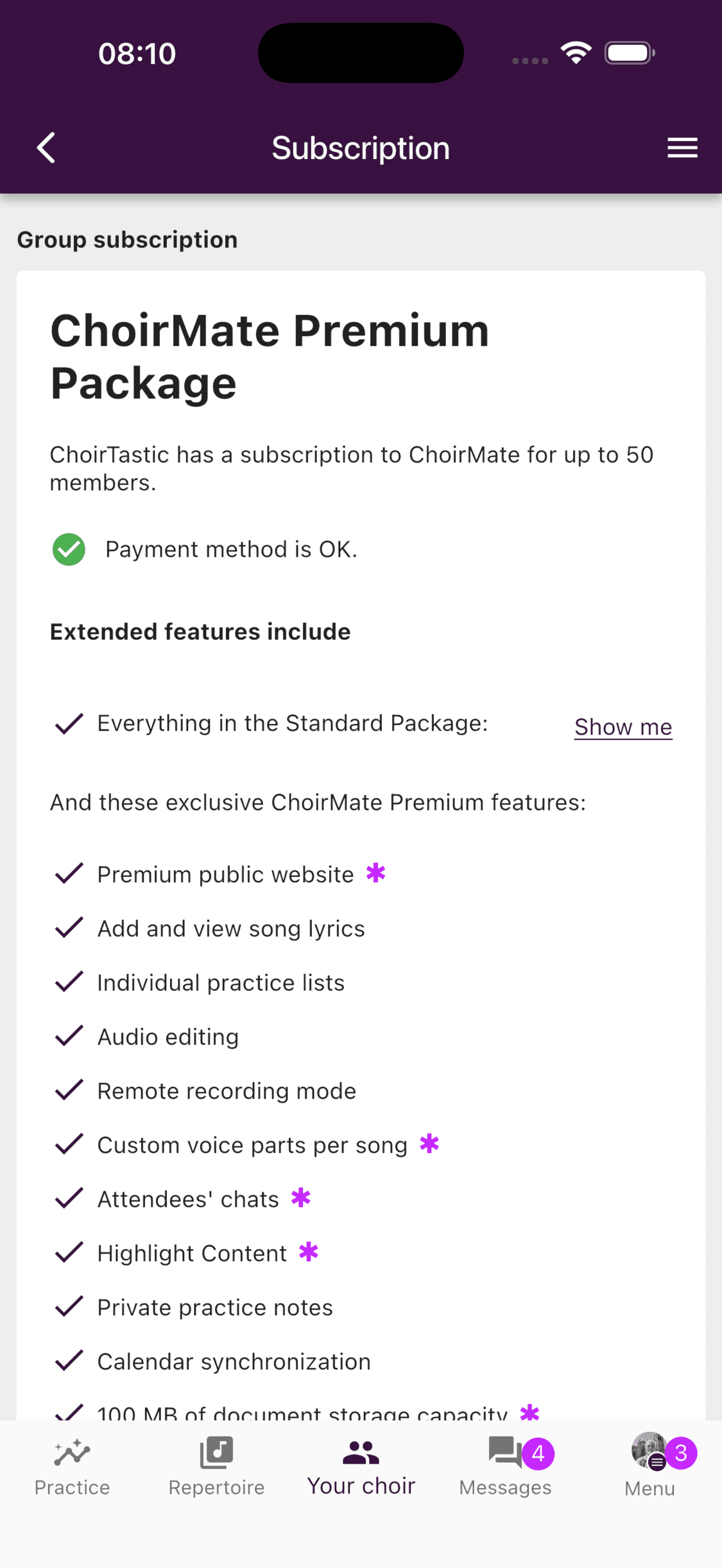
The public choir website requires a Premium group subscription.
ChoirMate gives your choir a modern public website without requiring a separate website builder. Present your choir, publish concerts, share photos and recordings, receive enquiries, and maintain the content from ChoirMate.
What visitors can discover
Your website can present:
- a front page with your choir photo, introduction, upcoming concert, member quotes, and gallery
- an About page with your story, rehearsal times, members, repertoire, photos, and events
- a Contact page with a public enquiry form
- short audio samples and video links
- public concert information, ticket links, and event links
- your logo and social media accounts
The page layout and navigation are provided by ChoirMate. You choose the content, languages, colors, logo, and which optional sections to use.
Publish in several languages
One choir website can serve several languages. Visitors choose their language from the website header. ChoirMate translates the website interface, while you provide the choir-specific text for each enabled language.
When multilingual publishing is enabled, language buttons appear beside supported text fields in Website Customization. If a field has not been translated, the website shows its value from the default language.
Info
Tell ChoirMate which website languages you need when the website is activated, or contact us later to change them. The enabled languages and the default language are currently configured by ChoirMate.
See Build a multilingual choir website for the complete workflow.
Request your website
Website activation starts in ChoirMate on the web.
- 1
Open the choir home page
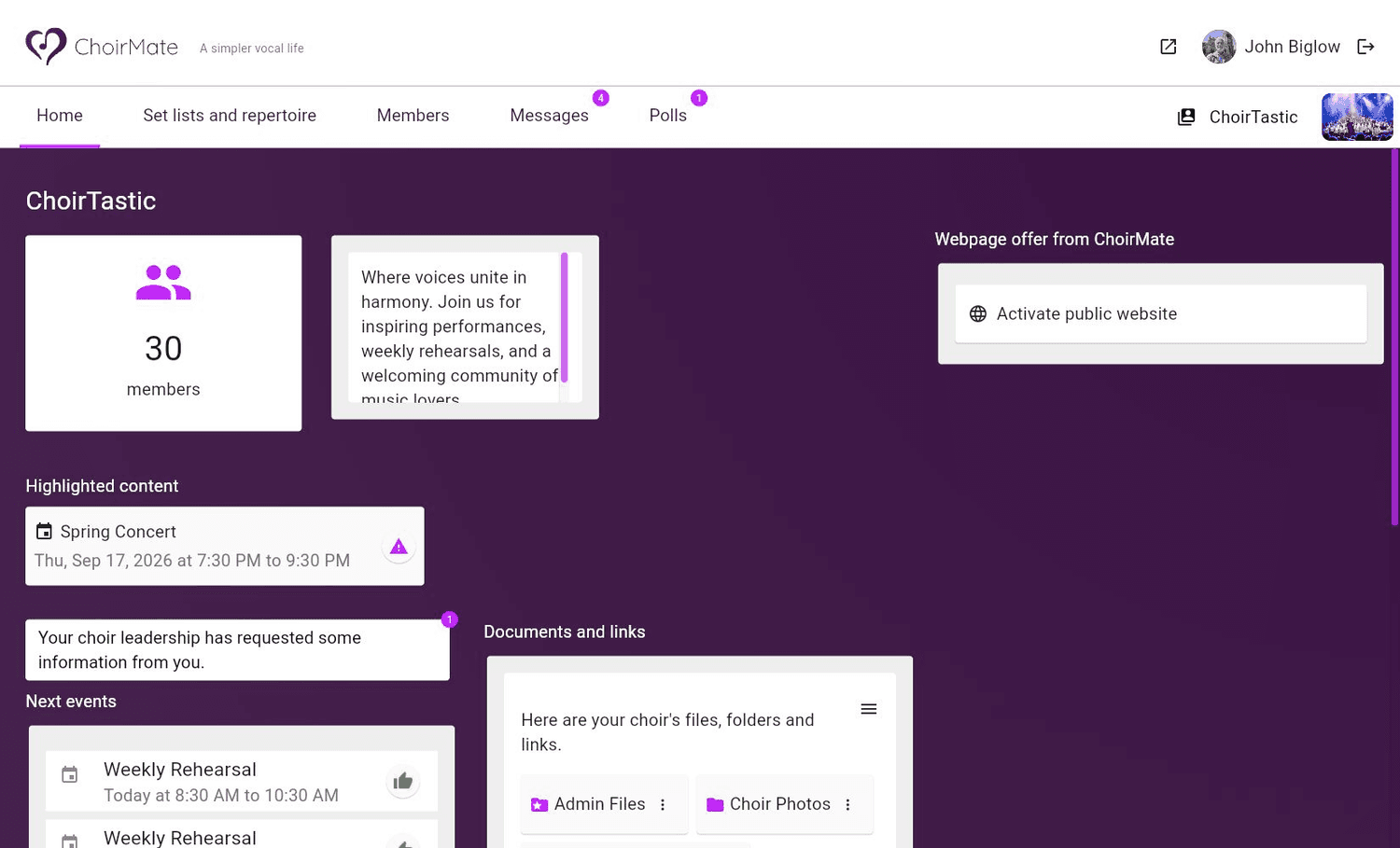
Sign in to ChoirMate on a computer and open your choir. Administrators with an active Premium group subscription see Webpage offer from ChoirMate on Home.
- 2
Open the activation request
Select Activate public website. Read the activation information, then choose Request activation.
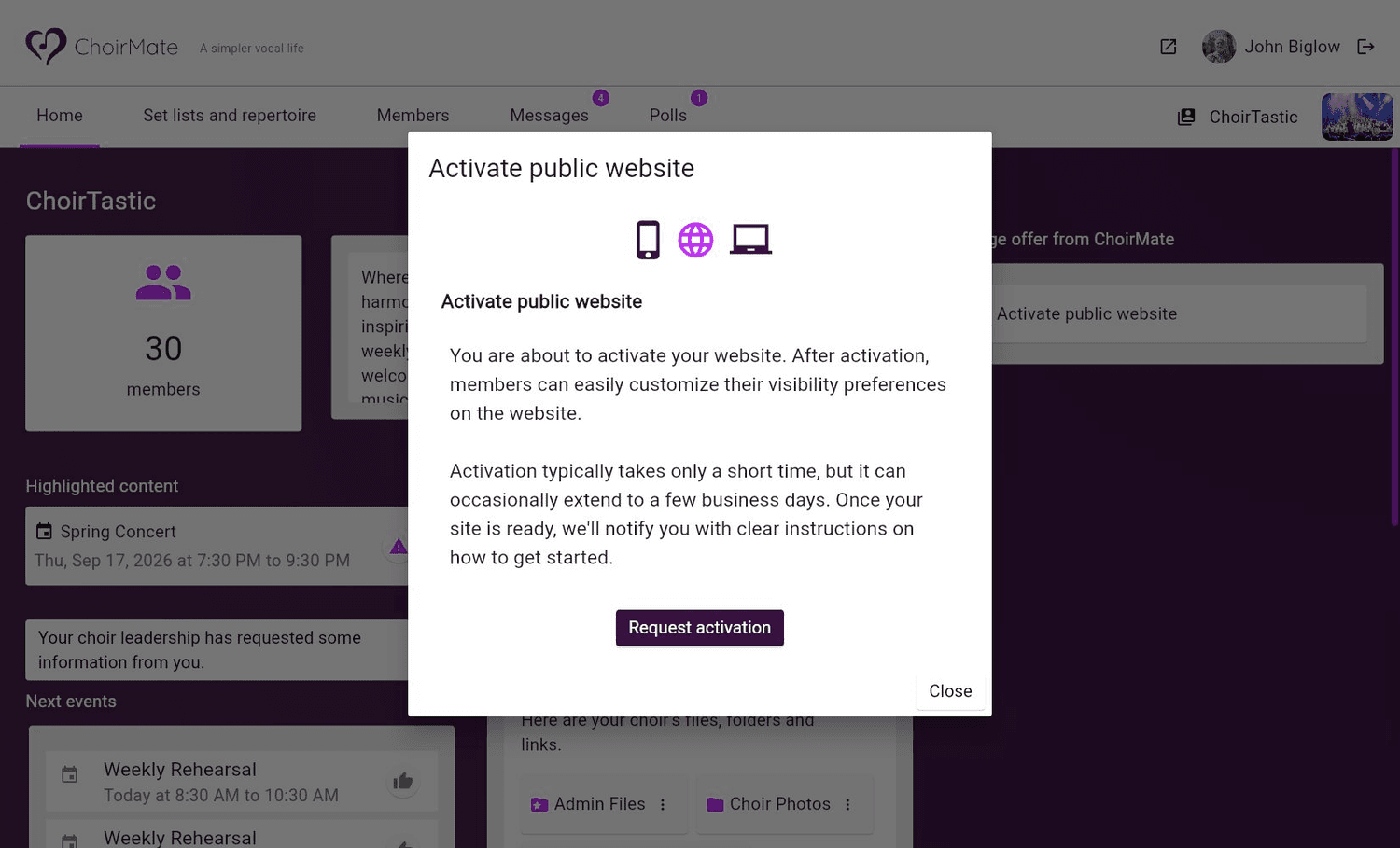
Activation is not immediate and can sometimes take a few business days. ChoirMate notifies you when the website is ready and gives you the next steps.
Maintain your website
After provisioning, open Website Customization from the app menu or the website section on the web home page. The manager contains separate areas for:
- Customize group information: cover image, descriptions, contact text, rehearsal times, and social links
- Customize photos: the public gallery
- Repertoire samples and videos: short recordings, descriptions, and video links
- Customize highlighted members and Member Quotes: people and experiences to feature
- Customize your information: each member's own visibility, photo, role, and name display
- Settings: colors, logo, concert navigation, editing access, branding, and analytics
The website address, enabled languages, default language, and verified custom domains are provisioned by ChoirMate. The page templates and navigation structure are not a free-form page builder.
Continue with a focused guide
- Edit your choir website content
- Build a multilingual choir website
- Publish events on your choir website
- Members, quotes, and privacy on your choir website
Warning
The website is public. Before publishing a photo, recording, quotation, event, or profile, make sure your choir has permission to share it.