Publishing an event on the choir website requires an active public choir website.
Public events start as regular events in the ChoirMate calendar. Website settings add a public presentation without changing the information choir members use internally.
Prepare the calendar event
Create the event with the correct date, time, place, name, and description. The public editor uses these values as its initial defaults.
Enable the event on the website
- 1
Open the event for administration
Open the calendar event and choose its administration or editing action.
- 2
Enable the public event
Open the website section and turn on Enable event on website.
- 3
Add the event image
Add a landscape event photo. A photo is required before the event can appear on the public website.
- 4
Review and save
Check the public name, description, date, time, ticket links, and event links, then save the event.
Use defaults or public overrides
The public name, description, and schedule initially use the calendar event. You can replace them in the website editor without changing the version choir members see in ChoirMate.
Use an override when the public audience needs different wording, a shorter description, or a public schedule that differs from the internal call time. Choose Use default to return a field to the calendar value.
On a multilingual website, translate the public event name, description, and link labels for every enabled language. Empty translations fall back to the website's default language.
Add useful links
- Ticket links: send visitors directly to ticket sales or registration.
- Event links: add venue information, a festival page, livestream, or other relevant page.
- Event page: when available, link to a separate public ChoirMate event page.
Use clear link labels such as “Buy tickets” or “Venue information.” Test every link from the public website.
Choose the event section name
The public event section can include concerts, performances, open rehearsals, auditions, or other events your choir chooses to publish.
Open Website Customization > Settings and choose Event section name:
- Events: a broad label, used by default on new websites.
- Concerts: a label for choirs that mainly promote concerts.
- Custom: your own name, entered under Custom section name.
The chosen name appears in the website's main navigation, event tab, and section heading. Show in main navigation controls whether the main menu includes a link to this section. The tab and heading use the same name even when that menu link is hidden.
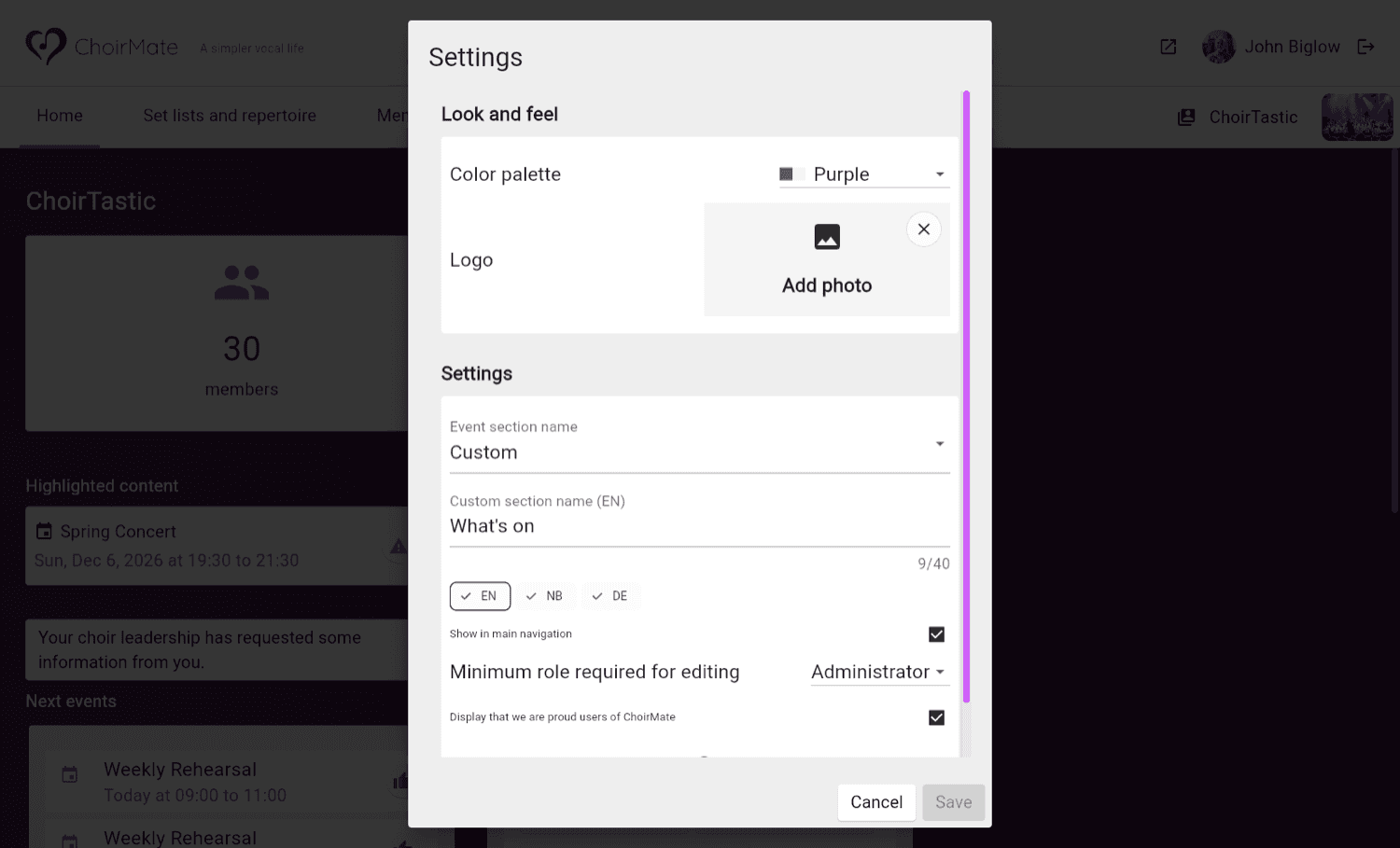
Changing the name does not filter events, change their type, or publish calendar events automatically. Each event still needs to be enabled on the website separately. Upcoming public events can also be promoted on the front page.
Existing websites that already used Concerts in the main menu keep that choice. You can change it in Settings.
For a custom name on a multilingual website, see Build a Multilingual Choir Website.
Warning
Calendar visibility for choir members and publication on the public website are separate choices. Check the public page after saving, especially if the event contains internal instructions that should not be shared.