Website editing requires an active public choir website.
Open Website Customization from the app menu or the website area on the ChoirMate web home page. Administrators can allow either the Admin or Editor role to maintain the website.
Start with the essentials
Open Customize group information and add:
- a wide cover image, at least 1000 by 500 pixels
- a Short description for the front page
- a Long description for the About page
These are the core elements ChoirMate checks when preparing the site. You can also write the Contact page introduction, add rehearsal times and locations, and link Facebook, Instagram, YouTube, LinkedIn, and TikTok.
Tip
Write for someone who does not know the choir yet. Say where you rehearse, what you sing, who can join, and the best way to make contact.
Add photos
Choose Customize photos to build the public gallery. For each image you can add alternative text and a caption. On a multilingual website, both fields can be translated.
Use sharp, current images that show the choir clearly. Check that every identifiable person has agreed to public use.
Add repertoire samples and videos
Choose Repertoire samples and videos to:
- introduce the repertoire section
- upload short audio samples
- add video links
- give each item a title, artist, and description
- reorder or remove items
ChoirMate shows the current maximum duration when you add an audio sample. Only publish material your choir has permission to share.
Adjust the appearance
Under Settings, choose one of the available color palettes and upload a logo. If the logo already contains the choir name, turn off the separate choir name in the header.
You can also:
- choose Events, Concerts, or a custom name for the public event section
- show or hide that section in the main navigation
- choose whether Admins or Editors can edit the website
- show or hide ChoirMate branding
- add a Google tag ID for analytics
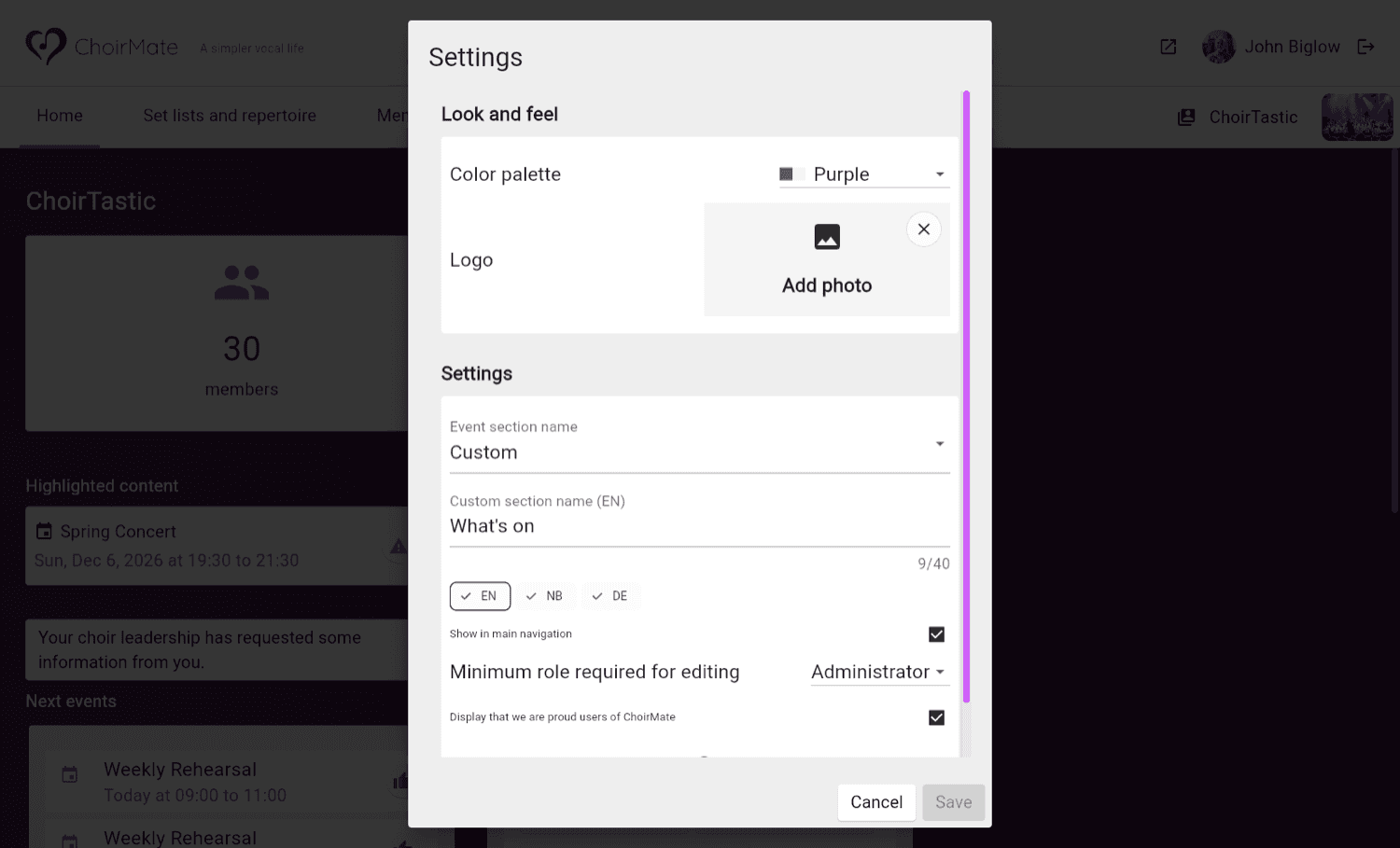
The event section uses the same name in the main navigation, tab, and heading. Choosing Concerts does not limit the section to concert events. See Publish Events on Your Choir Website for the naming options and publication settings.
The page layout, typography, navigation structure, website address, enabled languages, and verified custom domains are managed by ChoirMate. Contact ChoirMate if one of these needs to change.