Documents and links is the choir's shared resource library. It works well for concert programs, rehearsal plans, bylaws, travel information, forms, images, and links that members need to find again.
Open the library
In the mobile app, open Menu and choose Documents and links.
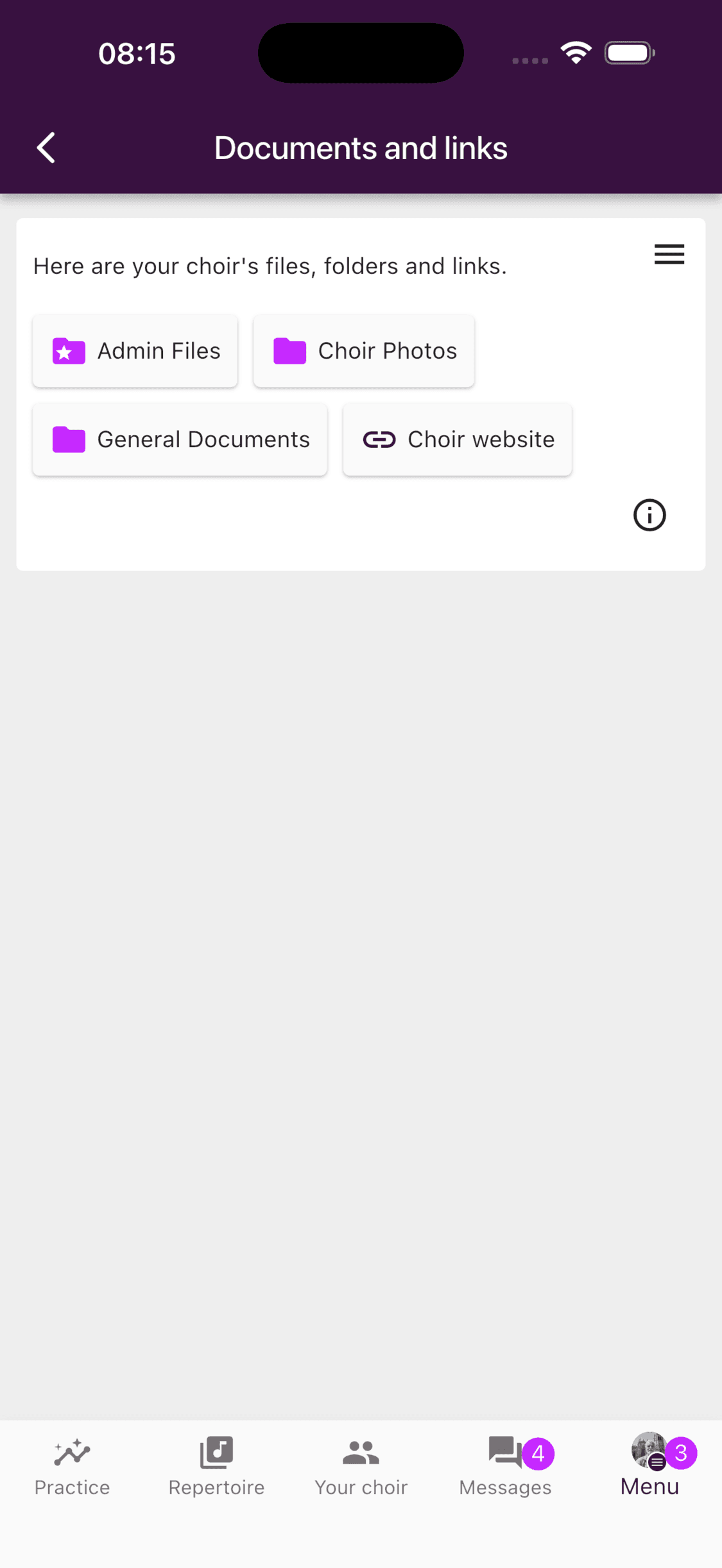
On the web, open the choir's Home page. Documents and links appears beside the other choir dashboard sections.
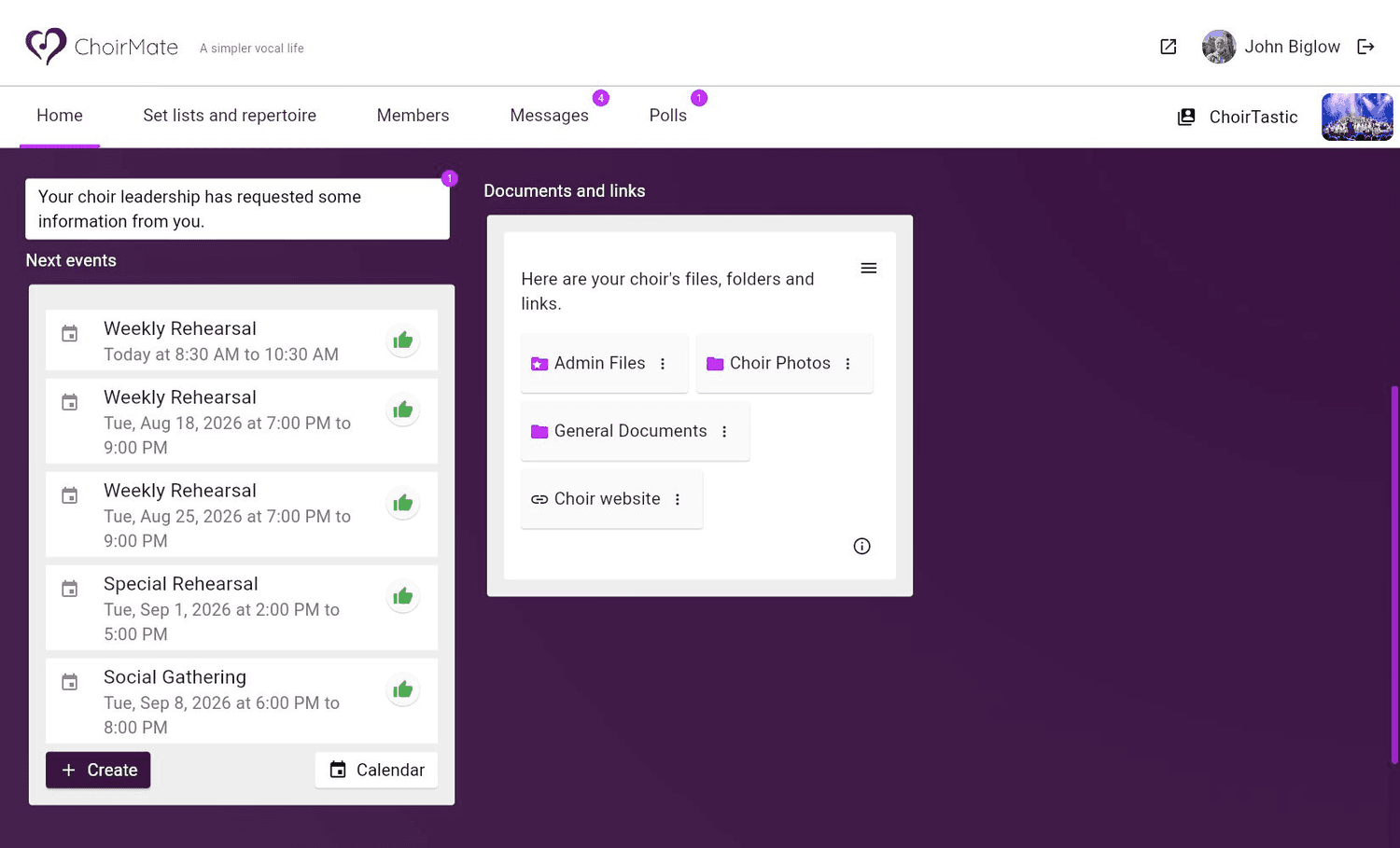
Members see the folders, files, and links available to their role. Choir owners and admins can add, rename, move, reorder, and remove resources.
Create a folder, upload a file, or add a link
Open the menu in the top right of the Documents and links panel. The same three actions are available in the app and on the web.
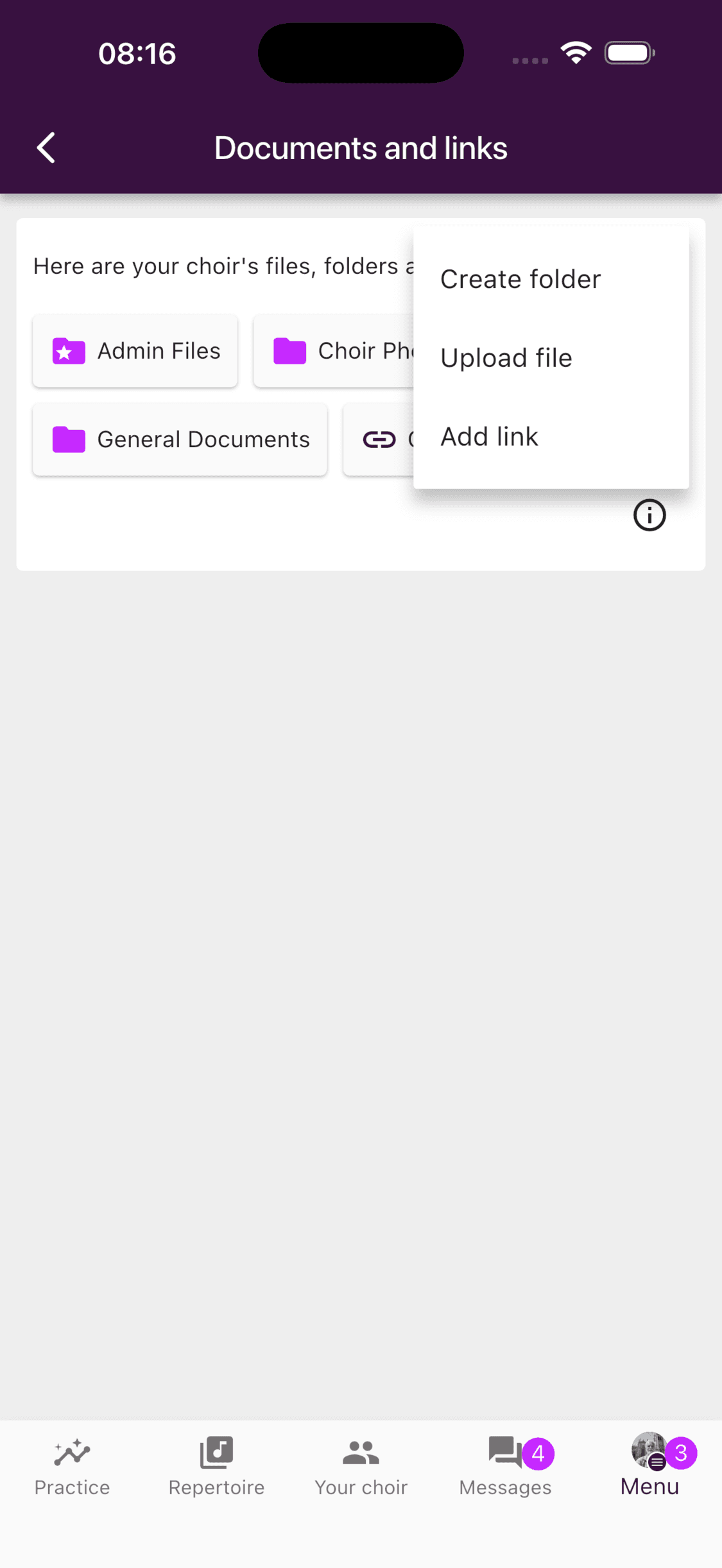
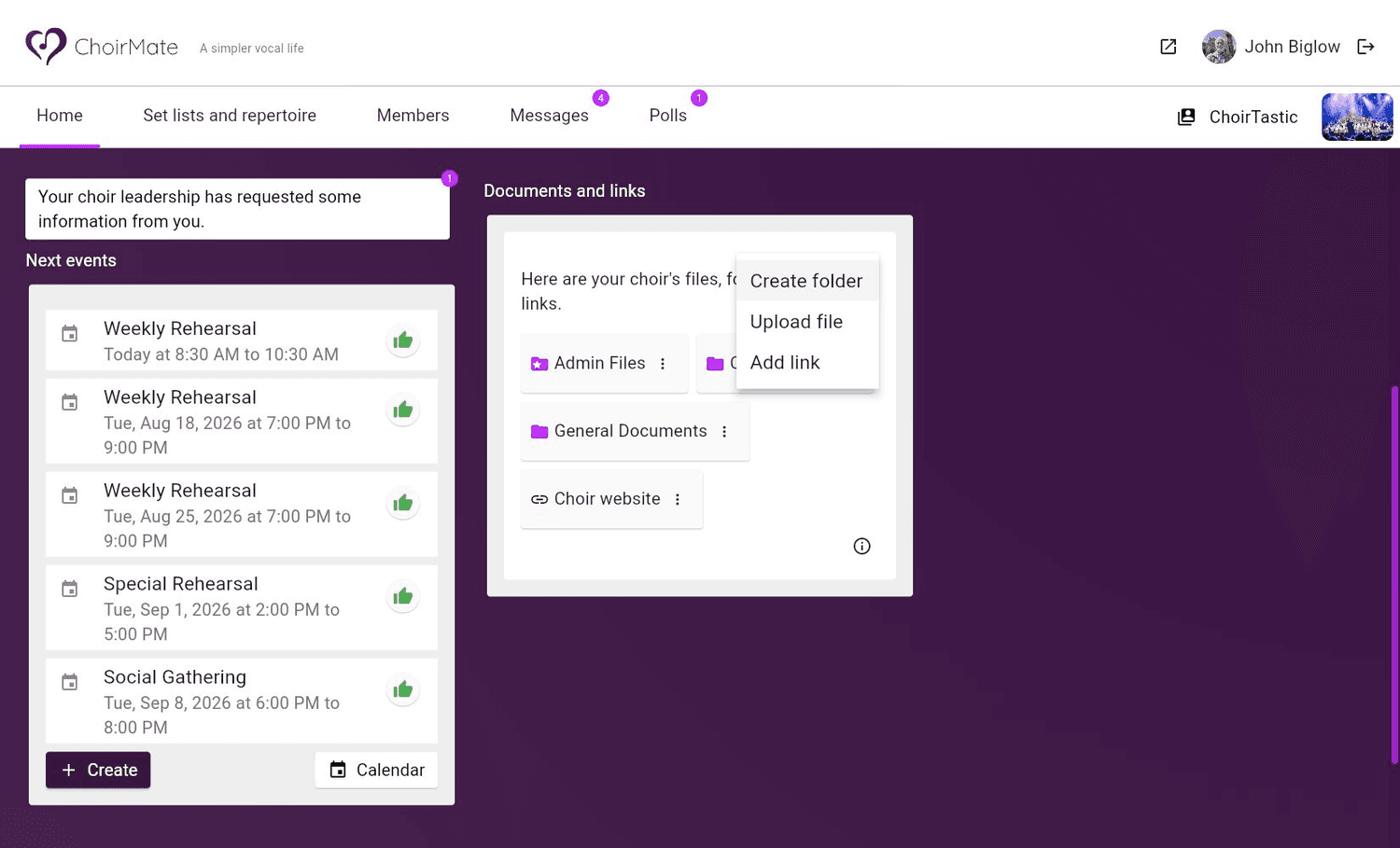
Choose the action that matches the resource:
- Create folder gives related resources a clear home.
- Upload file stores the file in ChoirMate. You can select up to ten files at once.
- Add link saves a named shortcut to a resource that already lives elsewhere.
On the web, admins can also drag files into the Documents and links panel. ChoirMate accepts common document, image, archive, audio, and video formats. If a file is too large or its format is unsupported, the upload dialog explains the current limit.
Add a link
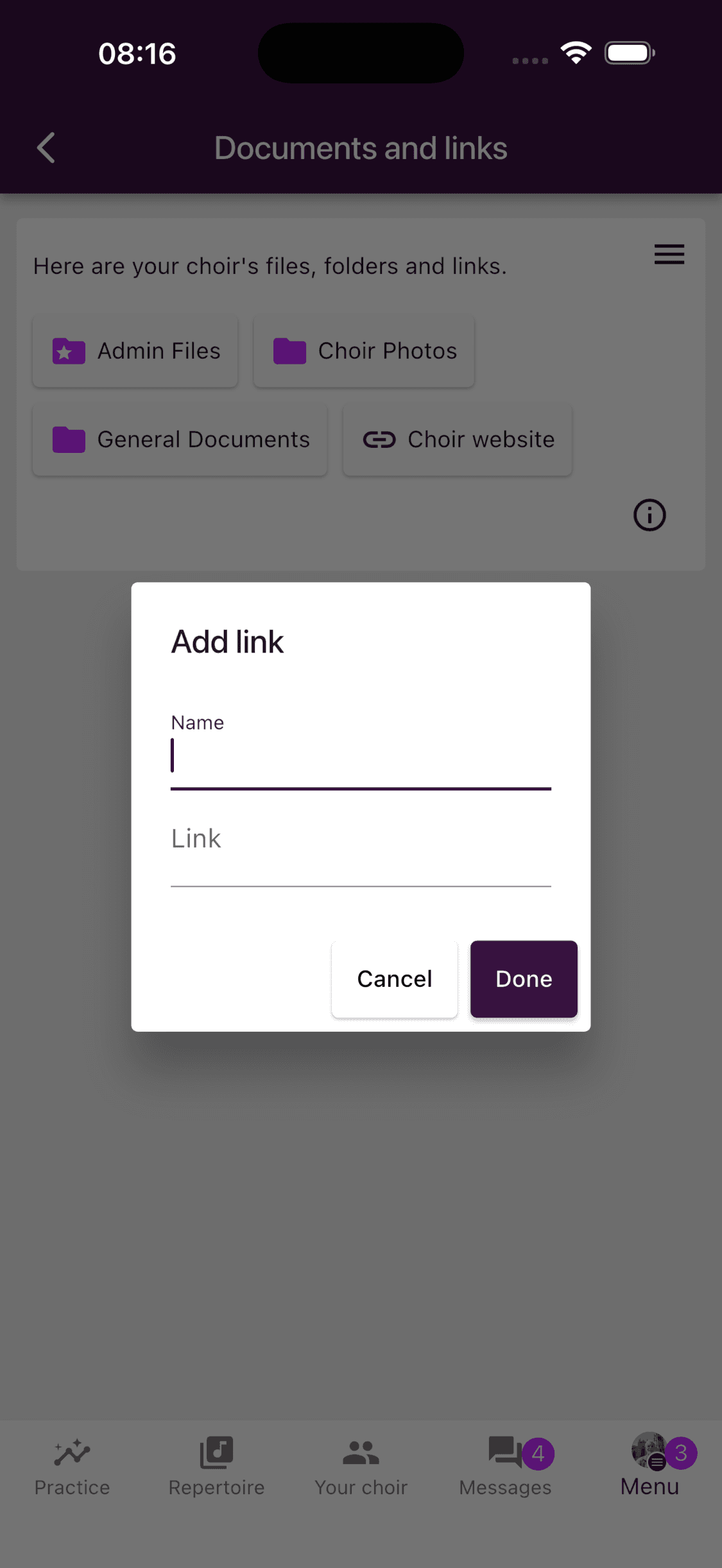
Select Add link, enter a clear name and the website address, then choose Done.
A saved link does not copy the external file into ChoirMate, so it does not use document storage. Members still need permission from the external service. For example, a Google Drive link will not bypass Google Drive's sharing settings.
Organize and update resources
Open a folder to add items inside it. In the app, press and hold an item for more options. On the web, use the three-dot menu beside the item.
Owners and admins can:
- rename files and folders, or edit a saved link
- move an item to another folder
- remove an item
- change the visibility of a folder or saved link
- choose name or custom sorting inside a folder, then reorder items when custom sorting is active
Deleting a folder also deletes its contents. Deleting a saved link removes only the ChoirMate shortcut, not the external page or file.
Limit access to a folder or link
Open the item menu and choose Edit visibility. You can make a folder or link available to:
- everyone in the choir
- editors, admins, and the owner
- admins and the owner only
Use a restricted folder for board papers, financial files, contracts, or drafts. Individual uploaded files do not have a separate visibility action in the current interface, so put them in a folder with the right access level.
Info
Only choir owners and admins can manage the library. Editors can open content made available to editors, but cannot add or reorganize the library.
Open and share files
Tap or click an item to open it. ChoirMate can display PDFs, images, audio, and video directly. Other supported files open through the browser or a suitable app on the device.
You can also select a resource from Documents and links when composing a message, or highlight an important file or link on the choir home page.
Storage and subscriptions
Uploaded files use the choir's document storage. Saved links do not. Document storage is separate from repertoire audio and sheet music limits.
| Plan | Included document storage |
|---|---|
| Free | Up to 5 files |
| Standard | 25 MB |
| Premium | 100 MB |
The information button in Documents and links shows the choir's current usage and capacity. If the choir has purchased extra storage, that capacity is included there.
If upload is unavailable, check that you are an owner or admin, that the choir has storage capacity left, that no more than ten files were selected, and that the device is online.