ChoirMate's recorder lets you capture your own voice while you practise. You can record from a song page or keep the sheet music open and record while you read. A new recording is private until you choose to share it.
Record from a song
- 1
Open the song
Select Repertoire, open a song, and choose the voice part you want to practise. ChoirMate associates the new recording with this song and voice part.
- 2
Start recording
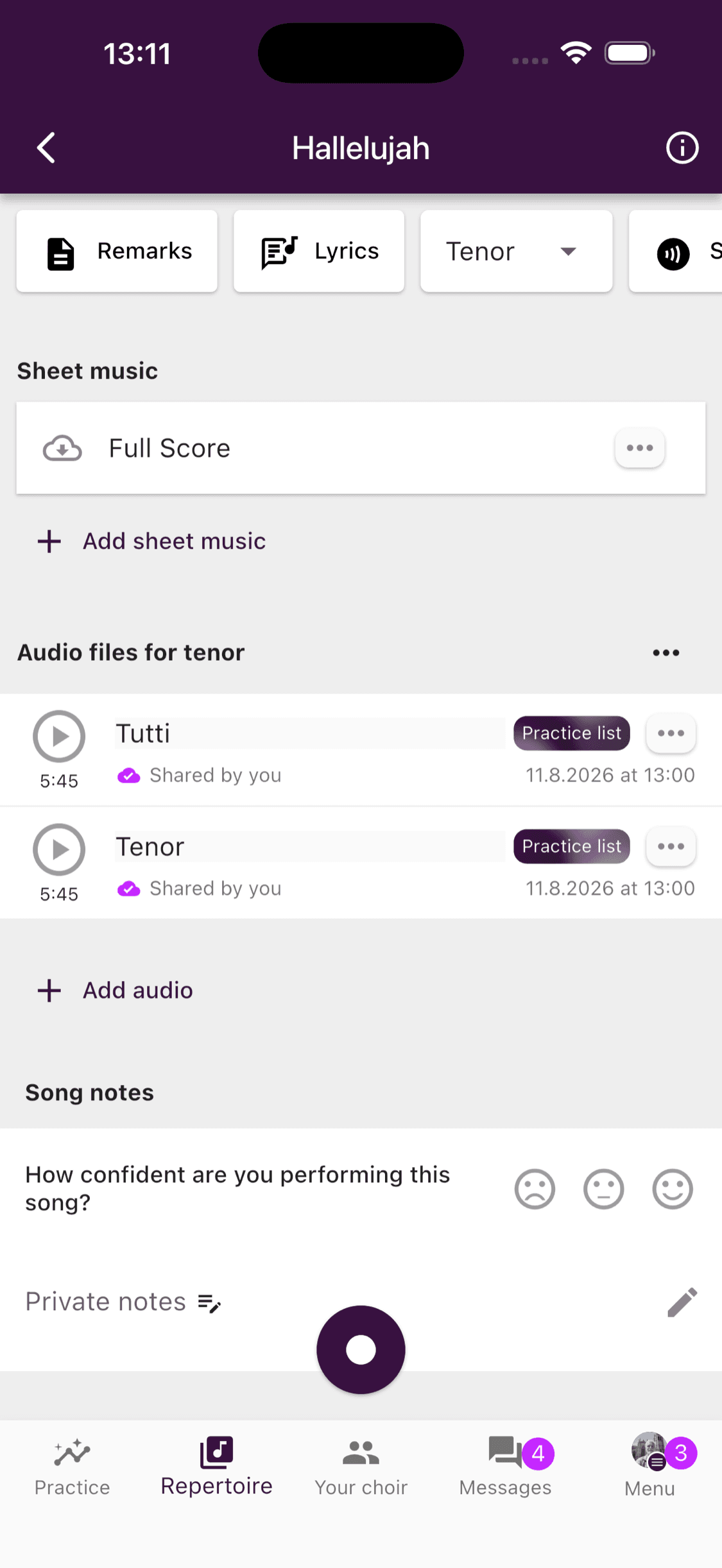
Tap the round purple button with the white centre at the bottom of the song page. Allow microphone access if your phone asks for it.
- 3
Sing, pause, or resume
Recording begins immediately. The timer appears beside the controls, and the button on the right pauses or resumes the recording. You can also start one of the song's practice tracks and sing along while ChoirMate records.
- 4
Stop and save
Tap the square stop control in the centre. ChoirMate saves the recording on your device first and then uploads it when a connection is available.
Info
A recording can last up to 15 minutes. ChoirMate warns you two minutes before the limit.
Record while reading sheet music
The new sheet music viewer keeps the recorder within reach, so you do not need to leave the score.
- 1
Open the score
Open a song, then select the sheet music you want to read.
- 2
Show the viewer controls
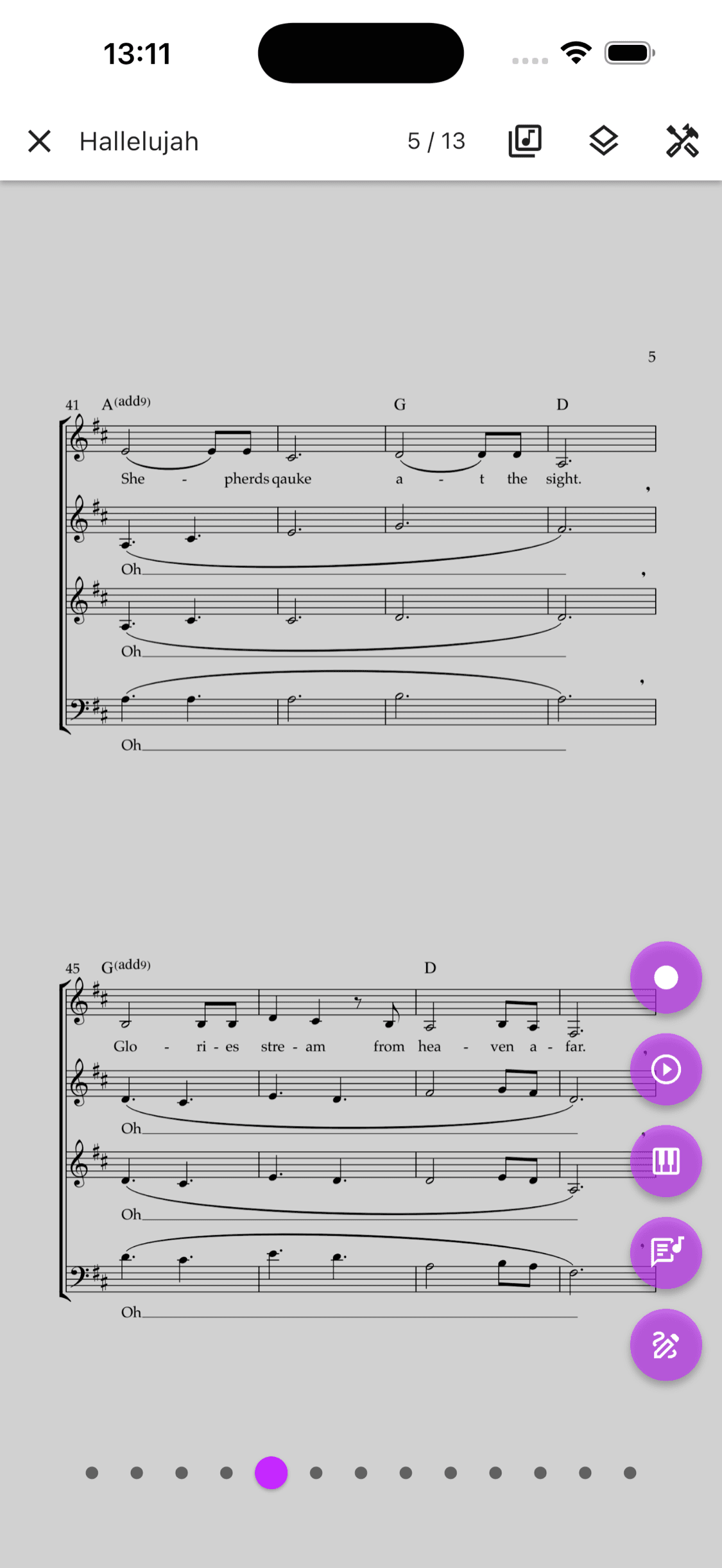
Tap the score if the controls are hidden. The record control is the purple round button with the white centre on the right.
- 3
Record while you read
Tap the record control and continue through the score. Use the same pause, resume, and stop controls as on the song page. The finished recording is saved with the song and selected voice part.
Microphone access
ChoirMate asks for microphone access the first time you record. If you previously declined, enable it in your phone settings:
- iPhone: Open Settings, select ChoirMate, and turn on Microphone.
- Android: Open Settings, select Apps, ChoirMate, Permissions, and then Microphone. Choose Allow.
The exact path can vary slightly between phone models and operating-system versions.
Find your recordings
A recording made from a song appears with that song's audio files. Select the voice part you used when recording if you do not see it immediately. Tap the recording to listen back.
While a recording remains only on your device, ChoirMate lists it as Not synchronized. Keep the app connected until the upload finishes. The uploaded recording then appears with the other audio files for the song.
To make a recording without choosing a song first, open Unsorted audio files at the top of Repertoire and use the same record control. You can move that recording to a song later.
Privacy, sharing, and editing
Your recordings start as private. Other choir members cannot see or play them unless you share them.
Open the menu beside one of your recordings to see the actions available to you. Depending on your choir permissions, you can:
- rename or edit the recording
- share it with the choir, or stop sharing it
- move it between a song and Unsorted audio files
- delete it
An unsorted recording must be moved to a song before it can be shared. Sharing and repertoire permissions are set by the choir's administrators, so some actions may not appear for every member.
Deleted recordings remain recoverable for 30 days. See Recovering Deleted Recordings for details.
Get a clearer practice recording
- Use headphones so the practice track does not play back through the phone's speaker.
- Record in a quiet room and keep the phone at a comfortable, steady distance.
- Make short recordings of difficult sections when you want to compare several attempts.
- Wait for Not synchronized to disappear before closing the app or going offline.
Free accounts can store a limited number of audio files. Standard, Premium, or sponsored access removes that limit.