ChoirMate can hold the full lyrics for a song, separate text for each voice part, and private lyrics that only you can see. Open the lyrics from a song page or from the full audio player, then switch between the versions without leaving your practice flow.
Premium Feature
Full lyrics access requires individual Premium or lyrics access provided by your choir. Without access, ChoirMate shows a short faded preview and an upgrade prompt.
Use lyrics in the app
- 1
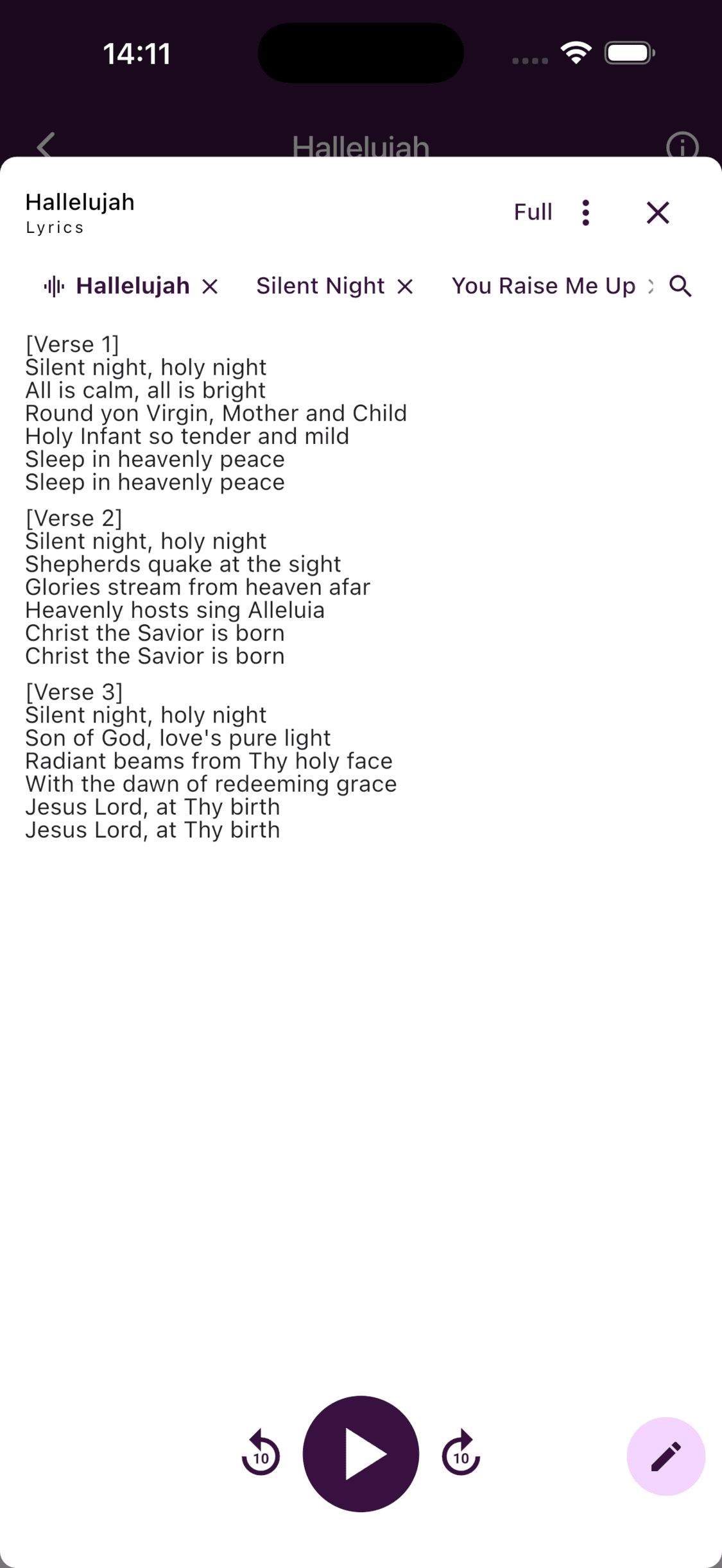
Open the lyrics
Open Repertoire, choose a song, and select Lyrics. You can also start a recording, open the full player, and expand its Lyrics card.
- 2
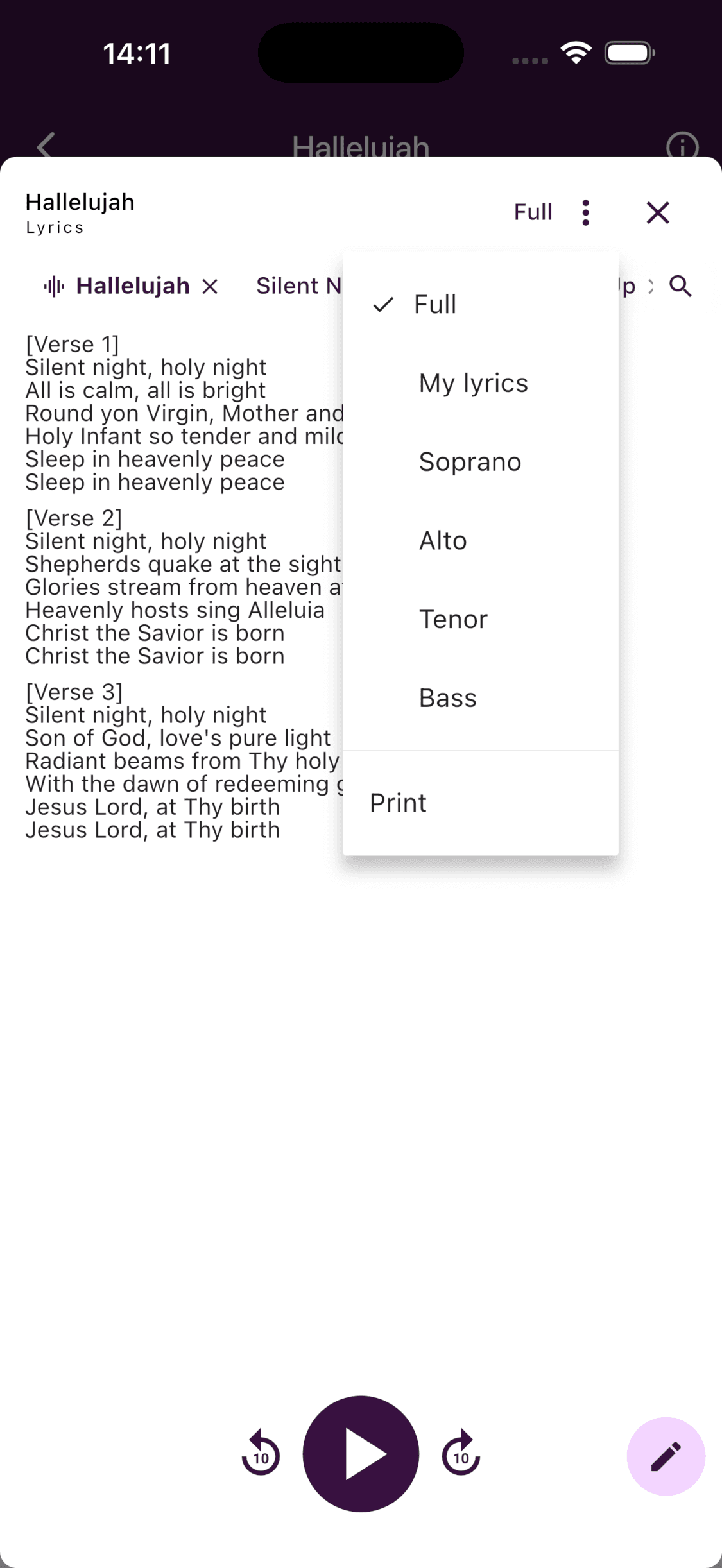
Choose the version
Select the current version at the top. Choose Full, My lyrics, or a voice part. If the chosen voice part has no separate text, ChoirMate shows the full lyrics instead.
- 3
Add or edit text
Select the pencil button. Enter or paste the text, then select the checkmark to save. Use
**text**for bold and*text*for italics.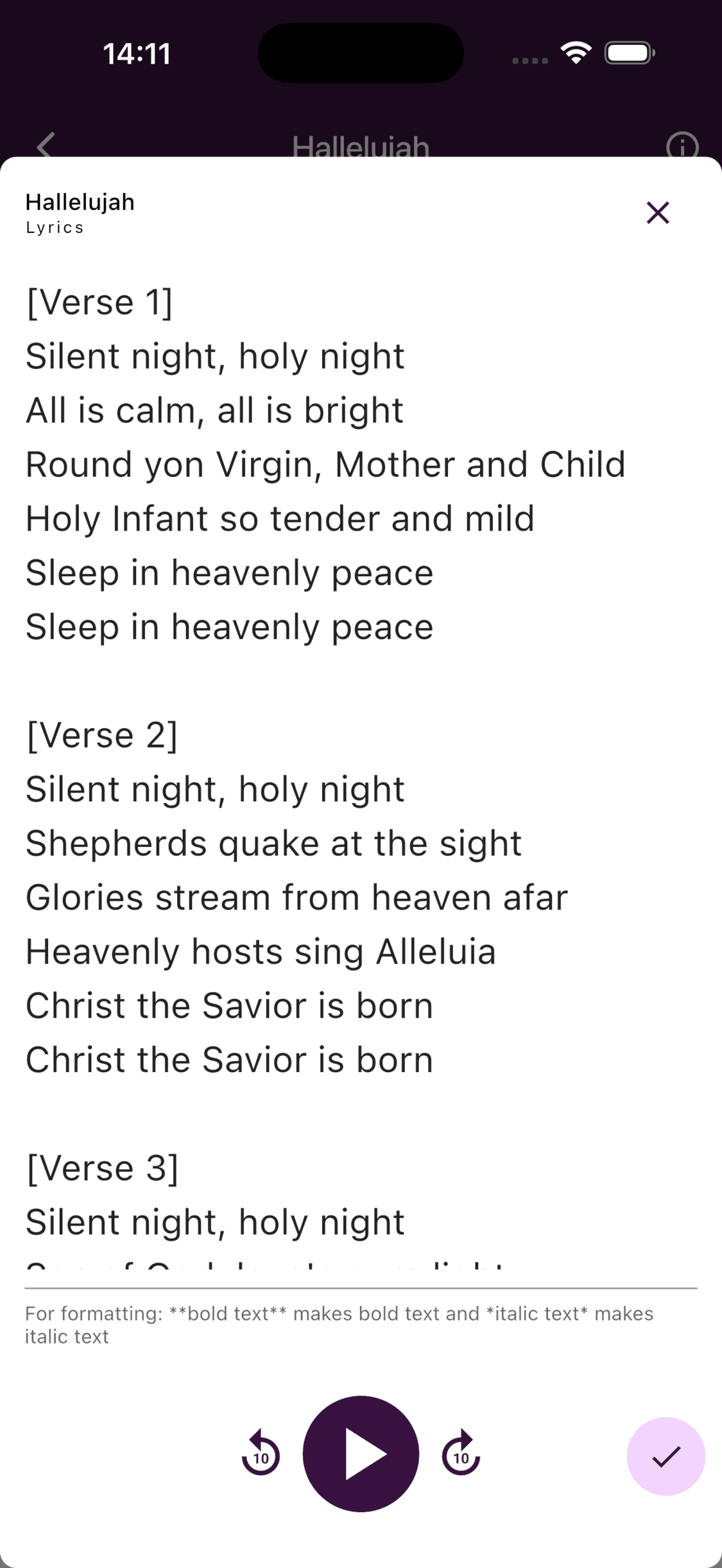
- 4
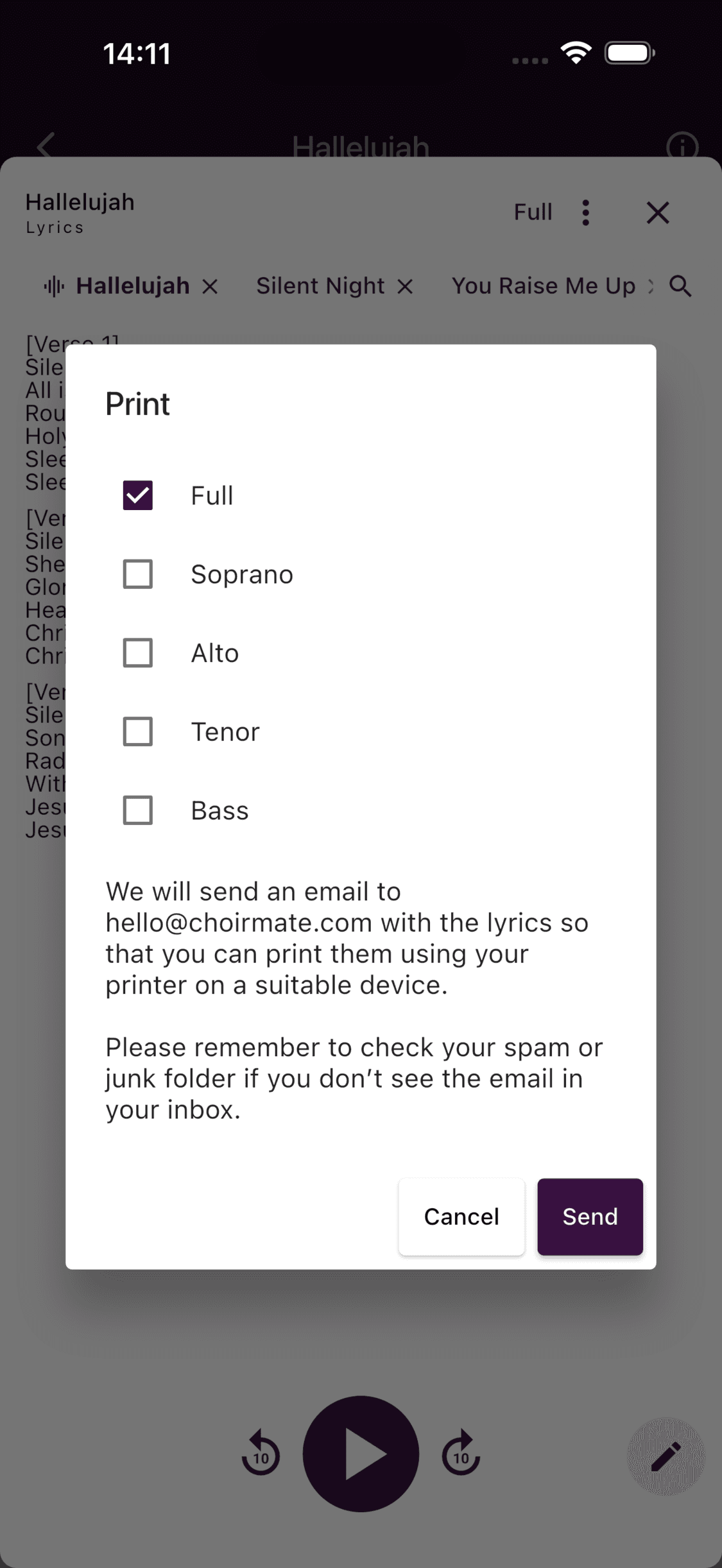
Send a printable copy
Open the lyrics menu and select Print. Choose the available Full, voice-part, or My lyrics versions, then select Send. ChoirMate emails them to the address on your account.
Use lyrics on the web
- 1
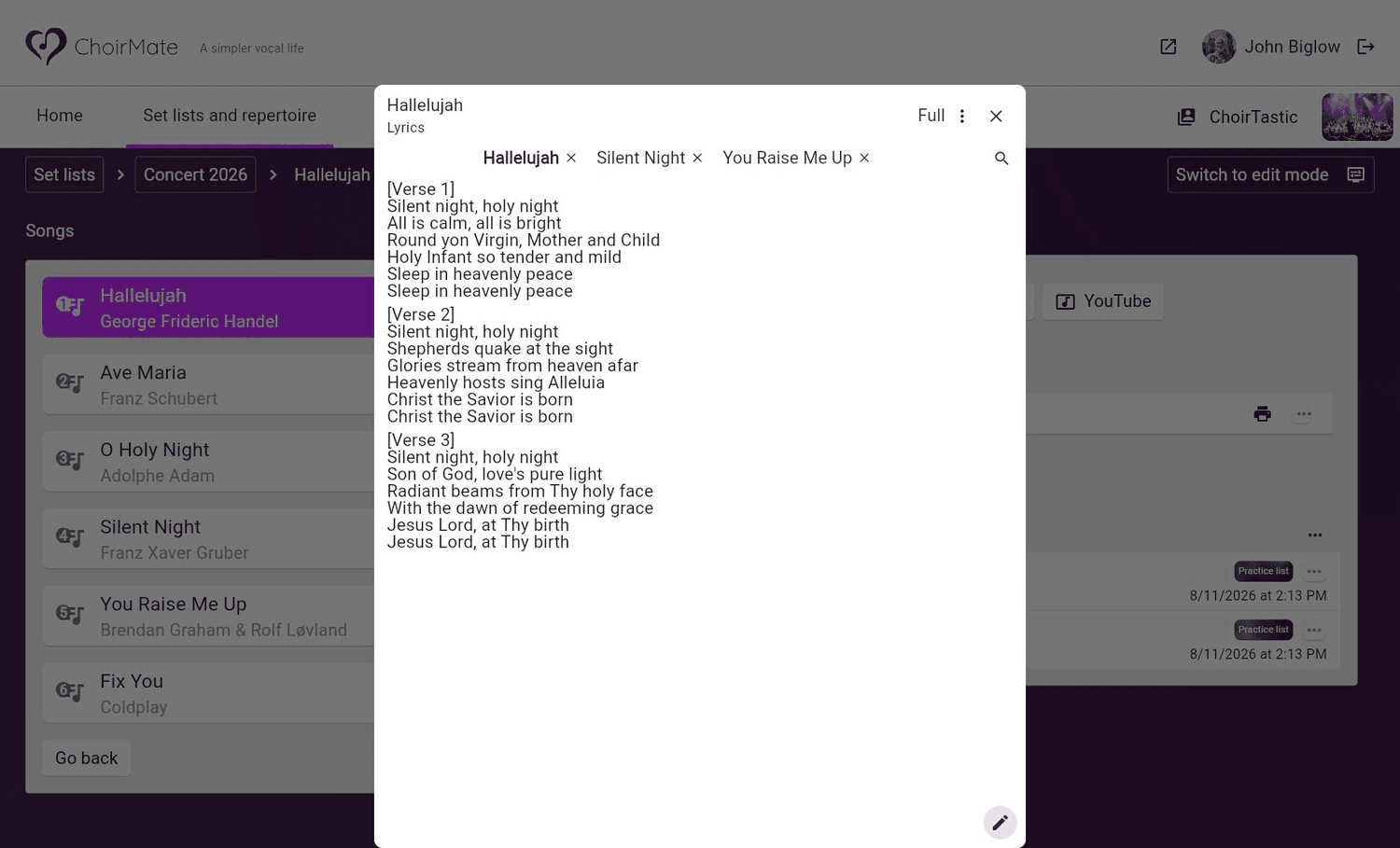
Open the lyrics
Open Set lists and repertoire, choose a set list and song, and select Lyrics.
- 2
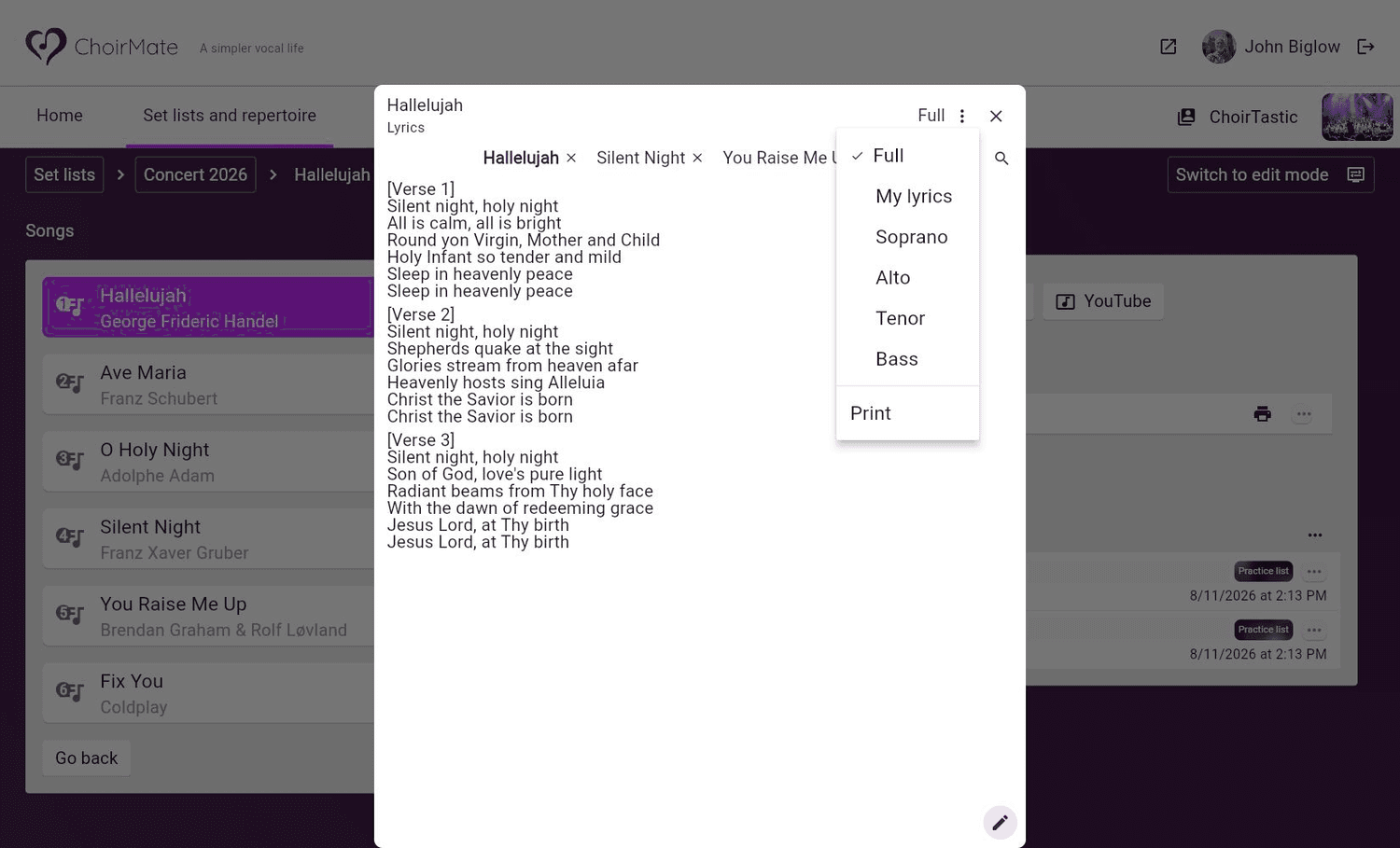
Choose the version
Select the current version at the top of the lyrics window, then choose Full, My lyrics, or a voice part.
- 3
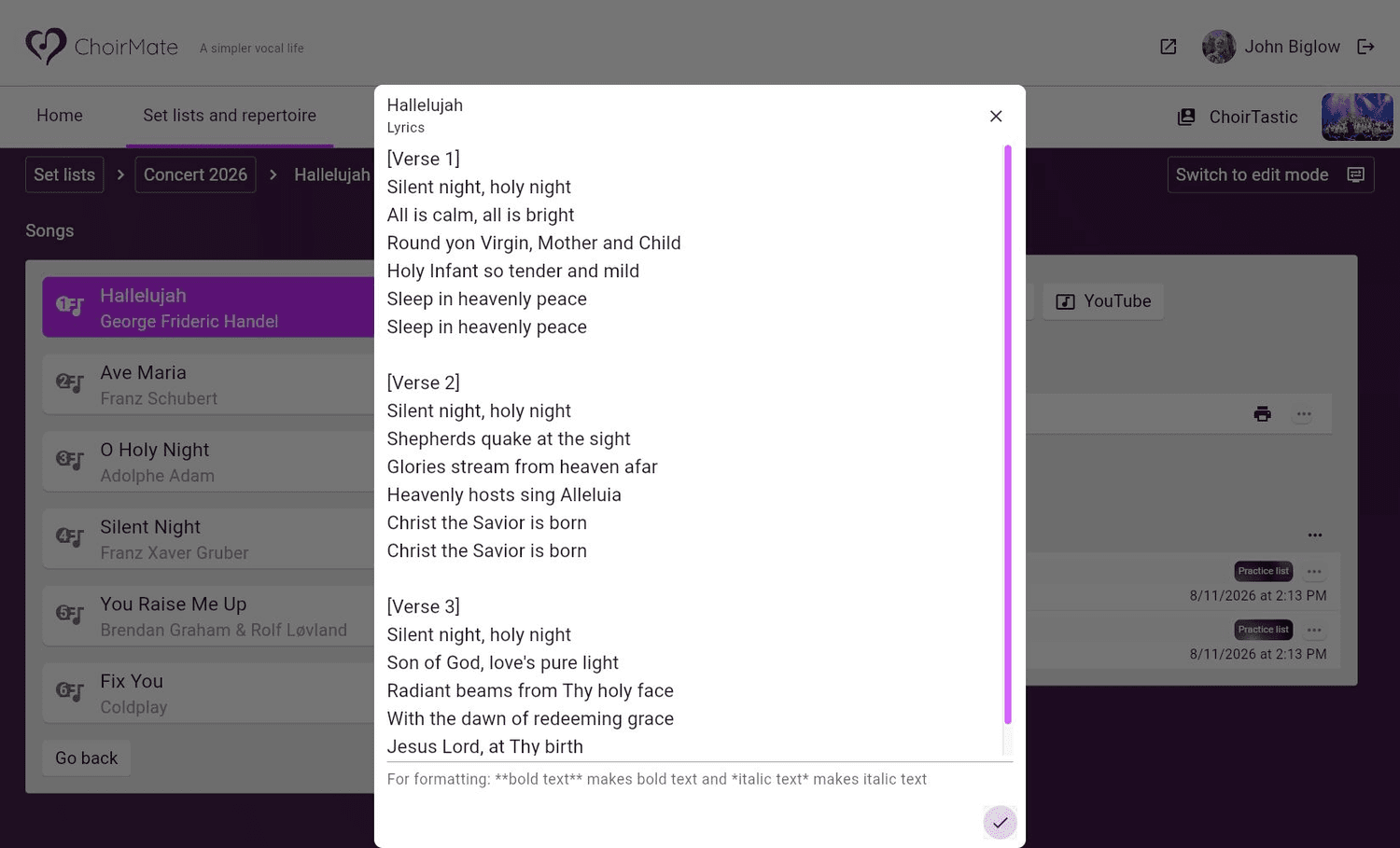
Add or edit text
Select the pencil button, make your changes, and select the checkmark to save.
- 4
Send a printable copy
Choose Print from the lyrics menu, select the versions to include, and select Send.
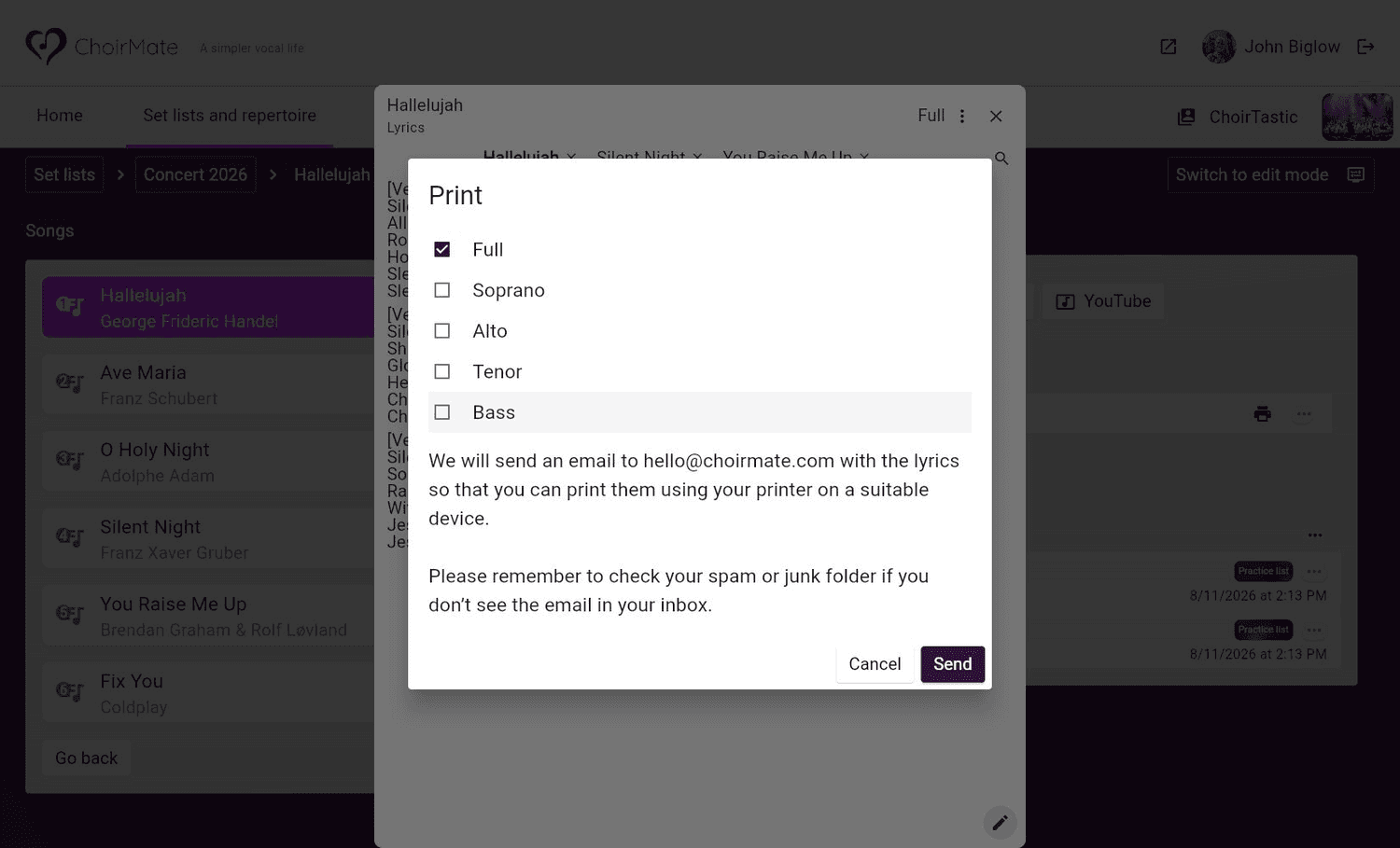
Printing needs an internet connection. ChoirMate sends an email rather than opening a local print window, so check the spam or junk folder if it does not arrive.
Who can change each version
- Owners and admins can edit the full lyrics and any voice part.
- Editors and other members with permission to manage the repertoire can edit lyrics for their own voice part.
- Anyone with lyrics access can create My lyrics. This version is private and does not change the choir's text.
When a voice part does not have its own lyrics yet, ChoirMate can use the full lyrics as a starting template. Edit the copy before saving it for that voice part.
Move between songs and adjust the text
The shortcuts near the top of the lyrics window can show songs from the current set list, upcoming events, or your recent lyric views. Select a shortcut to move to another song, use the X to remove a recent shortcut, or search the repertoire for a song.
On a touch screen, pinch the lyrics to make the text larger or smaller. ChoirMate remembers the text size and the Full, My lyrics, or voice-part choice for each song.
Tip
Add the full lyrics first when most voice parts sing the same words. Create a separate voice-part version only where cues or text differ.