Most songs can use your choir's standard sections. When an arrangement is different, Override song sections lets you choose and name the sections for that song alone.
Premium Feature
Custom voice parts per song is a Premium group feature. See subscription plans for details.
Use an override when you need to leave out an unused section, add a split part such as Tenor 1 and Tenor 2, rename a section for this arrangement, or put the sections in a different order.
By default, choir owners and administrators can manage the repertoire. A choir owner can change the minimum role in the choir settings. Learn more about roles and permissions.
Set the sections for a song
- 1
Open the song
Open Repertoire, choose the set list, and tap the song.
- 2
Open Edit song
Swipe across the action buttons below the song title if needed, then tap the purple pencil button.
- 3
Enable the override
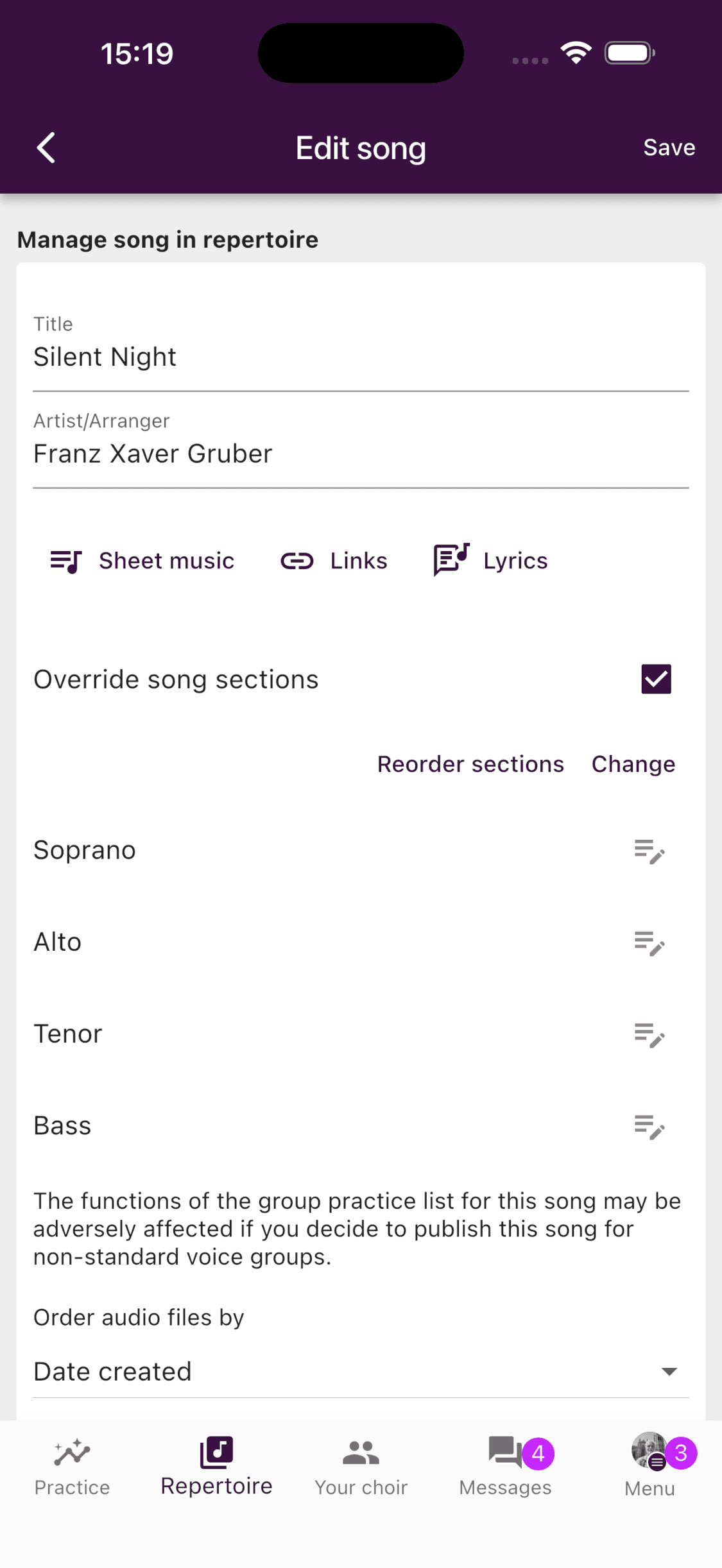
Turn on Override song sections.
- 4
Adjust the sections and save
Tap Change to choose the sections. Use a pencil beside a section to give it a song-specific name, or select Reorder sections to change the order. Tap Save when you are finished.
- 1
Open the song from Repertoire
Sign in at web.choirmate.com, open Set lists and repertoire, choose Repertoire, and select the song in edit mode.
- 2
Enable the override
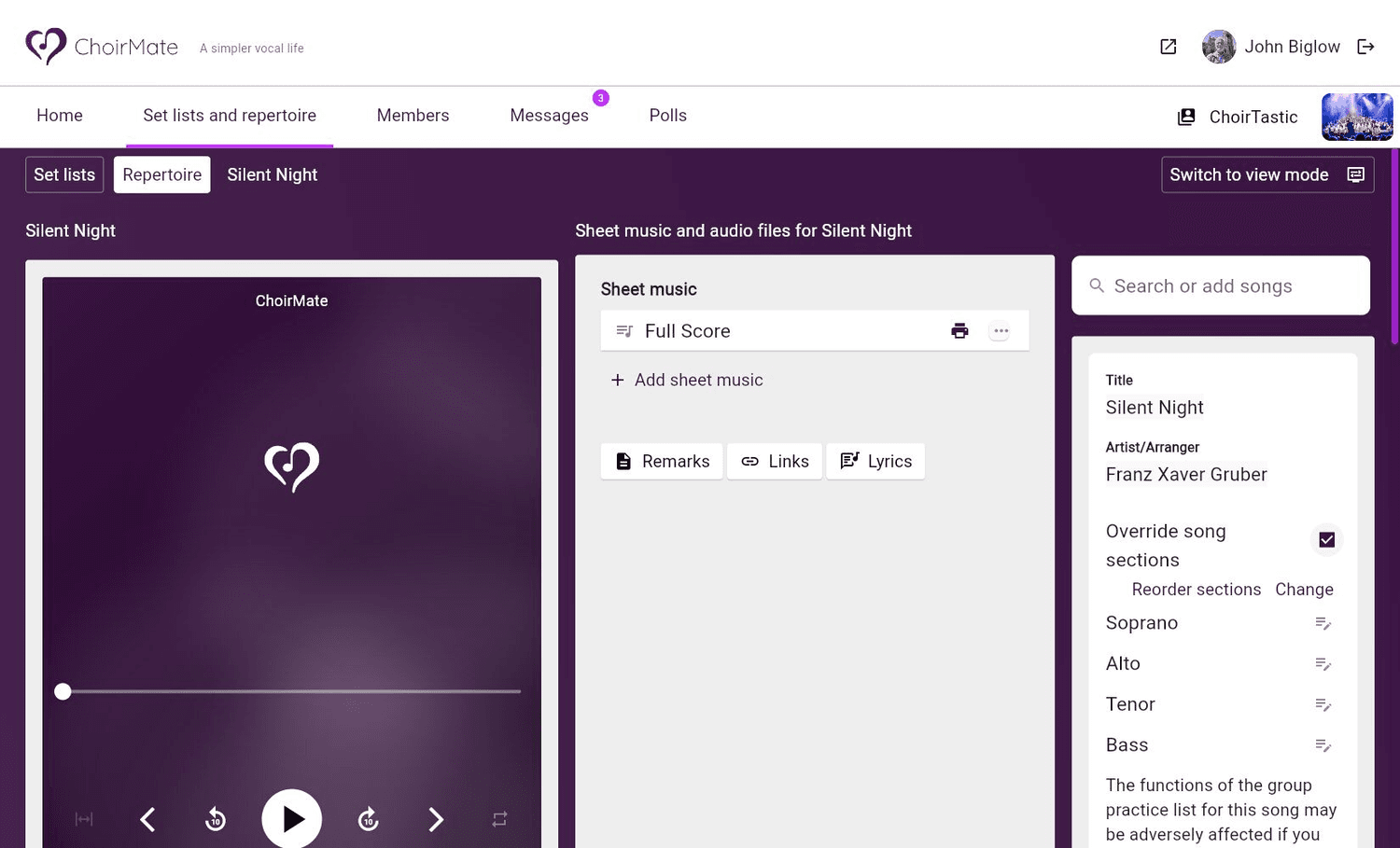
In the song details, turn on Override song sections.
- 3
Adjust the sections
Select Change to choose the sections. Use the pencil beside a section to rename it, or select Reorder sections to change the order. Each change is saved immediately on the web.
What the override changes
The selected sections become the choices used for that song's sheet music, audio files, and section-specific lyrics. Custom names and ordering apply only to this song. The rest of the repertoire continues to use the choir defaults.
Warning
The group practice list can be affected when a song does not include a member's usual section. Check the song's assignments and practice tracks before publishing it.
Return to the choir defaults
Turn off Override song sections. In the app, tap Save. The song will use the choir's standard sections again.