Keep scores and practice tracks together by attaching sheet music to the song in ChoirMate. You can add a full score for everyone, separate parts for individual sections, or both.
Before you upload
- Sheet music must be a PDF file.
- Each file can be up to 30 MB. This is the upload limit, not a recommended target size.
- A song can contain several PDFs.
- The web version accepts a drop of up to five files at once. The file picker adds one file at a time.
Tip
For the best sheet music reading experience, use a digitally generated PDF exported directly from notation or document software instead of a PDF made from scanned paper pages. Keep the file as small as practical. Image-heavy scanned PDFs can be difficult for phones, tablets, and other smaller devices to open, even when the file is below 30 MB. If a scan is the only version available, optimize or compress it before uploading.
By default, choir owners and administrators can manage the repertoire, including sheet music. A choir owner can change the minimum role in the choir settings. Learn more about roles and permissions.
Upload sheet music
- 1
Open the song
Open Repertoire, choose the set list, and tap the song.
- 2
Find Sheet music
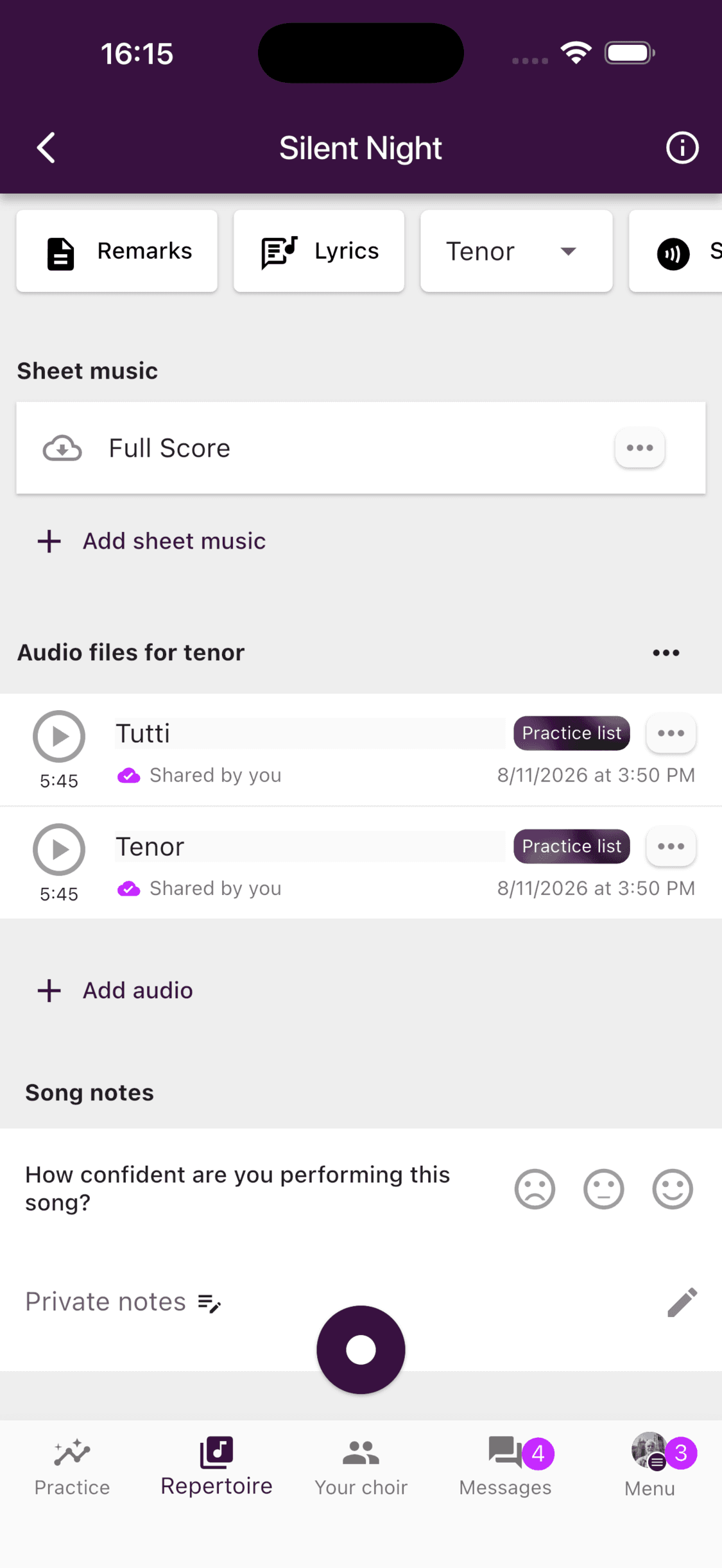
The Sheet music section is near the top of the song. Existing scores are listed here.
- 3
Select Add sheet music
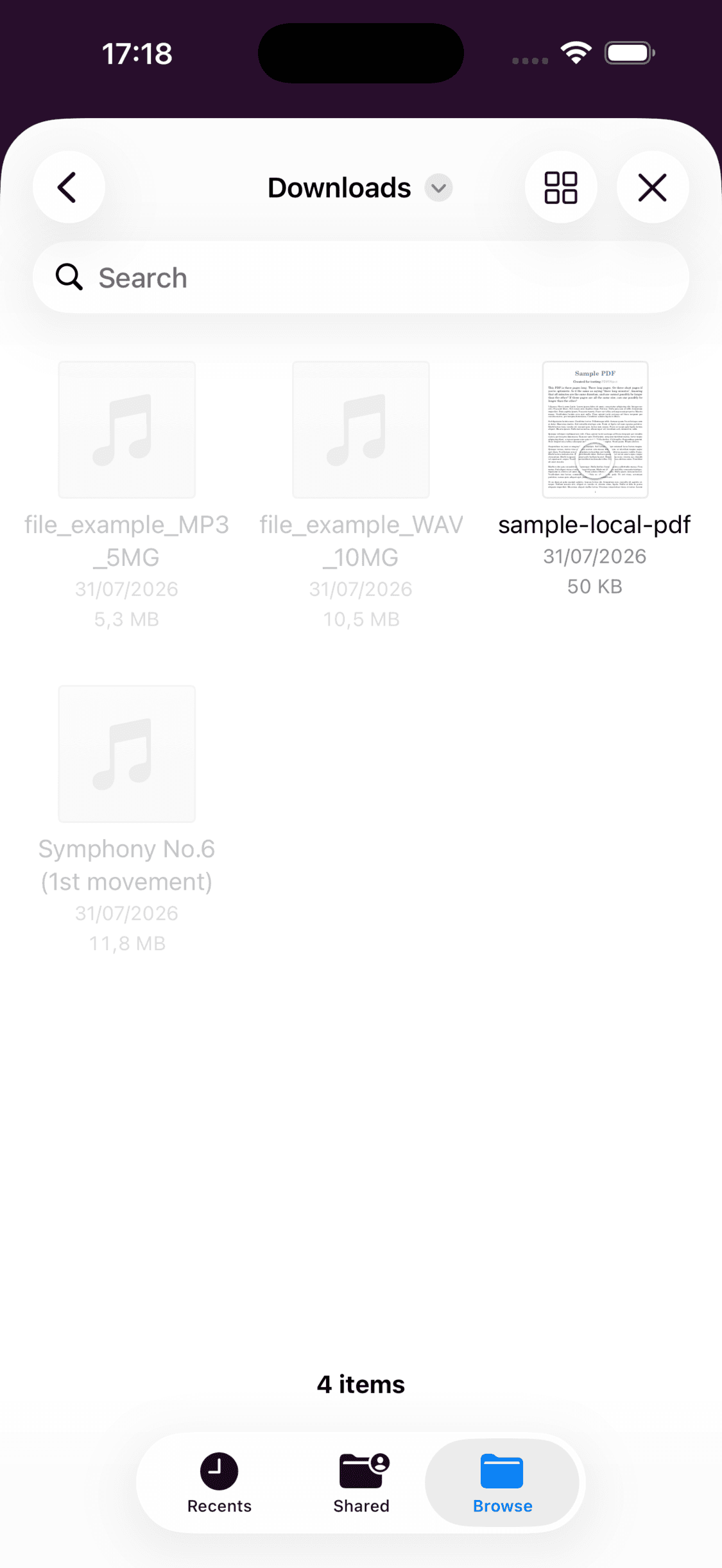
Tap Add sheet music, then choose a PDF from the device's file picker. Other file types are disabled.
- 4
Wait for the upload
Keep ChoirMate open while the file is uploading. The PDF appears in the sheet-music section when it is ready.
- 1
Open the song in edit mode
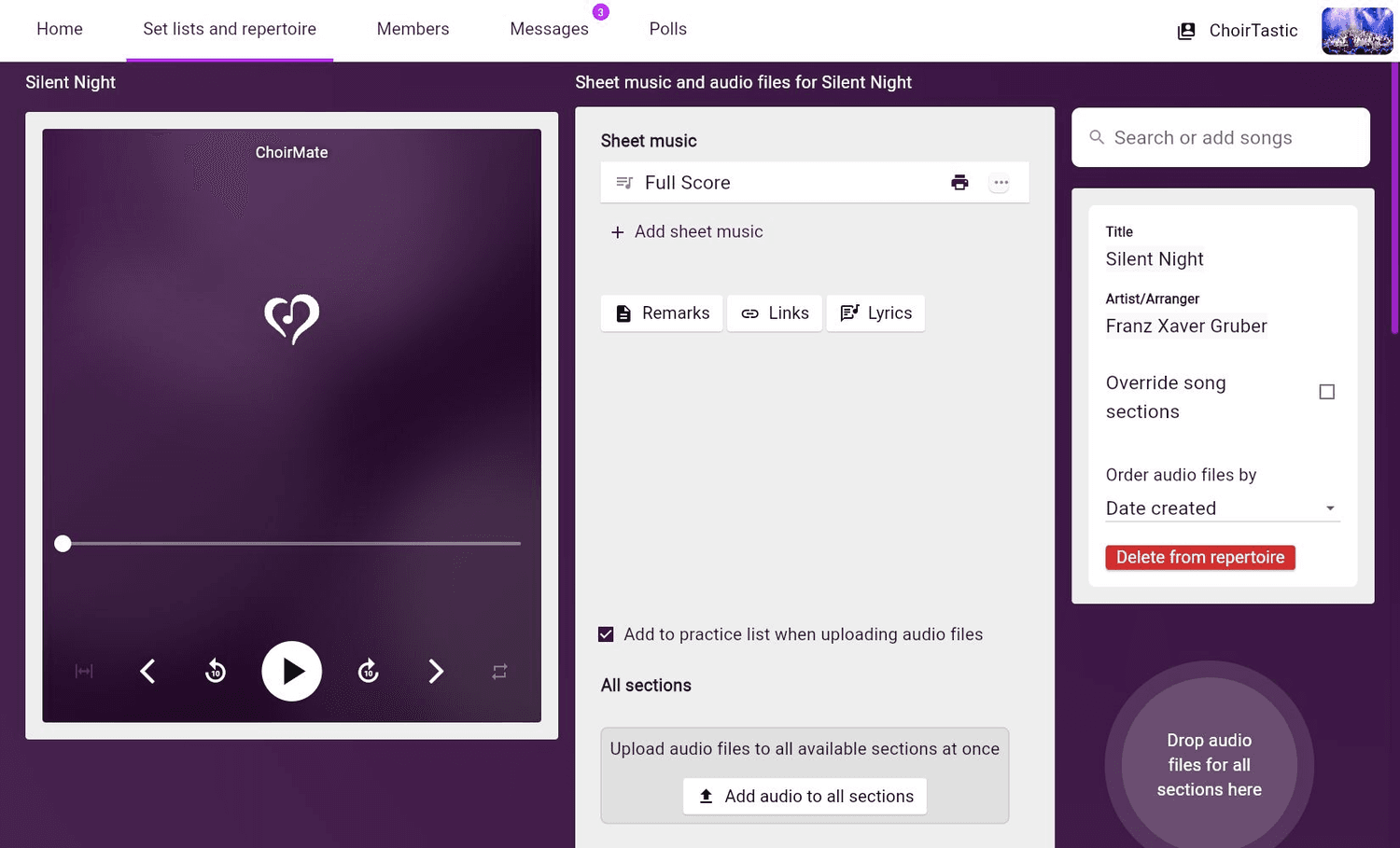
Sign in at web.choirmate.com, open Set lists and repertoire, choose the set list, and select the song. Switch to edit mode if the page offers Switch to edit mode.
- 2
Add the PDF
Select Add sheet music to choose one PDF, or drop up to five PDFs into the sheet-music area. ChoirMate rejects unsupported files and files larger than 30 MB.
- 3
Let the upload finish
Each uploaded PDF appears in the sheet-music section. You can continue working on the song while other uploads finish.
Name the score and choose who sees it
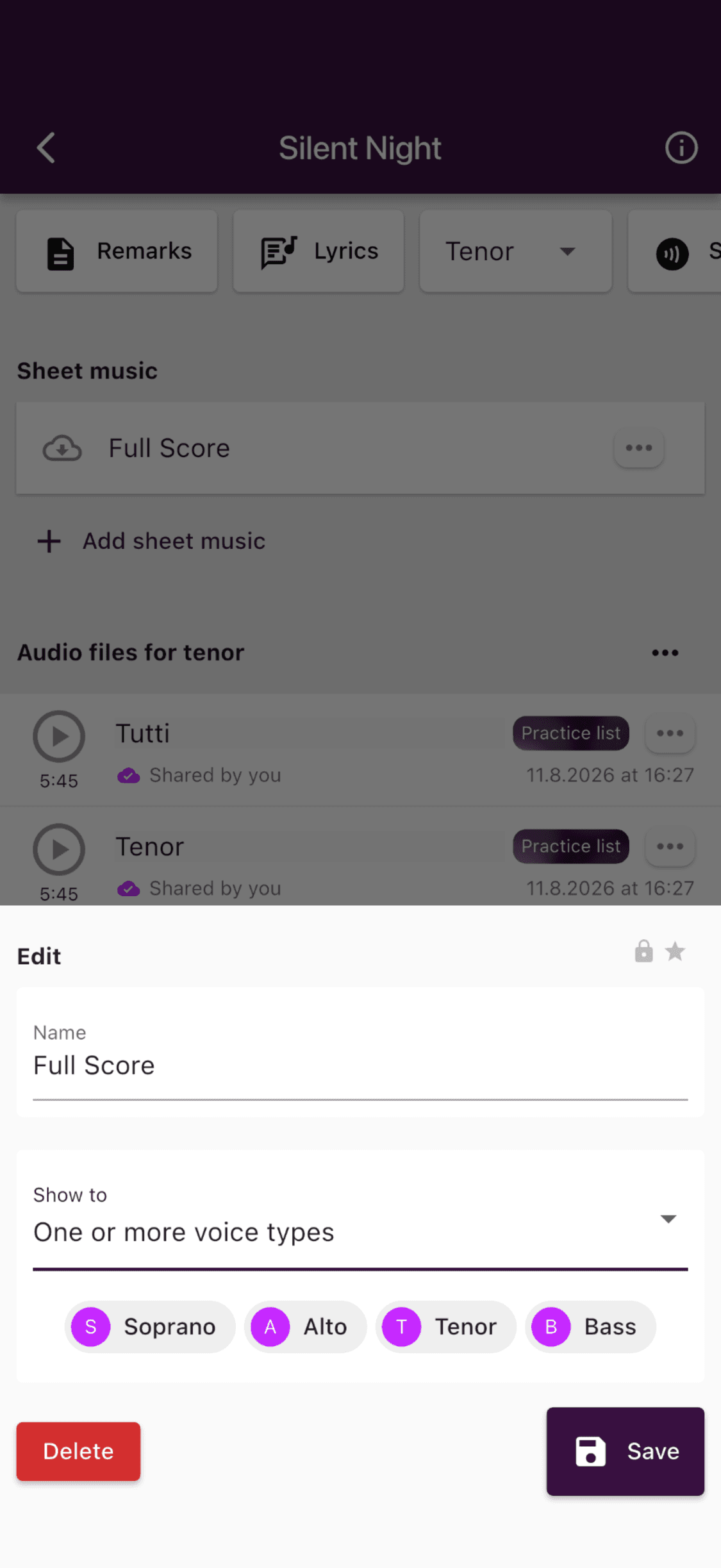
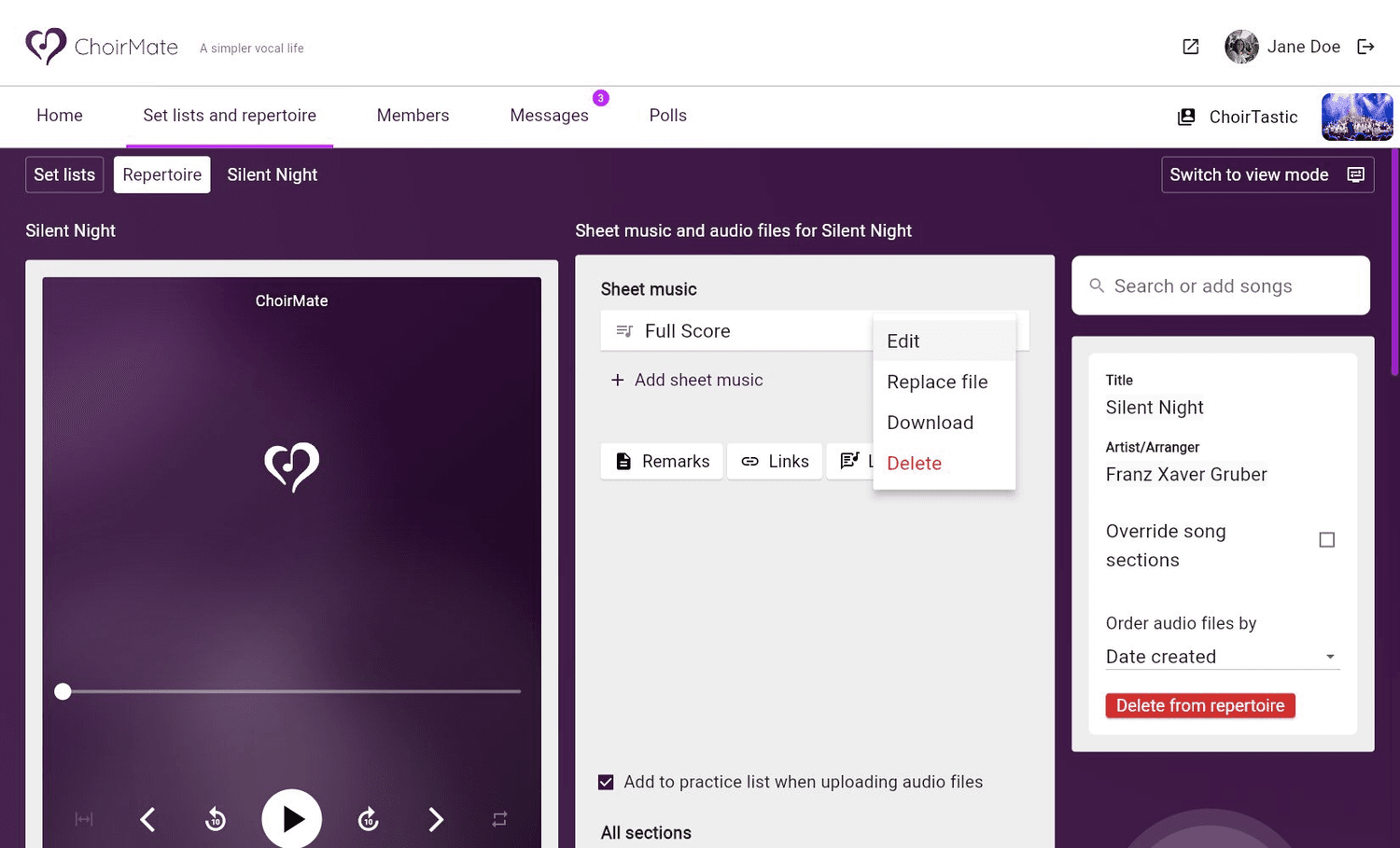
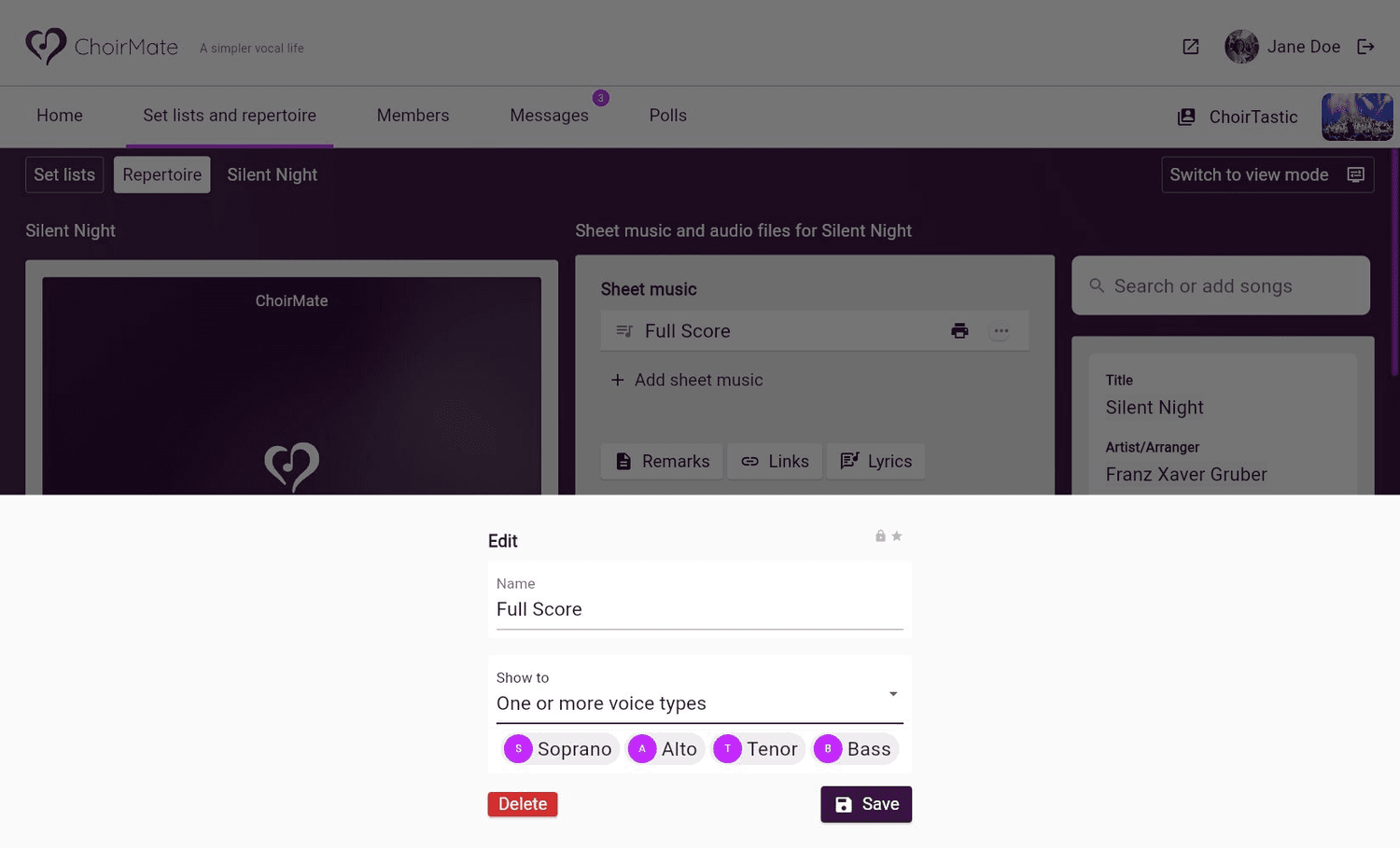
Open the three-dot menu beside a PDF and select Edit. Give the file a clear display name, then choose Everyone or One or more voice types under Show to.
Choose individual voice parts when you have separate soprano, alto, tenor, or bass scores. Leave a full score set to everyone when the whole choir should be able to open it.
Replace an updated score
If a corrected PDF should take the place of an existing score, open its three-dot menu and select Replace file. Choose the new PDF and confirm the replacement.
Tip
Replacing the file keeps the sheet music entry and its annotation layers. Use this instead of removing the old score and uploading a new copy when members should keep their notes.
For help opening, marking up, or printing a score, see the related guides below.