ChoirMate can keep selected audio files and sheet music on your phone or tablet. You can then practise when the connection is unreliable, or when you want to avoid using mobile data.
Offline access is available in the iOS and Android apps when your choir has Standard or Premium, or when you have an eligible individual subscription.
Info
The ChoirMate website needs an internet connection. Prepare and use offline content in the mobile app.
How offline access works
There is no separate offline switch. ChoirMate stores an audio file when you start playing it while online. It stores sheet music when you open it and let it finish loading.
The cloud icon beside a file shows its status:
- A grey cloud with a download arrow means the file is not ready for offline use on this device.
- A purple cloud with a check mark means the file is available offline on this device.
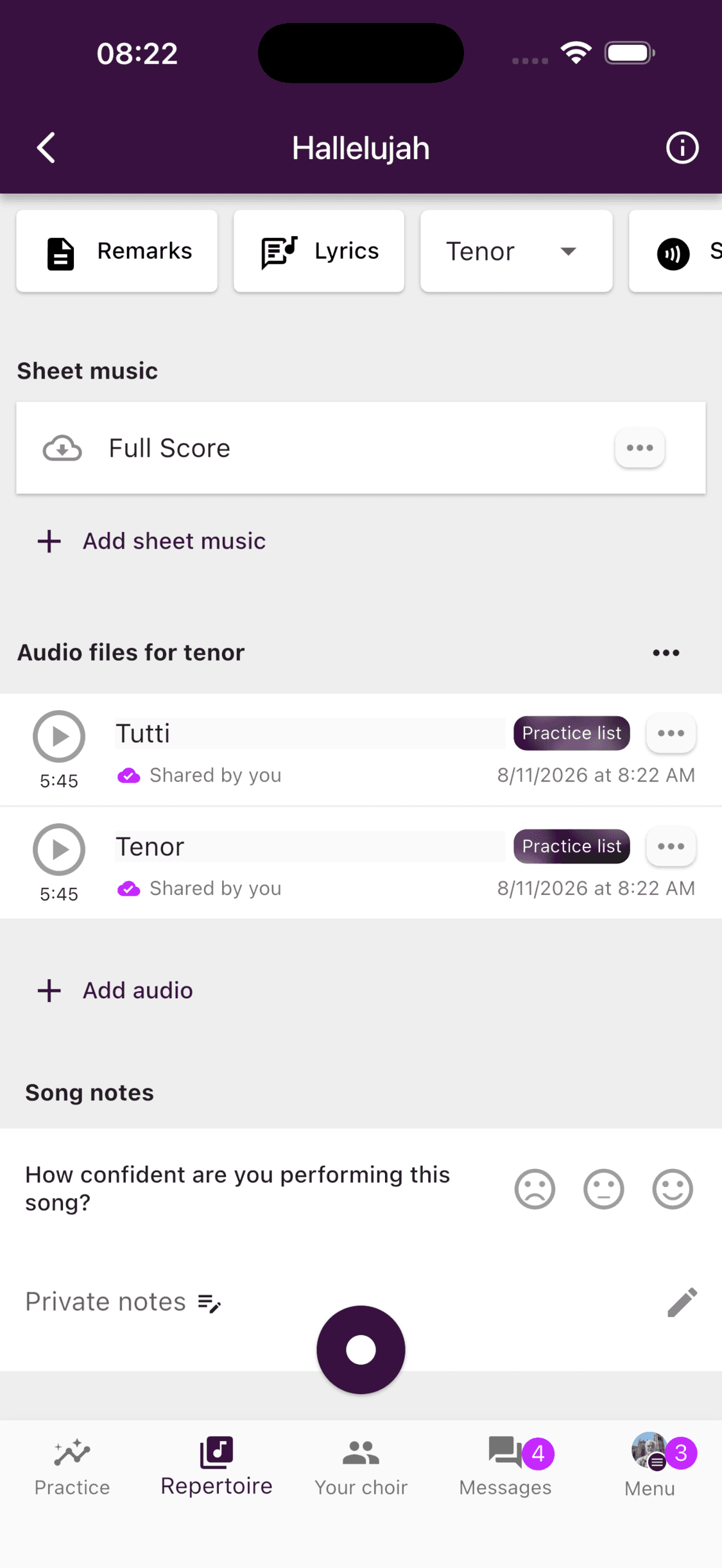
Offline files are stored separately on each device. If you use ChoirMate on both a phone and a tablet, prepare the files on both devices.
Prepare files before you go offline
While you still have a stable connection:
- 1
Open the song
Go to Practice or Repertoire, then open the song you need.
- 2
Prepare the audio
Start each audio file you want to use. Wait until its icon changes to the purple cloud with a check mark.
- 3
Prepare the sheet music
Open each score you need and wait until it has loaded completely. Return to the song and check for the purple cloud with a check mark.
- 4
Check every file
Make sure each required file shows the purple cloud before you lose your connection.
ChoirMate does not download a whole repertoire or practice list automatically. Repeat these steps for every file you want to use offline.
What you can use offline
You can play prepared audio and open prepared sheet music from the mobile app. Content that has not been stored on the device still needs a connection.
You also need internet to receive new songs, events, messages, and document updates, upload files or recordings, and sync changes made by the choir's team.
Warning
Signing out, reinstalling ChoirMate, clearing the app's storage, or changing devices can remove downloaded copies. Prepare the files again while online before your next rehearsal.
Remove a downloaded audio file
Downloaded audio uses storage on your device. To remove a local copy, open the three-dot menu beside the audio file and choose Remove offline access.
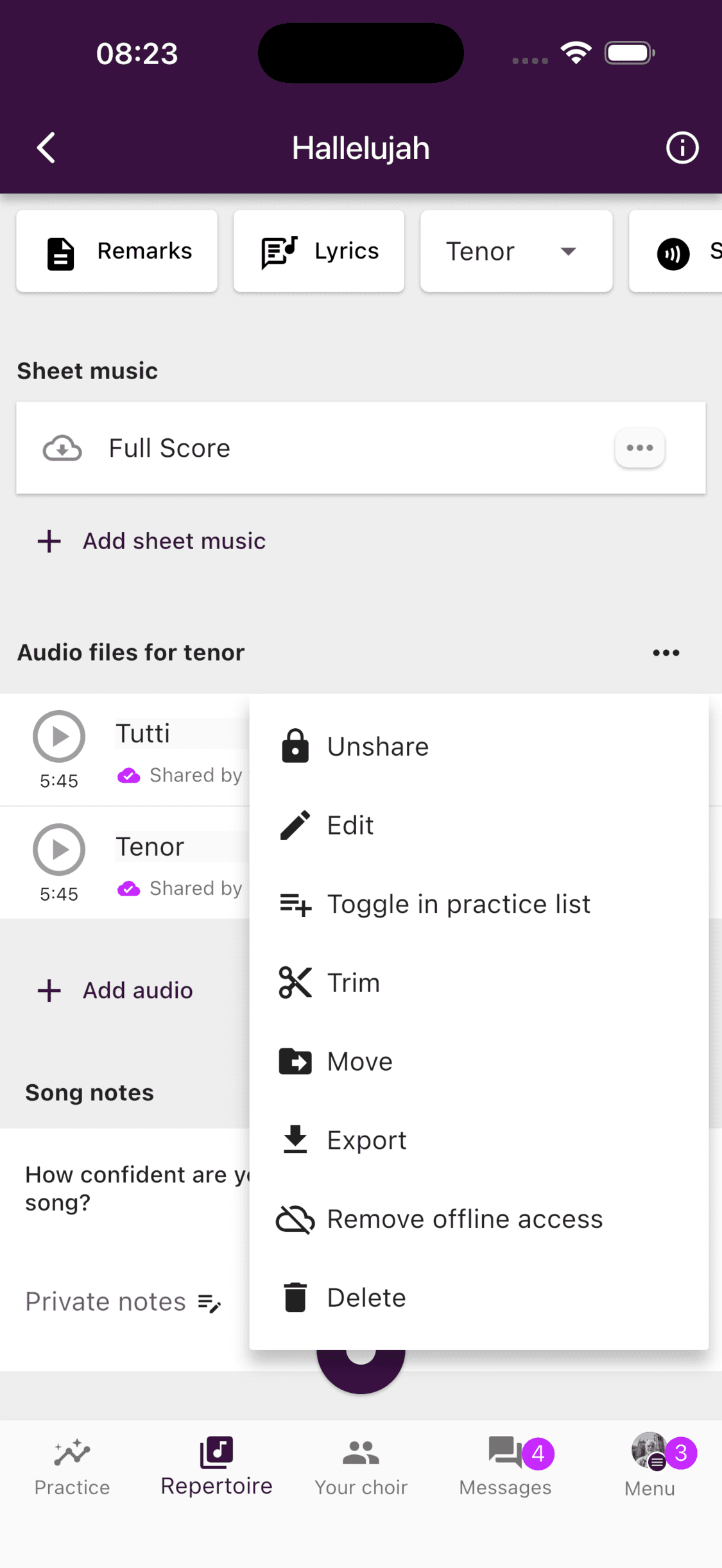
The audio file remains in ChoirMate for everyone. Only the downloaded copy on this device is removed. Start the audio again while online if you want to restore offline access later.
If a file is not available offline
Check that:
- you are using the iOS or Android app
- your choir has Standard or Premium, or you have eligible individual access
- the file shows the purple cloud before you disconnect
- the device has enough free storage
- ChoirMate can load the file over Wi-Fi or mobile data
If the icon does not change, restart ChoirMate while online and try the file again. If the problem continues, contact support with your device type, app version, and the name of the audio or sheet music file.